Relatório de salários
Para cada mecânico no período — dívida no início, valores creditados, valores pagos e saldo no final; no topo, o valor atual devido aos mecânicos. Os créditos são calculados por linha de serviço em ordens concluídas e fechadas, incluindo a porcentagem do consultor técnico da ordem; os pagamentos vêm do histórico de pagamentos do mecânico.
Onde encontrar
Caminho: Salários.
O item fica visível se o módulo “Salários” estiver Ativado na conta e a função tiver a Permissão “Acesso ao submódulo” em “Contabilidade > Salários” (consulte Funções e Permissões).
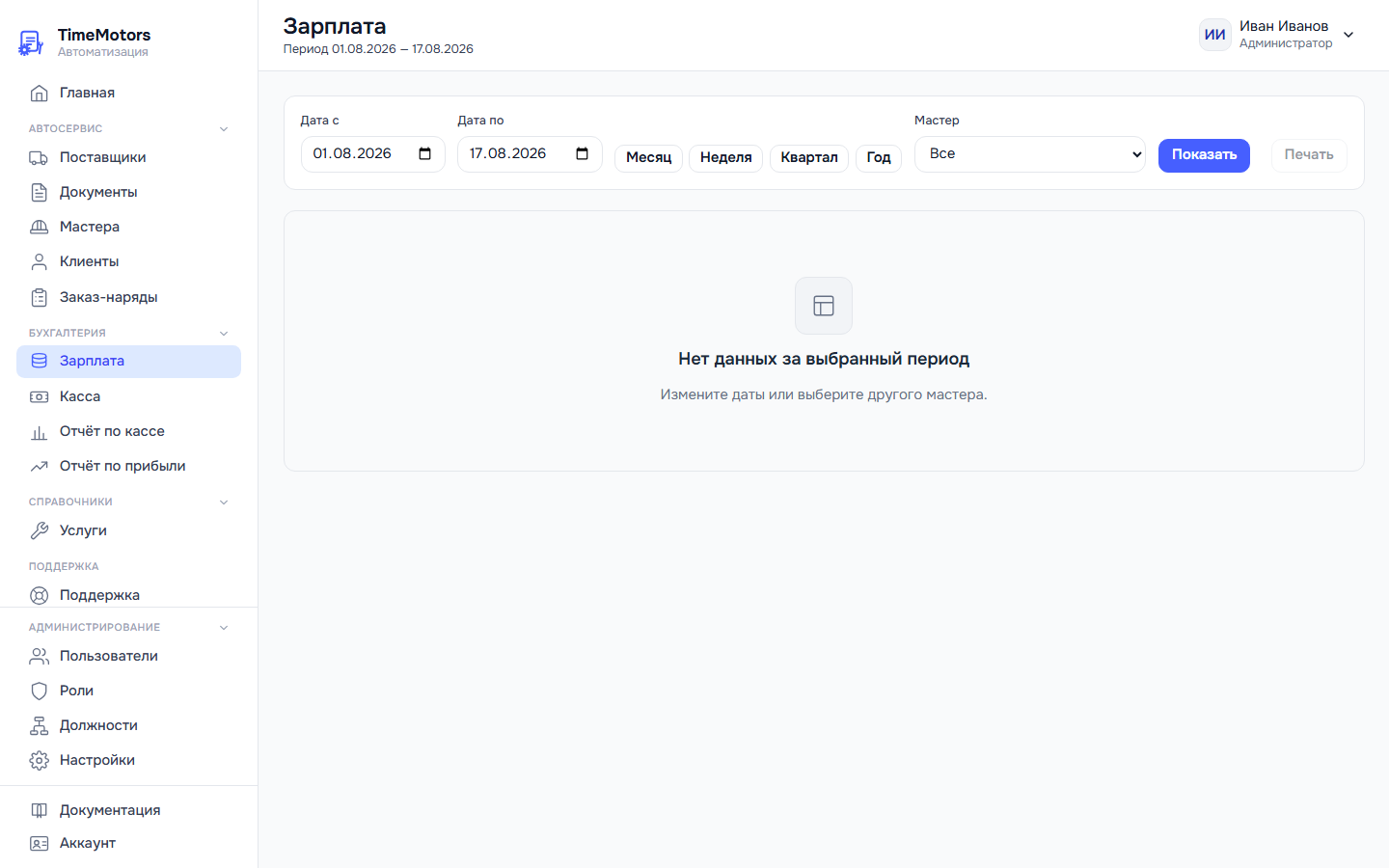
Filtros
- “Data de” e “Data até” — limites do período.
- Botões de período: “Mês” (do dia 1 do mês atual até Hoje), “Semana” (últimos 7 Dias), “Trimestre” (do dia 1 do mês retrasado até Hoje), “Ano” (últimos 12 Meses). Para os botões, “Hoje” corresponde à data do seu Computador ou Telefone. Não existe o botão “mês anterior” — as datas são inseridas manualmente.
- “Mecânico” — “Todos” ou um único mecânico.
- Abaixo do filtro — a linha “Dívida calculada a partir de 01.10.2026 · Alterar” (ou “a partir do início do trabalho”), consulte abaixo.
- “Gerar” — criar o Relatório. Ao abrir a Página, o mês atual é gerado imediatamente; depois de alterar as datas ou o mecânico, você precisa pressionar “Gerar” — o Relatório não é atualizado automaticamente. A predefinição de período selecionada ficarealçada; se as datas forem personalizadas, “Período personalizado” aparece ao lado das predefinições, e o próprio período é indicado no subtítulo (“Período 01.11.2026 — 11.11.2026”).
- “Imprimir” — PDF “Relatório de salários dos mecânicos” com detalhamento por ordens. O horário de “Gerado” nele corresponde ao horário de Moscou. Não há exportação para Excel. A impressão não funciona nos aplicativos Android e iOS — abra o Relatório no navegador.
O que mostra
No topo há quatro cartões: “Devido aos mecânicos agora” e “Adiantamento aos mecânicos” — para Hoje, sem dependência das datas selecionadas; “Creditado no período” e “Pago no período”.
Para cada mecânico — uma linha:
| Coluna | Conteúdo |
|---|---|
| Mecânico | Nome completo |
| Dívida no início | Quanto ainda era devido ao mecânico antes de “Data de”: valores creditados anteriormente menos pagamentos anteriores — a partir da data de registro da dívida. Se “Data de” estiver vazia ou for anterior à data de registro da dívida — 0 |
| Creditado | Valor devido ao mecânico no período; abaixo, em caracteres menores, “incl. reception”, se o mecânico tiver recebido a porcentagem do consultor técnico |
| Pago | Valor dos pagamentos no mesmo período |
| Saldo no final | Dívida no início + Creditado − Pago. Positivo (âmbar) — devido ao mecânico; negativo é exibido sem o sinal de menos, com a indicação “Adiantamento” — pagamento excedente, que será compensado no período seguinte |
| (botões) | “Pagamentos” (se houver pagamentos no período) e “Pagar” |
Na parte inferior há a linha “Total” de todas as colunas. O Relatório também inclui o mecânico que não tiver nenhum movimento no período, mas mantiver uma dívida de meses anteriores. Em telas de 1280 px ou mais, os cartões dos mecânicos substituem a tabela: em destaque, “Saldo no final” e, abaixo, “Dívida no início / Creditado / Pago”.
Detalhamento do mecânico
Ao clicar na linha do mecânico, os detalhes são expandidos. Acima deles há “Ordens: N · Serviços: M · Hoje: …” (saldo do mecânico para Hoje). Existem dois tipos de linha: execução (nome do serviço) e “Recepção da ordem” — porcentagem para o mecânico que atua como consultor técnico:
| Coluna | Conteúdo |
|---|---|
| Ordem | Número da ordem |
| Data | Data de execução da ordem |
| Serviço | Nome do serviço ou “Recepção da ordem” |
| Veículo | Veículo da ordem |
| Tarifa | Tarifa do mecânico com os valores; na recepção — “serviços 10 % de 25 000 ₽ + peças 5 % de 8 000 ₽” |
| Valor | Valor creditado ao mecânico na linha |
O administrador da conta vê um “X” no fim da linha, “Remover do cálculo” (consulte abaixo).
Como os créditos são calculados
- São selecionadas as ordens da conta com o Status “Concluída” ou “Fechada”.
- Entre elas — as ordens cuja data de execução esteja no período. A data de execução é o momento em que a ordem foi pela primeira vez transferida para “Concluída” (pelo botão “Concluir” ou pela etapa de Status) ou diretamente para “Fechada**. Repetir “Salvar”, “Fechar ordem” ou “Expandir ordem” não altera essa data. Se a ordem for retornada para “Em execução” ou outro Status, o crédito desaparecerá e, após uma nova conclusão, a data será atualizada. A data de criação da ordem e as datas dos Documentos não são relevantes.
- O dia é de Moscou: uma ordem executada entre 00:00 e 03:00, horário de Moscou, pertence ao respectivo dia.
- nessas ordens são selecionadas as linhas de serviço com mecânico atribuído, exceto as removidas do cálculo, e a porcentagem do consultor técnico. O valor é “Creditado”.
Porcentagem do consultor técnico — é um pagamento adicional separado para o mecânico que recebeu o veículo. É definido na Ficha do mecânico; para saber como configurar e calcular, consulte a seção Consultor técnico: porcentagem da ordem abaixo.
O crédito é calculado em tempo real: alterar a tarifa em uma ordem concluída muda imediatamente os valores, inclusive de meses anteriores. Para fixar a ordem, feche-a (“Fechar ordem”).
Os pagamentos entram em “Pago” pela “Data do pagamento” —veja Pagamentos aos mecânicos.
Caso especial: se o mecânico tiver somente pagamentos, sem créditos, no período, ele ainda será exibido no Relatório com um valor creditado de 0.
Dívida e adiantamento: exemplo mensal
O saldo não é zerado no final do mês — ele passa para a “Dívida no início” do mês seguinte. Vamos usar um mecânico:
| Período | Dívida no início | Creditado | Pago | Saldo no final |
|---|---|---|---|---|
| Agosto | 0 | 50 000 ₽ | 30 000 ₽ | 20 000 ₽ |
| Setembro | 20 000 ₽ | 40 000 ₽ | 10 000 ₽ | 50 000 ₽ |
| Outubro | 50 000 ₽ | 30 000 ₽ | 90 000 ₽ | 10 000 ₽, “Adiantamento” |
| Novembro | 10 000 ₽, “Adiantamento” | 40 000 ₽ | 20 000 ₽ | 10 000 ₽ |
- Em setembro, você deve 50 000 ₽ ao mecânico: 20 000 ₽ de agosto e 40 000 ₽ de setembro menos 10 000 ₽ já pagos.
- Em outubro, foram pagos 90 000 ₽ com um saldo de 80 000 ₽ (50 000 + 30 000). Os 10 000 ₽ excedentes são um adiantamento: o saldo é exibido sem o sinal de menos, com a indicação “Adiantamento”.
- Em novembro, o adiantamento será compensado automaticamente: foram creditados 40 000 ₽, dos quais 10 000 ₽ compensam o adiantamento, restando 10 000 ₽ a pagar ao mecânico após os 20 000 ₽ já entregues.
Para saber a dívida em qualquer dia, sem calcular os períodos, consulte o cartão “Devido aos mecânicos agora” — ele considera todos os créditos e pagamentos até Hoje e não depende das datas do filtro. Os adiantamentos de todos os mecânicos estão no cartão “Adiantamento aos mecânicos”: o adiantamento de um mecânico não reduz a dívida de outro.
Se “Data de” for deixada vazia, o Relatório começará “do início”: a “Dívida no início” será 0 e o “Saldo no final” será a mesma dívida de Hoje, se “Data até” for Hoje.
A dívida é calculada a partir da data
Se antes você pagava os mecânicos fora do programa e não registrava todos os pagamentos, a dívida dos meses anteriores ficará incorreta. Por isso, a dívida é calculada a partir da data indicada na linha abaixo do filtro: “Dívida calculada a partir de 01.10.2026”. Créditos e pagamentos anteriores a ela não entram na “Dívida no início”, no “Saldo no final”, nos cartões “Devido aos mecânicos agora” e “Adiantamento aos mecânicos”, no saldo do mecânico nem no valor da janela “Pagar”. Para as contas que operavam antes de 14.10.2026, a data foi definida como 01.10.2026; para as novas — “a partir do início do trabalho”.
Para alterar, pressione “Alterar”: na janela “Considerar a dívida a partir da data”, selecione “Data” ou marque “A partir do início do trabalho” (considerar todos os Dados) e pressione “Salvar” — o Relatório será recalculado. A data deve ser a partir de 01.01.2000 e não pode ser posterior a um ano a partir de Hoje. Somente quem tem acesso a “Salários” pode alterar; a mudança fica visível no Registro de Alterações.
Se o período começar antes dessa data, “Creditado” e “Pago” mostram todo o período, enquanto “Saldo no final” inclui somente o que ocorreu a partir da data. Nesse caso, há a seguinte explicação abaixo da tabela: “A dívida é calculada a partir de … — créditos e pagamentos anteriores a esta data não entram no saldo”.
Consultor técnico: porcentagem da ordem
Often, consultant technicians are paid a percentage of the order, not only for the work performed. In the Report, this is a separate “Order reception” line. Configuration — step by step:
- Open Workshop → Mechanics → mechanic's card, the “Main” tab, the “Order reception” section (Mechanic's card). The section is visible only to those who have the “Access to submodule” Permission under “Accounting > Salaries”.
- Enter “% of order work” and/or “% of order parts” — from 0 to 100, with decimals allowed (for example, 7.5). An empty field equals 0. Press “Save”.
- In the order, in the “Client and vehicle” panel (the “Edit” button), select this mechanic in the “Consultant technician” field.
- Transfer the order to “Completed”. In the mechanic's salary, the “Order reception” line will appear with the amount.
How it is calculated. Reception = order work amount × % of work + order parts amount × % of parts. The amounts are taken from the order after discounts, not from the lines before the discount. Cents are rounded separately for work and parts.
Example: work of 25 000 ₽, parts of 8 000 ₽, with the consultant technician receiving 10% of work and 5% of parts: 2 500 ₽ + 400 ₽ = 2 900 ₽. In the breakdown, the “Tariff” column will show “work 10 % of 25 000 ₽ + parts 5 % of 8 000 ₽”, and in the mechanic's line under “Credited” — in smaller characters — “incl. reception 2 900 ₽”.
Mechanic, consultant technician, and executor. If the same person also performed work on the order, they will have two lines: “Work” at their tariff and “Order reception” at the percentage. They do not replace one another.
When percentages are recorded. At the moment the order is first transferred to “Completed”, the consultant technician and their percentages for that day are recorded in the order. Therefore:
- If the percentages in the mechanic's card are changed later, completed orders will not be recalculated — the new percentages will apply to orders completed after the change.
- If the wrong consultant technician was selected in a completed (not closed) order and another one was chosen, the credit will be transferred to the new consultant technician using their percentages. If the consultant technician is removed — the reception will disappear.
- In a closed order, the consultant technician and reception can no longer be changed.
- If both percentages for the consultant technician are zero, reception will not be credited.
Reception is also included in the Profit report — under “Mechanic expenses”, so the profit for workshops with a consultant technician percentage will be slightly lower.
What happens to old orders
Orders completed before the feature was introduced do not receive the consultant technician percentage: they have no recorded percentages, and nothing is credited retroactively. The debt for such months remains unchanged, and paid periods do not “jump”. If you need to pay the consultant technician an additional amount for a past period, make a regular payment with a comment.
Quick payment
The “Pay” button in the mechanic's row opens the “Payment: Full name” window:
- “Amount” — the entire “Ending balance” is prefilled if it is greater than zero; below the field is a breakdown of “Previous period debt · For the period · Paid”. If you enter an amount greater than the balance, the window will warn “Greater than balance: … will be recorded as an advance” — you can still save it.
- “Payment date” — today.
- “Period from” and “Period to” — from the Report filter.
Review and press “Save” — the payment is recorded and the Report will be updated.
The “Payments” button opens the “Payments: Full name” window with a list of payments made to this mechanic during the period. An incorrect payment can be “Delete” there — if you have the “Delete payments” Permission under “Accounting > Salaries” (the account administrator always has it). Without the Permission, the window states: “You do not have permission to delete payments. Contact the account administrator.”
Remove from calculation
If an order should not be included in the salary (for example, the work was redone free of charge), the account administrator presses the “X” “Remove from calculation” in the breakdown and confirms.
- All lines of this mechanic in this order are removed — both work and reception, not just one service.
- The work order does not change — the lines stop being included in the Report for any period, including in “Beginning debt” and “Today”.
- This does not affect the Profit report.
Removed lines are collected at the bottom of the page in the “Excluded from calculation · N” block (N is the number of lines). For each one: order number, mechanic (or “All mechanics” if the entire order was removed from the calculation), date and time of exclusion, who excluded it, and reason (if specified). The “Restore to calculation” button restores the line, and the Report is recalculated immediately. While there are no exclusions, the block is not displayed.
Only the account administrator can view this block and remove or restore lines. Employees cannot see the “X” “Remove from calculation” or the block.
Common mistakes
- “Credited 0, but they worked.” Check in the following order: the order has the Status “Completed” or “Closed”; in the work line, the “Mechanic” column has exactly this mechanic selected (the consultant technician receives only the reception percentage, if it is defined in the mechanic's card); the mechanic's tariff is filled in; “Save” was pressed after the assignment; the order's completion date falls within the period; “Generate” was pressed after changing the dates.
- “There is a payment, but it is not in the Report.” The payment is accounted for by “Payment date”, not by the “Period from/to” fields. A payment for September made in October will be included in October.
- “The order disappeared from the salary.” It was returned from “Completed” to another Status, or the administrator removed it from the calculation — check the “Excluded from calculation” block.
- “The mechanic resigned, but is still in the Report.” If they were assigned to completed orders, they will remain in the Report: their work must be paid.
Frequently asked questions
- “What does ‘Advance’ in the balance mean?” The mechanic was paid more than was credited. The balance is displayed without the minus sign and will be offset against future credits. The “Advance to mechanics” card shows the sum of advances for all mechanics.
- “Why is ‘Owed to mechanics now’ not equal to ‘Ending balance’?” The card is calculated for today using the entire history, while the ending balance is calculated for the last day of the selected period. They will match if “Date to” is today.
- “Nothing was credited to the consultant technician.” Check in the following order: the mechanic has at least one percentage in the “Order reception” section; they are selected in the order's “Consultant technician” field; the order was completed after the feature was introduced; the mechanic and order were not removed from the calculation.
- “I changed the consultant technician's percentage, but the Report shows the old figures.” This is intentional: the percentage is recorded when the order is completed. The new percentage applies to orders completed after the change.
- “I cannot see the ‘Order reception’ section in the mechanic's card.” It is visible only with the “Access to submodule” Permission under “Accounting > Salaries”. Without the Permission, the percentages can neither be viewed nor changed.
- “The mechanic is in the Report, although there is nothing for the period.” They still have a debt or advance from previous months — this is visible in “Beginning debt”.
- “Huge beginning debt” or “the resigned mechanic has a permanent advance”. Previously, not all payments were recorded. Press “Edit” below the filter and set the date from which all payments are available in the program — see The debt is calculated from the date.