UPD and invoices
The Accounting & taxes Module issues a UPD (universal transfer document) or invoice for a completed order, and an advance invoice for a prepayment made by a legal entity. Labor, parts, customer, and VAT are taken from the order, while company details are taken from the “Contractor” Item card. All issued documents are collected in the register.
Where to find it
- Issue: order → “Documents” tab → “Accounting & taxes” block.
- Register: Accounting → Accounting & taxes → “Sales and purchases” tab, “Documents” section.
An Account administrator and an Employee with the “Maintain accounting records” Permission can issue and cancel documents; those with the “View” Permission can only view and download them.
Which document to issue
| Document | When | Customer |
|---|---|---|
| UPD, status 1 | You are a VAT payer on the order completion date. It replaces the completion certificate and invoice | Any client |
| UPD, status 2 | You are not subject to VAT (OSNO, PSN, AUSN without VAT). Transfer document without VAT | Any client |
| Invoice | Instead of a UPD, if the customer requests a separate invoice for the completion certificate. VAT payers only | Legal entity or individual entrepreneur |
| Advance invoice | A VAT payer received payment before the order was completed | Legal entity or individual entrepreneur |
An individual does not need an invoice—a receipt is sufficient.
Issue a UPD or invoice
- Move the order to “Completed”: VAT is calculated as of the order completion date, which is also printed in the UPD as the “Shipment date”.
- Open the order’s “Documents” tab. In the “Accounting & taxes” block, a line will indicate what will be issued: “VAT 22% on the completion date — a UPD with status 1 will be issued.” or “No VAT — a UPD with status 2 will be issued.”
- Click “Issue UPD” or “Invoice” (unsaved order edits will be saved automatically). In the window:
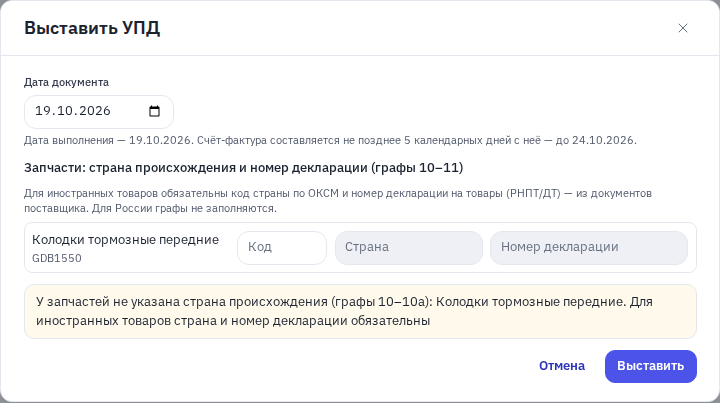
- “Document date” — the preparation date, by default Today, not earlier than the completion date. By law, an invoice must be prepared no later than 5 calendar days after completion—the program will warn you if it is later, but it will still allow you to issue the document.
- Parts: country of origin and declaration number (fields 10–11). For foreign parts, use the OKSM country code (for example, 156 — China, 276 — Germany, 392 — Japan), its name, and the declaration number for the goods from the UPD or the Supplier’s delivery note. For Russian parts (643), these fields are not completed. Empty fields trigger a warning, not a restriction.
- Click “Issue”.
- The document will appear as a line “UPD No. 15 dated … · status 1” with the Amount and VAT. Download it using the PDF or Word button.
Only one valid UPD or invoice can be issued for an order. The customer’s parts are not included in the document.
Why the button is inactive. The reasons are listed below it: the order is not Completed; the order has no Client; there are no Labor or Parts; the Contractor’s company details are not completed; you are a VAT payer, but the Rate has not been specified. Correct these issues—the button will become active.

Advance invoice
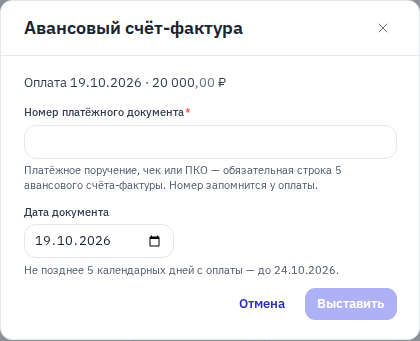
If you are a VAT payer and a legal entity or individual entrepreneur paid for the order before it was completed, the “Advance payments” section will appear in the block: “Payment dd.mm.yyyy · Amount” and the Lead time “Advance invoice — by …” (5 days from payment). Click “Issue advance invoice” and specify the payment document number—payment order, receipt, or cash receipt: the document cannot be issued without it (this is mandatory field 5, and without it the customer will not be allowed to claim the deduction). The number will be remembered for the payment and included in the UPD as well. VAT is calculated at the calculated Rate of 22/122 (5/105, 7/107). The issued advance document is subsequently referenced in the UPD for this order. This section is available when “Order payments” are enabled.
Numbers
UPDs and invoices are numbered in a single series: 1, 2, 3… starting from the beginning of each year. Advance documents have their own series: A-1, A-2… A number is assigned when the document is issued and is not reused after cancellation, so gaps in the numbering are normal.
A document cannot be changed after issuance
UPDs and invoices are saved exactly as issued: editing the company details, Client Item card, or order does not change them, and the PDF and Word versions are always identical. If the order is changed after issuance, the block will display the message “Order changed after UPD No. … — cancel it and issue a new one.”
Cancel and correct an error
If you find an error, click “Cancel” next to the document (in the order or in the register via ⋮ → “Cancel…”), specify the Reason, and confirm. The document will remain in the register as struck through with the note “Cancelled”; its number will no longer be issued. You must notify the customer yourself. Then correct the order or company details and issue the document again—it will receive a new number. A document cannot be deleted. The order History shows who issued and cancelled the document and when.
Document register
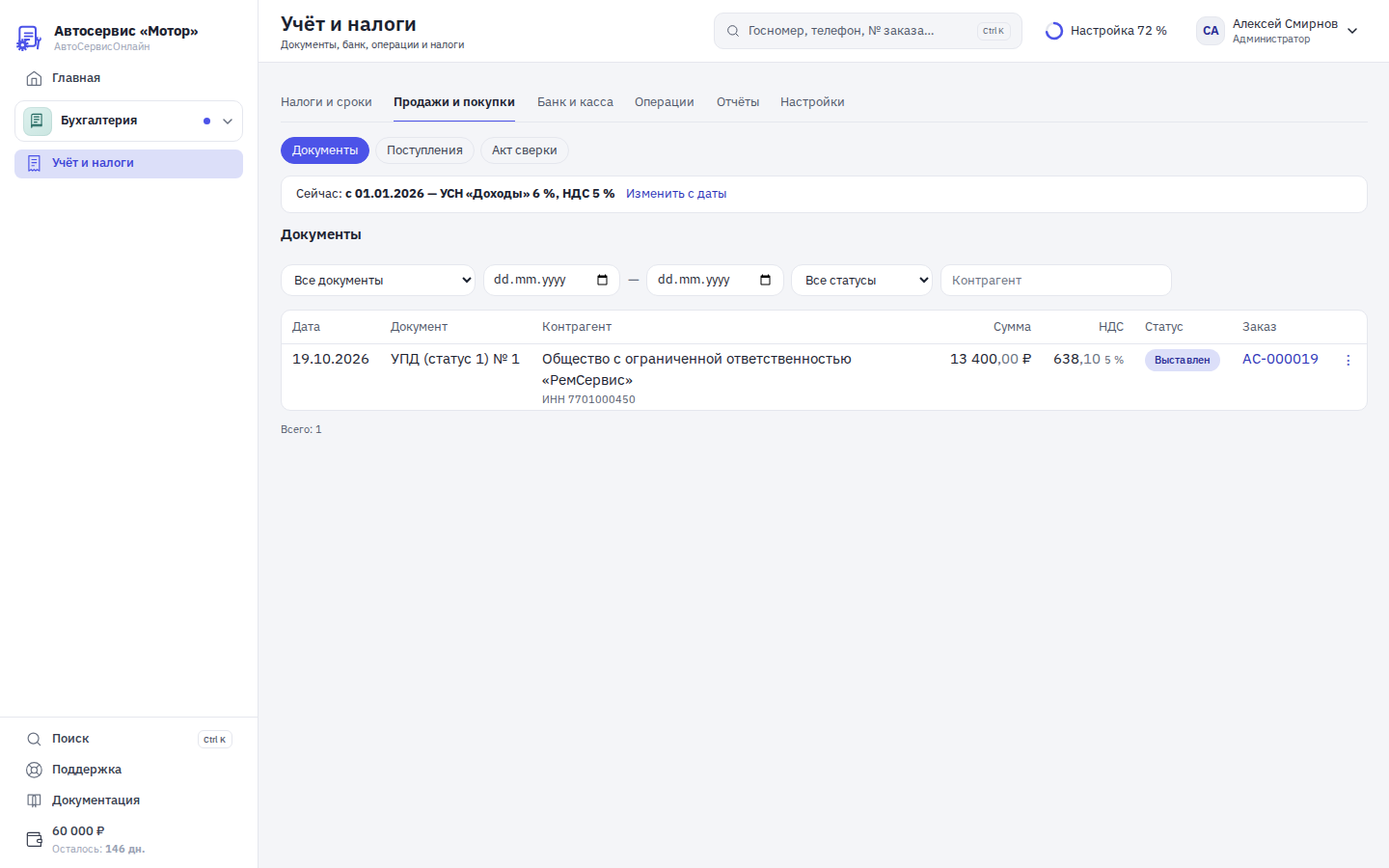
The “Sales and purchases” tab, “Documents” section: Date, Document and Number, counterparty with INN, Amount, VAT, Status, and a link to the order. New items are displayed first, with 50 per Page. Filters: Document type (UPDs, invoices, advance invoices, reconciliation certificates), “Date from” and “Date to”, Status (issued, cancelled), and counterparty. Clicking a row downloads the PDF; the row menu contains “Download PDF”, “Download Word”, and “Cancel…”. UPDs and invoices can only be issued from an order, while a reconciliation certificate is issued in the “Reconciliation certificate” Section.
Forms
- Invoice — in the form prescribed by Government Resolution No. 1137, as amended on 23.01.2026 No. 26: field 5b “to advance invoices,” and for an individual entrepreneur, OGRNIP and the date it was assigned.
- UPD — the recommended form of the Federal Tax Service (letter MMV-20-3/96@) with status 1 or 2.
- A4 landscape Sheet, PDF and Word. VAT is calculated for each Row and added together: the Prices in the order already include VAT.
Not yet available
Sales and purchase books, VAT returns, corrected and adjustment invoices, and document submission via EDO are marked “Coming soon.”