Import and export of clients
Transfer your database from your previous program or spreadsheet: clients and their vehicles are imported from Excel or CSV in just a few minutes. Before importing, the program shows how many clients are new, how many are already in the database, and where the errors are. You can undo an import within 7 days. You can export your database to Excel at any time.
The Import and export module is a core module: it is included in the core Tariff, there is no separate fee, and it cannot be disabled. The account administrator and employees with the Submodule access permission in the “Auto Service > Import and export” group, as well as access to clients, can import and export data. By default, no role has this permission. If the Import from file… item or the Import and export section is missing, the administrator can grant the employee the permission in Settings → Roles; without access to clients, neither the wizard nor import reports will open.
Where to find it
- Clients → Clients → More ▾ — Import from file…, Export to Excel, Download template, Import history.
- Settings → Import and export — the same buttons (Upload file, Download template, Export to Excel) and the upload log.
- The “Upload clients from a file” step in the Getting started card on the Home page takes you directly to the wizard; see Getting started.
What file is required
- Formats: .xlsx (Excel) and .csv (UTF-8 or Windows-1251; the delimiter, whether a semicolon, comma, or tab, is detected automatically). The old .xls format is not supported: open it in Excel and save it as “Excel Workbook (.xlsx)”.
- No more than 5 MB, 5,000 rows, and 40 columns. If the database is larger, upload it in several files.
- One row represents one client. If a client has several vehicles, repeat their row with the same phone number and a different vehicle: one client with two vehicles will be imported.
- You need the Full name (or Last name and First name) or Organization. All other fields are optional: client type, INN, KPP, Primary State Registration Number (OGRN), phone and additional phone, source, note, and, for a vehicle, make, model, year, license plate, VIN, and mileage. A vehicle is created if its make and model are specified.
Download template provides an Excel file with a ready-made header, two grey sample rows, and a “Reference” sheet containing allowed values. Sample rows are not imported, and you do not have to delete them. However, it is easier to export the table from your previous program as is: the columns will be matched by their names.
Wizard: File · Columns · Check · Done
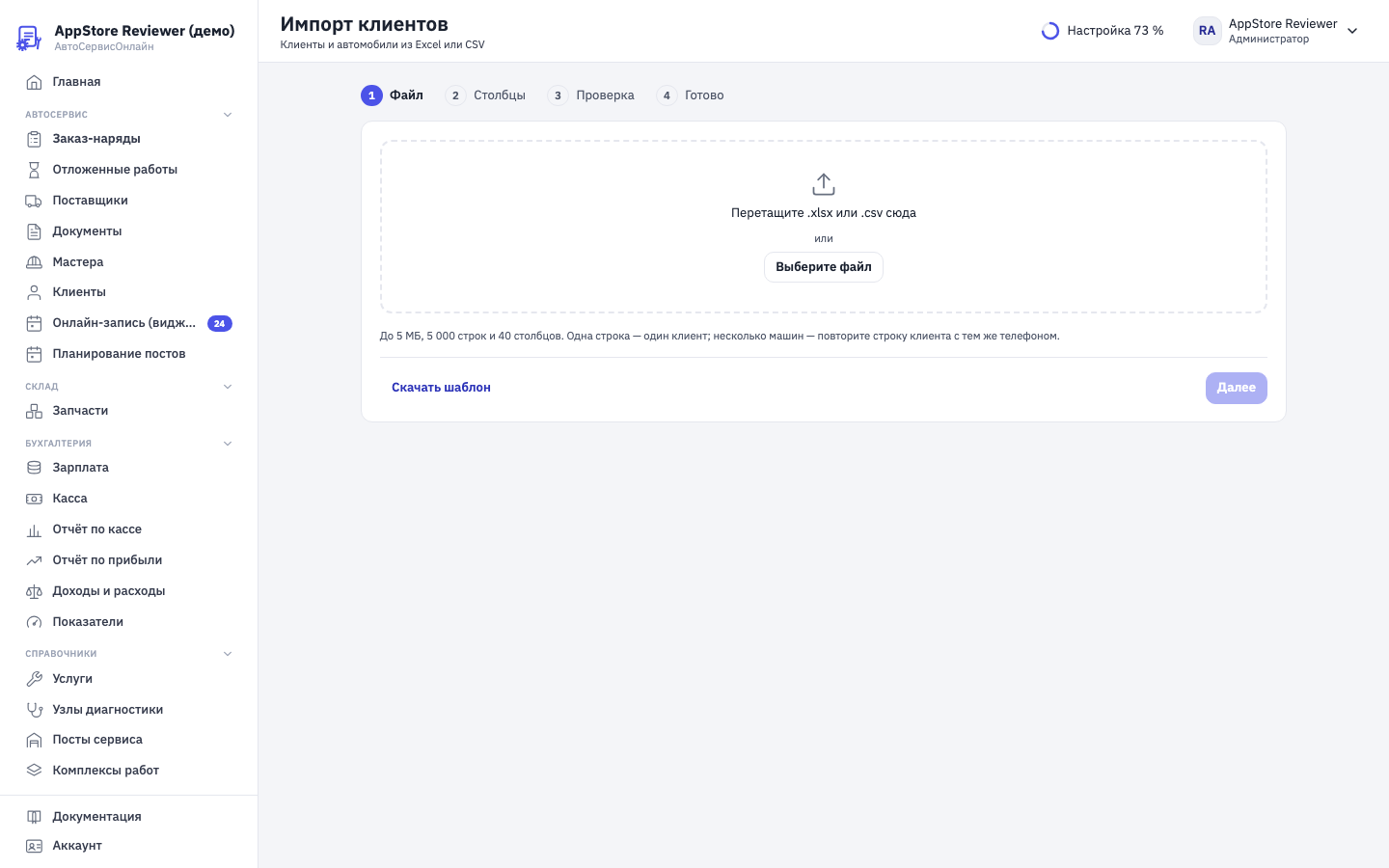
- File. Drag the file onto the screen or click Select file. If the workbook contains several sheets, select the Sheet; for files without a header, uncheck “First row — headers”.
- Columns. The program has automatically matched the file columns to fields by header and content (phone numbers, VIN). Review the “File column · Examples · Field” table, select the field manually if necessary, and leave any unwanted column set to “Do not import”. A field can only be assigned to one column. The Next button becomes available once the Full name, Last name and First name, or Organization fields have been matched.
- Check. Nothing is written to the database yet. A summary is displayed at the top: Rows in file · New clients · Already in the database · New vehicles · Errors · Warnings. Below is a list of issues with the All / Errors / Warnings filter. The Download report button saves them to Excel so that you can correct the file. Rows with errors are not imported; all other rows will be imported. Click Upload N clients.
- Done. Totals: Clients created · Updated · Vehicles created · Skipped · Errors. From here, you can Download report, go to Clients, Undo import, or Upload another file.
The file is not stored anywhere: it is sent again between steps and is not retained on the server after the upload.
If the client already exists
A client is considered a duplicate if their phone number matches that of a client in the database (for sole proprietors and organizations without a phone number, INN is used). The “If the client already exists” block on the “Check” step determines what to do:
- Skip (default) — the client in the database remains unchanged;
- Fill in empty fields — empty client fields are populated from the file, and new vehicles are added. Such updates are not rolled back when the import is undone;
- Create a new one — a second client with the same phone number will be created.
A vehicle is not created again if its VIN or license plate already exists in your database, regardless of the selected option.
Makes missing from the reference data
Make names are checked against the reference data, and Russian names (“Toyota”, “Mercedes”) are recognized automatically. Unknown makes are grouped in the “Makes missing from the reference data” block: for each one, select Create a new one, This make… (select one from the reference data if the file contains a typo), or Do not import vehicles with this make. The make reference data is shared by all services, so create only actual makes.
“This file has already been imported”
If the same file was imported within the last 30 days, a warning with the date will appear on the “Check” step. You can upload it again by checking “Upload anyway”; the selected duplicate-handling strategy will apply.
Undo the import
Selected the wrong file? Within 7 days, go to Settings → Import and export, find the relevant import, and click ⋮ → Undo import (or click the Undo import button on the “Done” step). Clients and vehicles created by that import will be deleted. Clients who already have orders will remain: the system will show how many were deleted and how many remain. The import can be undone by the person who uploaded it and by the account administrator.
Log and reports
Settings → Import and export stores the history: date, file, uploader, result, and status (“Completed” or “Cancelled”). ⋮ → Report downloads an Excel file containing the results and problematic rows. The report is stored for 30 days, after which only the result remains.
Export to Excel
Clients → More ▾ → Export to Excel exports clients using the list’s current filter and search: if you selected the “Sole proprietor” type or found “Ivanov”, only those clients will be included in the file. The button in Settings → Import and export exports the entire database. The file has the same structure as the template (plus “Source” and “Added”), with one row per vehicle, so it can be imported again. Passport and bank details and discounts are not exported. The limit is 20,000 rows per export and 10 exports per hour.
FAQ
- “Wrong file format”. .xlsx and .csv are supported. For .xls and .ods, save the file as .xlsx; do not rename the extension manually: the file content is checked.
- “Column could not be identified”. Select the field manually on the “Columns” step or rename the header in the file, for example to “Phone”, “License plate”, or “VIN”.
- “File is larger than 5 MB” or “too many rows”. Split the file into parts of up to 5,000 rows.
- “Phone number was not recognized — not imported”. This is a warning: the client will be imported without this number. A number is accepted in any format (+7, 8, parentheses, spaces), but it must contain no letters and must have 7–15 digits. Multiple numbers in one cell separated by “,”, “;” or “/” are recognized: the first becomes the primary number and the second the additional number.
- “E-mail was not recognized — not imported”. This is also a warning: the client will be imported without an address. The address must look like
buh@example.ru, with no spaces or multiple addresses in one cell. - “Not everything was imported”. Open Download report: the reason is indicated for each row.