Service Bay Scheduling Calendar
Visual schedule: horizontally — time, vertically — service bays (lifts, pits, bays). You can book a client at a time with one click on an available slot, place a reservation without an order, or block a service bay for lunch or repairs. Everything can be rearranged with the mouse.
The Service Bay Planning module. It is included in the standard set of modules for new accounts; if the section is missing, the module is disabled for the account: enable it in Account → Tariff (or ask the account administrator). An employee needs the “Submodule access” permission in the “Auto Service > Service Bay Planning” group; the Work order tab also requires the “Access to orders and client order history” permission.
Where to find it
Path: Auto Service → Service Bay Planning. The page is called “Planning”.
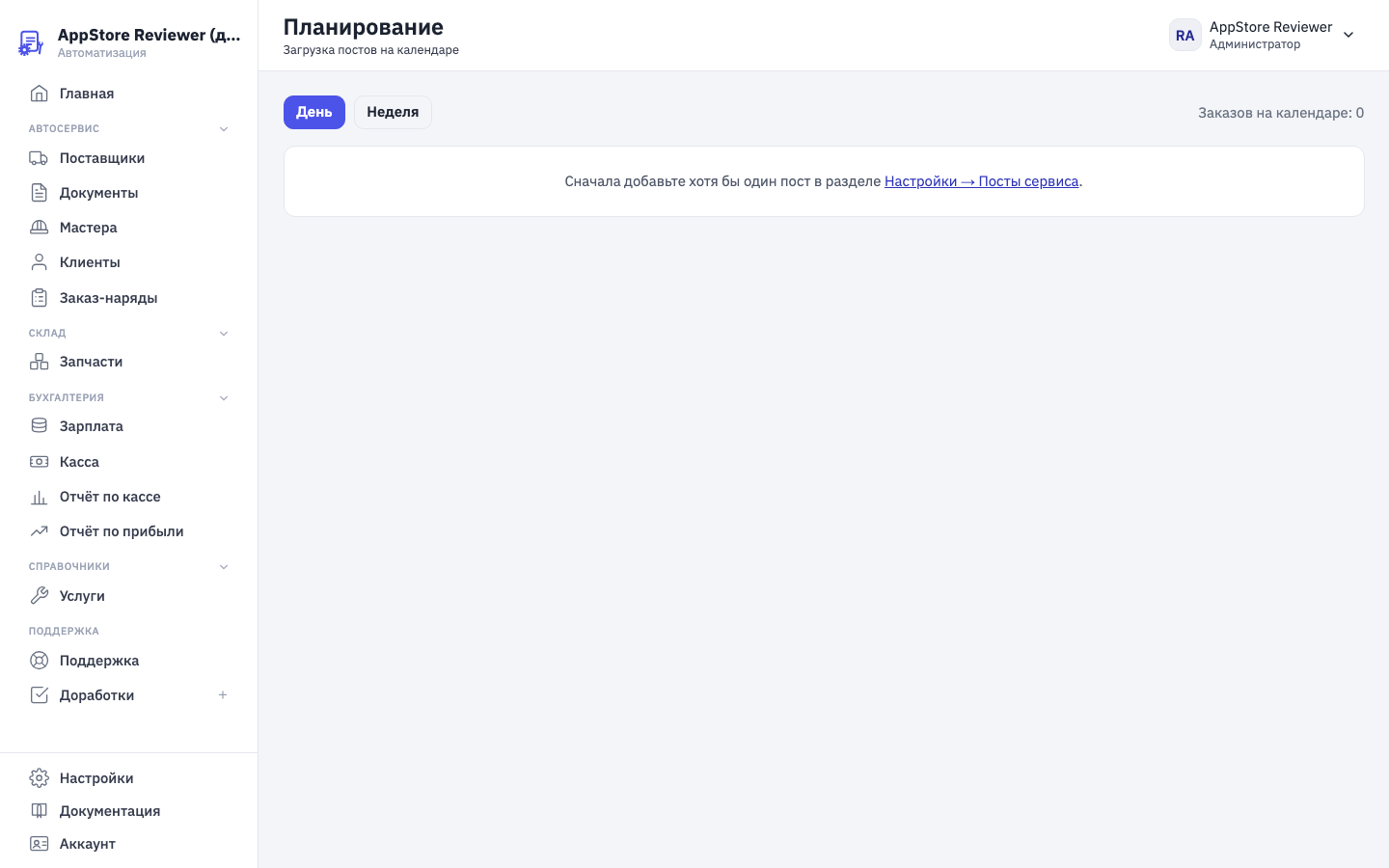
Until the account has at least one service bay, a hint and the Create service bay button will be displayed instead of the calendar (see service bay reference data).
What you can see
- Columns — time according to working hours, Day and Week views, with the week starting on Monday. On a day off, there will be a hint in the “Day” view, but you can still make a booking.
- Rows — service bays: active service bays from the service bay reference data in the same order.
- Solid cards — work orders: number, client, vehicle, and status. The “from website” label means that the order was created from an online request.
- Cards with a dashed border — reservations (“Reservation · Ivan”), grey hatched cards — “Occupied” with a reason.
- Shaded time — outside working hours. Above the calendar — the “Orders: N · Reservations: M” counter and a legend.
Orders with the “Deleted” and “Declined” statuses are not displayed on the calendar.
How to book a client
- Click an available slot in the row of the required service bay — or click + Booking above the calendar (on a mobile device, the button is pinned to the bottom right). The “New booking” window will open with the service bay and click time rounded down to 15 minutes.
- If necessary, adjust Service bay, Date, Start, and Duration: quick buttons for 30 min, 1 h, 1.5 h, 2 h, a “min” field, and “−15”, “+15”, “+30”, “+1 h” at the end of the booking. The default duration is set in “Service bays”.
- Select the tab and click Book (or Ctrl+Enter).
| Tab | What it is for | What to fill in |
|---|---|---|
| Work order | The client is coming and an order is needed | Find the client by last name or phone number, or click + New client (name and phone), vehicle (you can + add one), and “What to do”. A “New” order is created immediately for the service bay, with “Open” at the bottom |
| Reservation | The client called to ask whether Thursday morning is available | At least one: name, phone number, or comment. No order or client is created |
| Occupied | Lunch, lift repairs | Reason |
If the Work order tab is missing, you do not have permission to access orders; ask the account administrator.
Reservation and “Occupied”
Clicking a reservation or “Occupied” opens the edit window: you can change the fields and Delete the booking (at the bottom, Undo is available for a few seconds). When the client arrives, open the reservation and click Create work order — the reservation will be replaced with a “New” order in the same slot, and the client will be found by phone number or created. A reservation from an online request made via “Create order” will also become an order in this slot. Reservations and “Occupied” entries are deleted automatically 60 days after they end.
Overlaps
If the selected time for this service bay is already occupied, an orange card will appear in the window: “Overlap: AS-000118, 13:30–15:00 · Reservation Ivan”, along with the Book anyway button. An end-to-start contact is not considered an overlap. The same confirmation appears when dragging (“Move anyway”).
The account administrator can enable Do not allow overlaps within the same service bay in “Service bays”: in this case, the “anyway” buttons are not displayed, and you cannot book an occupied time slot.
Outside working hours
Booking outside working hours is allowed, and the window will display the note “Outside working hours (the service is open 09:00–19:00)” or “this day is a day off”. It does not block anything — just remember to warn the client.
How to schedule a completed order
You can assign an order to a service bay from its item card: the Planning block in the right column → Service bay, Start, Duration, min → Save (Ctrl+S). The overlap card is also displayed here. To remove an order from the calendar, clear Start or select “Service bay not assigned”.
Features
- Drag a booking to another time or service bay and resize its right edge — the change is saved immediately; if it overlaps another booking, you will be asked to confirm.
- Click an order — opens the order item card.
- Today and the arrows — navigate between days and weeks.
A closed order (“Closed”) cannot be dragged: the rectangle will return to its original position, and the message “Order closed. To edit it, first change the status.” will appear. If the balance is exhausted, the window opens, but “Book” is inactive.
Limitations
- There is no “Month” view, mechanic assignments on the calendar, printing, or calendar export.
- Working hours are based on the local time of your device; the account has no time zone.
- Orders assigned to disabled service bays are not visible on the grid.
Common issues
- “The order did not appear on the calendar”. Check the Planning block in the order: make sure the service bay and start time are selected, the order is saved, and the service bay is active. Deleted and declined orders are not displayed.
- “The reservation disappeared”. It was either converted into a work order (look for the order in the same slot), deleted, or more than 60 days have passed since it ended.
- “I cannot make a booking — the service bay is occupied”. The Do not allow overlaps checkbox is enabled — select another time or service bay.
- “The time is grey”. It is outside working hours; you can still make a booking.