Work order
The main order document. It shows the client which vehicle has been accepted for service, which work will be performed, which parts will be installed, the total amount, and how much has already been paid in advance.
Where to find it
Template: Settings → Document templates → "Work order" tab. Print: in the order header, Print ▾ → Work order; or Work order → "Documents" tab → "Work order" row → PDF / Word / Print.
What the document contains
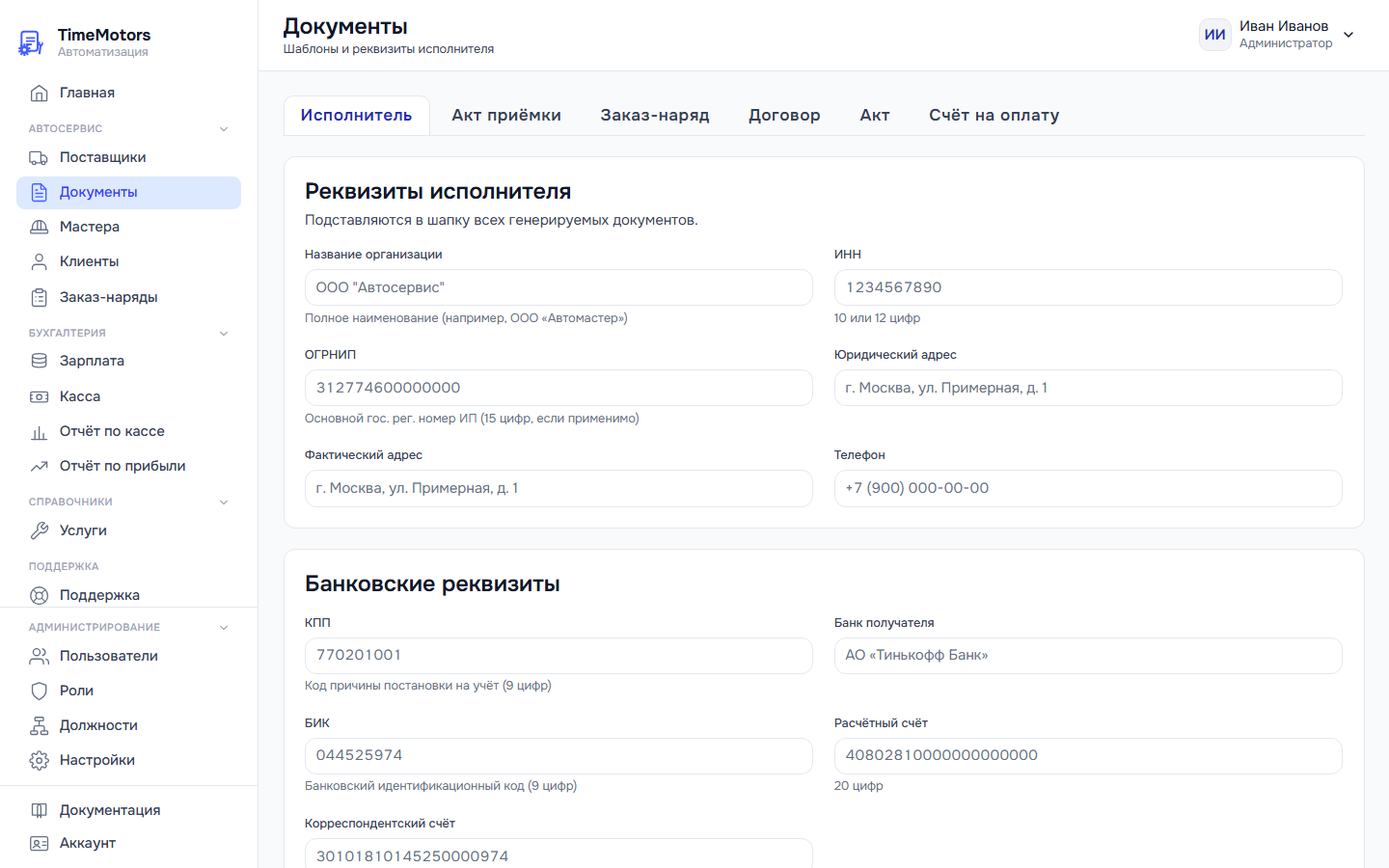
- Logo and header — date and time, “Work order №…”, Auto Service details from Company details: name, Tax Identification Number, “Primary State Registration Number (OGRN) … dated …” or “Primary State Registration Number of an Individual Entrepreneur (OGRNIP) … dated …” (if completed), legal and actual address, phone number.
- “WORK ORDER FOR VEHICLE REPAIR №… dated …” — title.
- “Customer, payer” and “Phone” — the client’s full name or the organization’s name. The client’s address, Tax Identification Number, KPP, and other details are not printed in the work order (they are available in the invoice, contract, and work completion certificate).
- Vehicle — make and model, registration number, year of manufacture, VIN, and mileage from the vehicle card.
- “Reason for visit” — text from the Notes block in the right column of the order. If the order has any payments, the amount paid is displayed next to it.
- “Order accepted by” (service advisor), “Opening date” (order creation date), “Order closed by”, and “Completion date” — who first changed the order to Completed or Closed, and when. Until the order is completed, these fields contain dashes. Expanding and closing the order again does not change these details.
- “List of work to be performed” — name, price, quantity (in hours for labor items), amount, and “Total for labor”.
- Parts and materials — part number, name, price, quantity, unit of measurement, cost, and “Total for parts”.
- “Grand total” — in figures and words; below it, “Excluding VAT” if you are not subject to VAT, or “Including VAT 22 %: …” for a taxpayer using that rate (in this case, the labor and parts tables also contain an “including VAT” column). The rate is taken from the “VAT” card in Company details on the order completion date; until the order is completed, it is taken on the document date.
- “Customer-supplied parts and materials” — rows with the “Customer’s part” checkbox: part number, name, quantity, price, and valuation. These are not included in the “Grand total” (repair rules, Resolution No. 780).
- “Payments for the order” — if the order has payments: the date, method, and amount of each payment (a refund is shown as a negative amount), followed by “Paid” and “Amount due”; if there is an overpayment, “Overpayment”. This block is printed when the Order payments module is enabled.
- Payment QR code — after the total, with the label “Amount due: …”. It is printed if enabled in the company details and there is an amount to be paid for the order (see the Payment QR code section below).
- Note — document text: warranty, terms of work.
- Signatures — “Contractor” and “Customer”, signature spaces, and “M. P.”.
Dates and times in the document are shown in Moscow time.
Payment QR code
If the “Print payment QR code in invoices and work orders” checkbox is enabled in Settings → Company details, a QR code with the label “Amount due: …” is printed after the total in the work order. It contains the amount the client still needs to pay, taking discounts and payments already made into account (the same amount as in the “Payments for the order” block). The client points their camera at the code in the banking app, and the payment opens with the following fields completed: recipient, account, BIK, amount, and purpose “Payment under work order №… dated …”.
The QR code is available in PDF and Word. It is not displayed if:
- the checkbox in the company details is disabled;
- the company details are incomplete (the “Payment QR code” card displays a “Complete: …” list);
- the order has been paid in full — “Amount due” is zero.
The document is still generated as usual, without an error. The QR code cannot be scanned from the screen of the same phone on which it is open: send the client the PDF and ask them to open it on a computer, or print it. To learn how to enable and test it using a test code for 1 ₽, see Company details and logo.
Customizable settings
- Note (warranty, terms of work, liability), header, tables, and block order — in your Word template: “Work order” tab on the Document templates screen → Download sample (your text is already included), edit it in Word and upload it (Document templates). Until a custom template is selected, the default template is printed with previously saved text or the standard text.
- Document number and date — each order has its own values (by default, the order number and its creation date).
- Company details and logo — in Company details.
How to override the number and date
In the order → Documents tab → Work order row → the number field and date field next to it. Then click Save in the order header (unsaved changes are saved automatically when printing) and generate the document. If you clear the number field, the order number will be restored after saving. If you select the date manually, only the date is printed in the header, without the time. For more details, see Order and document numbering.
Printing in two formats
- PDF — for printing and sending to the client with the layout preserved exactly. Print opens the print window immediately (the button is available only on a wide screen; on a phone, the ⋯ menu in the header downloads the PDF).
- Word — you can add or edit text. Your changes remain in your file: the next time you download the document, it will be restored to its original state. To make the change permanent, apply it to your Word template.
The document is compiled from current data: if the card contains unsaved changes, the system saves them first. Documents in a closed order can be printed and downloaded without expanding the order. Printing and downloading are not available in the Android and iOS apps — open the system in a browser.
Common errors
- “Failed to generate document: Contractor details are not completed…”. In Settings → Company details, complete at least the organization’s name or Tax Identification Number and click Save.
- “No client specified” / “No vehicle specified.” The document cannot be generated without a client and vehicle. Use the Change button in the order header (Client and vehicle panel) to select them and save the order.
- “No services or parts.” The saved order contains no rows — add labor or parts and save it.
- “Services have no amounts.” The service rows have no prices — check the Labor table on the Labor and parts tab.
- “There is no payment QR code in the work order.” Check the checkbox and the company details in the “Payment QR code” card and the “Amount due” amount: the QR code is not printed when the order is paid in full. Regenerate the document if it was downloaded before the checkbox was enabled.
- “There is a dash in ‘Order closed by’.” The order has not yet been changed to Completed or Closed.