Printable order documents
Five documents are generated from a single order: a work order, a vehicle acceptance act, an invoice for payment, a certificate of completed work, and a contract. Each is available in two formats: PDF and Word.
Where to find them
Path: Work order → "Documents" tab, Printable forms block. This is a table of five rows: each document has a number, date, and PDF, Word, Print buttons.
The fastest way to print a document is the Print ▾ menu in the order header — it is available from any tab and contains the same five documents. With the "Documents by e-mail" module enabled, the last item in the menu is Send to e-mail…: the documents will be sent to the client by email, see Documents to the client by e-mail.
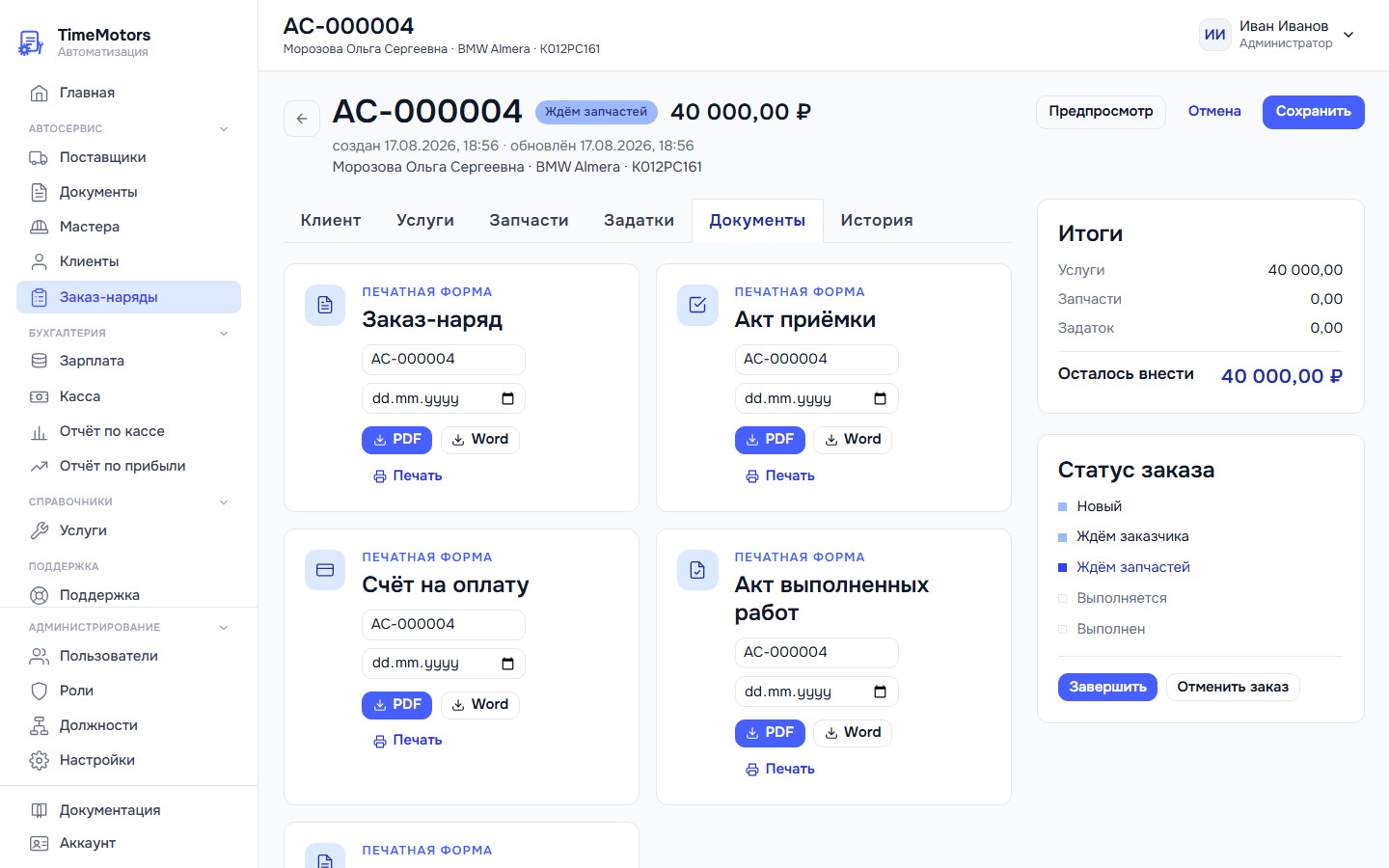
Two more documents are in the sections of the Check-in tab: Download the defect report (PDF) in the Inspection section and Download the diagnostic sheet (PDF) in the Diagnostics section. They are available in PDF only.
The five documents
| Document | When to print | What it contains |
|---|---|---|
| Work order | At the start of work | Executor, client, vehicle, reason for the visit (order notes), services, parts, amounts, order payments and surcharge |
| Acceptance act | At check-in | Client, vehicle, data from the "Inspection" section: completeness, fuel, damage, comments, client signature |
| Invoice for payment | At payment | Executor and bank details, services, parts, amount due; if payments already exist — "Paid earlier" and "Amount due" |
| Certificate of completed work | At hand-over | Completed work and used parts, amounts |
| Contract | For official work | Contract text and details of the parties |
OGRN, client parts and "No VAT"
- In the header of each document — "OGRN … dated …" (for sole proprietors — "OGRNIP … dated …") from the company details.
- Lines with the "Client's part" checkbox are printed separately — "Customer's parts and materials": in the work order and acceptance act with an estimate, in the certificate of completed work without prices, and they are not present in the invoice. They are not included in the document total — details.
- Below the total of the invoice, certificate of completed work and work order — "No VAT", if the company details do not have the "VAT payer" checkbox checked.
Discount in documents
If the order has a discount, a discount column appears in the work order, invoice, certificate of completed work and contract (PDF and Word):
- a Discount column in the work or parts table, where some line has a discount; the Amount in the lines is already after the discount;
- at the bottom of the table, the Amount without discount and Discount lines, then the total (after the discount) and the amount in words based on it;
- in the contract, where there are no tables, the amount in words is inserted already including the discount, with the note "including the discount of …".
If there are no discounts, the documents look the same as before. Displaying the discount in a document cannot be turned off. The acceptance act contains no amounts.
<!-- SCREENSHOT: work order with a discount, the "Discount" column and totals -->Three buttons for each document
- PDF — download a PDF. The file is named after the document and the order number, for example "Invoice AC-000123.pdf".
- Word — download an editable Word file.
- Print — immediately opens the browser print dialog, without a new tab. The button is only available on screens wider than 1024 px. On a phone and tablet, the ⋯ → document menu items in the header download the PDF instead — print the downloaded file from the viewer.
A document is always generated from the current order data. If the item card has unsaved changes (client, work, parts, number, date, inspection, diagnostics), the system saves them first and only then generates the document — there is no need to click Save in advance. If the save fails, the document is not generated, and the reason is shown in a pop-up message.
In the Android and iOS apps, downloading and printing documents do not work. Open AutoServiceOnline.ru in the phone browser or on a computer — there everything can be downloaded and printed.
A closed order (status "Closed") can be printed and downloaded without expanding it: the Print ▾ menu in the header, the Documents tab and all document buttons work.
If the balance is exhausted (view-only mode), documents can also be downloaded and printed.
There is no option to send a document to the client from the system (email, SMS, messenger) — download the file and send it yourself.
Document number and date
Each document has its own number and its own date: the fields in its row on the Documents tab.
- The default number is already set in the field (for example,
AC-000123for the work order). You can enter your own — it will appear in the document after clicking Save in the order header; when printing and downloading, saving is done automatically. - The default date is the order creation date. You can choose another one.
For details — Order and document numbering.
How to edit the template
The appearance and text of documents, company details, logo — are not in the order, but in the Settings section:
- Document templates — Settings → Document templates: the default template or your own Word template for each document.
- Company details and logo — Settings → Company details: what appears in the document header.
- Separate pages for each document:
If the document is not generated
A red banner "Failed to generate document" appears above the table, along with a list of reasons:
| Message | What to do |
|---|---|
| "Executor details are not filled in: fill in the company name or INN…" | Fill in at least the Company name or INN in Settings → Company details and click Save at the bottom |
| "Client is not specified" / "Vehicle is not specified" | Select the client and the vehicle using the Change button in the order header and click Save |
| "The client's full name is not filled in" | Fill in the full name (for a company — the company name) in the client card |
| "No services and parts" | Add at least one work or part to the order on the Labor and parts tab |
| "Network error while generating the document" | The request did not go through — check the internet connection and retry |
| "Error while generating the document. Code for support: …" | Server failure — contact support and provide this code |
Bank details for the invoice are not required: if they are not filled in, the invoice will be generated, and the bank cells will remain empty.
If the defect report or diagnostic sheet failed to download, the reason is shown in the message after clicking the button.
Common mistakes
- "The document header is empty". Details are taken from Settings → Company details. Fill them in, click Save at the bottom of the screen, and generate the document again — the already downloaded file will not update on its own.
- "I added a work, but it is not in the document". Most likely, the document was generated before the edit. The already downloaded file will not update on its own — generate the document once more, the changes will be saved automatically.
- "A 'Discount' column / 'Amount without discount' lines appeared in the document". The order has a discount. Remove it in the lines (Remove discount), click Save, and generate the document again.
- "There is no list of payments in the invoice". This is by design: the list of payments is printed in the work order, while the invoice only has the "Paid earlier" and "Amount due" totals. If even that is missing, the payment has not been accepted or the "Order payments" module is not enabled.
- "There is no payment QR code in the invoice or work order". The QR code is printed only in these two documents, and only if the "Print payment QR code…" checkbox is enabled in Settings → Company details, the details are filled in, and the order is not fully paid. There is no QR code in the acts and the contract. For details — Company details and logo.
- "I click 'Print' — nothing happens". Check whether there is a red banner above the document table. If there is none — click PDF and print the downloaded file.
- "The document is not downloaded in the app". In the Android and iOS apps, downloading and printing do not work — open AutoServiceOnline.ru in a browser.
- "Word opens in the browser instead of Word". The browser is configured this way. Open the "Downloads" folder, right-click the file → "Open with" → Word.
- "The contract does not contain the client's manager's full name in the genitive case". Fill in the "Manager's full name (in genitive case)" field in the client-organization card and generate the contract again.
- "The logo does not fit". Check Settings → Company details, the "Logo" block — there should be a preview. In your own Word template, the word "LOGO" should be placed where the logo goes.