Cash desk shifts
The cash desk operates by shifts: a shift is opened with the opening balance, during the day receipts, expenses, and cash collection are recorded in it, and at the end of the day the shift is closed with the actual balance specified. The cash desk is internal cash accounting in the auto service: it does not print fiscal receipts and is not connected to cash registers.
Where to find it
Path: Cash desk and money → Cash desk.
The section appears if the “Cash desk” module is enabled for the account, and the Role has the “Submodule access” Permission in the “Accounting > Cash desk” group (Path: Settings → Team → Roles, “Access permissions” block). The same Permission also opens the Cash desk report: the cash desk cannot be issued without a report, nor can a report be issued without the cash desk. The Account administrator sees everything without configuring Permissions.
One shift per account
There is only one open shift across the entire account, not a separate one for each Employee. Everyone with Access to the cash desk records operations in this shift, sees all operations, and can close the shift even if a colleague opened it. The person who recorded an operation is shown in the “Who / when” column.
While a shift is open, a second one cannot be opened: “There is already an open shift. Close the current shift before opening a new one.”
Opening a shift
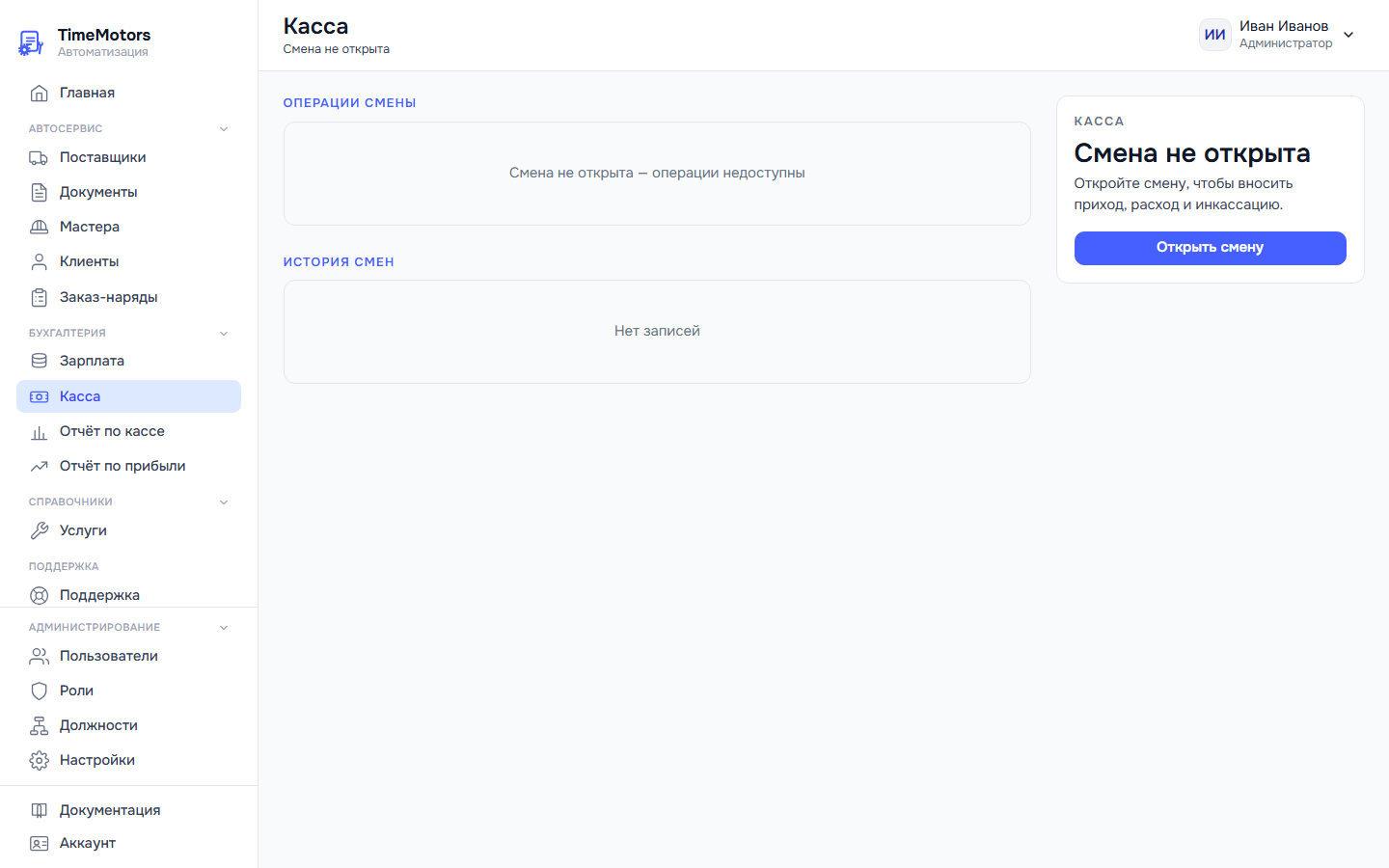
If there is no open shift, the message “Shift not open” is displayed below the heading, with a card containing the Open shift button on the right.
- Click Open shift.
- In the “Opening a shift” window, enter the Opening balance — the amount of money in the cash desk at the time of opening. The Field is mandatory, and you can enter 0.
- Click Open shift.
The balance from the previous shift is not populated automatically — enter it Manually. The actual balance of the previous shift is shown in “Shift history” in the “At end” column.
In an open shift
Below the heading, it shows “Shift from <date> · <who opened it>”. On the right is a shift card:
- prominently — Expected cash desk balance;
- lines “At start”, “Receipts”, “Expenses”, “Cash collection”, “Operations”;
- buttons Receipt, Expense, Cash collection, Close shift.
Expected balance = At start + Receipts − Expenses − Cash collection.
On the left is the “Shift operations” table: “Type”, “Amount”, “Description”, “Who / when”, and a delete icon for each row. For information on how to record operations, see Income and expense.
Closing a shift
- Click Close shift.
- In the “Closing a shift” window, the Expected balance is shown at the top. Enter the Actual balance — the amount of money actually in the cash desk (mandatory).
- The System immediately displays “No discrepancy” or “Discrepancy: +N ₽” / “Discrepancy: −N ₽”. Discrepancy = Actual − Expected.
- If necessary, fill in Comment (optional) — for example, “short by 50 ₽, I will sort it out tomorrow”.
- Click Close shift.
The opening and closing times are set automatically. A Closed shift cannot be reopened or changed; operations cannot be added to or deleted from it — therefore, check the operations before closing it.
Shift history
Below the operations is the “Shift history” list: “Date”, “Who opened it”, “At start”, “At end”, “Discrepancy” (in red if non-zero), “Status” (“Open” or “Closed”). New shifts are displayed at the top. A shift is expanded by clicking its row: the shift operations and the closing comment appear below it; clicking again collapses it. On a phone, these are cards with the same expansion behavior.
The list is loaded as you Scroll down: first 50 shifts, then the rest automatically; there are no numbered Pages. At the bottom, it shows “Shown: 50 of 120” or “Total: 120”.
View shift balances and discrepancies here: the Cash desk report calculates operations for the Period, not shifts.
If the balance is exhausted
When the account balance is zero, the cash desk is available for viewing only: you cannot open or close a shift or record an operation. For details, see Tariff and balance.
Common errors
- “I cannot open it — it says ‘There is already an open shift’.” There is only one shift for the entire account, and a colleague may have opened it. Record operations in it or close it on this Page.
- “The discrepancy is large.” Expand the shift in “Shift history” and check the operations — someone may have forgotten to record a receipt, expense, or cash collection.
- “I recorded an expense, but it should have been a receipt.” While the shift is open, delete the operation using the delete icon in the row and record the correct one.
- “Can each Employee have their own cash desk?” No, there is only one cash desk and shift per account.