Keywords and conditional blocks
A reference guide for those who create their own Word template: which words insert order details, how to repeat a table row, how to remove an optional section of a document, and which files are accepted. Learn what templates are, how to download a sample, upload a template, and select a template for printing on the Document templates page.
Where to find it
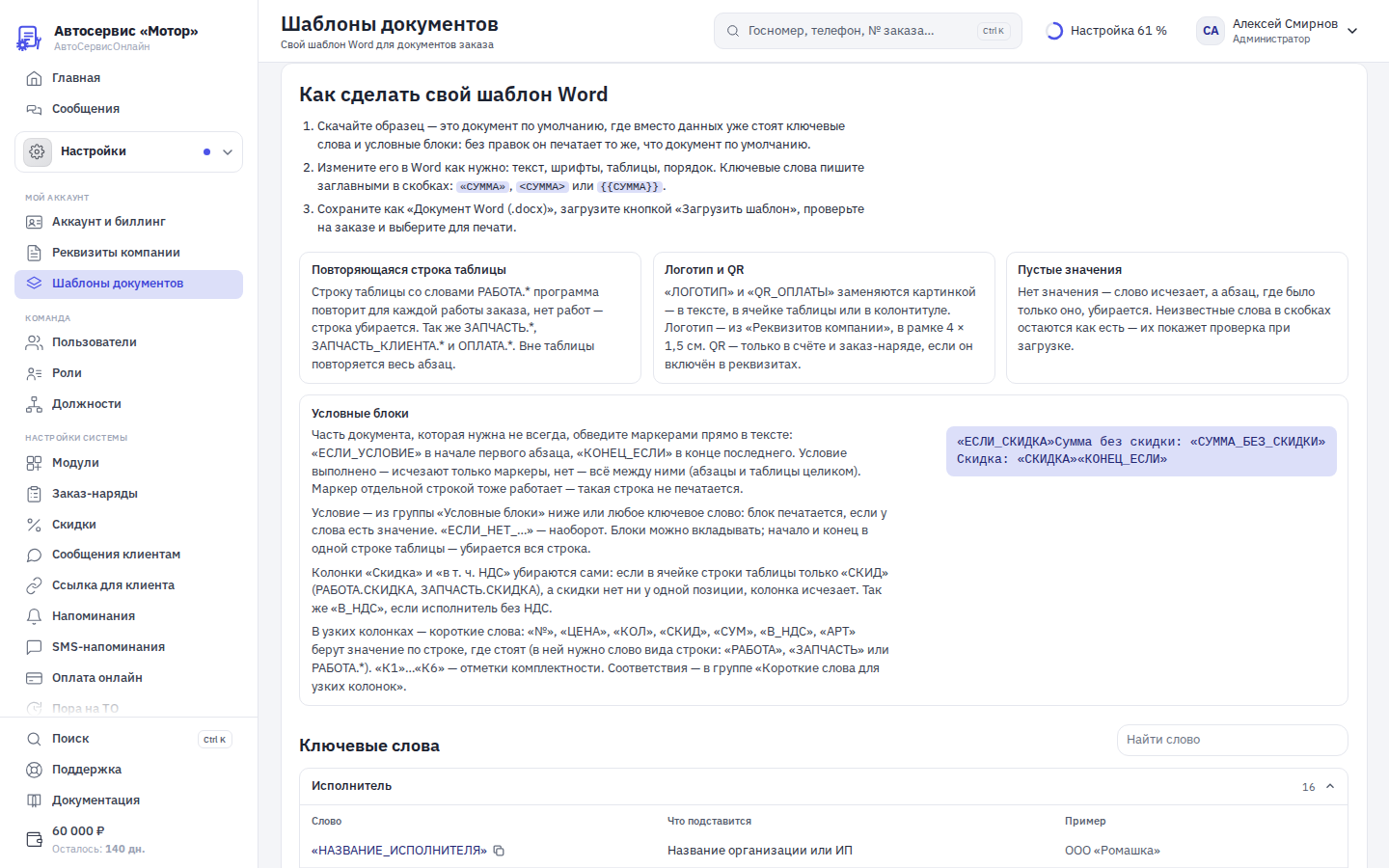
Settings → Document templates, the tab for the required document, for example Work order. At the top of the tab is the “Word template” section with the Download sample and Upload template buttons. At the bottom is the “How to create your own Word template” guide with a list of all keywords, a search field, and groups.
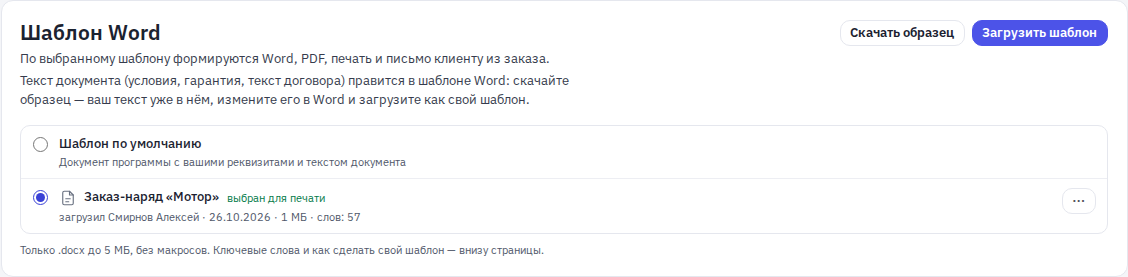
It is easier to start with the sample: it already contains all the necessary keywords and conditional blocks, and without any edits it prints the same as the default template.
Keywords
The complete list with descriptions and examples is at the bottom of the document tab in the guide. The button next to a word copies it with «quotation marks» — paste it into Word.
- Only words from the list are replaced. Regular text in quotation marks, such as “LLC Romashka”, remains unchanged.
- The letters Ё and Е are treated as identical: “РАСЧЁТНЫЙ_СЧЁТ” and “CALCULATED_ACCOUNT” are the same word.
- The value format is determined by the beginning of the word: if “СУММА” is bold, the amount will also be bold.
- If there is no value (for example, an individual client has no company details), the word simply disappears, and a paragraph containing only that word is removed.
- Amounts and dates use the same format as in default documents: “12 345,67”, “07.10.2026”. Amounts, discounts, and payments match those in the documents.
Tables of labor, parts, and payments
Create one table row containing the row keywords, for example “РАБОТА.НОМЕР”, “РАБОТА.НАИМЕНОВАНИЕ”, “РАБОТА.СУММА”. The program will repeat this row for each job in the order. If there are no jobs, the row is removed.
| Words | What is repeated |
|---|---|
| РАБОТА.* | jobs in the order |
| ЗАПЧАСТЬ.* | parts supplied by the mechanic |
| ЗАПЧАСТЬ_КЛИЕНТА.* | parts brought in by the client (not included in the amount) |
| ОПЛАТА.* | payments and refunds for the order |
If these words are placed outside a table, in a regular paragraph, the entire paragraph is repeated — this way, you can create a list of jobs.
Conditional blocks
For a section of the document that is not always needed, mark it directly in the text: “ЕСЛИ_УСЛОВИЕ” at the beginning of the first paragraph and “КОНЕЦ_ЕСЛИ” at the end of the last paragraph. If the condition is met, only the markers disappear; otherwise, everything between them is removed: entire paragraphs and tables. In the sample, the markers are displayed in small gray text.
«ЕСЛИ_СКИДКА»Amount before discount: «СУММА_БЕЗ_СКИДКИ»
Discount: «СКИДКА»«КОНЕЦ_ЕСЛИ»
Markers within one paragraph remove a section of text: “Reason for visit: “ПРИЧИНА_ОБРАЩЕНИЯ” “ЕСЛИ_ОПЛАЧЕНО” Paid: “ОПЛАЧЕНО” RUB “КОНЕЦ_ЕСЛИ””. If the beginning is in one table row cell and the end is in another, the entire row is removed. A marker placed on a separate row also works: such a row is not printed.
- Conditions are in the “Conditional blocks” group in the guide: СКИДКА, ОПЛАТЫ, ОПЛАЧЕНО, ПЕРЕПЛАТА, НДС, РАБОТЫ, ЗАПЧАСТИ, ЗАПЧАСТИ_КЛИЕНТА, QR, ОСМОТР, БАНК, and others.
- You can also use any keyword: “ЕСЛИ_ТЕЛЕФОН_КЛИЕНТА” — the block is printed if a phone number is specified.
- “ЕСЛИ_НЕТ_…” works the other way around: for example, “ЕСЛИ_НЕТ_ОСМОТР” prints a notes frame when the inspection has not been completed.
- Blocks can be nested. “ЕСЛИ_…” without “КОНЕЦ_ЕСЛИ” (and vice versa) will be shown as an error during validation when uploading.
Discount and VAT columns are removed automatically. If a table row cell contains only “СКИД” (or “РАБОТА.СКИДКА”, “ЗАПЧАСТЬ.СКИДКА”), and none of the items have a discount, the column disappears together with its header. The same applies to “В_НДС” (“РАБОТА.НДС”, “ЗАПЧАСТЬ.НДС”) if you are not a VAT payer.
Short words for narrow columns
Word breaks a long word character by character in a narrow column. There are short words for narrow columns — the full versions work as well:
| Short | What is inserted |
|---|---|
| “№” | row number, as in the document (in an account and parts act, numbering starts after the labor) |
| “ЦЕНА”, “КОЛ”, “СКИД”, “СУМ”, “В_НДС”, “АРТ” | price, quantity, discount, amount, row VAT, part number from the table where they are placed |
| “РАБОТА”, “ЗАПЧАСТЬ”, “ЗАПЧАСТЬ_КЛИЕНТА” | item name (as in “РАБОТА.НАИМЕНОВАНИЕ”, etc.) |
| “ГОД”, “СУМ_Р”, “СУМ_З”, “НДС_Р”, “НДС_З” | year of manufacture, total for labor and parts, VAT on labor and parts |
| “К1”…“К6” | completeness marks: spare tire, first-aid kit, jack, fire extinguisher, sign, stereo |
Row words (“ЦЕНА”, “КОЛ”…) determine whose row it is by the row-type word within it: “РАБОТА”, “ЗАПЧАСТЬ”, or any РАБОТА., ЗАПЧАСТЬ.. See the complete list in the “Short words for narrow columns” group in the guide.
Logo and payment QR code
Enter “ЛОГОТИП” or “QR_ОПЛАТЫ” wherever an image is needed: in the text, in a table cell, or in the header or footer.
- The Logo is taken from the Company details and fitted into a 4 × 1.5 cm frame.
- The Payment QR code is printed only in an account and work order if it is enabled in the company details (see Organization details and logo), and only when there is an amount to pay.
PDF, printing, and client email
Your selected custom template works everywhere in the order: Word, PDF, Print, and the client email. Default Word documents and the sample use the same font as the default PDF (Lato — it is embedded in the file, so you do not need to install it). To learn how to select a different template when printing and what to do if the PDF was not generated, see the Document templates page.
Which files are accepted
- .docx only, up to 5 MB. Open the old .doc format in Word and save it as .docx.
- No macros (.docm), embedded objects, files, links to external images and templates, or fields that load data from the network. Such files are not accepted — the program will indicate what to remove.
- Only simple Word fields can be used: page number, date, formulas, and mail merge fields. Fields that load external files or data are not accepted.
- Up to 10 custom templates for each document and up to 50 MB for all templates combined. Check in an order is available to those with access to work orders. For a custom template, the ⋯ menu provides Download, Check in an order, Check report, Rename, and Delete.
When the template balance is exhausted, templates can only be viewed and downloaded. A support employee in “Sign in as” mode can help configure a template — such actions are recorded in the change log.