What is available on a phone
The system interface is responsive: all sections work on a small screen—in the phone browser and in apps for Android and iPhone. The features and data are the same as on a computer; the menu and tables are arranged differently, and printing and downloading documents do not work in the phone apps.
Where to find it
Open the AutoServiceOnline app or the https://AutoServiceOnline.ru website in your phone browser and sign in with your email and password. To install the app, see Installing apps.
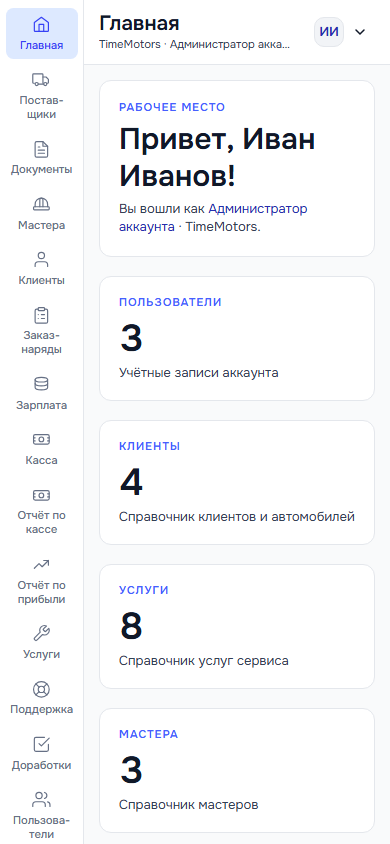
Menu on a phone
On screens 1024 px wide or wider (phone, tablet in portrait orientation), the menu is a panel at the bottom of the screen, and the screen occupies the full width. The menu is organized into sections, just like on a computer (Menu and sections): the panel contains the buttons for the current section. From left to right:
| Button | What it contains |
|---|---|
| Sections | Tiles and the name of the current section (“Auto service”). Opens a full-screen grid of sections: “Favorites,” a pencil “Customize,” and tiles for “Auto service,” “Clients,” “Warehouse,” “Cash desk and money,” “Accounting,” “Payroll,” “Reports,” “Tasks,” “Reference data,” and “Settings.” Click a tile—the section items will appear in the panel |
| Home | Desktop for today: two tiles per row, appointments, and enabled modules |
| Two section items | The first two items of the current section available to you based on your permissions: in “Auto service”—“Work orders” and “Deferred labor”; in “Clients”—“Clients” and the next available item |
| More | List at the bottom: the remaining section items (in “Auto service”—“Service due,” “Online booking,” “Service bay planning,” “Service bays,” “Mechanics”), Search, Support (chat with support), Documentation (this help guide), and, for administrators, a balance badge |
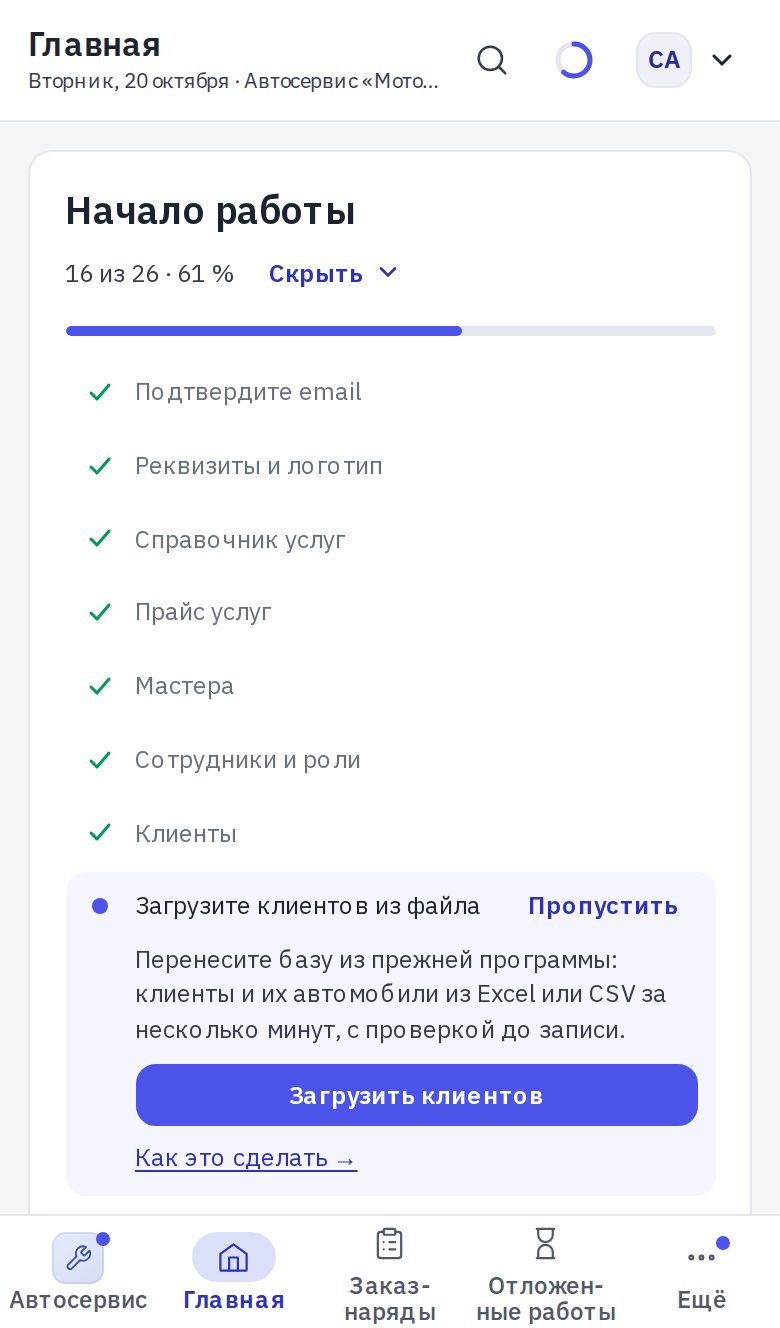
The open screen is highlighted in the panel; if it is under “More,” the More button is highlighted. The “Amount due · Save” row in an order is displayed above the panel. While the keyboard is open, the panel is hidden so that it does not cover the input field. The support chat has no panel: the chat occupies the full screen, and the exit button is Back.
Unavailable on a phone: the + button for “Feature requests” (create a request from the “My feature requests” screen; “Feature requests” is located in the “Tasks” section). Mechanics and service bays are in the “Auto service” section, services are in “Reference data,” the cash desk is in “Cash desk and money,” and users, theme, language, and account are in “Settings.”
On a tablet in landscape orientation (1024 px or wider), the menu is the same as on a computer.
Lists and item cards
- Tables (orders, clients, mechanics, warehouse, cash desk, payroll, reports, users, roles) become item cards on screens 1280 px wide or wider: the same fields, one per row.
- Forms are vertical, with fields arranged one below another.
Work orders
- List—displayed as item cards: number, client, vehicle, and status.
- Order item card—the same five tabs: “Check-in,” “Labor and parts,” “Payment,” “Documents,” and “History” (the “Check-in” sections—inspection, photos, defect inspection, and diagnostics—depend on the relevant module). The tabs are displayed in a single scrollable row and switch when tapped. The header takes two rows, actions are in the “⋯” menu, and “Amount due … · Save” is fixed at the bottom.
- Labor / parts—table rows are displayed as item cards: tap a card to edit it.
- Dialogs (part search, service selection, advance payment, etc.) do not overlay the page on a narrow screen; they open directly on the page below the content. If nothing appears after you tap, scroll down.
- Order photos—you can take photos with the phone camera or select them from the gallery (in the iPhone app, see “Common mistakes” below).
- VIN and license plate—in the vehicle dialog, the “Scan” button recognizes them from a photo (see Autofill and VIN scanning for details). The system does not have a barcode scanner.
Printing documents
- In the phone browser—documents are downloaded using the “PDF” and “Word” buttons on the order’s “Documents” tab and open using the phone’s standard applications, where you can save, send, or print them.
- In the Android and iPhone apps, printing and downloading documents do not work. Open the order in the phone browser or on a computer—everything can be printed there.
Cash desk
- Opening and closing a shift, receipt, expense, and cash collection use the same dialogs as on a computer, with fields arranged vertically.
What is easier to do on a phone
- On-site check-in—quick order creation and photos of the vehicle’s condition using the phone camera.
- Status checks—while out on a call.
- Cash desk operations—quick entry while a client is paying.
What is easier to do on a computer
- Bulk editing—editing dozens of service and part rows.
- Role and permission settings—large forms.
- Reports—large tables are more convenient on a large screen.
- Printing documents—from the browser or desktop app.
Push notifications
In the Android and iPhone apps, version 1.2.0 and later, push notifications arrive even when the app is closed. Tap a notification to open the relevant screen; if you have signed out, it will open immediately after you sign in.
| What arrives | Recipient | What opens |
|---|---|---|
| A new work order created by another employee or from a request | Account administrator | Order item card |
| A new online booking request | Administrator and employees with access to requests | “Online booking” |
| A support reply in the chat | The person who contacted support | “Support” |
| A top-up has been credited, the balance or rate period is about to expire, or work has been suspended | Account administrator | “Settings → Account and billing” |
| Feature request: the status has changed or a new comment has been added | Author of the feature request | “Feature requests” |
| A task with a time limit is due (“Tasks” module) | Task assignee | Task dialog in the “Tasks” section |
| “KPIs” digest—daily totals in the evening and weekly totals on Monday morning: revenue, orders, average receipt, new clients, requests, and debts | Administrator and employees with permission for “KPIs” (“KPIs” module) | “Reports → KPIs” for that day or week—details |
| “Client returns” on Mondays at around 10:00 Moscow time: “Service due: 7 · Haven’t been for a long time: 12”—numbers only, with no names or numbers of orders (“Service due” module) | Account administrator | “Auto service → Service due”—details |
| Digest based on rules from “Reminders”: “Appointments tomorrow: 5,” “Waiting for parts 3+ days: 4,” “Debts 7+ days: 3”—numbers and amounts only, with no names or numbers of orders (“Reminders” module). Disabled by the “Rule-based reminders” option | The people selected in the rule (“Administrators” and employees with permission for the module) | “Clients → Reminders” list with a “Contact” button—details |
| “SMS messages are not sent,” “SMS gateway balance is below the threshold,” or “SMS: daily limit reached”—with no numbers or message texts (“SMS reminders for clients” module; there is no separate item under “Notifications”; the main switch turns it off) | Account administrator | “Settings → SMS reminders”—details |
| A client gave a low visit rating (6 or lower): “Low visit rating · 4 out of 10 · AS-000123”—without the comment or client name (“Visit rating” module). Disabled by the “Low client ratings” option | Account administrator (and assignee of the “Call the client back” task) | Order item card—details |
| A new colleague message (“Messages”): title—name (“Olga Kim”), text—the beginning of the message up to 100 characters, with phone numbers and email addresses hidden by asterisks; multiple unread messages—“3 new messages · ….” It arrives within 10–15 seconds if you have not yet read the message in the application; one notification per conversation—subsequent messages update it. Disabled by the “Messages” option | Message recipient | The conversation in “Messages”—details |
| A new app version is available in the App Store—once per version, during the day | Everyone with an older app version on their iPhone | “A new version is available” dialog with an “Update” button |
On the lock screen, the notification is visible to other people, so it contains no client names or phone numbers—only the appointment number, time, and name. “Messages” is an exception: they contain the colleague’s name and the beginning of the text (phone numbers and email addresses are hidden). If you do not want the text to be visible on the lock screen, disable the “Messages” option or hide notification content in your phone settings.
How to enable it.
- Install the app (Installing apps) and sign in. When you sign in for the first time, the phone will ask for permission to send notifications—tap “Allow.”
- In “Settings → Notifications,” open the “Push notifications” item card: the main switch “Receive push notifications” and switches for individual types. Changes are saved immediately. The setting is personal—each user has their own; it does not affect email.
- The “Check” button sends a test notification to all your phones with the app installed and shows how many devices received it.
Push notifications do not arrive in the browser—the item card says so as well. To receive notifications, sign in to the app on your phone.
If notifications do not arrive.
- The item card says “notifications are disabled”—enable them in your phone settings: on iPhone, “Settings → AutoServiceOnline → Notifications”; on Android, “Settings → Apps → AutoServiceOnline → Notifications.”
- “Check” returns “No phones…”—update the app to version 1.2.0 and sign in again.
- The main switch or the required type is disabled under “Settings → Notifications.”
- Support replies: the “Notify about support messages” checkbox is unchecked on the same page—you will receive neither an email nor a push notification.
- You signed in on the phone under a different user: notifications are sent to the person who signed in last. After “Sign out,” notifications for that account are no longer sent to the phone.
- Android: make sure that “Do Not Disturb” and strict battery saving are not enabled for the app.
Common mistakes
- “The app does not open after the update.” Sign out and sign in again—the session may have expired.
- “A document cannot be printed or downloaded in the app.” Printing and downloading do not work in the Android and iPhone apps. Open the system in the phone browser or on a computer.
- “The camera or gallery does not open in the iPhone app.” In the current version of the app from the App Store, camera and photo access may not work—this has been fixed in the next app version. For now, take photos and scan VINs in the Safari browser on the same phone.
- “The menu has moved to the bottom of the screen.” This is how the menu appears on a narrow screen: the panel is at the bottom, the first button is “Sections,” and the remaining section items are under More. On a tablet, rotate it to landscape orientation—the menu will be on the left again.
- “Push notifications do not arrive.” Allow notifications for the app in your phone settings and tap “Check” under “Settings → Notifications”—see the “Push notifications” section above for details.
- “It is difficult to see on a small screen.” Rotate the phone to landscape orientation or select a larger text size—Interface theme and language (configured by an administrator).