Individual, Sole Proprietor, or Legal Entity
The client type determines the set of fields and which details are included in the contract, invoice, and service act. The type is selected when creating a client and can be changed in their item card if necessary.
Three types
| Type | Who | Key fields |
|---|---|---|
| Individual | Regular client — citizen | Full name, phone, passport |
| Legal entity | Organisation — LLC, JSC, government agency | Full and short name, INN, KPP, Primary State Registration Number (OGRN), legal address, bank, manager |
| Sole proprietor | Individual entrepreneur | Full name, INN, OGRNIP, bank |
Where to find it
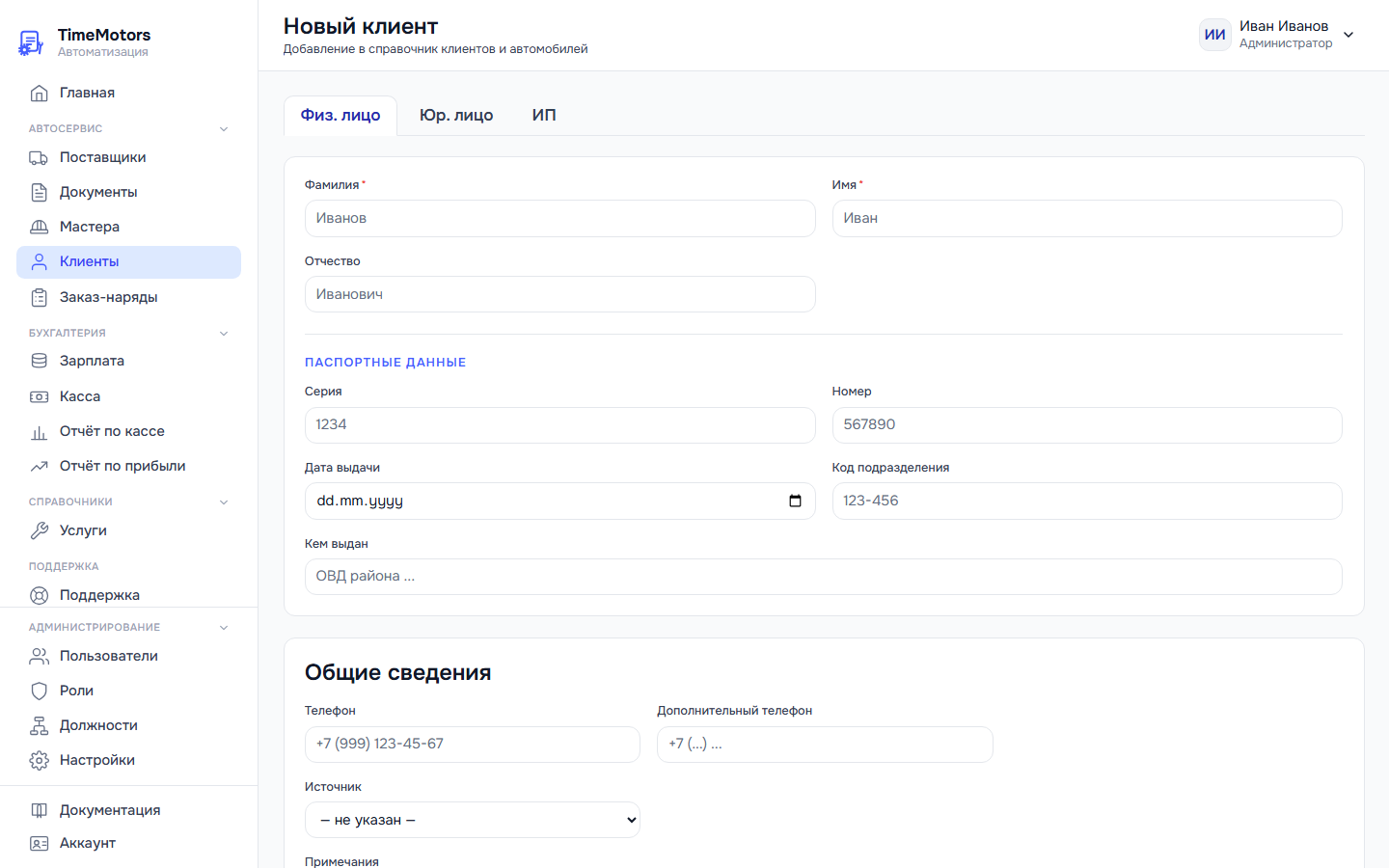
Path: Clients → Clients → + Client — the Individual, Legal entity, and Sole proprietor tabs are at the top of the New client form. At the bottom of the form are the Cancel, Create client and order (which will immediately open a new work order for this client), and Create client buttons.
Fields by type
Individual
Required: Last name, First name. Optional: Patronymic, Passport details block (series, number, issue date, department code, issuing authority).
The Full name in genitive case field is not available for an individual. The passport is stored in the client item card, but it is not inserted into printed documents (including the contract).
Legal entity
Required: Full organisation name or Short name (one or the other). Main: INN, KPP, Primary State Registration Number (OGRN), Legal address, Acting on the basis of (default: “the charter”). Manager: Manager’s full name, Manager’s full name (in genitive case), Manager’s position (default: “General Director”), Position (in genitive case), Manager’s gender (male or female). Gender changes the ending in the contract: “acting” or “acting on the basis of…”. “Budget organisation” checkbox — a mark in the item card that currently does not affect printed documents. Bank: recipient bank, BIK, settlement account, correspondent account.
Sole proprietor
Required: Last name, First name. Optional: Patronymic, Full name (in genitive case), INN, OGRNIP, Acting on the basis of (default: “certificate of state registration”), Registration address, recipient bank, settlement and correspondent account, BIK.
The INN field (for both a sole proprietor and a legal entity) is marked with an asterisk, but the client can still be saved without an INN — it can be added later.
Legal entities and sole proprietors have a “Supplier — parts and services are received from them” checkbox: such clients are selected in receipts and identified in the bank statement, and in the client list they are indicated by the “Suppliers” tag. The checkbox is also set automatically upon the first receipt or payment to this counterparty through the bank statement.
The format of company details is not checked when saving: the prompts “12 digits for a sole proprietor”, “10 digits for a legal entity”, and “20 digits” are only prompts. You can populate the details using the Fill in by INN and Fill in by BIK buttons (see below). The full name in genitive case is not declined automatically — enter it manually.
Fill in by INN and BIK
Next to the INN field there is a Fill in by INN button, and next to the BIK field there is a Fill in by BIK button. Enter the INN (10 digits for an organisation, 12 for a sole proprietor) and click the button or press Enter: the details from public registries (EGRUL and EGRIP, bank reference data) will be inserted.
- Legal entity: name (full and short), KPP, Primary State Registration Number (OGRN), legal address, manager’s full name and position (with the position in genitive case, if it is available in the dictionary). The manager’s gender is determined from the patronymic.
- Sole proprietor: last name, first name, patronymic, and OGRNIP. The address and KPP are not populated for a sole proprietor — enter them manually.
- Bank: the bank name and correspondent account are populated using the BIK. Enter the settlement account manually.
Only the values found are populated: if the registry does not return a value for a field, what you have already entered remains; if it does, the value is replaced with the one found. A result line will appear below the field, for example “LLC “Romashka” · KPP … · active”. If the wrong details have been populated, click Undo in the “Filled in by INN” message (it remains visible for 8 seconds) or the Undo link below the field — the previous values will be restored. The link remains available until you edit the populated fields.
If an organisation is being liquidated, has been liquidated, is going bankrupt, or is being reorganised, a yellow “Review before issuing the invoice” warning will appear. This is a reminder: the client can still be saved.
The type must match the tab. If a sole proprietor is found by INN while you are on the Legal entity tab, the system will display “A sole proprietor was found for this INN — open the ‘Sole proprietor’ tab” (and vice versa). An incorrect INN (the checksum does not match) is rejected immediately, before the request is sent. Individuals cannot be found by INN. We do not store sole proprietor data.
If the service is unavailable, the form remains operational: a message will appear saying either “Filling in is unavailable — enter the details manually” or “Could not retrieve the data. Fill in manually or try again later”. The limit is 20 requests per minute per account.
The buttons are not displayed if the “Fill in by INN” module is disabled (Account → Tariff; it is free of charge), the employee does not have permission to fill in by INN (it is available for roles with access to clients; otherwise, an administrator enables it in Roles), or the account is in view-only mode.
General details for all three
- Phone and Additional phone.
- E-mail — for sending the invoice and service act by email (see Documents to the client by e-mail).
- Source — where the client came from; a drop-down list. It contains 9 options: “Website”, “Recommendation from acquaintances”, “Social media”, “Online advertising”, “Yandex.Maps”, “2GIS”, “Passed by”, “Regular client”, and “Other”. New accounts receive this list immediately. You cannot add your own option or rename a source through the interface — there is no source editing screen. The field can be left as “— not specified —”.
- Notes — free-form text.
How to change the type
In the client item card, the type is selected using the Individual / Sole proprietor / Legal entity toggle above the fields. Switching types does not clear any fields already entered for other types. When you save the client, it will be saved with the selected type, and the corresponding label will appear below their name in the list.
Common mistakes
- “I filled in the legal entity, but it won’t let me save it.” Enter the full or short organization name — either one. For a legal entity or an individual entrepreneur, an unfilled required field is not highlighted: the button simply does not work.
- “One client’s tax ID matches another.” The System does not prohibit this. Search by tax ID in the client List before creating a new one; it will find existing duplicates under Clients → More ▾ → Find duplicates (Client duplicates).
- “The contract has the head’s full name in the nominative case.” Enter the Head’s full name (in the genitive case) and Position (in the genitive case) for a legal entity, or Full name (in the genitive case) for an individual entrepreneur — they are inserted into the text “acting as General Director Ivanov Petr Vladimirovich”.