Parts in an order
A list of parts sold to the client as part of this work order. You can find them from connected suppliers, take them from your warehouse, or add them manually.
Where to find it
Path: Work order → “Labor and parts” tab, Parts table (below the labor table). Parts are added using the Add ▾ menu in the table header: From inventory, From suppliers, Manually. The From inventory and From suppliers options are visible if the warehouse and supplier catalog modules are enabled.
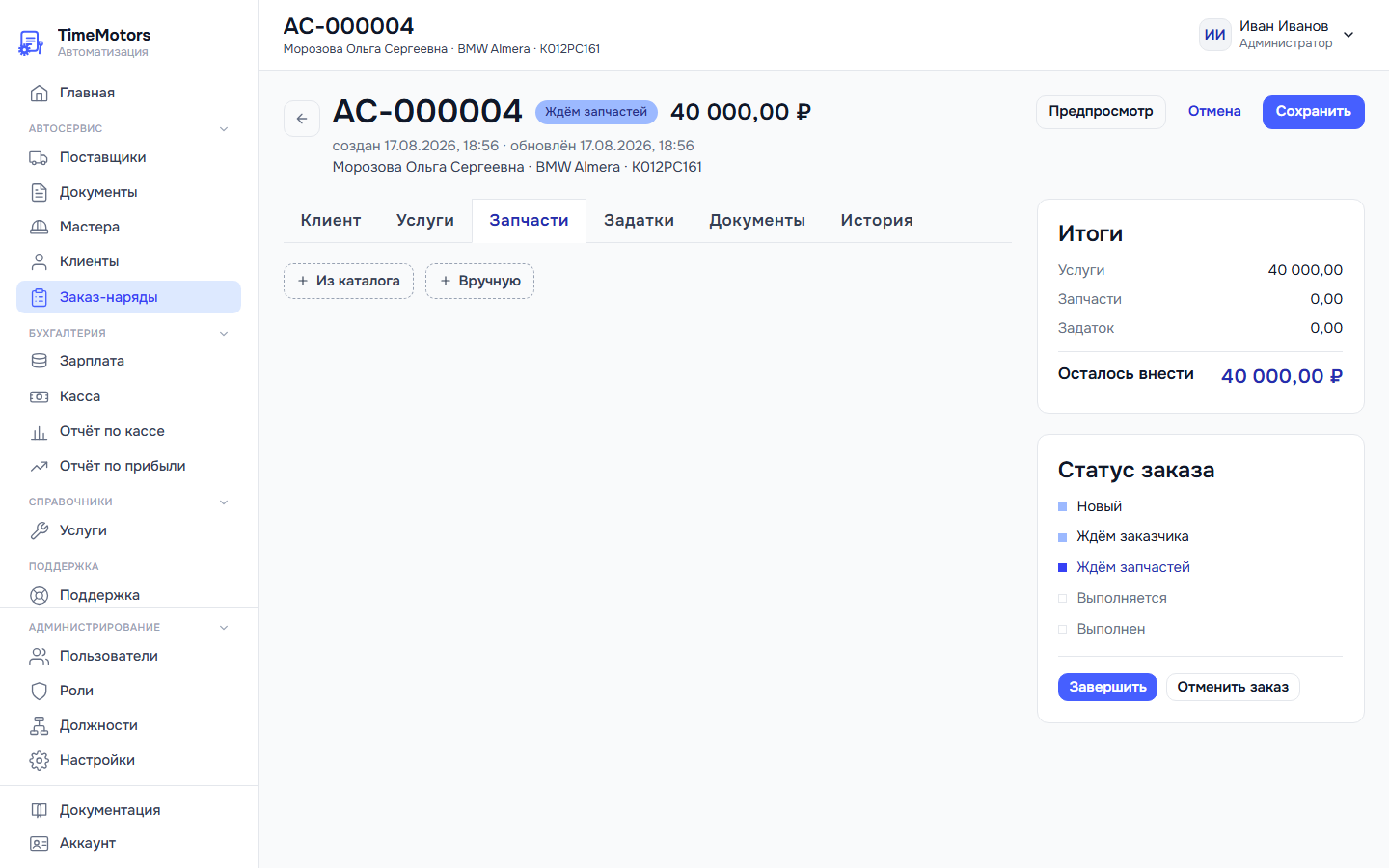
What the table shows
| Column | What it contains |
|---|---|
| Name · part number · brand | Part description, catalog number, and manufacturer |
| Source | Where the row came from: warehouse, supplier, or manual (shown in grey) |
| Qty. | Quantity and, next to it, the unit (pcs, L, kg, m, set). For pieces and sets, a whole number from 1; for liters, kilograms, and meters, a fraction with up to three decimal places: 0.5 L, 2.25 kg. For a row added From inventory, the unit is taken from the warehouse item; for other rows, you can select it from the list next to the quantity |
| Cost | The price at which the part was purchased (cost price) |
| Markup % | Markup percentage: a whole number from 0 to 1000. It is populated according to the account setting; “—” means the price was entered manually |
| Price | Price for client = Cost × (1 + markup), rounded according to the setting |
| Discount | Discount for the row: a number and the % / ₽ button, with a grey “−…” below the amount |
| Amount | Price × Qty. minus discount |
At the bottom is Parts total. The ⋮ → Delete menu on the right removes the row. The ⋮ → Defer for later option moves the row to deferred labor; a part already written off from inventory cannot be deferred.
The quantity, unit, cost, markup, and price can be edited directly in the row (the Markup % field displays the hint “Automatically according to account rules” while the system populates the percentage); Enter moves the cursor to the same cell in the next row. For rows added “manually” and “from inventory,” you can also edit the name, part number, and brand directly in the row.
Three ways to add a part
1. From suppliers
The From suppliers option opens the Parts search window.
- Enter the part number in the “Enter a part number or name” field. There is no separate brand field; suppliers search by part number, and almost nothing can be found by name.
- Click Search (or press Enter).
- The System will simultaneously query all connected suppliers in the account (Russian, Profit League, AutoEuro, Avtosputnik, Armtec) and display the offers in a single table: supplier, part number, brand, name, quantity, price, and lead time. You can sort by name, quantity, price, and lead time.
- Click Select next to the required offer—it will be added to the order as a row: the supplier price will become the cost, the markup and selling price will be calculated according to the markup setting, and the quantity will be 1 pc.
The part number, brand, and name of this order row cannot be edited; the quantity, cost, markup, and price can be changed.
For the search to work, supplier keys must be saved. If a supplier does not respond, the others are still displayed, and the reason is shown in the “Some suppliers did not respond:” block.
2. From inventory
The From inventory option opens the Parts from inventory window: search by name, part number, or brand and select the In stock only checkbox (enabled). Click Select—the row will be added with the purchase price from inventory, the markup from the account setting, and a quantity of 1 (in the item’s unit: if oil is tracked in liters, the row will show “1 L”). You can change the quantity, including to a fractional value if the unit is measured. You can also edit the other fields in the row.
The warehouse stock does not decrease immediately, but the part is reserved for this order: the “Reserve” label appears on the row, and in the “In orders” column in the warehouse the number increases while “Available” decreases. This lets the mechanic and stockkeeper see that the part is already allocated and avoid promising it to another client.
The window indicates how many parts are actually available: if you take more than are available, a hint such as “2 pcs. available, the rest is reserved for AS-000118” appears below the row. This is only a warning—you can still add the row. Items whose quantity is entirely reserved are displayed in grey with the note “Fully reserved”.
The stock will be written off automatically when the order becomes “Completed” (or “Closed”). You do not need to write the part off manually in the warehouse, as this would result in duplicate accounting.
What happens to the stock during the order lifecycle:
| Action | Effect on the warehouse |
|---|---|
| Added a “From inventory” row to an active order (“New”, “Waiting for the client”, “Waiting for parts”, “In progress”) | The stock does not change, the part is reserved, and the “Reserve” label is displayed |
| Moved the order to “Completed” | The stock decreases by the quantity in the row, the “Written off 2 of 2” label is displayed, and an entry is added to the History |
| Returned the order from “Completed” to an active status | The stock is restored, and the row again displays “Reserve” |
| Deleted a row from a completed order | The stock is restored |
| Reduced the quantity in a completed order | The excess quantity is returned to the warehouse |
| Increased the quantity or added a row to a completed order | The missing quantity is written off immediately upon saving |
| “Declined” or deleted the order | The reservation is removed; if the part had already been written off, the stock is restored |
| “Completed” ↔ “Closed”, “Open order” | The warehouse is not affected |
Write-off works if the account has the “Write-off in orders” module enabled (see Modules). The employee changing the status does not need a separate permission for the write-off itself.
Labels on a “From inventory” row
- “From inventory · reserved” — the order is still in progress, the item is reserved for it, and the stock balance is unchanged.
- “From inventory · will be written off when saved” — the line was added to a completed order; the stock will be written off when you click “Save”.
- “2 of 2 written off” — the order is completed, and the item was fully written off from inventory.
- “1 not written off — not in stock” (amber) — there was not enough stock. The order still moved to “Completed”: the balance does not go below zero, and only the available quantity was written off.
When there was not enough stock, the system displays the “Please note” window, for example, “Not enough in stock: ‘Oil filter’ — 2 of 3 written off”. It remains open until you click “Got it”. If the inventory item no longer exists, the warning will say that the stock balance was not restored.
Have you received the missing items? Open the order: above the parts, you will see the “Some parts have not been written off…” banner and the “Write off missing” button — the quantity that was not available will be written off (as much as is in stock). The button is visible in a completed order if you have access to the “Write-off in orders” submodule (Settings → Team → Roles, “Warehouse” group). There is no button in a closed order: first click Expand order.
The unwritten-off quantity cannot be caught up later on its own — only when the status changes to “Completed”, when the quantity is changed, or by using this button. This prevents unexpected write-offs.
Lines added by suppliers, manually, from a bundle, or from an inspection are not linked to inventory and do not affect the stock balance.
3. Manually
The Manually option adds an empty line. Enter the name and purchase price directly in it — the price will be calculated using the markup setting. The part number and brand are collapsed: click the arrow to the right of the name to display them (if they are filled in, the line opens expanded). The name is required: if the part number or price is filled in but the name is missing, the order cannot be saved — the field will be highlighted in red. This is useful when a part was purchased at the nearest market or the client brought their own (in this case, select the “Client’s part” checkbox; see below).
Unit and fractional quantity
Oil, fluids, and cables are not sold by piece. Select the unit l, kg, or m, and you can enter 0.5 or 2.25 in the Qty. field (both a decimal point and a comma are accepted). For pcs and set, the quantity must be a whole number: if you change the unit from litres to pieces, the fractional quantity will be rounded to a whole number. The line amount is calculated as price × quantity and rounded to kopecks (0.5 l × 1,250 ₽ = 625 ₽). Such a line is written off from inventory fractionally: 0.5 l will be deducted from a balance of 12.5 l, leaving 12 l.
In printed documents (work order, invoice, certificate), the quantity is displayed together with the unit in the “Qty.” column: “2 pcs”, “0.5 l”. A labor bundle in which the part has a fractional quantity by default adds it without rounding.
Markup
The system automatically applies the percentage and selling price according to your account’s rules: the default percentage (initially 30%) or a scale where “the more expensive the item, the lower the percentage”, plus price rounding. An administrator sets the rules in Settings → Work orders → Parts markup — see Parts markup. The percentage in a line is a number from 0 to 1000; you can enter any value, as there is no longer a predefined list.
A line has three states:
| What you did | What the line contains |
|---|---|
| You just added a part (from search, inventory, or manually) | Automatic: the percentage is taken from the account’s rules. If you change the purchase price, the percentage is selected again (a different step on the scale applies), and the price is recalculated |
| You entered your own percentage | Manual percentage: it remains unchanged; the price is recalculated when the purchase price changes, using the rounding from the setting |
| You entered the price manually or cleared the percentage (0 or blank — — is displayed) | Manual price: markup is —, and the price is no longer overwritten when the purchase price changes |
This allows you to round the price to a desirable amount (“499” instead of “487.50”) without worrying that it will be restored. To restore the calculation according to the rules, enter the required percentage. When you reopen a saved order, the line does not “jump”: it displays the same percentage and price, and the next purchase price change recalculates the price using that percentage. Lines from inspections and labor bundles come with a markup of —.
Existing orders do not change. Changes to the rules apply to parts added after the change; prices in existing orders remain unchanged.
Everything in the table is saved with the Save button in the order header (or Ctrl+S). Changes are visible in the History tab.
Part discount
The Discount column works the same way as the discount for labor: enter a number and select % (from 0.01 to 100) or ₽ (for the entire line, not per unit). The line amount will decrease, and “−…” will be displayed below it in grey. Select the lines with checkboxes and click Apply discount (Discount for selected, % field) or Remove discount to do this for several lines at once. A client’s standing “On parts, %” discount is applied to new lines (the “The client has a discount … Apply to lines without a discount?” banner is displayed when the client is changed).
<!-- СКРИНШОТ: строка со скидкой и итоги -->If the selling price after the discount is below the purchase price, an amber “Below purchase price” tip will appear below the amount. This is a warning, not a restriction: the order will be saved. Without the “Discounts” permission, the field is visible but inactive.
Client’s part
If the client brought their own part, add it as a line (Add ▾ → Manually) and select the “Client’s part” checkbox below the name (on a mobile phone, open the line). In the Valuation field, enter the price agreed with the client.
- The line is not included in the order amount, payment or debt, mechanic payroll, profit and KPIs. Instead of the amount, it says “estimate … not included in the amount”, and to the right under Order Amount, it shows how many customer parts are not included.
- Such a line has no procurement cost, markup or discount. The warehouse does not write it off; the From inventory line has no check mark.
- In the work order and check-in report, it is printed as a separate table titled “Customer’s parts and materials” with an estimate, as required by vehicle repair regulations (Government Decree No. 780). In the completed work report, it is listed without prices; it is not included in the invoice.
Profit on a part
In the Profit report, the profit for a line = (Price × Qty. − Discount) − Procurement cost × Qty. The total order profit is shown in the right column if you have permission to view profit. Negative profit is highlighted in red—for example, if the part was sold below its procurement cost. For parts included in the labor package, the procurement cost is 0 until you enter it; in that case, the entire price is counted as profit.
On a phone or tablet
Lines are displayed as cards: name, part number, make and source, with “2 pcs × 950 = 1,900 ₽” below (for measured parts, “0.5 l × 1,250 = 625 ₽”). Tap the card to expand the Qty., Price, Procurement cost and Markup, % fields. The ⋮ menu on the card deletes the line. The supplier search window opens over the page, and the results are displayed as cards.
What is not available
- You cannot order a part from a supplier within the program: the price, availability and lead time are shown here, but the order itself is placed in the supplier’s account.
- A part marked From inventory is not written off when it is added to the order—it is only reserved; the write-off occurs when the order is Completed.
- There is no restriction on completing an order if the warehouse is out of stock: a warning and the label “Not written off N — out of stock” will be displayed.
- There is no markup by make, supplier or warehouse: there is one rule per account (a percentage or a scale based on the procurement price).
- The warehouse is linked to the line when it is added. To replace an item, delete the line and add it again.
Common mistakes
- “Search finds nothing.” Search by part number, preferably without spaces or hyphens. Check the keys in Warehouse → Suppliers. If “Authorization error” is shown above the results, the supplier has not accepted the key—reissue it in the supplier’s account and enter it again.
- “A fractional quantity cannot be entered.” The line uses the pcs or set unit: these can only be whole numbers. Select l, kg or m from the list next to the quantity. For a line marked “From inventory”, the unit depends on the warehouse item: you can change it on the “Item card” tab in the item drawer.
- “The line amount is less than the price × quantity.” A discount is applied to the line (including the client’s discount): it is deducted from the amount, and its size is shown in gray below the amount.
- “The price does not change when the procurement cost changes.” This means that you previously entered the price manually (or cleared the percentage): the Markup % column shows —, and the price is “manual”. Enter the required percentage—the price will be recalculated.
- “Why is the price not what I expected?” Check the percentage in the Markup % column: according to the scale, it depends on the procurement cost per unit (3,000 ₽ and above is already a different tier), and the price is rounded according to the setting (Round up to 1 ₽ or Round up to 10 ₽). The rules are in Settings → Work orders → Parts markup, where you will also find the Check calculator.
- “There is a dash instead of a percentage.” The selling price was entered manually, or the percentage was cleared. Enter the percentage—the price will be calculated.
- “I changed the markup in the settings, but the order still has the old prices.” This is by design: the rules apply to new lines; existing orders are not recalculated. To recalculate a line, enter the percentage in it again.
- “I added a part manually, and it disappeared after saving.” A line without a name is discarded when saving. Add it again and fill in Name.
- “The line came back after refreshing the page.” Deletions are applied only when you Save the order.
- “I added a part from inventory, but the stock did not decrease.” This is by design: while the order is in progress, the part is only reserved (the “Reserved” label is displayed, and “In orders” increases in the warehouse). The stock will decrease when the order becomes “Completed”. If the “Reserved” label is missing, check that the “Write-off in orders” module is enabled (Account → Tariff).
- “The order is completed, but the line shows ‘Not written off N — out of stock’.” The warehouse had less than the order required (for example, 2.5 l was needed, but only 2 l was in stock). Record the missing quantity as a receipt and click “Write off the missing amount” in the order.
- “I wrote it off manually in the warehouse and in the order—the stock decreased twice.” Manual write-off is not required for parts from orders. Return the excess through Receipt.
- “There is no ‘Write off the missing amount’ button.” It is displayed in a completed (not closed) order when there is an under-written-off quantity, the warehouse has stock, and you have access to the “Write-off in orders” submodule.