Income & expenses
How much the service actually earned in a month: revenue from orders, minus the purchase of parts, mechanics’ payroll, rent, advertising, taxes, and other expenses. The result is operating profit and profitability by month. An expense takes just a few seconds to enter: date, amount, category. No invoices, legal entities, or statements.
Where to find it
Path: Cash desk & money → Income & expenses. Three tabs: “Report”, “Operations”, and “Categories”.
This is a separate paid module, “Income & expenses” — ₽399 per employee per month. The Account administrator enables it under Account → Tariff (the system will show the new price before activation). Employees need the “Submodule access” permission for “Accounting > Income & expenses” (Settings → Team → Roles, see Roles and permissions). A cashier with cash desk access can select a category in the cash desk, but cannot view the report without this permission. For more information about modules, see Enabled modules.
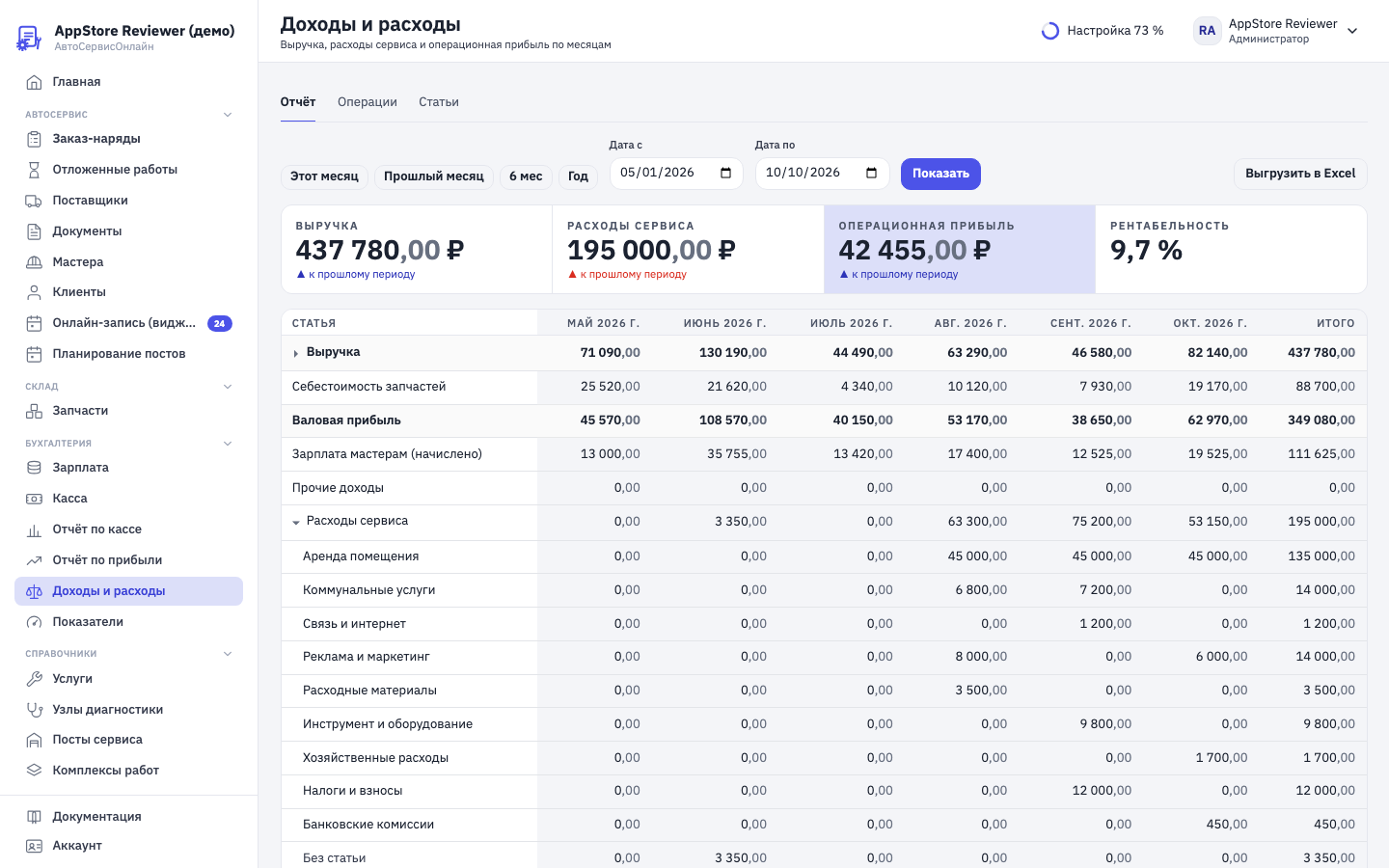
“Report” tab
At the top are quick periods: “This month”, “Last month”, “6 months”, and “Year”, plus “Date from” / “Date to” fields with a “Show” button. By default, the last 6 months, including the current month, are displayed. The period cannot exceed 13 months; otherwise, “The period cannot exceed 13 months”.
Below are four tiles for the period: “Revenue”, “Service expenses”, “Operating profit”, and “Profitability”. Next to the value is an ▲ or ▼ arrow showing the change “compared with the previous period” (the same number of months before the selected one).
Below the tiles is a table: the rows are KPIs, and the columns are calendar months within the period and “Total”. The first column is fixed; if there is not enough space, the table is scrolled horizontally. Click a row name with ▸ to expand “Labor” and “Parts” or expense categories.
How it is calculated
| Row | What it contains |
|---|---|
| Revenue | “Labor” + “Parts” for orders with the “Completed” or “Closed” status, including discounts, for the month in which the order was completed |
| Cost of parts | Purchase price × quantity for the same orders |
| Gross profit | Revenue − cost of parts |
| Mechanics’ payroll (accrued) | Accruals from the payroll report for the same orders, including accruals for the service advisor |
| Other income | Cash desk receipts with an income category (for example, a refund from a supplier) |
| Service expenses | Cash desk expenses and expenses outside the cash desk by category, plus the “Without category” row |
| Operating profit | Gross profit + Other income − Mechanics’ payroll − Service expenses. It may be negative — in that case, it is shown in red |
| Profitability | Operating profit ÷ Revenue × 100, % with one decimal place. If there is no revenue — “—”. In the “Total” column, it is calculated from the total amounts, not as an average across the months |
Revenue, purchases, and payroll are taken “upon completion”: an order belongs to the month in which it was completed (Moscow time). Expenses and other income are recorded by the operation date. The same is briefly printed below the table (“How it is calculated”).
The report does not include:
- order payments and refunds in the cash desk — revenue has already been accounted for through orders and is not counted again;
- cash desk receipts without a category — they cannot be attributed to either revenue or other income;
- cash collection — this is the withdrawal of money from the cash desk, not an expense.
A cash desk expense without a category is included in the report as the “Without category” row. Click its amount: the “Operations” tab opens with a filter where you can allocate operations to categories.
Payroll is not counted twice
Mechanics’ payroll in the report is accrued for orders. Payouts to mechanics recorded as a cash desk expense with the “Mechanics’ payroll” category are not added to expenses (otherwise, payroll would be counted twice). Their total is shown in the summary below the table: “Paid to mechanics for the period:”, with the note “not included in the report — payroll is calculated based on accruals”.
Differences from the “Profit report”
The Profit report only includes orders: parts + services − mechanics. “Income & expenses” adds everything else — rent, advertising, taxes, the administrator’s payroll — and shows the service’s profit in full. Revenue and payroll for the same period match in both reports.
“Operations” tab
A log of everything recorded as expenses and income: manual cash desk operations (receipts and expenses not linked to an order) and expenses outside the cash desk. Newest entries first, 30 rows per page, with “Operations: N”, “Receipts:”, and “Expenses:” for the current filter shown below.
Columns: “Date”, “Category”, “Comment”, “Source” (“Cash desk” or “Outside the cash desk”), “Amount”, and “For”. Filters: period (“Date from” — “Date to”), “Category” (a parent category includes its child categories), “Source”, and a “Without category” button.
A cash desk operation without a category displays the “Without category — select…” list directly in the row: select a category, and it will be saved. This can also be done during a closed shift — the money amounts do not change; only the category attribution changes.
Expense outside the cash desk
Not all expenses go through the cash desk: rent is paid from a settlement account, and advertising is paid by card. For these expenses:
- Go to the “Operations” tab → “+ Expense”.
- In the “New expense” drawer: “Date” (today by default; neither later than today nor more than 5 years ago), “Amount” (greater than zero, up to ₽99,999,999.99), “Category”, “Comment” (optional, up to 200 characters).
- “Save”.
Such an expense does not require an open shift, does not change the cash desk balance, and is not included in the Cash desk report. Click the row to change the expense, or click “Delete” in the drawer. Everyone with permission for the module can edit and delete expenses; the “For” column shows who entered the expense.
“Categories” tab
Categories are purpose designations for money: “Rent”, “Advertising and marketing”, and “Taxes and contributions”. Two columns: “Expenses” and “Income”.
- A ready-made set is created automatically when opened for the first time: expenses — rent, utilities, communication and internet, advertising and marketing, consumable materials, tools and equipment, operating expenses, taxes and contributions, bank fees, staff payroll, mechanic payroll, other expenses; income — other income, refunds from suppliers.
- “+ Category” adds your own. A category can be nested within another category (“Special clothing washing” within “Operating expenses”) — up to two levels. The name can contain up to 60 characters and must be unique among categories of the same type (case-insensitive).
- “⋮” in a row: “Rename or move”, “Archive”, “Delete”.
- Categories with a lock (“Mechanic payroll”, “Other expenses”, “Other income”) are system categories: they cannot be renamed, archived, or deleted, but you can create your own categories within them.
- Archive hides a category from selection lists, but it remains in reports for past periods. The “Show archive” toggle displays archived categories; “Restore” returns a category, and “Restore all” restores all categories along with nested ones.
- The “USN” marker on an expense category means the expense is recognized under the USN “Income minus expenses” regime (cl. 1 art. 346.16 of the Tax Code: rent, payroll, materials, advertising, communication, taxes, bank services). It is already set for ready-made categories, except for “Other expenses”. To set or remove it, use “⋮” → “USN expense (recognized)” / “Not a USN expense”; for a new category, use the checkbox in the form. The “Accounting & taxes” module is required (Accounting & taxes).
- A category can be deleted only if it has no operations. If it has operations, you will be prompted to archive it. After deletion, the “Undo” link is available for a few seconds.
Category in the cash desk
When the module is enabled, a mandatory “Category” field appears in the “Receipt” and “Expense” windows in the cash desk (“Other income” and “Other expenses” are preselected). An operation cannot be saved without a category — “Select a category”. Cash collection does not have a category. Order payments and refunds do not require one.
In an open shift card, if there are manual operations without a category, the “Not yet categorized: N” link is displayed — it leads to the “Operations” tab with the “Without category” filter. A “Category” column is added to the Cash desk report.
Paying salaries from the cash desk
In the “Payment: Full Name” window, there is a “Record expense in cash desk” checkbox: the payment and the cash desk expense with the “Mechanic payroll” category are created together. For details, see Mechanic payouts.
Export to Excel
The “Export to Excel” button on the “Report” tab downloads a file for the selected period: the “Report” sheet (the same rows and months) and the “Operations” sheet (log for the period). It is convenient to send it to an accountant. File downloads do not work in the Android and iOS apps — open the report in a browser.
Common errors
- “There is no ‘Income & expenses’ item in the menu”. The module is not enabled (for the administrator: Account → Tariff) or your role does not have the “Submodule access” permission for “Accounting > Income & expenses”.
- “The cash desk will not let me save an operation — ‘Select a category’”. This is by design: when the module is enabled, income and expense operations must have a category.
- “Old cash desk operations without a category”. They remain “Without category”. Open Operations → “Without category” and select a category in the row.
- “Profit is negative”. Expenses exceed earnings. Review expenses by category to check for duplicates and expenses from the wrong month.
- “Profitability is ‘—’”. There is no revenue for the month: there are no completed orders.
- “I added an expense, but I cannot see it in the report”. Check that its date falls within the period and click “Show”.