Copying an Order
Repeat a visit in seconds: maintenance service that you provide to this client every year, or the same set of labor for another client. A copy is a new order with the next number, into which labor and parts with prices and mechanics have already been transferred.
Where to Find It
You can copy any order except a deleted one, including Completed, Declined, and Closed ones. There are three places:
- Order card — the More ▾ button in the header, then the Copy order item. On a mobile device, the actions are grouped in the ⋯ menu to the right of the number. If the order contains unsaved changes, they are saved first, as before printing.
- Order list — the ⋮ menu in the row, then the Copy item.
- Client and vehicle order history (the Orders tab in the client card, with the vehicle expanded) — the ⋮ menu in the row, then the Repeat item.
This item is available to those who have access to orders (the “Work orders” module, the “Submodule access” permission). If the account balance is exhausted and the service is in view-only mode, the item is greyed out — top up your balance, see Tariff and balance.
“Copy Order” Window
A drawer titled Copy order AS-000123 opens on the right. It contains two sections.
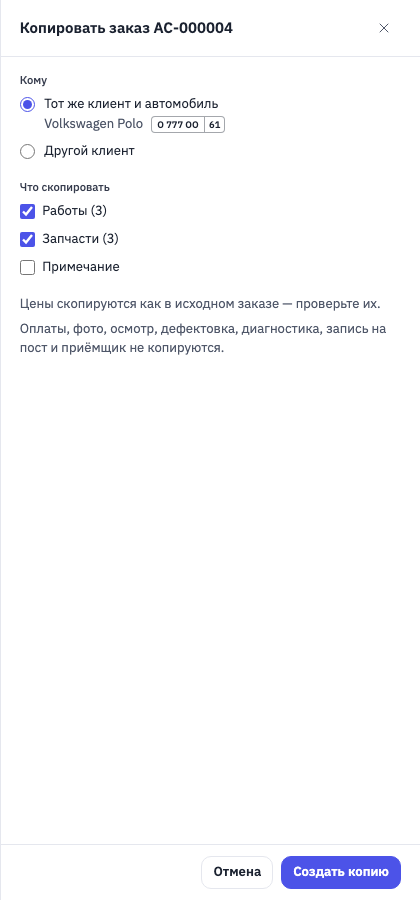
For
| Option | What will happen |
|---|---|
| Same client and vehicle | Selected by default. The copy is created for the same client and the same vehicle |
| Different client | The Client field with search appears, along with a New button next to it (to add a client without leaving the window), and the Vehicle field. You can leave the vehicle blank: the Without vehicle item. The list contains only vehicles belonging to the selected client |
What to Copy
- Labor (N) and Parts (N) — the number in parentheses is the number of rows in the source order. Selected by default. If there are no rows of this type, the checkbox is greyed out.
- Note — disabled by default: it usually contains one-time details about the previous visit.
If you clear all the checkboxes, the message “An order without labor and parts will be created” appears at the bottom — you can create such an empty order as well.
Click Create copy. A new order opens with the New status, and the message “Order AS-000130 created from AS-000123” appears at the bottom of the screen. The button is temporarily blocked, so double-clicking will not create two copies. Cancel closes the window without creating anything.
What Is Copied
- Labor — service, client price (or standard hours and rate), quantity, discount, as well as the row mechanic and their calculation (price, standard hours, or percentage). If the mechanic no longer works in the account, the row is copied without a mechanic.
- Parts — part number, brand, name, supplier, purchase price, sale price, quantity, markup, and discount.
- Note — if selected.
Prices are transferred as in the source order, without recalculation according to the current price list and markup — review them in the new order.
What Is Not Copied
The status and completion date (a new order is always New), payments and prepayments, photos, inspection report, defect inspection and diagnostics, service bay booking in the calendar, service advisor, and change history. Recommendations for the next visit remain on the vehicle card. Parts from inventory are copied as regular rows: inventory reservations and write-offs are not transferred and must be created again in the new order.
A record appears in the history of both orders: for the copy — “Created by copying order AS-000123”, and for the source order — “Copied to order AS-000130”. The source order itself is not changed.
FAQ
- “There is no ‘Copy’ item”. It is unavailable for a deleted order. Check your permissions as well: access to orders is required. In the client history, the item is called Repeat.
- “The item is greyed out”. The account balance is exhausted and the system is in view-only mode: top up your balance.
- “Too many rows to copy (maximum 200)”. No more than 200 labor items and 200 parts can be copied at a time. Clear one of the checkboxes and copy the rest, then add the missing rows manually.
- “The vehicle does not belong to the client”. The selected vehicle is registered to another client. Select a vehicle from the list under the Client field or select Without vehicle.
- “The copy has the previous prices”. This is intentional: the prices are taken from the source order. Update them in the rows of the new order.