Warehouse Item List
Inventory of parts in the auto service warehouse: what has been received, how much remains, the total value of the remaining stock, and what needs to be ordered. A log is maintained for each item, showing who changed the stock, when, and why.
Where to find it
Path: Warehouse → Parts (the “Parts Warehouse” screen).
This section appears if the account has the “Parts” module enabled and the Role has the “Submodule access” permission in the “Warehouse > Parts” group (Path: Settings → Team → Roles, “Access permissions” block). The Account administrator can see the section without configuring permissions.
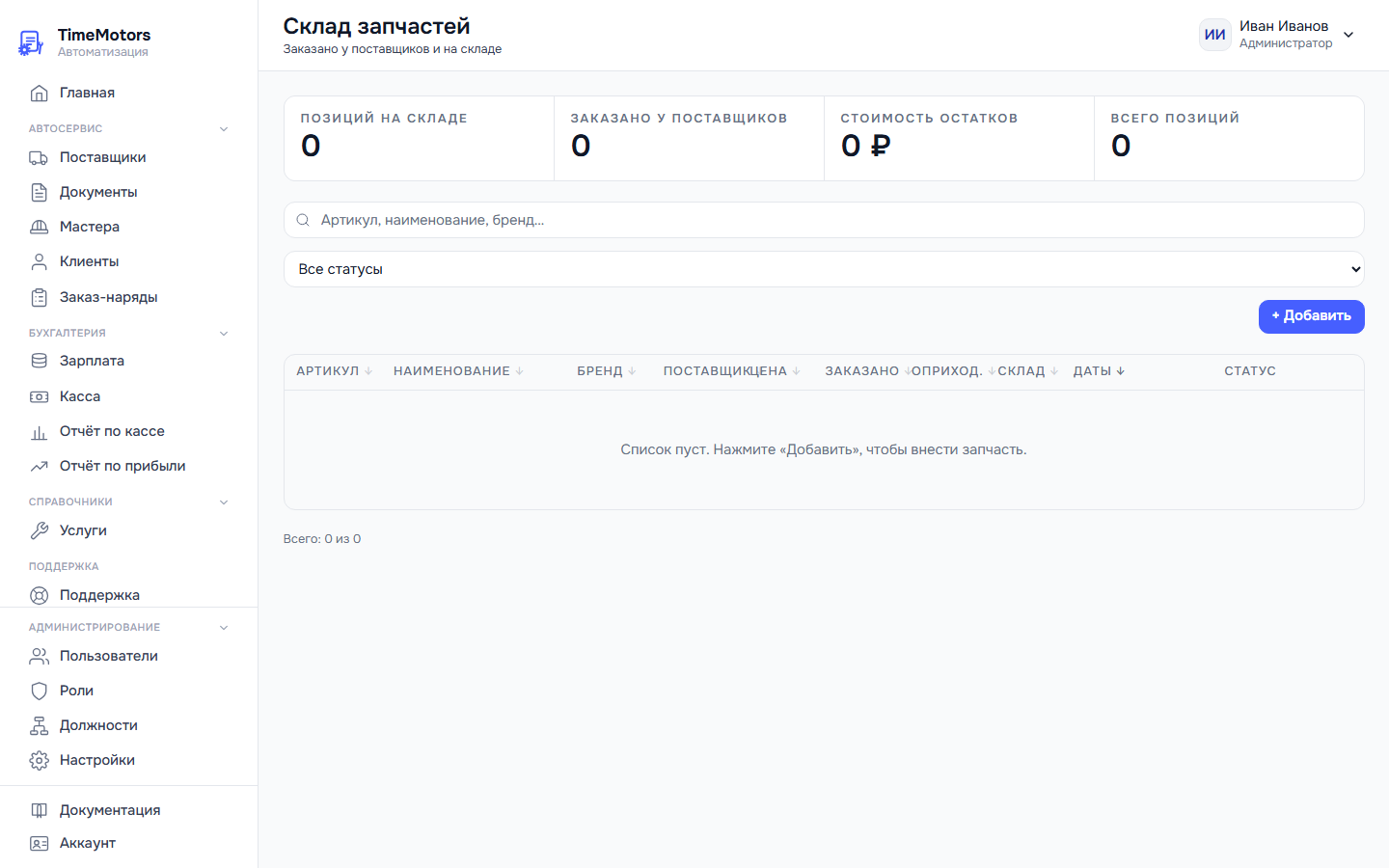
Totals at the top
Above the list is a single row with five numbers:
- Items in stock — the number of items with stock greater than 0.
- Ordered from suppliers — the number of items with zero stock (“Ordered” status).
- Value of stock — stock × purchase price for all items.
- Total items — all warehouse items.
- Service due — the number of items that have reached the minimum stock level (orange number). Click the tile to leave only these items in the list. Read more — Service due.
Below is a search field for “Part number, name, brand…”, filter buttons “All”, “In stock”, “Ordered”, “Service due” (with the number of items shown next to each), and the main “+ Item” button on the right. Next to it is the “More ▾” menu: “Import stock…”, “Export stock” (using the current search and filter), “Download template”, “Import history”; the “Import and export” module is required — see Import and export of stock.
You can also find a Part number from any section using the header search (Ctrl K, or ⌘K on Mac); it opens the “Warehouse” with the relevant item already selected. Read more — Header search.
What the table shows
Clicking anywhere in a row opens the item panel.
| Column | Contents |
|---|---|
| Item | Name, with the Part number and brand shown below it in grey |
| Supplier | Item supplier (manual for items added manually). This column is hidden on narrow screens |
| Purchase price | Purchase price |
| In stock | Current stock with unit (“12.5 l”, “4 pcs”); 0 is shown in a muted colour. The “Service due” label appears below it if the stock has reached the minimum level |
| In orders | The number of parts allocated to work orders (“New”, “Waiting for customer”, “Waiting for parts”, “In progress”). Available only when the “Write-off in orders” module is enabled |
| Available | Stock minus “In orders”. If there is not enough stock, “short by 2” is shown in red. Available only when the “Write-off in orders” module is enabled |
| Ordered / received | The number ordered when the item was created / the total number received |
| Date | “Est.” — when the item was created, “Rec.” — first receipt |
| ⋮ | Row actions menu: “Delete” |
The “In orders” and “Available” columns are visible when the “Write-off in orders” module is enabled (Account → Tariff). Read more — Relationship with orders.
Click a column heading to sort by that column. The list is loaded as you scroll: the first 50 items appear initially, followed by the rest; there are no numbered pages. At the bottom, it shows “Showing: 50 of 240” or “Total: 240”. The list remembers the search, filter, and sorting while the browser tab is open. When they differ from the initial settings, a “Reset” button appears next to the filters. On screens 1280 px wide and above, the table is replaced by item cards containing the same data.
Item statuses
There are two statuses, and they depend only on the stock level (the “Service due” label is separate and is based on the minimum stock level):
- In stock — stock is greater than 0.
- Ordered — stock is 0, including when everything has been written off.
There are no “Received”, “Partially received”, or “Written off” statuses.
How to add a part
- Click + Item to open the “Add part to warehouse” window.
- Fill in:
- Name — required;
- Part number, Brand — optional;
- Unit — pcs (default), l, kg, m, or set — see Units of measurement;
- Minimum stock — optional: the “Service due” label appears when this level is reached. Leave empty to disable monitoring;
- Purchase price;
- Quantity — an integer for individual items and sets; a decimal value is allowed for litres, kilograms, and metres (up to three decimal places, for example, 12.5). Zero cannot be entered.
- Click “Add”.
The item is received immediately: “Ordered”, “Received”, and “Warehouse” equal the entered quantity, the status is “In stock”, and an “Income” entry appears in the log.
Units of measurement
Each item has a unit, which is displayed next to the quantity everywhere: in the list, in the item panel, in an order, and in printed documents.
| Unit | Quantity |
|---|---|
| pcs, set | integer only |
| l, kg, m | decimal, up to three decimal places: 0.5 l, 12.25 kg |
A decimal value can be entered using a decimal point or comma. For example, oil can be tracked in litres: 200 l received, 0.5 l written off in an order. You can change the unit on the “Item card” tab. You cannot change litres to individual items while the stock contains a decimal quantity (for example, 12.5 l): first write it off or receive it up to an integer value.
Item panel
Clicking a row opens a panel on the right: at the top are the name, Part number · brand, and the stock in large text (with the “Service due” label if applicable). Below them are four tabs:
-
“In stock” — information about the item (purchase, minimum stock, ordered, received, dates), the “Receive” block — Receipt, and the “Write off” block — Write-off. The “In orders” block shows which orders the item is currently reserved for.
-
“Movements” — log: every receipt, write-off, and item card edit, including the date, author, and resulting stock balance. You can undo an erroneous write-off from here. For details, see Movements log.
-
“Item card” — edit the item: “Name”, “Part number”, “Brand”, “Purchase price, ₽”, “Unit”, “Minimum stock”; the Save button (followed by “Saved ✓”) and Delete item.
-
“History” — who changed the item card and when: “field: before → after” and the author. For details, see Movements log.
The stock balance cannot be edited in the item card: it changes only through the “Receive” and “Write off” operations, so the log always shows where the figure came from. If you change the name, part number, brand, or purchase details, the previous data remains in orders where the item is already included; on “Cost of stock”, the new purchase price affects the entire stock balance immediately. Every item card edit is recorded in the log, for example, “Purchase 100 → 120”.
On mobile, the drawer opens full screen, with the Receive and Write off buttons pinned to the bottom.
Deletion
The ⋮ → Delete menu in a row → Delete / Cancel confirmation; after deletion, “Item deleted” appears at the bottom. An item is deleted regardless of its stock balance, irreversibly, along with the movements log (the confirmation warns: “The movement history will also be deleted”). The Delete item button on the “Item card” tab does the same.
If an item is currently reserved for a work order, it cannot be deleted: the system will respond with “Item is used in orders: AC-000118, AC-000121. Remove it from the orders or complete them”. Remove the line from these orders or move the orders to “Completed”, and then delete the item. An item in completed orders does not prevent deletion: the orders will retain their history.
Relationship with orders
The warehouse is linked to an order by selecting a part: in a work order, on the “Parts” tab, select Add ▾ → From inventory to open the “Parts from inventory” window (search “Search by name, part number, or brand”, “In stock only” checkbox). There are two columns: “In stock” and “Available”. Items for which everything is already reserved are greyed out with the tooltip “Fully reserved”, but they can still be selected.
After that, everything is done automatically; you do not need to write anything off manually in the warehouse:
- While the order is in progress, the part is reserved: “Warehouse” does not change, “In orders” increases, and “Available” decreases.
- When the order becomes “Completed”, the stock balance is written off.
- If the order is returned to work, the line is deleted, or the quantity is reduced, the stock balance is restored.
- If there is not enough stock, the available quantity is written off, the order is still completed, and the order retains the label “Not written off N — not in stock” and the “Write off missing” button.
The sales price of a line is calculated from the purchase price in the warehouse according to the markup setting: the default percentage or a scale, with rounding. It can be adjusted in the order line, but the warehouse will not change as a result.
For details, see Parts in an order and Order statuses.
“Item in orders” window
Click the number in the “In orders” column to open the “Item in orders” window: the order number, its status, and how many units are needed, for example, “AC-000118 · In progress · 1 pcs.”. You can navigate to the order by its number. This allows the warehouse worker to see who needs the part. The window opens if you have access to the “Write-off in orders” submodule; without it, the number in the column is visible but not clickable. The same list is available in the item drawer, on the “In stock” tab, in the “In orders” block.
If the “Write-off in orders” module is disabled, the “In orders” and “Available” columns are not displayed, and the warehouse and order work as before: the stock balance does not change. To enable it, go to Account → Tariff (free together with “Parts”; it is disabled by default for existing accounts).
Common mistakes
- “I added a part to an order, but the warehouse stock balance did not decrease”. While the order is in progress, the part is only reserved: check the “In orders” column. The stock balance will be written off when the order becomes “Completed”. Do not write anything off manually, or the part will be written off twice.
- “There is a minus sign in the „Available“ column”. More items are reserved in active orders than are available in the warehouse. Receive the part or order it from a supplier.
- “I cannot delete the item”. It is reserved for an active work order. The order numbers are listed in the error message.
- “There are no „In orders“ and „Available“ columns”. The “Write-off in orders” module is disabled (Account → Tariff).
- “The required item is not in the list”. Review the filter buttons above the list and the search settings. The list remembers the previous selection, so click Reset.
- “The item has the status „Ordered“, even though I received it”. The stock balance is 0 — everything has been written off. If the part is physically in stock, receive it again.
- “Why can't I change the stock balance in the item card”. The stock balance can only be changed through operations: Receive (add) and Write off (subtract). This keeps the log consistent with the stock balance.
- “I cannot enter a fractional quantity”. The item's unit is pcs or set — these only support whole numbers. For oil, liquids, and cables, change the unit to l, kg, or m on the “Item card” tab.
- “I want to upload stock balances from Excel”. Select More ▾ → Import stock balances… above the list: initial stock balances or a supplier's invoice from Excel or CSV, with validation before saving and the ability to cancel within 7 days. For details, see Import and export of stock balances. If the “More ▾” option is missing, you do not have the “Import and export” permission.
- “I entered the wrong price or name”. Open the item drawer, go to the “Item card” tab, correct the information, and click Save. Lines in existing orders will not change.