Supplier Keys
Connect parts suppliers through their APIs. Without keys, supplier search from an order does not work—parts can only be added from inventory or manually.
Where to Find It
Path: Warehouse → Suppliers (the Suppliers screen, with the Parts catalogs and access keys subtitle).
The Suppliers module is disabled by default: to connect suppliers, contact Support. The section appears if the Suppliers module is enabled for the account and the Role has the Submodule access Permission in the Auto service > Suppliers group (Path: Settings → Team → Roles, Access permissions block). The Account administrator can see the section without configuring permissions.
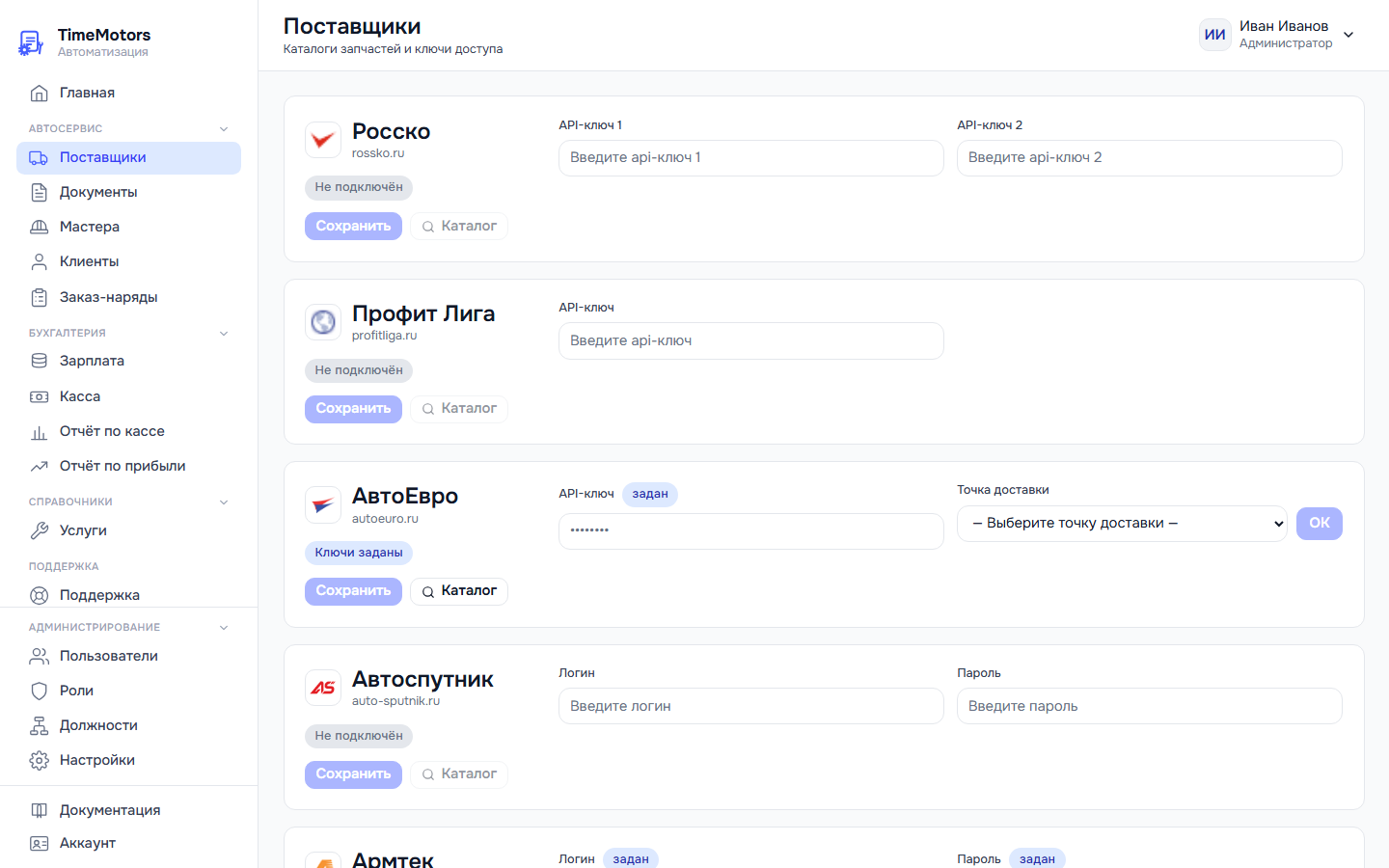
Five Supported Suppliers
Each supplier is an Item card with a logo, website, status label (Not connected or Keys set), and fields.
| Supplier | What to Enter | Features |
|---|---|---|
| Rossko (rossko.ru) | API key 1, API key 2 | Both keys are required; otherwise the status is Not connected. The System automatically uses the first delivery location from your Rossko account |
| Profit Liga (profitliga.ru) | API key | One key |
| AvtoEuro (autoeuro.ru) | API key, then Delivery location | After saving the key, the Delivery location list appears—select a location and click OK. AvtoEuro search returns an error if no location is selected |
| Avtosputnik (auto-sputnik.ru) | Login, Password | Login and Password for the supplier's API |
| Armtek (armtek.ru) | Login, Password | There is no need to enter a VKORG code—the System automatically uses the first sales organization in your Account |
How to Connect a Supplier
- Find the supplier's Item card.
- Fill in the fields from the table above.
- Click Save (the button is active when something has been entered in a field). OK will appear next to it.
- The label in the Item card will change to Keys set, and each saved field will display the set label.
- For AvtoEuro, select a Delivery location and click OK.
There is no Active checkbox: when searching from an order, the System queries every supplier for whom a key has been saved.
You cannot check a key with a separate button. To confirm that a supplier is connected correctly, click the Catalog button on its Item card: it opens search for that supplier only, allowing you to view prices and availability (you cannot add items to an order from there). The button is active when all of the supplier's keys have been set.
How to Change a Key
Enter a new value in the field and click Save. An empty field means do not change when saving—the old key remains in place.
How to Disable It
You cannot disable a supplier or delete a key yourself: you cannot clear a field and save it because an empty field does not change the saved key. If you need to remove a supplier, contact Support.
Where to Get the Keys
The supplier provides the API key or login—usually in the personal account under the API section; otherwise, contact your manager. Rossko requires two keys; Profit Liga and AvtoEuro require one key each; Avtosputnik and Armtek require a login and password.
The supplier returns prices and availability using your keys—the same data as in your account on the supplier's website.
Who Can Save Keys
Any user with access to the Suppliers section can save keys, not just the Account administrator. Saved values are not shown to anyone on the screen—only the set label is visible.
If an Employee with access to the section has left or a key may have reached unauthorized parties, reissue it with the supplier and save the new key.
Common Errors
- “I entered the keys, but search returns an ‘Authorization error’.” The supplier did not accept the key: check it in the supplier's account, reissue it if necessary, and enter it again.
- “Rossko shows the ‘Not connected’ label.” You must save both keys—API key 1 and API key 2.
- “AvtoEuro shows an empty ‘Delivery location’ list.” This usually means the key was not accepted. Check the key and save it again.
- “Search says ‘AvtoEuro delivery location not selected’.” Select a location on the AvtoEuro Item card and click OK.
- “I want to add my own supplier.” The supplier list is built into the System; other suppliers (Emex, Avtodor, etc.) are not available. Contact Support if you need a different supplier.