Visit rating
The vehicle has been handed over, but you do not know whether the client is satisfied. The Visit rating module asks them directly: after handover, the client gives a rating from 1 to 10 and can optionally leave a comment using the same link as “Repair status”. A manager sees a low rating immediately: a push notification arrives, and when Tasks are enabled, a “Call the client” task is created. KPIs accumulate the NPS, average rating, and breakdown by service advisors and mechanics, so you can see who is doing well.
The Visit rating module (Auto service), 199 ₽ per month per employee, see Modules and pricing. It is disabled by default: the account administrator enables it in Account → Tariff. An employee needs the “Submodule access” permission for “Visit rating” in their role (Settings → Roles): it enables the rating chip in an order. People who have both this permission and access to “KPIs” can see the block in “KPIs”. Administrators can always see everything.
How to request a rating
- Open a closed or completed order and click Contact client.
- Select the Leave a review template. When “Visit rating” is enabled, it contains a link to the rating (the
{ссылка_оценки}placeholder), see Client messages. - Send the message via WhatsApp, Telegram, or SMS.
The client clicks the link, and the order page opens directly at the “How was your visit?” block: they select a number from 1 to 10, can optionally leave a comment (up to 1000 characters), and click Send. Nothing is sent until they click Send. There is only one rating per order, and it cannot be changed later. When they reopen it, the client sees “Rating received: 4 out of 10”. Only completed or closed orders can be rated: while the vehicle has not been handed over, the block is not available.
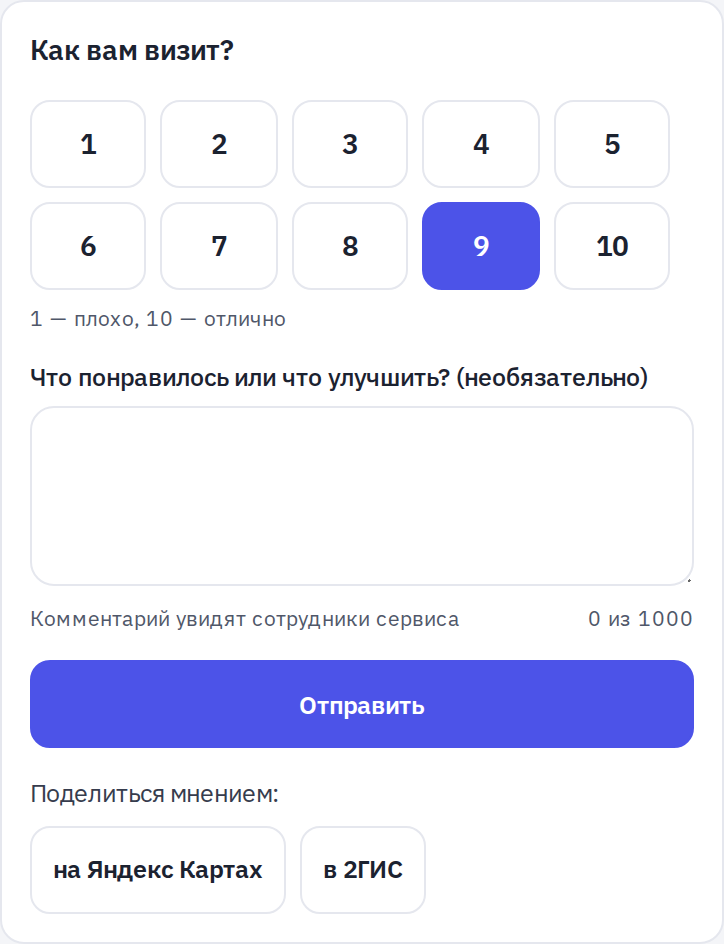
If the link is available without a template (for example, the client uses the link from “Repair status”), the block appears on the order page as soon as the order becomes “Completed” or “Closed”.
Links to Yandex Maps and 2GIS
In Settings → Client messages, specify the Link for reviews (for example, a listing on Yandex Maps) and, if needed, a Second link for reviews (for example, 2GIS), making sure to include https://. Below the rating block, the client will see the “Share your opinion: on Yandex Maps / on 2GIS” buttons.
They are displayed the same way for everyone: before and after the rating, for any number. Platform rules require this: you cannot select only “satisfied” clients. For the same reason, the block does not contain prompts such as “give 5”, and you should not promise a discount or gift for a review.
Low rating (6 or lower)
- Push to administrators. A “Low visit rating · 4 out of 10 · AS-000123” notification arrives: only the order number and rating are included, without the comment or client name, because the text is visible on the lock screen. Click it to open the order. You need the app for Android or iPhone. Personal toggle: Settings → Notifications, “Push notifications” card, “Low client ratings” row.
- “Call the client” task. If the “Tasks” module is enabled (see Tasks), a “Call the client: rating 4 out of 10” task is created for today, with no time specified. Assignee: the person who last marked “Contacted client” in the order, otherwise the person who sent the link, otherwise the administrator. The client’s comment is stored in the task note. An assignee who is not an administrator receives the same push notification.
Where to view ratings
In an order
A “Rating 4/10” chip appears next to the status. Click it to open the “Client rating” window with the comment. In the order History, there is a “Client rating: 4 out of 10” entry (without the comment). Employees with the “Visit rating” permission can see the chip.
In “KPIs”
Reports → KPIs, “Client ratings” block. It is calculated for the same period as the KPI table above and displays:
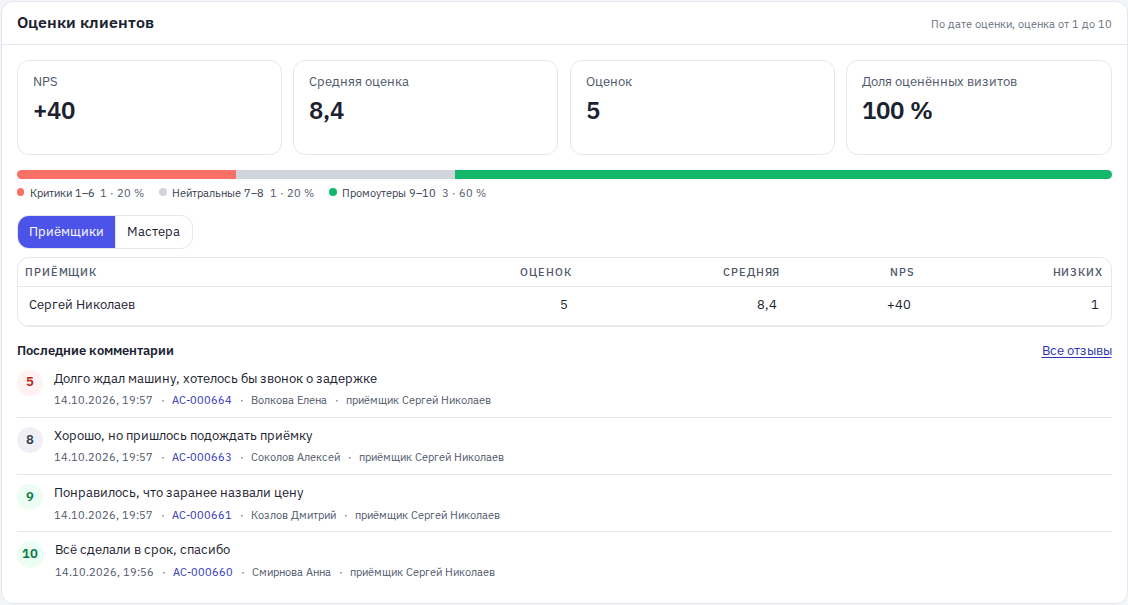
- NPS — the percentage of 9–10 ratings (“Promoters”) minus the percentage of 1–6 ratings (“Detractors”). Ratings of 7–8 (“Passives”) are not included. From −100 to +100: the higher the score, the more clients are willing to recommend you. The arrow next to it shows the change compared with the previous period.
- Average rating, Ratings (total number), and Share of rated visits (the percentage of vehicles handed over during the period that received a rating). If the percentage is low, send Leave a review more frequently.
- Share bar: detractors, passives, promoters.
- Service advisors and Mechanics: each has a number of ratings, average rating, NPS, and number of low ratings. If an order has several mechanics, the rating is counted for each of them. The program calculates the NPS and average rating per employee from 5 ratings; while there are fewer, a “—” is displayed with the “Too few ratings” hint.
- Latest comments with the rating, date, order number (order link), client, and service advisor. The All reviews button opens a drawer with all ratings, 20 per page; the Low ratings only chip keeps ratings of 6 or lower.
The service advisor and mechanics are recorded at the time of the rating: if the order is edited later, the report will not change. Ratings of deleted orders are not included in the report. If there are no ratings for the period, the block displays a prompt to send the “Leave a review” template after handover.
In the Excel file exported by the “Export to Excel” button in “KPIs”, when “Visit rating” is enabled, a “Ratings” sheet is added: a summary and breakdown by employee, without client comments. For more information about the section itself, see KPIs.
FAQ
- “The client cannot rate.” The order is not yet “Completed” or “Closed”: as long as the vehicle has not been handed over, there is no block. Either the rating has already been submitted (it cannot be changed), or the module is disabled, or the link has been revoked (New link in the order).
- “The client gave 3 and said they made a mistake.” The rating cannot be changed. Contact the client; this is the purpose of the “Call the client back” task. The administrator cannot edit the score itself.
- “No push notification arrived.” It is sent only to administrators and only for ratings of 6 or lower. Check Settings → Notifications: the main switch and the “Low client ratings” row. You need the app (what to do).
- “The task was not created.” The “Tasks” module is not enabled, or the order has no suitable assignee (the account must have an active administrator). A rating above 6 does not create a task.
- “The ‘Client ratings’ block is missing from ‘KPIs’.” The “Visit rating” module is disabled, or your role does not have the “Submodule access” permission for “Visit rating” (or access to “KPIs”).
- “An employee has ‘—’ instead of NPS.” They have fewer than 5 ratings for the period. Select a longer period.
- “Can the map link be shown only to satisfied clients?” No, platforms prohibit this. The buttons are the same for everyone and appear in the block immediately, rather than after the rating.