Mechanic Item Card
Everything about a mechanic on one page: contact details and payout history. New payouts can also be added here.
Where to Find It
Path: Auto service → Mechanics → click on the mechanic’s full name (or the pencil icon “Edit”). The “Editing Mechanic” page will open.
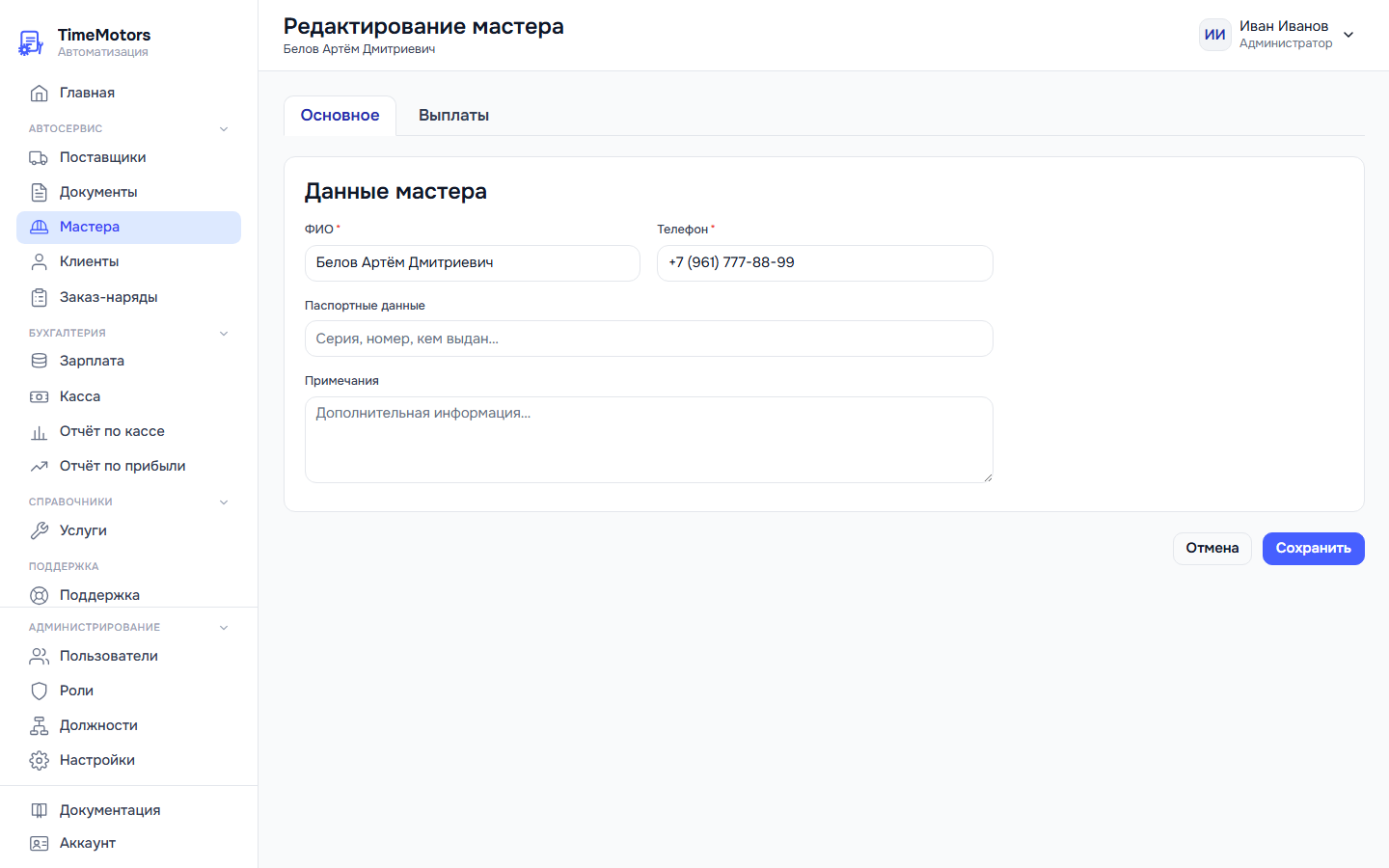
Two Tabs
- Main — full name, phone number, passport details, notes.
- Payouts — history of all payouts to the mechanic, adding and deleting payouts.
“Main” Tab
The “Mechanic Details” section:
| Field | What It Contains |
|---|---|
| Full name | Required, up to 256 characters |
| Phone | Required |
| Passport details | Optional: series, number, issuing authority |
| Notes | Notes about the schedule, specialization, and rate; this is also where you can note that the mechanic no longer works |
The “Order Check-in” section (visible only with the “Submodule access” permission for “Accounting > Payroll”):
| Field | What It Contains |
|---|---|
| % from order labor | The mechanic’s percentage when they are the order’s service advisor: from the order labor amount after discounts. From 0 to 100, up to two decimal places |
| % from order parts | The same percentage applied to the order parts amount |
This is the mechanic’s percentage when they accepted the vehicle (selected in the “Service Advisor” field of the order) and the order is completed. How to configure it:
- Enter “% from order labor” and/or “% from order parts”. You can fill in either field; an empty value is treated as 0. You can use either a comma or a decimal point for the fractional part, but the System will not accept a value greater than 100 or with extra characters (“Percentage from 0 to 100”).
- Click “Save”.
- In the order, in the “Client and Vehicle” panel, select the mechanic as the service advisor and move the order to “Completed”.
Example: 10% from labor and 5% from parts, where an order includes labor of 25 000 ₽ and parts of 8 000 ₽ after discounts — the service advisor will be credited with 2 500 + 400 = 2 900 ₽ in the “Order Check-in” line in the Payroll Report.
Important things to know:
- Percentages are saved in the order when it is completed. If you change them later, completed orders will not be recalculated, and the new values will apply to subsequent orders.
- Orders completed before this feature was introduced do not accrue service advisor amounts.
- If both fields are empty or zero, no service advisor amount is accrued.
- Only users with the “Submodule access” permission for “Accounting > Payroll” can view and edit this section. An Employee with access only to “Mechanics” cannot see this section, and its values are not changed when the Item card is saved.
- A mechanic who only accepts orders and does not perform any work themselves is created as a regular mechanic without Services.
For details, see the Payroll Report.
The “Account” section (below the form; available only to an Administrator when the “Mechanic Workplace” module is Enabled) links the mechanic to your Employee so that they can see the Work assigned to them under “My Work”. Select a user and click Link, or click Invite by e-mail — the Employee will receive an email and set their own Password. Assign the “Mechanic” Role grants the “My Work” permission, while Unlink removes the link. This section is saved immediately using its own buttons; the “Save” button below it does not affect it.
“Save” saves the changes and returns to the list. “Cancel” returns to the list without saving.
The full name is not copied to orders: after a rename, the new full name is visible in all orders, including older ones, and in Reports.
“Payouts” Tab
At the top is “Balance for Today”: “owed to the mechanic …”, “advance to the mechanic …”, or “calculation closed” (everything accrued minus all payouts). Below is the history of all payouts to this mechanic for the entire period, with the newest first:
| Column | What It Contains |
|---|---|
| Payout Date | When the mechanic received the Money |
| Amount | In rubles |
| For the period | The Period specified when making the payout (if specified) |
| Comment | Free-form Text |
| (shopping basket icon) | “Delete” the payout |
At the bottom, the “Total” row shows the sum of all payouts.
The “Pay” button opens the “Payout: Full Name” window:
- “Amount” — required, greater than zero; the amount owed as of today is pre-filled. If the amount is greater than the amount owed, the window will warn that the difference will be recorded as an Advance.
- “Payout Date” — required, Today by Default (based on the Date on your Computer or phone).
- “Period from” and “Period to” — optional, for reference.
- “Comment” — optional, for example, “advance” or “bonus”.
- “Save”.
The same window opens in the Payroll section using the “Pay” button in the mechanic’s row — there, the balance at the end of the Period and the Period from the Report are pre-filled. For details, see Mechanic Payouts.
Permissions
- Payouts can be viewed with the “Submodule access” permission for “Auto service > Mechanics” or “Accounting > Payroll”.
- A payout can be added only when the “Payroll” module is Enabled and the “Submodule access” permission is granted for “Accounting > Payroll”.
- A payout can be deleted only with the “Delete payouts” permission for “Accounting > Payroll”. The Account administrator can perform all actions. Without the permission, the System will respond with “Insufficient permissions to delete the payout”.
A payout cannot be edited — it can only be deleted and added again.
How Payouts Are Related to Payroll
- Accrued — the amount credited to the mechanic for Service lines associated with this mechanic and the service advisor percentage in orders with the “Completed” or “Closed” Status that were completed during the selected Period.
- Paid — the sum of payouts whose “Payout Date” falls within the same Period. The “Period from/to” fields do not affect the Calculation.
- Balance at the end = Amount owed at the start + Accrued − Paid: the Debt from previous Months and any Advance are carried forward.
For details, see the Payroll Report.
Common Issues
- “I added a payout, but it is not in the payroll report”. The Report uses the payout’s “Payout Date”. Make sure that it falls within the Report Period.
- “The payout cannot be deleted”. You need the “Delete payouts” permission for “Accounting > Payroll” — contact the Account administrator.
- “The mechanic changed their full name — and older orders show the new name too”. This is expected: orders take the full name from the Reference data.
- “I cannot see the ‘Order Check-in’ section”. You need the “Submodule access” permission for “Accounting > Payroll” and the “Payroll” module Enabled. Without them, the section is hidden.
- “I set the percentages, but nothing was credited to the service advisor”. Make sure that the mechanic is selected in the order’s “Service Advisor” field, that the order already has the “Completed” or “Closed” Status, and that it was completed after the feature was introduced. Older orders do not accrue service advisor amounts.
- “I changed the percentages, but older orders did not change”. This is expected: percentages are saved when the order is completed.