OSAGO and inspection: call list
A client forgot about insurance or an inspection, and you missed a chance to remind them about yourself. In AutoServiceOnline, each vehicle has two dates stored — OSAGO until and Inspection until — and the OSAGO and inspection page collects vehicles whose validity period has expired or is about to expire. Open it in the morning: the ones to call first are at the top.
This is a free add-on to the Clients module: it is enabled for all accounts, and an administrator can disable it in Account → Tariff. An employee needs the OSAGO and inspection permission in their role (Settings → Roles); an administrator always sees the section.
Where the dates come from
The page shows only what you enter. Dates are entered in the Documents section of the vehicle window — during check-in, directly from an order using the Change dates link in the banner, or in the client card on the Vehicles tab. For instructions and an explanation of the validity period colour, see “OSAGO and inspection” on the vehicles page.
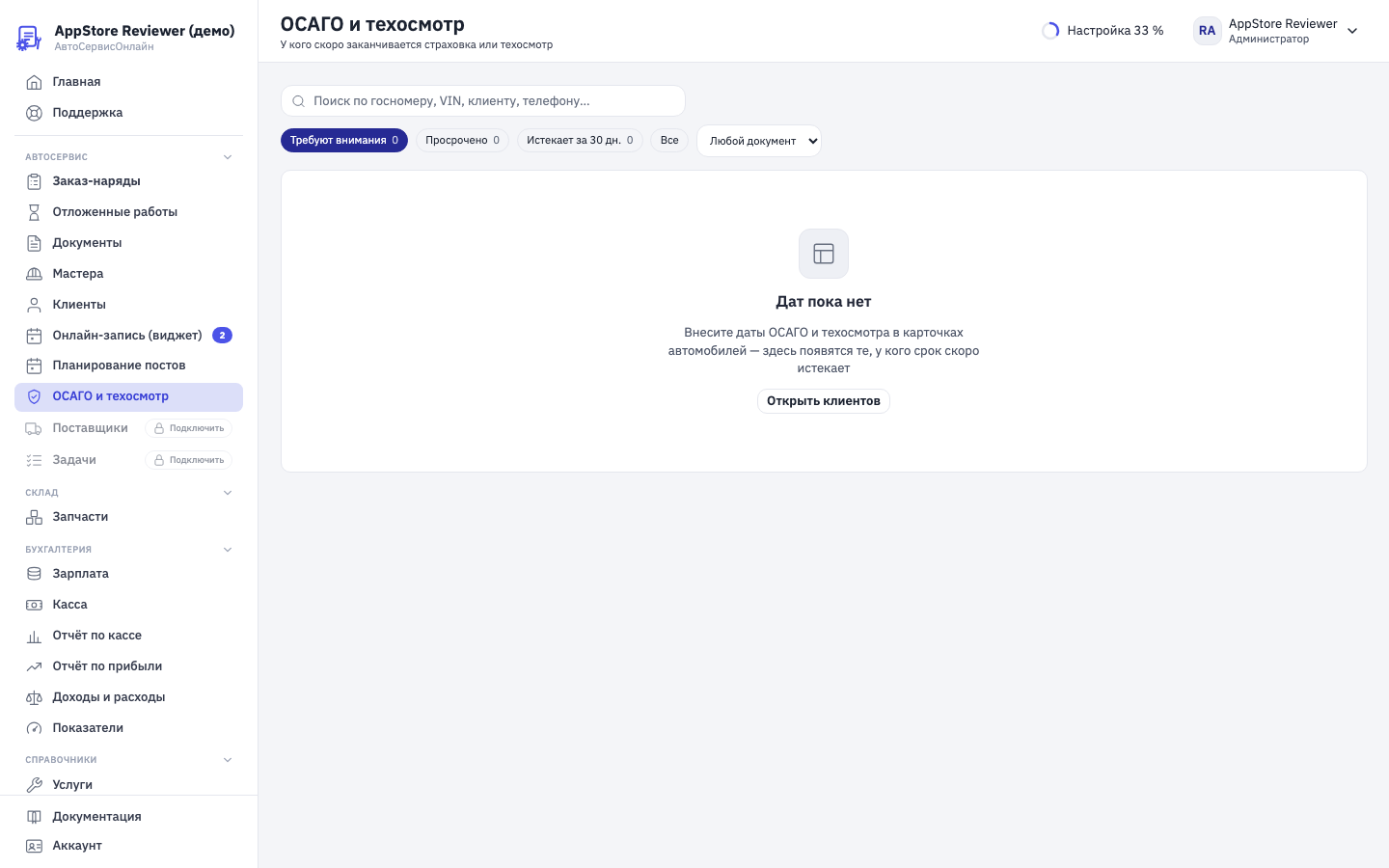
Until dates are added to at least one vehicle, the page is empty: “There are no dates yet. Add the OSAGO and inspection dates in the vehicle cards — vehicles whose validity period is about to expire will appear here.” The Open clients button opens the client list.
Where to find it
Path: Clients → OSAGO and inspection. The menu item has a badge showing the number of vehicles whose document has expired or expires within 30 days. If there is no badge, there is no one to call.
How the list works
The table has the Vehicle (make, model, and licence plate), Client (name and phone), OSAGO until, Inspection until, and Status columns. Each date has a coloured dot and the validity period itself; the Status contains text such as: “OSAGO expires in 12 days,” “Inspection expired 3 days ago,” “In order,” or “Not updated.” The nearest deadlines are at the top, with expired ones first; you can reverse the sorting by the Status column. On a phone, each vehicle is displayed as a card with its licence plate, client, and two validity periods.
Chips above the table (with counts):
- Require attention — by default: expired or expires within 30 days;
- Expired — the validity period ended no more than 90 days ago;
- Expires in 30 days — the validity period ends within the next 30 days;
- All — all vehicles with at least one date, including those marked “Not updated.”
Next to it is the Any document / OSAGO / Inspection drop-down list: select a single document to call only those whose inspection is highlighted. Your selection is remembered while the browser tab is open. Search searches by licence plate, VIN, client name, and phone number.
Not updated. If the validity period ended more than 90 days ago, the vehicle has probably already gone to another service centre, or the date simply was not updated. Such vehicles are not included in “Require attention” or the menu badge, so as not to clutter the list, but they are visible on the All chip.
What you can do with a row
- Clicking the licence plate or phone number copies it — paste it into a messenger or phone app.
- Call dials the client’s number (on a phone, it starts a call immediately; on a computer, you can simply copy the phone number).
- Contact opens a message window for the client with the “OSAGO and inspection validity period” template: the client’s name, vehicle, licence plate, and the nearest document deadline are inserted automatically. Choose WhatsApp, Telegram, or SMS and send it — the message will be sent from your phone or computer. The Client messages module is required; without it, the row’s main button is Call. If the client has no phone number, the button is greyed out.
- Change opens the vehicle window: enter a new date after renewal, and the vehicle will be removed from the list. The counts on the chips and the menu badge will update automatically. In view-only mode, the button is unavailable.
- Clicking a row opens the client card on the Vehicles tab.
There are no automatic mailing campaigns: you send the message yourself when you decide to.
FAQ
- “There is no OSAGO and inspection item in the menu.” The module is disabled (Account → Tariff) or the role does not have the “OSAGO and inspection” permission (Settings → Roles).
- “The vehicle is not in the list.” Open the All chip: the date may not have been entered, or the validity period may have ended more than 90 days ago (“Not updated”). Also check the document drop-down list: “OSAGO” hides vehicles whose inspection alone has expired.
- “We renewed the policy — how do we remove the vehicle from the list?” Click Change in the row and enter the new date in OSAGO until (or Inspection until).
- “There is no Contact button.” The “Client messages” module is not enabled (Account → Tariff) or the role does not have permission for it. Call is still available.
- “I want to send reminders on my own schedule.” There are no automatic reminders or mailing campaigns: the page gives you a reason to call, and the decision is yours.