Client card
Everything about a client on one screen: contacts, company details (by type), vehicles, order history, and the card’s change history.
Where to find it
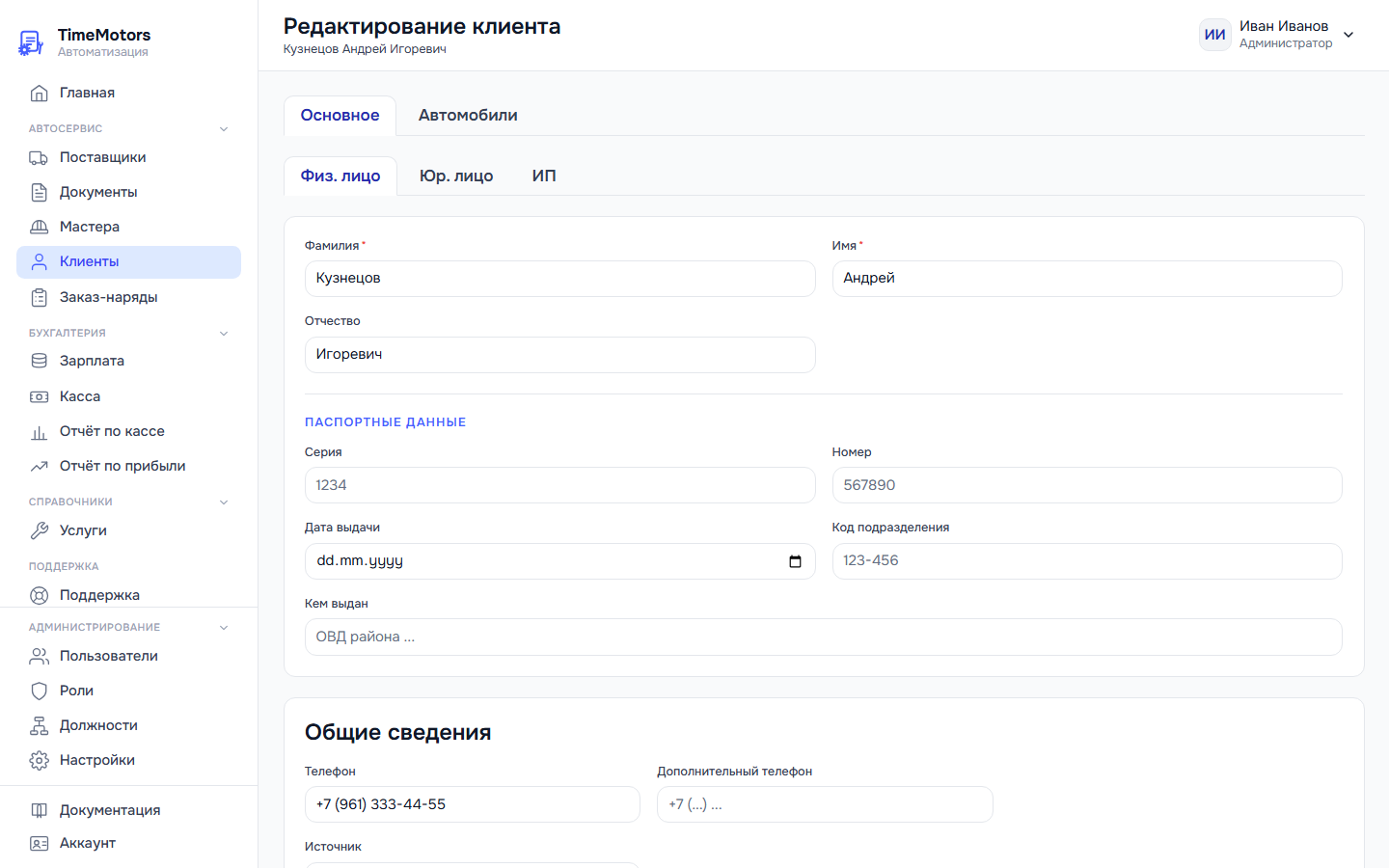
Path: Clients → Clients → click the client row (the entire row opens, not just the name). The page is called “Client Editing”.
Tabs
The Core, Vehicles, Orders, and History tabs are arranged in one row above the content; on the right of this row is the New order button.
- Core — client type, company details, and general information.
- Vehicles — a list of the client’s vehicles and the service history of each one. The tab is available if any module in the “Auto service” group is enabled for the account: “Suppliers”, “Documents”, “Mechanics”, “Clients”, or “Work orders”.
- Orders — all of the client’s orders, with the number in parentheses. The tab and New order button are available if the “Work orders” module is enabled for the account and you have permission for orders.
- History — who changed what in the client’s card and their vehicles. The tab is available if you have permission for clients.
With the “Client service history (view)” permission, the Service history link appears in the tab row, and the Labor and parts by visits button appears on the Orders tab. Both open a report on all of the client’s visits: labor, parts, and amounts, with export to Excel and PDF — Service history.
“Core” tab
- Client type — the Individual / Entrepreneur / Legal entity toggle above the fields. The current client type is selected. To change the type, switch it, fill in the fields, and click Save — the client will be saved with the selected type. Data for other types is not erased when switching.
- Fields by type — see Individual, entrepreneur, or legal entity. On the Legal entity and Entrepreneur tabs, there are Fill in by TIN and Fill in by BIK buttons next to the TIN and BIK — the name, KPP, address, director or entrepreneur’s full name, and bank will be populated from the relevant registers; Undo restores the previous values (details). For an individual, the Passport details block is collapsed until something is filled in: click the heading to expand it.
- General information — phone numbers, source, notes.
- Tags — a row above the tabs (when the “Tags” module is enabled and you have permission for it): + Tag selects client labels, and the cross on a tag removes it. Tags are saved immediately, separately from the Save button. For details, see Tags.
General information
| Field | Description |
|---|---|
| Phone | The client’s primary contact number. The client can be reached using it when an online booking request becomes an order |
| Additional phone | A second number: secretary, spouse, etc. |
| Address for mailing the invoice and service certificate. It is populated in the order’s “Send documents by e-mail” window (Client documents by e-mail); you can leave it empty and enter the address when sending — the “Save to client card” checkbox will save it here | |
| Source | Where the client came from — a drop-down list; you can leave “— not specified —” |
| Notes | Free text: preferences, arrangements, “work only with Ivanov” |
Client discount
The Client discount block on the “Core” tab (visible when the “Discounts” module is enabled for the account) contains permanent percentages for this client:
| Field | Description |
|---|---|
| For labor, % | Discount (0–100) that will be populated in each new labor line in the client’s orders |
| For parts, % | The same for parts lines |
The discount is populated in new order lines; existing lines are not changed. In an order line, you can change or remove the discount — a manually entered value is not overwritten. The client’s discount can be changed by the account administrator and employees with the “Discounts” permission; without permission, the fields are read-only. For details on how discounts work in an order itself, see the section about work orders.
“Vehicles” tab
The client’s vehicle table: Make, Model, License plate, Year, VIN, Mileage. The Add vehicle button adds a new vehicle; each row has an Edit pencil and a Delete basket icon. Clicking a row expands the vehicle: the History tab shows its orders with mileage, and the Recommendations tab shows recommendations for the next visit. For details, see Client vehicles.
“Orders” tab
A table of all of the client’s orders: Order (number, with the creation date below it), Vehicle (make, model, license plate), Status, Amount. Newest orders are shown first; you can sort by date, amount, and status. Clicking a row opens the order, and the “Back” button returns to the card on the same tab. Orders are loaded as you scroll, with “Orders: N” at the bottom. Deleted orders are not shown.
If the client has more than one vehicle, the All vehicles selection appears above the table — select a vehicle to see only its orders. Until there are any orders, it says “The client has not had any orders yet”, and the New order button is available.
The New order button opens order creation with the client already selected (and the vehicle as well, if the client has only one). If the card contains unsaved changes, the system will ask whether to save them before leaving.
“History” tab
Who changed what and when: the latest entries are shown first and are loaded as you scroll. Each entry shows “Creation”, “Change”, or “Deletion”, the item changed (client or “Vehicle Toyota Camry А123ВС77”), and fields in the form “field: old → new”: “Source: Website → Recommendation”, “Mileage: 85 000 → 90 000”, “Discount on labor, %: 0 → 5”. Below is who saved the change (“Support” — the change was made by support, “System” — automatically).
Personal data — full name, phone numbers, passport, bank details, address, organization name, TIN, and the entrepreneur’s Primary State Registration Number (OGRN) — is recorded in the history only as a fact: “Phone: changed”, “Passport: entered”. The values themselves are not included; current data is available on the “Core” tab. Changes are stored for 180 days.
Buttons
- Save — saves the changes and stays on the page: “Saved ✓” and the time appear next to the button. Ctrl+S (Cmd+S on Mac) does the same from any field. While there are unsaved changes, it says “There are unsaved changes” next to the button.
- To list — return to the client list. If the changes have not been saved, the system will ask whether to save them before leaving.
Deletion
The client card has no client deletion button — clients are deleted from the client list via the ⋮ → Delete menu in the row. A client with work orders (in any status, including “Deleted”) or with a vehicle used in orders cannot be deleted. A client without orders is deleted along with all of their vehicles.
What is not included in the card
- All-time order totals, average check, client balance and debts, date of birth, and email.
Common issues
- “I switched to Legal entity, but the full name disappeared”. It has not disappeared — it is saved for the Individual type. However, if you save with the Legal entity type selected, the client becomes a legal entity, and the full name will not be used.
- “I click Save, but nothing happens”. A required field for the selected type has not been filled in: for an individual or entrepreneur — surname and first name; for a legal entity — full or short name.
- “The old phone number is not visible in the history”. This is intentional: personal data is not recorded in the history, only the fact of the change.
- “There is no Orders tab”. It is available only when the “Work orders” module is enabled and your role has permission for orders — ask the account administrator. Orders with the “Deleted” status are not shown in the card; you can find them in the Work orders section (the “All” chip).