Employee Messages
Correspondence within the service: a mechanic, service advisor, cashier, and administrator write to each other directly in the application — without personal messengers and without lost agreements. All account employees have this feature, and it is free.
Where to find it
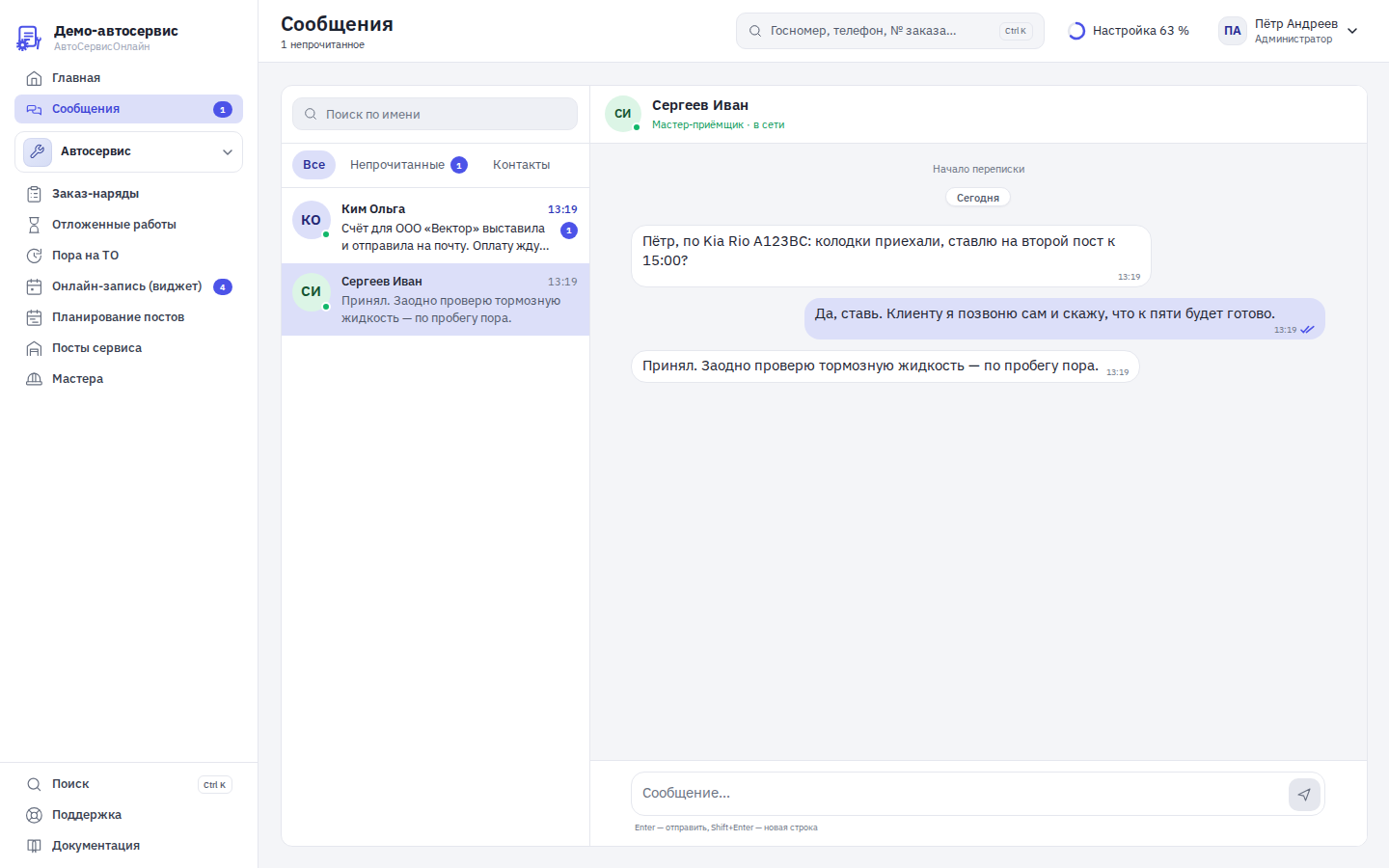
Path: Messages — directly below “Home” in the menu on the left. Next to the item is the number of unread messages.
Clicking it opens a window over the current screen: you can reply to a colleague without leaving a work order or the client list. The “Expand” button in the window opens Messages full-screen; the cross or the Esc key closes the window.
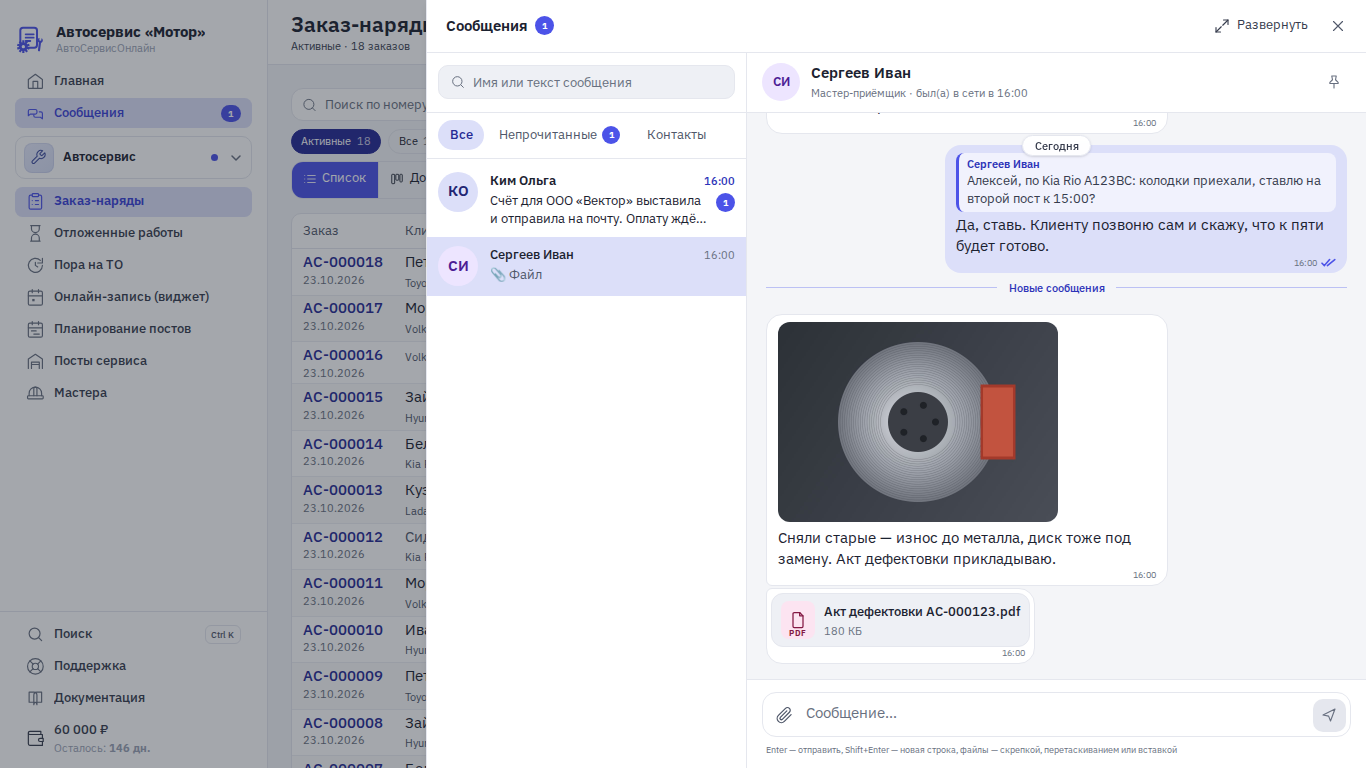
How to start a conversation
- Open Messages and go to the “Contacts” tab — all account employees and their positions are listed there.
- Click an employee — a dialog with them will open. If you have already corresponded with them, the previous dialog will open.
- Write a message and press Enter or click the button with the paper airplane icon.
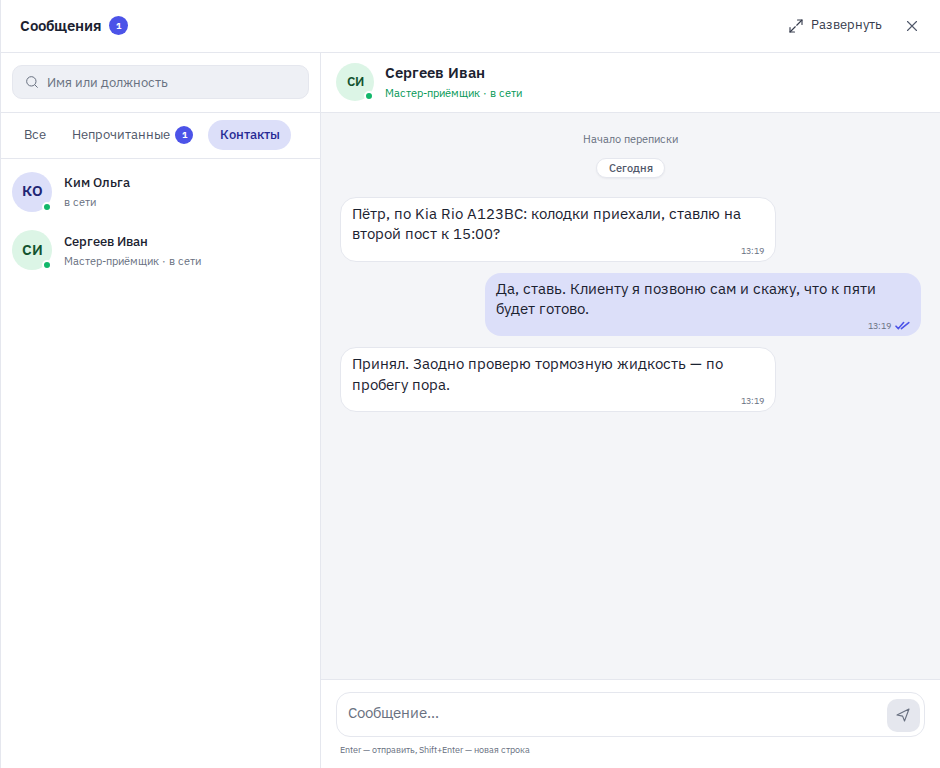
Dialog list
- Tabs: “All” — dialogs, newest first; “Unread” — only those where someone wrote to you and you have not yet read them; “Orders” — correspondence about orders you are following; “Contacts” — all account employees. If the tabs do not fit on the line, it scrolls horizontally.
- Search above the tabs — by the interlocutor’s name and by the message text in your dialogs (from two letters; “e” and “ё” are not distinguished). Found messages are displayed as a separate “Messages” group with the matching word highlighted: click it to open the dialog at that message, which will be highlighted. In “Contacts,” you can search by name and position.
- In the dialog row: initials, name, time of the last message, its beginning (“You: …” if you wrote it; “📎 Photos” or “📎 File” if a file was sent), and the number of unread messages. While the interlocutor is typing, the status is “typing…”.
- Pinned dialogs are displayed at the top of the list with a pin icon. To pin or unpin a dialog, use the pin button in the dialog header; you can pin up to 5 dialogs.
- A green dot next to the initials means the employee is currently in the application. The dialog header and “Contacts” show “online” or when they were last online.
Correspondence
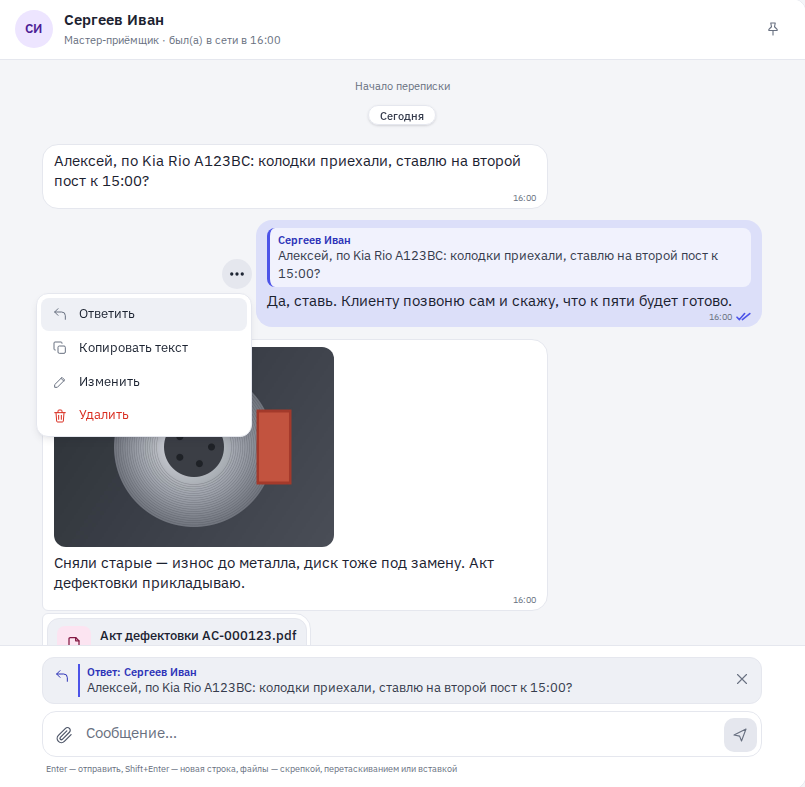
- Your messages appear on the right on a colored background, and the interlocutor’s messages appear on the left. Messages are divided by day (“Today,” “Yesterday,” date).
- Checkmarks next to your messages: one — delivered, two — the interlocutor has read it.
- “New messages” appear as a line before the first unread message when you open a dialog.
- Replies arrive automatically: a new message appears in the open dialog without reloading, and the count in the menu updates immediately.
- History is loaded when you scroll the conversation upward. If you are reading old messages and new ones arrive, a button with an arrow and the number of new messages appears at the bottom.
- Links in the text are clickable and open in a new tab. Long messages wrap, and nothing is truncated.
- A message is marked as read only when the dialog is open on your screen and you have scrolled to the last message: if the browser tab is minimized or you are reading earlier history, it will not be marked until you return to the bottom.
- “typing…” in the dialog header means the interlocutor is currently typing.
Photos and files
- Attach: click the paperclip to the left of the input field, drag and drop files into the conversation, or paste a screenshot from the clipboard (Ctrl+V). On a phone, the paperclip offers “Camera” (take a photo immediately), “Photos and videos,” and “File.”
- Before sending, files are displayed above the field with a photo thumbnail, name, and size; the cross removes the file. You can add a caption or send files without text. While files are uploading, a progress bar is displayed below them.
- Up to 10 files in one message, each up to 20 MB, up to 50 MB in total. Photos (PNG, JPEG, GIF, WebP, HEIC), PDF, Word, Excel, PowerPoint, and OpenDocument documents, ZIP, RAR, and 7z archives, MP4, MOV, and WebM videos, and text files are accepted. If a file is unsuitable, you will immediately be told why below the field.
- Photos in the conversation are shown as previews: click one to open it full-screen; use the arrows (or the ← → keys) to browse all photos in the dialog and download them. Other files are displayed as a card with the name and size; click it to download the file.
- Only the participants in the dialog can see the files. In notifications and the dialog list, the file name is replaced with “📎 Photos” or “📎 File.”
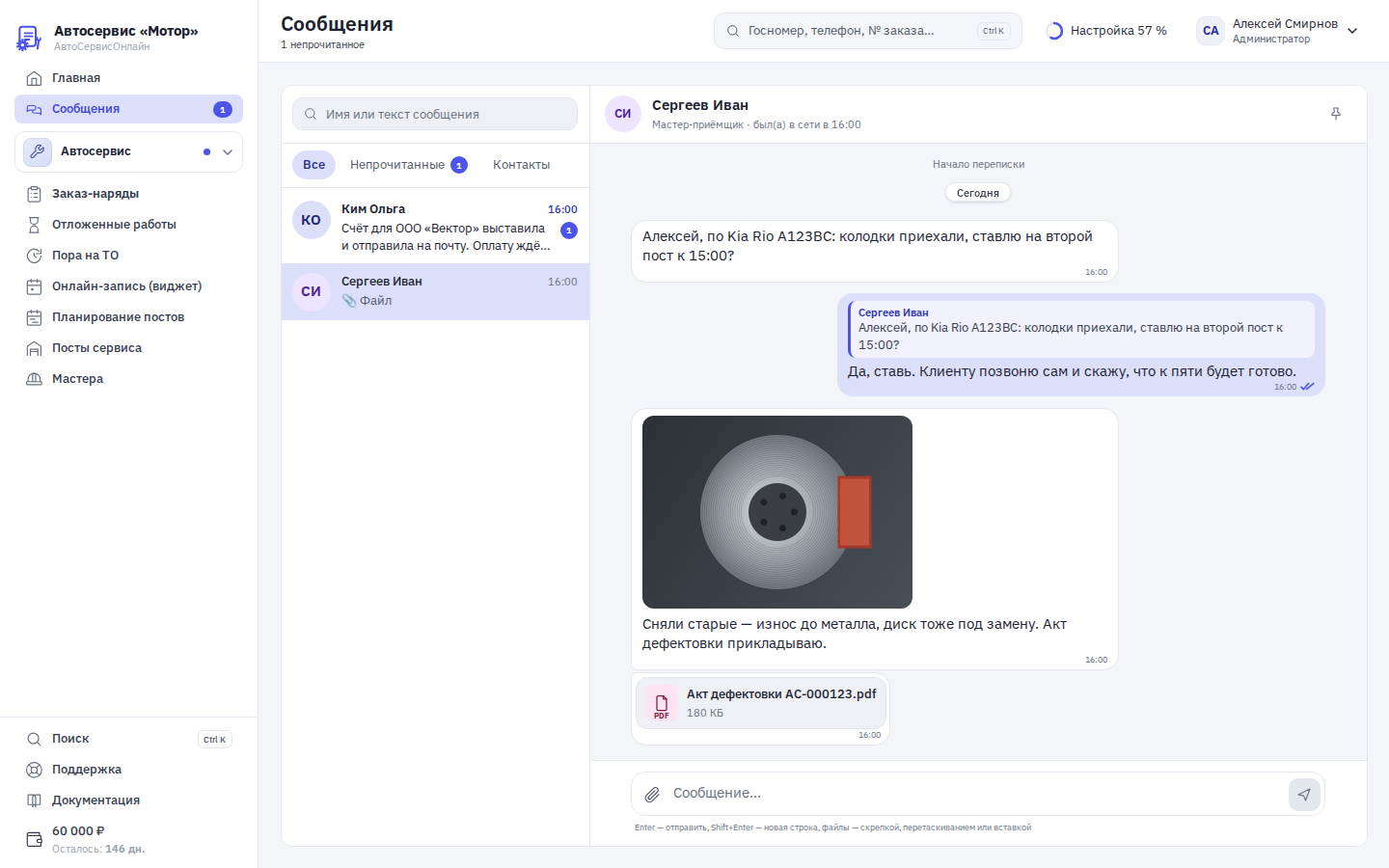
Reply, edit, and delete
Every message has a menu: on a computer, hover over the message and click “⋯” (or right-click it); on a phone, long-press the message.
- “Reply” — a quote appears above the input field (the cross removes it). In the sent reply, the quote of the original message appears at the top: click it to scroll the conversation to the original message and highlight it (older messages will load automatically).
- “Copy text” — copies the message text to the clipboard.
- “Edit” — available only for your own messages and within 24 hours after sending: the text appears in the input field, Enter saves it, and Esc cancels. The message will be marked “edited” — both for you and the interlocutor.
- “Delete” — available only for your own messages and requires confirmation: the message is deleted for both users, and its text and files are erased from the server. It is replaced with “Message deleted.” It cannot be restored.
Order correspondence
Every work order has its own conversation — the Correspondence tab in the order card. This is a shared discussion among employees about the vehicle: who checked it in, who is repairing it, and who is calling the client.
- Who can view and write: all employees with access to work orders (the account administrator always has access). An employee without permission for these orders cannot see the conversation. The client can never see it.
- Who receives notifications: those who are following the conversation — those who have written in it, those who clicked Follow, and the order author. Only they see the conversation in “Messages” on the “Orders” tab and in the total unread count. Others can read and write in the order tab; once they write, they start following it.
- Follow / You are following — a button in the conversation header (a bell on a phone). Unfollow — the conversation is removed from your list, and you will no longer receive notifications for this order (unless you write again or click “Follow”).
- In the list, the order conversation is displayed with an order icon: “Order AS-000123 · Kia Rio”, who wrote last, and the number of unread messages. The header displays the order status, the number of followers, and the Open order button (which opens the card on the “Correspondence” tab). Colleagues’ names are displayed above their messages.
- Two checkmarks next to your message mean that one of the followers has read it.
- The order number in the work order list has an icon with the number of unread conversation messages.
- Push notification to your phone: “Order AS-000123 · Kim Olga” and the beginning of the message (phone numbers and email addresses are hidden). It is disabled with the separate “Order correspondence” line in Settings → Notifications → Push notifications — personal messages are still delivered.
- If an order is deleted, its conversation remains and can be opened from the deleted order card.
Groups
A group is a shared conversation for several employees: a shift, warehouse, check-in area, or managers.
- Create: in “Messages,” click the “New group” button to the right of the search field (the person icon with a plus sign). Enter a name (up to 80 characters) and select participants: search by name and position, while the position buttons select everyone in that position — for example, “Mechanic-service advisor.” Any employee can create a group and becomes the group administrator.
- Group header: the name and “N members” — click it to open the “Members” panel: who is in the group, who is currently online, and who has the “group admin” label.
- Manage — the group administrator and the account administrator (if they are in the group): “Add members,” the trash can icon next to a member to remove them, and the pencil icon next to the name to rename it. Service entries appear in the feed: “Kim Olga added: Ivan Sergeev,” “… left the group,” “… renamed the group.”
- Leave the group — a button at the bottom of the “Members” panel. New messages will no longer arrive, and the conversation from before you left will remain available to you for viewing only (the list displays “You left the group” along with the name at the time you left). The group administrator can restore you. If the last administrator leaves, the longest-standing participant becomes the administrator.
- A new participant can see the entire group history. A disabled employee in the group does not participate.
- Checkmarks: two — everyone has read your message. Click the checkmarks to see who has read it and who has not.
- Push notification to your phone: “Group name · Kim Olga” and the beginning of the message. It is disabled with the same “Messages” line as personal messages.
Mentions @
In a group and in order correspondence, you can call a colleague’s attention: type @ followed by the beginning of their surname or name — a suggestion will appear. Select an employee (with the arrow keys and Enter, or by clicking). The text will contain @Surname First Name, highlighted in a different color, with your name in a brighter shade. The mentioned employee will receive a notification, even if they have muted this conversation, and an @ icon will appear in their list row. In order correspondence, the suggestions include everyone with access to orders, and the mentioned employee starts following the order. There is no “mention everyone” option.
Muted
Any conversation — personal, group, or order — can be muted: use the speaker button in the header (on a phone, the “⋯” menu) → for 1 hour, for 8 hours, or forever. While muted, no push, sound, or browser notifications are delivered (except mentions of you); a crossed-out speaker icon is displayed next to the name, the unread count in the list is grey, and this conversation is not included in the total unread count next to “Messages,” in the tab title, or on the phone button — except for messages in which you were mentioned. To unmute, use “Enable sound” in the same place.
Entering a message
- Enter — send, Shift+Enter — new line. The field expands as you type.
- A draft is saved: if you start writing, switch to another dialog, or close the window, the text will remain in place (in this browser).
- While a message is being sent, a clock icon is displayed next to it. If there is no connection, “Not sent” and a “Retry” button appear: retrying will not create a second message.
- Up to 4000 characters in one message: as you approach the limit, a counter appears below the field; if the message is longer, a warning appears and the send button becomes inactive (the text is not truncated — shorten it or split it into several messages). An empty message is not sent.
- If a message was not sent and you switched to another dialog, go back: it will still be there with the “Retry” button.
- Drafts are stored in this browser and are erased when you log out of the account.
“Messages” page
“Expand” opens the same list and dialog at full width — convenient when there are many conversations.
On a phone and in the mobile app
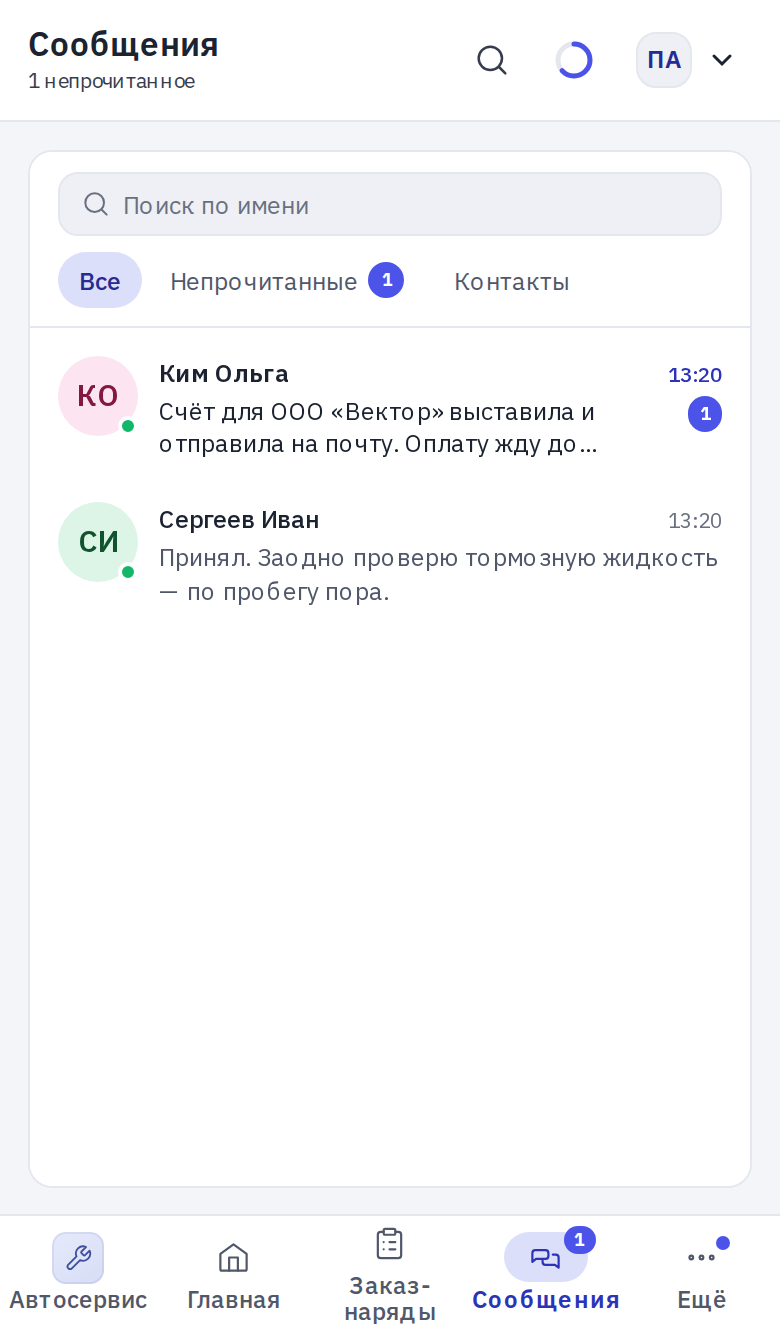
- Messages — a button on the bottom panel (next to the first item in the current section) with the number of unread messages.
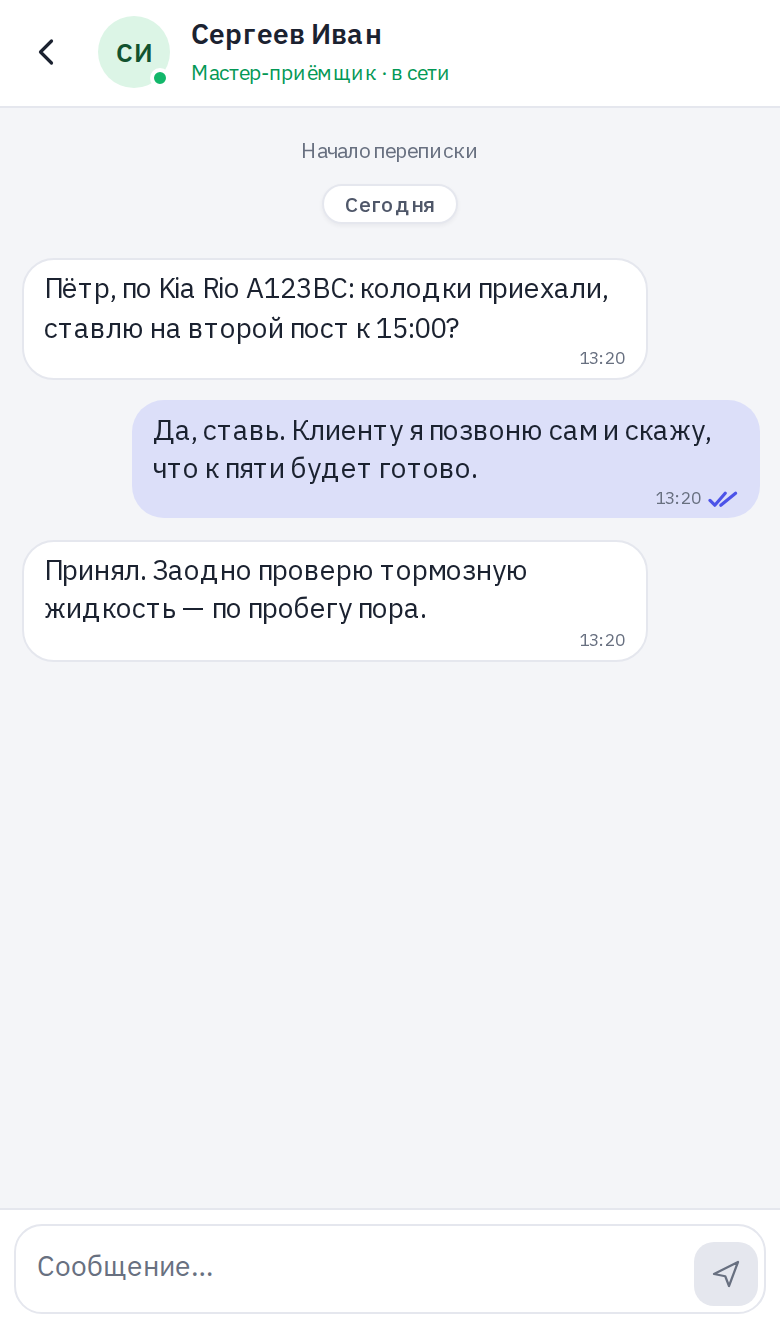
- The dialog list opens first, and clicking a dialog opens it full-screen: the bottom panel is hidden, and an arrow “Back” is displayed at the top. Return to the list using the arrow, by swiping from left to right, or with the phone’s back button.
- On the phone keyboard, Enter inserts a line break; to send, use the round button with the paper airplane icon to the right of the field.
- The message menu (“Reply,” “Copy text,” “Edit,” “Delete”) is accessed by long-pressing the message; a list of actions slides out from the bottom.
- The “⋯” button in the dialog header contains the group’s “Members,” “Mute,” “Pin,” “Open order,” and “Leave group” options.
Notifications
To avoid missing a message when the “Messages” window is closed:
- The count in the browser tab title: “(3) AutoServiceOnline” — visible even when you are on another tab.
- Silent sound — when someone writes in a dialog that is not currently open, or the tab is minimized. It can be disabled in Settings → Notifications → “Messages on this device” → “Message sound” (the “Listen” button is there as well).
- Browser notifications — when the tab is minimized or another tab is open: the colleague’s name and the beginning of the message (phone numbers and email addresses are hidden with asterisks); clicking opens the dialog. They are enabled with the “Enable” button in the same place — the browser will request permission. If the browser has blocked notifications, allow them for the site in the browser settings (the lock icon in the address bar).
- Push notification to your phone in the Android and iPhone apps: the colleague’s name and the beginning of the message (phone numbers and email addresses are hidden with asterisks). It arrives in 10–15 seconds and only if you have not yet read the message in the application. While a dialog is open on a visible browser tab (even if the browser window is covered by another window or you have stepped away from the computer), the push notification will not arrive — minimize the tab or close the “Messages” window, and the next message will arrive on your phone. You receive only one notification per dialog: subsequent messages update it (“3 new messages · …”). Click the notification to open the dialog. It is disabled with the “Messages” line in the “Push notifications” card (more about push notifications).
- In the Android app, when another screen is open, a banner “New message from …” appears at the top for a few seconds — click it to open the dialog. In the iPhone app, a standard notification appears while the app is open.
Browser sound and notifications are configured for this browser: they must be enabled separately on another computer or phone.
Who can see the conversation
- Dialog participants. The account administrator cannot see other people’s personal dialogs or groups they are not a member of. Everyone with access to work orders can see order correspondence. Anyone who has left a group can only see the conversation from before they left.
- Service administrators can, when handling a support request or conducting a review, access the account as the user (“Sign in as” mode) and view their conversations and files — in read-only mode: a banner at the top displays “View in ‘Sign in as’ mode — read-only”; in this mode, it is impossible to write, edit, or delete messages on behalf of the user or mark them as read, and every sign-in as the user is recorded in the action log.
- If an employee is disabled or deleted, the conversation with them remains available to you, but you can no longer write to them.
If the item is not in the menu
- The module is disabled. “Messages” is enabled for all accounts, but the administrator can disable it: Settings → Modules, the “Messages” toggle. If you disable it, the item disappears from everyone’s menu; the conversations are retained and will return when the module is enabled.
- The balance is exhausted — correspondence continues to work, as does the support chat.
What comes next
The unread count on the iPhone app icon and clearing notifications read on another device will be available in future updates.
Related sections: Support chat, Menu and sections, Modules.