Roles and permissions
System access is determined by three things: the user’s system role, the account’s enabled modules, and the roles with permissions created by the account administrator.
Two system roles
| Role | Who it is | Scope |
|---|---|---|
| Account administrator | Auto service owner | All sections of enabled modules without permission checks, plus “Settings” |
| Employee | Hired employee | Only sections for which they have permissions in their roles |
The system role is selected when creating a user (the Role field: “Employee” or “Account administrator”). The owner who registered the auto service automatically becomes the Account administrator. The system role of an existing user can only be changed through support.
Roles with permissions
Within an account, the administrator creates their own roles and assigns permissions to them. Typical examples include:
- Service advisor — Clients, Work orders (without “Delete orders”), Inspection report, Order photos.
- Mechanic — Work orders, Defect report, Diagnostic sheet.
- Accountant — Payroll, Cash desk, Profit report, Documents.
- Warehouse keeper — Parts.
A single user can have multiple roles—their final permissions are the union of the permissions of all their roles.
Where to find it
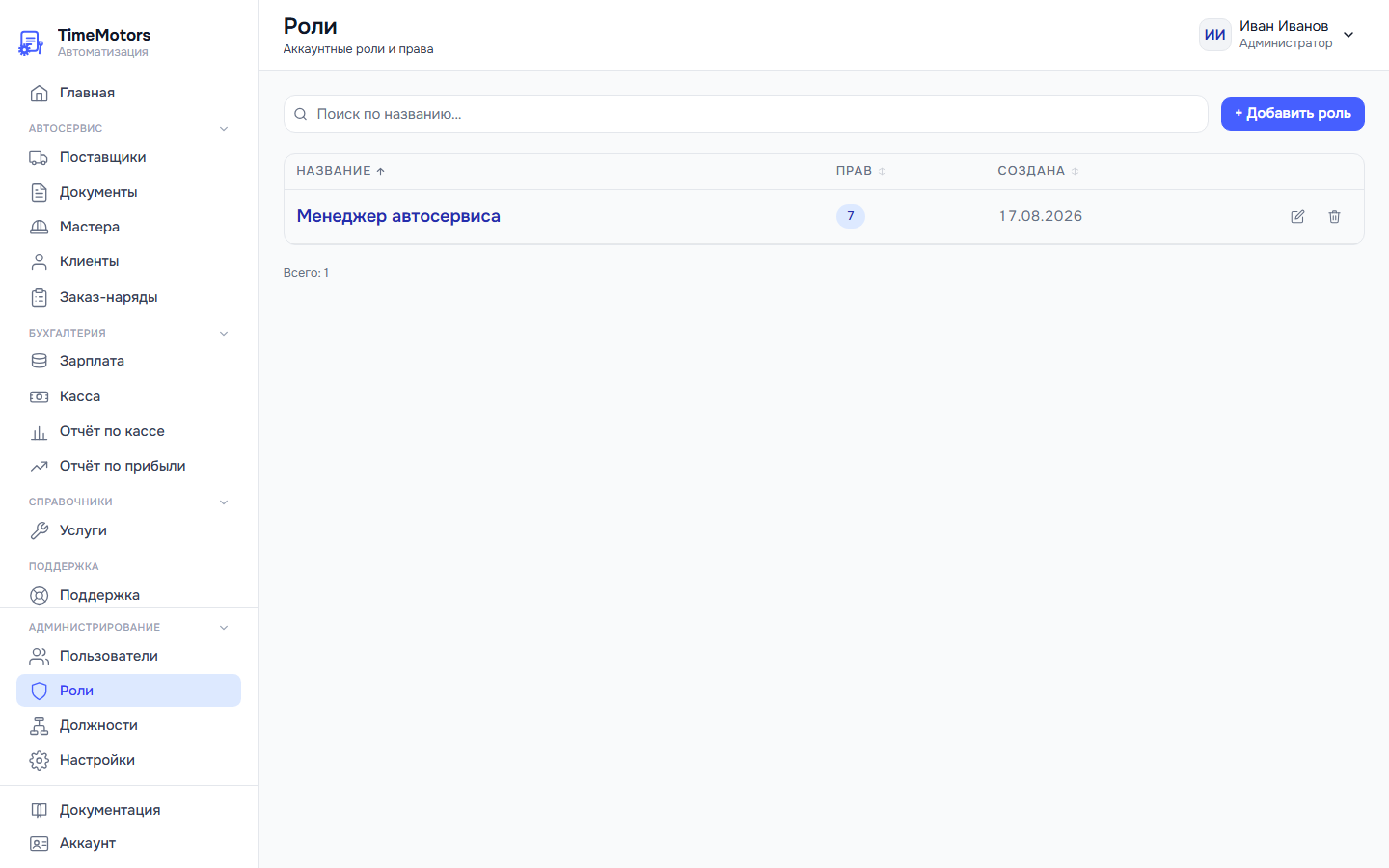
Path: Settings → Team → Roles.
This item is visible only to the account administrator. The list has the columns “Name”, “Perm” (the number of permissions in the role), and “Created”; on the right, there is a pencil “Edit” and a trash can “Delete role”.
How to create a role
- Open Roles → + Add role.
- Enter a Name (for example, “Service advisor”). The name must be unique within the account.
- In the Access permissions block, select the required permissions in the Available column and click the Assign arrow—they will move to Assigned. To remove a permission, select it under “Assigned” and click the Revoke arrow. Permissions are grouped by module, for example “Auto service > Work orders”; only permissions for modules enabled for the account are visible.
- Click Create role.
- Open Settings → Team → Users, open the employee with the pencil, move the role to “Assigned” on the Roles tab, and click Save.
To edit a role, use the pencil, make your changes, and click Save. To delete it, use the Delete role trash can and confirm; the permissions of this role will immediately disappear for employees.
Permissions by group
For a complete reference, see All access permissions. Each group has the “Submodule access” permission, and some groups have one additional individual permission:
- Auto service: Suppliers, Documents, Mechanics, Clients (plus the individual “Merge clients” permission), Work orders (plus the individual “Delete orders” and “Client service history (view)” permissions), Inspection report, Order photos, Defect report, Recommendations for the next visit, Diagnostic sheet, Autofill by VIN, VIN/license plate scanner, Online booking (widget), Service bay planning, Job packages, OSAGO and inspection, Tags, Mechanic’s workspace (the “My jobs” permissions—for a mechanic—and “Mechanic efficiency (time of all mechanics)”—for a service advisor or senior mechanic).
- Warehouse: Parts.
- Accounting: Payroll (plus the individual “Delete payouts” permission), Cash desk, Cash desk report, Profit report, Income & expenses, KPIs.
Important things to know:
- “Cash desk” and “Cash desk report” are one permission: they are assigned and revoked together.
- The Services reference data is opened with the “Work orders” permission.
- Permissions without their own menu item work within an order and vehicle item card: the “Inspection”, “Defect inspection”, and “Diagnostics” sections on the “Check-in” tab, photos, recommendations, job packages, VIN buttons. For example, without the “Inspection report” permission, an employee does not have the “Inspection” section on the “Check-in” tab.
- A permission opens the entire section. There is no “own orders only” permission: with the “Work orders” permission, an employee can see all the account’s orders.
- The “Basic reference data” group (“Roles reference data”, “Positions reference data”, “Feature requests section”) does not affect anything: roles and positions are hidden from employees in any case, and “Feature requests” are visible to everyone.
- Employees cannot access users, roles, positions, or anything else in “Settings”, except “Notifications”, through any permission.
The “Account administrator” rule
The account administrator passes module checks, but not permission checks. In other words, if the account does not have the “Cash desk” module enabled, the admin will not see it either. However, if the module is enabled, the admin automatically has access, even without assigned roles.
When changes reach the employee
No need to sign in again: after saving a role, assigning a role, or removing a role, the employee’s permissions are updated automatically. If a menu item does not appear or disappear immediately, have the employee refresh the page (or close and reopen the app).
How to determine what the employee is missing
- Ask which section or tab does not open.
- Check whether the required module is enabled for the account (Home → Enabled modules).
- Check that the role is assigned specifically to this employee: Users → their item card → the Roles tab.
- Open the role and add the required permission under Assigned, then save.
- Ask the employee to refresh the page.
Common mistakes
- “I saved the role, but nothing changed for the employee.” Check that the role is assigned to them on the Roles tab and that Save was clicked in the item card. Then have the employee refresh the page.
- “The required permission is missing from the permissions list.” The corresponding module is disabled for the account. Contact support to have it enabled.
- “The employee cannot delete an order.” Deletion is a separate “Delete orders” permission in the “Auto service > Work orders” group.
- “I need to see what was changed on vehicles, but do not want to allow order editing.” Grant only the “Client service history (view)” permission in the “Auto service > Work orders” group: the employee will have the Clients → Service history item with client search—details.
- “The role is not saved: the name already exists.” The account already has a role with that name—choose a different one.