Service bay reference
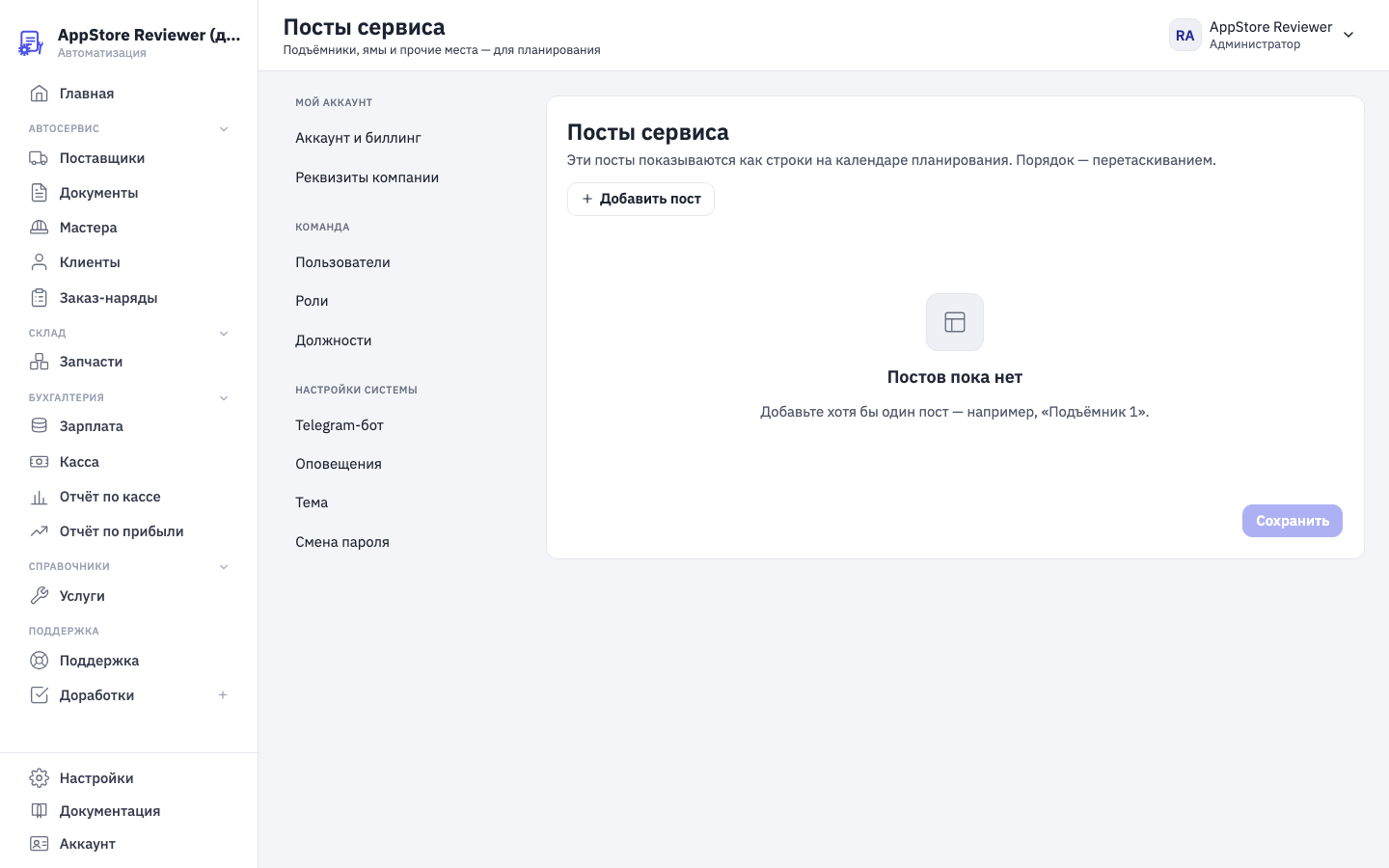
Service bays are physical locations in the service facility: lifts, inspection pits, bays, bodywork shops, and tire service areas. List them here, and they will appear as rows in the load calendar. The service operating hours for the calendar are also configured here.
The Service bay planning module. The reference data is managed by the account administrator; this section is not available to employees.
Where to find it
Path: Auto service → Service bays. This item is available only if the account has the “Service bay planning” module enabled.
What is in a service bay row
| Element | Description |
|---|---|
| Drag handle | Service bay order: the rows in the calendar follow the same top-to-bottom order as the service bays |
| Service bay name | “Lift 1”, “Pit”, “Tire service”, “Bodywork bay” — up to 128 characters, with no duplicates within the account |
| Active checkbox | A disabled service bay is not displayed in the calendar |
| Delete trash icon | Removes the row without confirmation |
There is no separate “Order” field — the order can only be changed by dragging. The number of service bays is unlimited and does not depend on the rate.
How to add one
- Open Service bays.
- Click Add service bay and enter a name.
- Drag the service bay by its handle to the required position in the list — it will be placed in the same position in the calendar.
- Click Save at the bottom of the page (the button is active when there are unsaved changes). Nothing is saved before you click it — neither new service bays, nor renames, nor order changes, nor deletions. Once saved, “Reference data saved” will appear.
Repeat this for each workplace.
What if the composition changes
- You renamed a service bay — the name will be updated automatically on existing orders.
- You deleted a service bay — the “Service bay” field will be cleared in the orders linked to it, and they will disappear from the calendar. The orders themselves will not be lost. The service bay’s bookings and “Busy” status will be deleted along with it, and the program will notify you.
- You disabled it (unchecked “Active”) — the service bay and all orders assigned to it will disappear from the calendar. In the Planning section of the order card, the service bay will no longer be available; however, it will remain selected for orders already assigned to that service bay. Enable the service bay again, and the orders will return to the calendar.
Operating hours and overlaps
Above the service bay list is the Operating hours card: seven rows for the days of the week, each with an Day off checkbox and From and To times (in 15-minute increments). The calendar displays exactly these hours, and the remaining time is shaded out; Copy to all days applies the hours of the last modified day to the entire week. The card also contains:
- Default appointment duration, min — from 15 to 480; a new calendar appointment starts at this time.
- Do not allow overlaps in the same service bay — when checked, you cannot book a time when the service bay is occupied. When unchecked, the program will notify you and offer Book anyway.
Click Save hours (separately from the service bay list’s “Save”). You can always book outside operating hours, with the “Outside operating hours” label. For accounts created before this setting was introduced, the previous hours of 08:00–22:00 every day apply until the settings are saved.
Common mistakes
- “Empty name in row N”. The row has no name — enter one or delete the row.
- “Duplicate name: ‘…’” or “A service bay named ‘…’ already exists. Choose a different name”. Two service bays cannot have the same name (letter case does not matter) — rename one of them, for example, “Lift 2”.
- “I added service bays, but they are not in the calendar”. The Save button has not been clicked, or the service bay’s Active checkbox is unchecked.
Tips
- Use simple names — “Lift 1”, “Lift 2”. Simplicity is important when a service advisor is selecting a service bay.
- Tire service, wheel alignment — separate service bays if these are different bays with different queues.
- Do not create unnecessary service bays — if a bodywork technician and an auto mechanic work in the same bay in turn, this is one service bay, not two.