List of Mechanics
Reference data for the auto service mechanics. A mechanic is assigned to a service line in an order and receives an accrual according to that line's rate: “Price”, “H/C”, or “%”.
Where to find it
Path: Auto Service → Mechanics.
The item is visible if the “Mechanics” module is enabled for the account and the role has the “Submodule access” permission for “Auto Service > Mechanics” (see Roles and permissions).
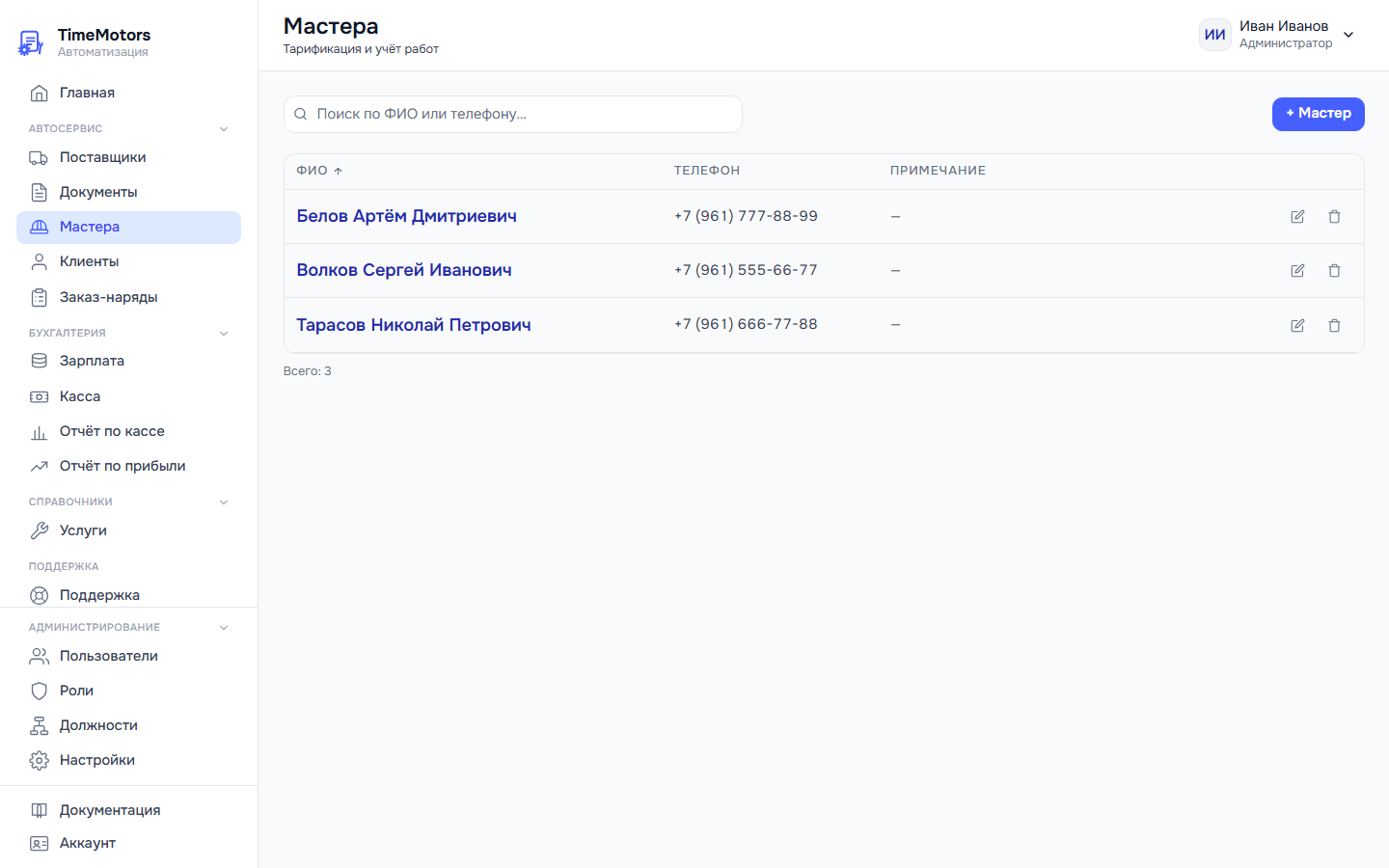
What the table shows
Click anywhere in a row to open the mechanic's item card.
| Column | Contents |
|---|---|
| Full name | Mechanic's name. Click the header to sort |
| Phone | Primary contact; clicking the number starts a call |
| Note | Free-form text from the “Notes” field; long text wraps onto subsequent lines |
| ⋮ | Row action menu: Edit and Delete |
Above the table, there is a “Search by full name or phone…” field (it searches immediately as you type; the cross clears the field) and the main “+ Mechanic” button on the right. The entire list of mechanics loads at once, so there are no pages or additional loading; the bottom displays the number of mechanics shown, for example, “Shown: 3 of 12” or “Total: 12”. The list remembers the search and sorting settings while the browser tab is open; if they differ from the original settings, a “Reset” button appears next to the search.
At 1280 px, the table is replaced by cards: full name, phone, note, and the ⋮ menu. Clicking a card opens the mechanic.
How to create a mechanic
- Click “+ Mechanic” — the “New Mechanic” page will open.
- In the “Mechanic details” section, fill in “Full name” and “Phone” (both are required).
- Optionally, fill in “Passport details” and “Notes”.
- Click “Create”.
The mechanic is immediately available in an order: “Labor and parts” tab → “Labor” table → “Mechanic” column.
A mechanic has no rate, percentage, schedule, or job title — the rate is specified in each order line. A mechanic is a reference data record, not a system user: they cannot sign in to the system and are not linked to a user.
Quick creation from an order
In an order, the “Change” button in the header opens the “Client and vehicle” panel: next to the “Service advisor” field, there is a “New” button. It opens the “New Mechanic” window with the same fields. A mechanic created this way appears in the reference data and is immediately set as the service advisor for that order.
The “Mechanic” column in the labor table has no separate create button: first create the mechanic, then select them from the list.
Deletion
Select ⋮ → Delete in the mechanic's row, then confirm.
- If a mechanic is assigned to at least one service in any work order, they cannot be deleted: “Cannot delete the mechanic: they are assigned to services in work orders, and payroll is calculated for those services. If the mechanic no longer works, mark this in the mechanic's note.”
- If there are no assignments, the mechanic is deleted together with all their payouts, which cannot be restored. In orders where they were the service advisor, this field is cleared.
There is no “dismissed” indicator or archive: if a mechanic no longer works, note this in “Notes”.
Mechanics can be created and edited with the “Submodule access” permission for “Auto Service > Mechanics” or “Auto Service > Work orders”, but they can only be deleted with the permission for “Auto Service > Mechanics”.
Common mistakes
- “The mechanic exists, but they are not in the order list”. The mechanic was created while the order was open. Refresh the order page.
- “I cannot delete the mechanic”. They are listed in the service lines of orders, and payroll is calculated for those lines. Leave them in the reference data and note that they no longer work.
- “I renamed the mechanic, and they also changed in old orders”. This is expected: orders and reports take the full name from the reference data; a copy is not stored in the order.