Creating an order
Vehicle check-in in two steps: select a client and (optionally) a vehicle. Everything else—labor, parts, prepayment, documents—is filled in later on the order card.
Where to find it
Path: Auto service → Work orders → New order. The “New work order” screen will open.
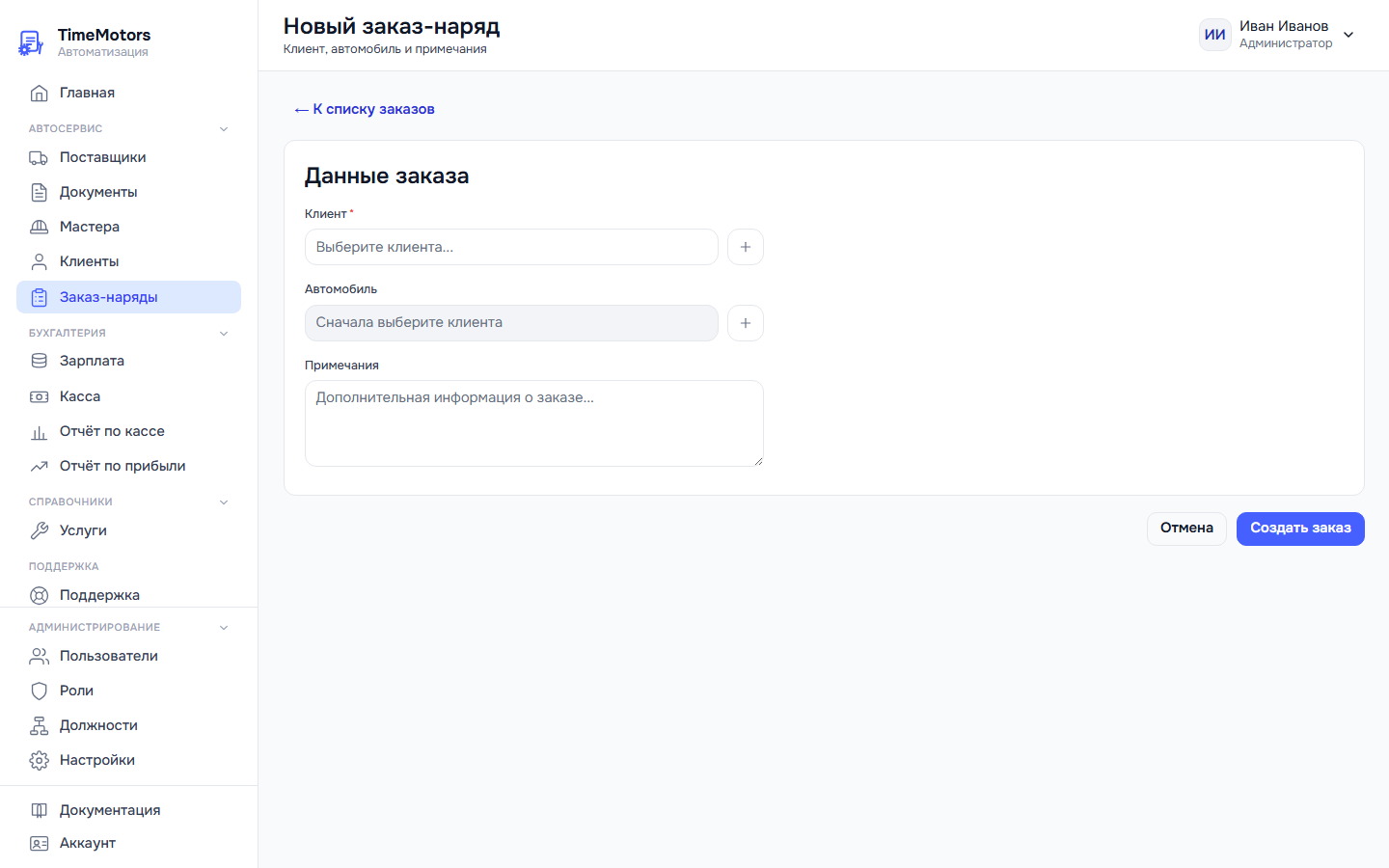
Form
| Field | What it contains |
|---|---|
| Client | Required. Search by last name, phone number, vehicle license plate, VIN, company name, and tax ID. The field placeholder is “Last name, phone number, license plate…”. You can enter the phone number in any format (“8 961…” will find “+7 (961)…”) and the license plate in any layout |
| Plus button to the right of “Client” (tooltip “New client”) | Opens the “New client” window, which also contains a “Vehicle” section, so you can add the vehicle at the same time |
| Vehicle | Optional. Only vehicles belonging to the selected client are available; the field is inactive until a client is selected |
| Plus button to the right of “Vehicle” (tooltip “New vehicle”) | Adds a new vehicle to the selected client |
| Notes | Free-form text up to 2,048 characters: client complaints, arrangements. It is printed on the work order as “Reason for visit” |
How to do it
- In the Client field, start entering a last name, phone number, or license plate (company name or tax ID will also work) and select the client from the list—it displays up to 20 matches. If the client is not there, click the plus button on the right, fill in the “New client” window, and save.
- Select Vehicle. If the vehicle has not been added yet, click the plus button to the right of the field.
- Enter Notes, if needed.
- Click Create order—the system will create an order with the number
АС-NNNNNNand New status, and the order card will open immediately.
Cancel returns you to the list without creating an order.
New order from the client card
The New order button is available in the client card, in the expanded vehicle on the Vehicles tab, and in the client list. The form will open with the client and vehicle already selected (if a vehicle is selected on the card or the client has only one); change them if necessary. If the client cannot be found, the message “Client not found—select manually” will appear above the form. The button is unavailable if you do not have permission to access orders or if the “Work orders” module is disabled.
A repeat visit is easier to create by copying the previous order—see Copying an order. An order can also be created from an online booking request—see Incoming requests.
Quickly creating a client and vehicle
The “New client” window contains a “Vehicle” section, so you can add both the client and their vehicle at the same time. After saving, both will be populated in the order form. This is useful during check-in when the client is visiting for the first time. For a company or individual entrepreneur, select the Legal entity or Individual entrepreneur tab, enter the tax ID, and click Fill in by tax ID—the name, KPP, address, and director will be populated automatically; use the BIK to populate the bank and correspondent account. If you make a mistake, click Cancel. For more information, see Individual, individual entrepreneur, or legal entity.
What happens next
After clicking Create order, you will go to the Order card. A header with the number, status, client, and vehicle is fixed at the top, with five tabs below it and the order amount on the right:
- Check-in—inspection with the client’s signature, photos, defect identification, and diagnostics.
- Labor and parts—opens by default. Labor with the price for the client and (optionally) the mechanic; parts from inventory, from suppliers, or added manually.
- Payment—the client’s prepayment.
- Documents—work order, check-in act, account, contract, and completed-work certificate.
- History—changes to the order with the date and author.
The client and vehicle selected during creation are visible in the header; you can change them and select the service advisor using the Change button. Bay planning, vehicle recommendations, and notes are in the right column.
The Check-in tab section (inspection, photos, defect identification, diagnostics) is visible if the relevant module is enabled for the account and granted to the employee role.
Common mistakes
- “I cannot find the client”. The search is performed by last name, phone number, license plate, VIN, company name, and tax ID. Try another identifier, such as the vehicle number or part of the VIN. If the client has not been added yet, click the plus button to the right of the field and add them here.
- “The ‘New order’ button is greyed out”. The account balance has been exhausted—orders cannot be created until it is topped up. See Tariff and balance.
- “I created it, but where was the order saved?” The order card opens immediately after creation. The number is visible in the heading (
АС-NNNNNN), and the order is already in the list. - “I selected the wrong client”. In the order card, click Change in the header, select the required client and vehicle in the Client and vehicle panel, and then click Save. The labor and parts will remain.