Reporting: notifications and the USN declaration
The program automatically prepares a USN advance payment notification, a USN declaration, and a notification of a patent reduction for contributions. You receive an XML file in the FNS format and a printable PDF form. Before that, you can review the “Review” screen to see where each figure came from. You upload the file to your personal account on nalog.ru or to your reporting operator’s program.
The calculation is based on your data; you sign and submit it. Discuss any disputed cases with your accountant.
Where to find it
Path: Accounting → Accounting & taxes → “Reports” tab → “Reporting”. A faster way is to use the deadlines feed: in the “USN advance payment notification” or “USN declaration” row on the “Taxes and deadlines” tab, click “Generate”, and the “Review” screen will open immediately.
Any employee with permission to access the module can view it. The account administrator and employees with the “Reporting and closing” permission can generate and download XML files and mark reports as submitted.
Available forms
| Form | When to submit | Source of the figures |
|---|---|---|
| USN advance payment notification (KND 1110355) | By the 25th after the first quarter, half-year, and 9 months | “Amount due” from the USN tax calculation, KBC, and OKTMO |
| USN declaration (KND 1152017) | Organization — by March 25; sole proprietor — by April 25 of the following year | Income, expenses, tax, and reduction for contributions for four periods |
| Notification of patent reduction (KND 1112021), sole proprietors only | In the program, the deadline is the nearest patent payment reduced by contributions | Patents for the year and reduction for contributions from the “Patent” section |
An advance payment of ₽0 for the period means that no notification is required, and the program will indicate this. No notification is submitted for the full year: the tax for the year is reported in the declaration. The declaration can be generated after December 31.
“Reporting” view
- “What to submit” — notifications and declarations by deadline: for the past 9 months and the next 3 months. Each row displays the deadline, amount, status of the latest version, and the “Open” and “Generate” buttons (or “Generate again” if a version already exists).
- “Generate for another period” — select the form, year, and period if the required report is not listed.
- “Generated reports” — all versions, with the newest first. Older versions are marked as having a newer version.
“Review” screen
Trial version. While the file format is being validated in the FNS program, the “Review” screen displays the following note: “Trial version: before submitting, check the file in the FNS program or with your operator.” Upload the XML file to the free FNS “Tax Payer Legal Entity” program (which validates the file) or to your operator’s program, and only then submit it. The note will disappear automatically once the validation is complete.
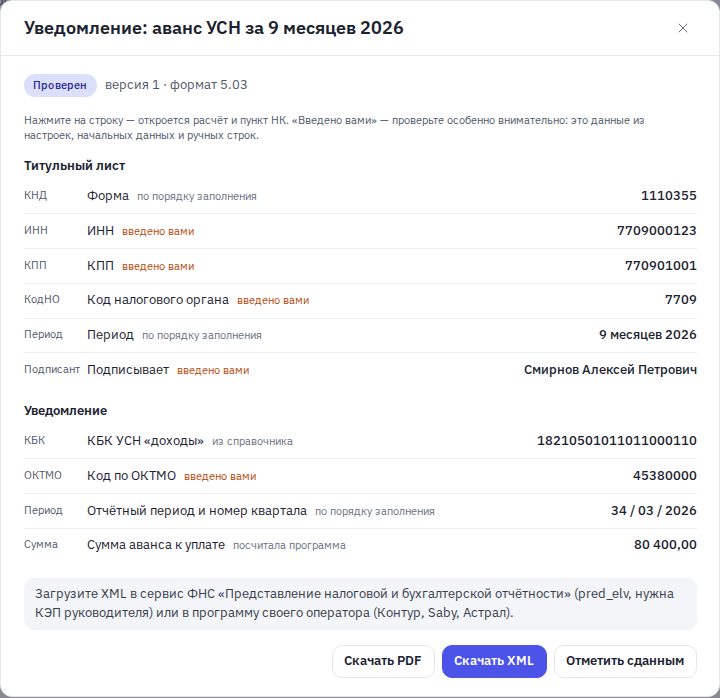
- Click “Generate” — a window will open showing the report name, status, version, and FNS format.
- The form rows are grouped into sections: title page, sections 1 and 2. Click a row to open the calculation, the relevant Tax Code provision, and the “Details” link (KUDiR, settings).
- Next to the row name, the source of the figure is shown: “calculated by the program”, “entered by you”, “from the reference data”, or “in completion order”. “Entered by you” is highlighted in colour: these are company details, initial data, and manually entered KUDiR rows, so review them especially carefully.
- Errors appear in a red “Fix before exporting:” block, with an “Edit” link for each one. Warnings are shown in yellow. Once fixed, click “Generate again”.
- If there are no errors, click “Download XML” and “Download PDF” (the printable form with row codes).
Declaration for 2024 and earlier — in a different FNS format: the program will display the calculation and a PDF for verification, but the XML file must be generated in the FNS “Tax Payer Legal Entity” program or with your operator.
If the OKTMO, tax authority code, or signatory details are missing, complete “Settings” → “Details for the FNS” (Mode, VAT, and details for the FNS); the tax identification number and registration number are under Settings → Company details.
Statuses
| Status | Meaning |
|---|---|
| Draft | There are errors: XML cannot be downloaded; the PDF is marked “DRAFT” |
| Reviewed | There are no errors; the files can be downloaded |
| Exported | The XML file has been downloaded |
| Submitted manually | You have marked the report as submitted: the date and, optionally, the receipt |
Where to upload the file
- Sole proprietor — in the sole proprietor’s personal account on nalog.ru: “Life situations” → “Submit a tax declaration (report)” → “Upload file”. Sign with the electronic signature from the personal account, free of charge.
- Organization — in the FNS “Submission of Tax and Accounting Reports” service (a qualified electronic signature from the head of the organization is required) or in your operator’s program: Kontur, Saby, or Astral.
The window itself displays a hint about where to upload the file. Direct submission from the program is coming soon; for now, upload the file yourself.
“Mark as submitted” and corrections
Once submitted, click “Mark as submitted”, specify “Submission date” (after the end of the period and no later than today), and optionally attach the acceptance receipt as a PDF up to 5 MB. The status will change to “Submitted manually”. You can download the receipt using the “Receipt” button, and it will appear in the annual archive and accountant package.
If you find an error after submitting, correct the data and click “Generate again”: this will create a correction, and the window will indicate “correction 1”. Submit it in the same way.
What the program cannot do yet
- It cannot submit reports to the FNS directly — you upload the file yourself.
- Reduced regional rate: the program does not know the preferential rate code (124 or 264), so add it in your operator’s program. A warning will appear in the window.
- A declaration upon closing a sole proprietorship or changing the tax regime mid-year, and the trade levy, cannot be generated — submit them through your accountant.
FAQ
- Why is “Download XML” greyed out? The report is a “Draft”. Fix the errors using the “Edit” links and generate it again.
- “An advance payment of ₽0 for the period does not require a notification.” Earlier contributions or advance payments covered the tax, so nothing needs to be submitted.
- The reduction for contributions in the declaration is ₽1 less than in “USN Tax”. In the declaration, it is rounded down to the nearest ruble so that the FNS validation ratios match. Submit the declaration.
- Accounting in the program did not begin on January 1. Periods before the start of accounting are not filled in in the declaration, and advance payments from the initial data are shown in a single row — verify them against the submitted notifications.