Client List
A unified reference list of auto service customers — individuals, sole proprietors, and legal entities. Each client may have multiple vehicles and work orders.
Where to find it
Menu path: Clients → Clients. The page is called “Auto Service Clients”.
The section appears if the “Clients” module is enabled for the account and the employee role has the “Submodule access” permission in the “Auto Service > Clients” group. The account administrator does not need a separate permission.
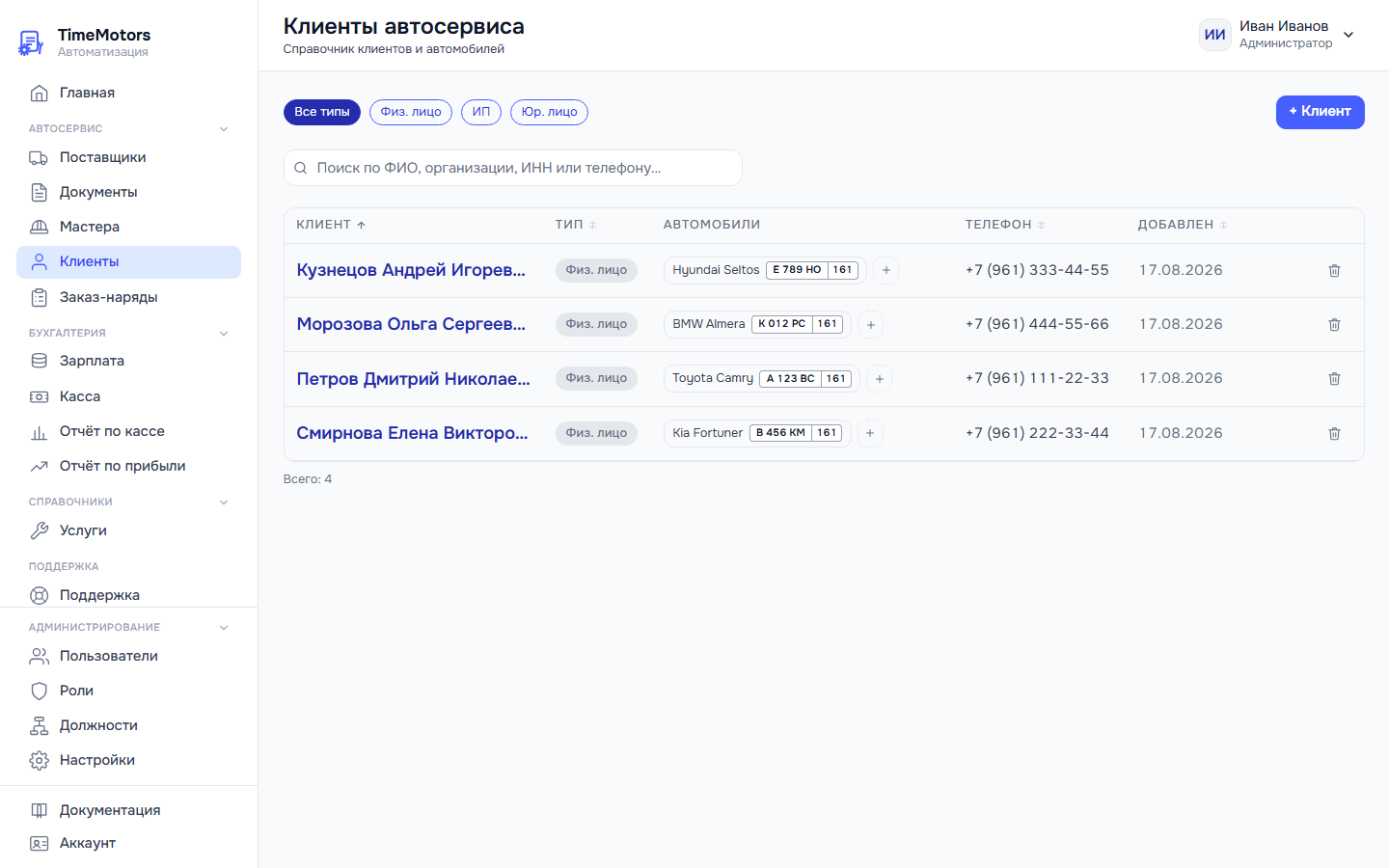
What the table shows
A client is opened by clicking anywhere in the row. Ctrl/Cmd-click opens the item card in a new tab. The exceptions are the phone number (click to call the link) and vehicle license plates: they have their own actions.
| Column | What it contains |
|---|---|
| Client | Full name for an individual or sole proprietor, company name for a legal entity. Below the name, the type is displayed in subdued text (Individual, Sole proprietor, Legal entity) together with the Tax ID, if provided |
| Phone | Primary phone number. Clicking the phone number in the phone or in a browser with a dial pad starts a call |
| Vehicles | Up to three vehicles with license plates; the rest are shown as “+2” (opens the Vehicles tab in the client’s item card). Clicking a license plate opens the vehicle for editing; the + button adds a vehicle. The column is available if any module in the “Auto Service” group is enabled (Suppliers, Documents, Mechanics, Clients, Work orders) |
| Added | Date when the client was added |
| ⋮ | Row action menu: Delete |
To sort, click the Client, Phone, or Added headings; click again to reverse the sorting direction.
The list is loaded as you scroll: first 50 clients are displayed, and the rest are loaded automatically when you reach the bottom. There are no numbered pages. At the bottom, “Showing: 50 of 312” is displayed; once everything is loaded, “Total: 312” is displayed.
At a screen width of 1280 px, the table turns into cards: name, type and Tax ID, phone number, and the client’s vehicles below, with the ⋮ menu in the corner. Clicking a card opens the client.
The list remembers where you left off
The search, selected type, and sorting are preserved while the browser tab is open. If you open a client’s item card and return, the list looks the same and, provided you were browsing for less than half an hour, remains at the same position. When the search, filter, or sorting differs from the original settings, the “Reset” button appears next to the filters.
Filters and search
-
Search — the field displays “Search by full name, company, Tax ID, or phone number…”. It searches by part of the full name, full or abbreviated company name, Tax ID, primary and additional phone number, license plate, and VIN of any client vehicle, regardless of letter case.
-
Quick search from any section. You can find a client, vehicle, or order without opening this list:
Ctrl K(on Mac,⌘K) or the field in the header. See Search in the header for details.- License plate — in any keyboard layout, with or without spaces: “а123вс”, “A 123 BC”, and “а-123-all 161” will find the same vehicle. The found vehicle’s plate is highlighted in the row.
- VIN — in full or using any part of four or more characters, for example, the last six characters from the vehicle registration document; the last VIN characters are displayed below the vehicle’s plate.
- Phone — in any format: “8 961 333 44 55”, “89613334455”, and “+7 (961) 333-44-55” will find the same client. You must enter at least four digits and no letters.
- Search by make and model is not available.
Search starts automatically a fraction of a second after input; the cross in the field clears it.
-
Filter by type — buttons above the list: All types, Individual, Sole proprietor, Legal entity.
-
Tags ▾ (when the “Tags” module and permission for it are enabled) — a button next to the type filter: only clients who have all the selected tags will remain. The client’s tags are visible in the row below the name. If you select rows with checkboxes, the Selected N · Tags ▾ panel appears above the list, allowing you to assign a tag to several clients at once. See Tags for details.
-
If the search and filter return no results, the list will display “Nothing found” and offer “Reset”.
Creation and deletion
- + Client — the main button on the right in the search row; opens the new client form. The type is selected using the Individual, Legal entity, and Sole proprietor tabs at the top of the form — see Individual, sole proprietor, or legal entity.
- More ▾ — menu on the right in the search row: Import from file… (transfer the database from Excel or CSV), Export to Excel (with the current type and search), Download template, Import history. The “Import and export” module is required — see Client import and export.
- New order — a button in the client row (on hover) and a ⋮ menu item; on a phone, it is in the ⋮ menu of the item card. Opens order creation with the client already selected. Available when the “Work orders” module and order permissions are enabled. The client’s order history is available under the Orders tab in the item card.
- Delete client — ⋮ → Delete in the row (there is no delete button in the client’s item card). The system will ask for confirmation; if the client has vehicles, the prompt will warn that they will be deleted along with the client. A deleted client cannot be restored.
A client cannot be deleted if:
- they have work orders in any status, including “Deleted” — the message “Cannot delete client: the client has work orders…” is displayed;
- their vehicle is listed in someone else’s work order — “Cannot delete client: the client’s vehicles are in work orders…” is displayed.
This preserves the service history. A client without orders is deleted along with all their vehicles.
Clients can be deleted by the account administrator and by an employee with permission for the “Clients” module. An employee who only has permission for “Work orders” can add a client but cannot delete them.
You can add a client directly when creating an order: on the New work order page, there is a + button to the right of the Client field (with the tooltip “New client”) — it opens the same form in a window, together with the vehicle section.
Common issues
- “I cannot delete a client”. The client has work orders (even deleted ones), or their vehicle is listed in orders. Such clients cannot be deleted — the order history is important. If the client is a duplicate, merge them with the primary client: the orders and vehicles will be transferred, and the duplicate item card will be deleted — see Duplicate clients.
- “The client is not in the list, but they definitely were.” Check the type filter — All types should be selected. The list remembers the previous selection, so click Reset. You can also try searching by part of the last name, vehicle number, or phone number.
- “Clients are duplicated.” When added manually, each record is a separate client, so before adding one, search by Tax ID or phone number. The More ▾ → Find duplicates option will find existing duplicates, and you can merge them using Duplicate clients. Import from a file automatically finds duplicates by phone number and Tax ID.
- “I need to upload clients from Excel.” The More ▾ → Import from file… button above the list uploads clients and their vehicles from Excel or CSV, checking for duplicates and errors before saving, while Export to Excel downloads the list using the current filter. See Client import and export for details.