Profit report — what it shows
Analytics for completed and closed work orders: profit from parts, revenue from services, mechanic costs, and total profit.
Where to find it
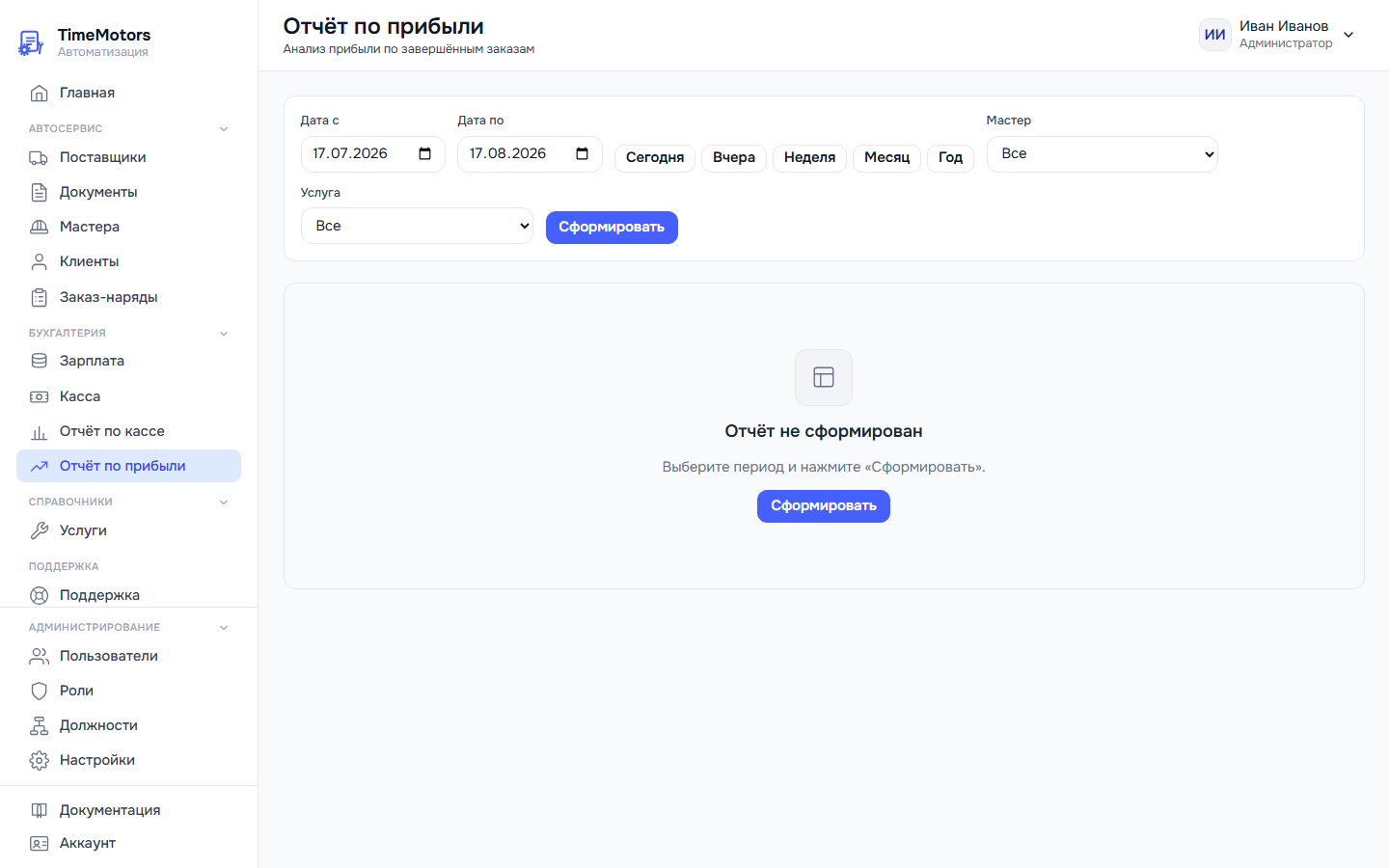
Path: Reports → Profit report.
The item is visible if the account has the “Profit report” module enabled and the Role contains the “Submodule access” permission for “Accounting > Profit report” (see Roles and permissions).
Select the Period and click “Generate” — the report is built only when you click this button. Filters are described in Periods and slices.
Three tables
On a Computer, the tables are on the left and the totals item card is on the right. On screens that are already 1280 px wide, the totals item card is at the top, while the tables are collapsed — expand them by clicking the header.
1. Parts profit
By parts line in Orders. Identical parts with the same Price in the same Order are combined into one line; in different Orders, they are shown as separate lines.
| Column | What it contains |
|---|---|
| Name | As in the Order |
| Vehicle | Order vehicle, with the Order number below it |
| Part number / Brand | As in the Order |
| Qty | Quantity |
| Purchase / Sale | Unit Price from the Order |
| Purchase amount / Sale amount | Price × Quantity |
| Profit | Sale amount − Purchase amount. A negative value is highlighted in red |
The “Total” line is at the bottom.
Parts added to an Order as part of a Labor package have a purchase cost of 0 — their entire Price is counted as profit until the purchase cost in the Order is adjusted.
2. Services revenue
Grouped by Service name:
| Column | What it contains |
|---|---|
| Service | Name |
| Lines | Number of times the Service appears in Orders (not “items,” but “Order lines”) |
| Amount | Amount charged to the Client for this Service during the Period |
“Total revenue” is shown at the bottom.
3. Mechanic costs
For each Service line with an assigned Mechanic:
| Column | What it contains |
|---|---|
| Mechanic | Full name |
| Service | Name |
| Rate | Mechanic Rate: “0.5 h × 1,200.00 ₽”, “30%”, or “1 × 1,500.00 ₽” |
| Amount | Amount accrued to the Mechanic |
“Total costs” is shown at the bottom.
Summary figures
“Totals for …” item card:
- “Parts profit” — total from the first table.
- “Services revenue” — total from the second table.
- “Mechanic costs” — total from the third table. It also includes the Order service advisor’s percentage (Order Check-in lines), if configured in the Mechanic item card: profit for such Services will decrease by this amount.
- “Net services profit” = Services revenue − Mechanic costs.
- “Total profit” = Net services profit + Parts profit.
This is how much the Auto Service earned on Orders during the Period.
The report does not account for: the Cash desk and actual Client Payments, prepayments, actual Payouts to Mechanics (accrual is used instead), rent and other Expenses, lines excluded from Payroll calculations. The Service profit including rent, advertising, taxes, and other Expenses is shown in the separate “Income & expenses” module.
Conditions for including an Order in the report
An Order is included for the Period if:
- Its Status is “Completed” or “Closed”. Other Statuses, Declined and Deleted Orders are not included.
- The Order completion Date falls within the Period — the point when it was first moved to “Completed” (or immediately to “Closed”). Re-clicking “Save”, closing, and opening the Order do not change the date.
Days are calculated using Moscow time: an Order completed between 00:00 and 03:00 Moscow time belongs to that Day. Each Order is included in exactly one Period: an Order created in September and completed in October will appear in the October report, and the sum of the monthly reports equals the report for the entire Lead time.
Previously, the report included Orders based on their creation or last modification Date. Now it calculates by completion Date, just like the Payroll report and the “KPIs” screen: “Total profit” matches “Orders profit” in the KPIs for the same Period. Orders without a completion Date (very old Orders) are not included in the report. “Mechanic costs” may differ from “Accrued” in Payroll only due to lines excluded from Payroll calculations.
Common mistakes
- “The Order was completed, but it is not in the report”. Review the Status (“Completed” or “Closed”) and make sure the Order completion Date falls within the Period. After changing the Dates, click “Generate” again.
- “The Order was created in September, but it appears in the October report”. This is correct: an Order is counted for the Month when it was completed. If you return it to “In progress” and complete it again, the Date will become new.
- “The profit for a part is negative”. This means it was sold for less than it was purchased for. Review the Prices in this Order.
- “The profit for a part equals its full Price”. The purchase cost in the Order is 0 — this happens with parts included in a Labor package. Adjust the purchase cost in the Order.
- “The Mechanic is in the report, but there is no Payroll”. Accruals for the Mechanic are shown here, not Payouts. For Payouts, see Payroll report.