Time to order: minimum stock
To avoid discovering an empty shelf while a client is present, set a minimum stock level for each item. As soon as the part reaches this number, the warehouse list will display the “Time to order” label.
How to enable
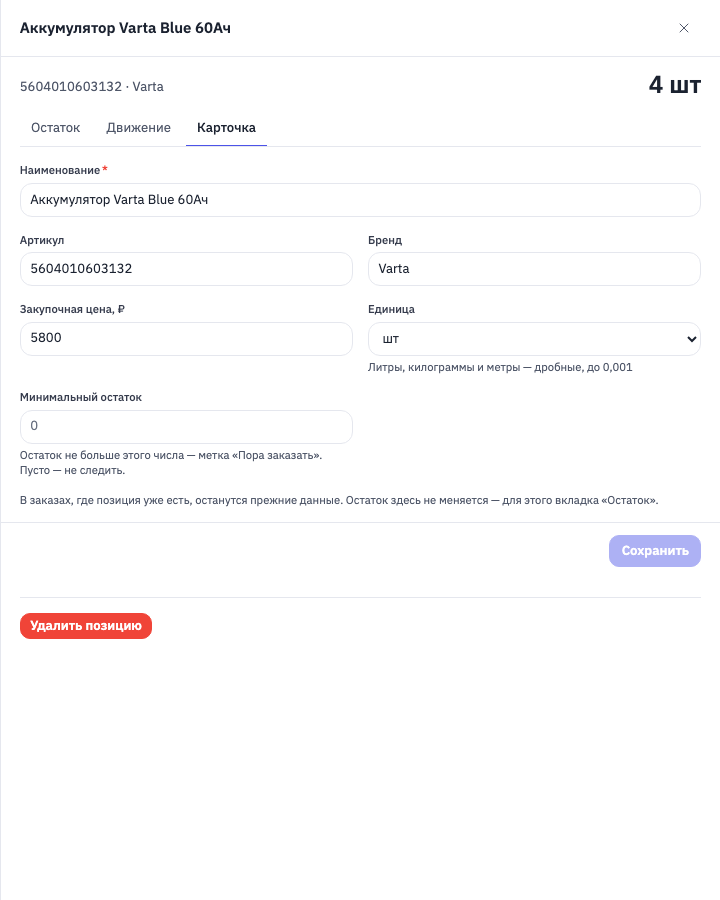
- Open the item (Warehouse → Parts, by clicking the row) and go to the “Item card” tab.
- Enter a number in the “Minimum stock” field, for example 10 (a decimal value is allowed for litres).
- Click Save.
You can create an item with a minimum stock level right away in the + Item window. If the field is empty or set to 0, the item is not monitored and no label will be displayed.
When the label appears
The “Time to order” label is displayed when a minimum stock level is set and the stock is not greater than it: with a minimum of 20 litres, the label will appear when the stock is 20 litres or less. It disappears when the stock is above the minimum level again (after a receipt or cancelling a write-off).
Where you can see it:
- in the list, under the stock level in the “In stock” column;
- in the item drawer, next to the stock level;
- on the “Time to order” tile above the list: an orange number of items that need to be ordered. Click the tile or the “Time to order” filter button, and only these items will remain in the list: a ready-made list for calling the supplier.
What is not included
The system does not send emails or messages about the minimum stock level, nor does it place an order with the supplier automatically: you need to open the list yourself, for example in the morning. The stock level is calculated for the item itself and does not include reservations for orders: see the “Available” column.
FAQ
- “The item is at zero, but there is no label”. The minimum stock level is not set (0). Set it on the “Item card” tab.
- “The label is still there even though the part was ordered”. The label depends only on the stock level. Once the part arrives and you record the receipt, the label will disappear.
- “How to change the minimum for all items at once”. Only one item at a time in the item card.