Auto service registration
Registration is free and requires no approval: the auto service owner fills out the form, confirms their email via the link in the email, and can start working immediately.
Where to find it
Path: Public website → “Try it” button (or “Try for free” on the homepage), the Register link below the sign-in form, or the direct link /register.
The iPhone and iPad app does not support registration—only sign-in. Auto services are registered on the website.
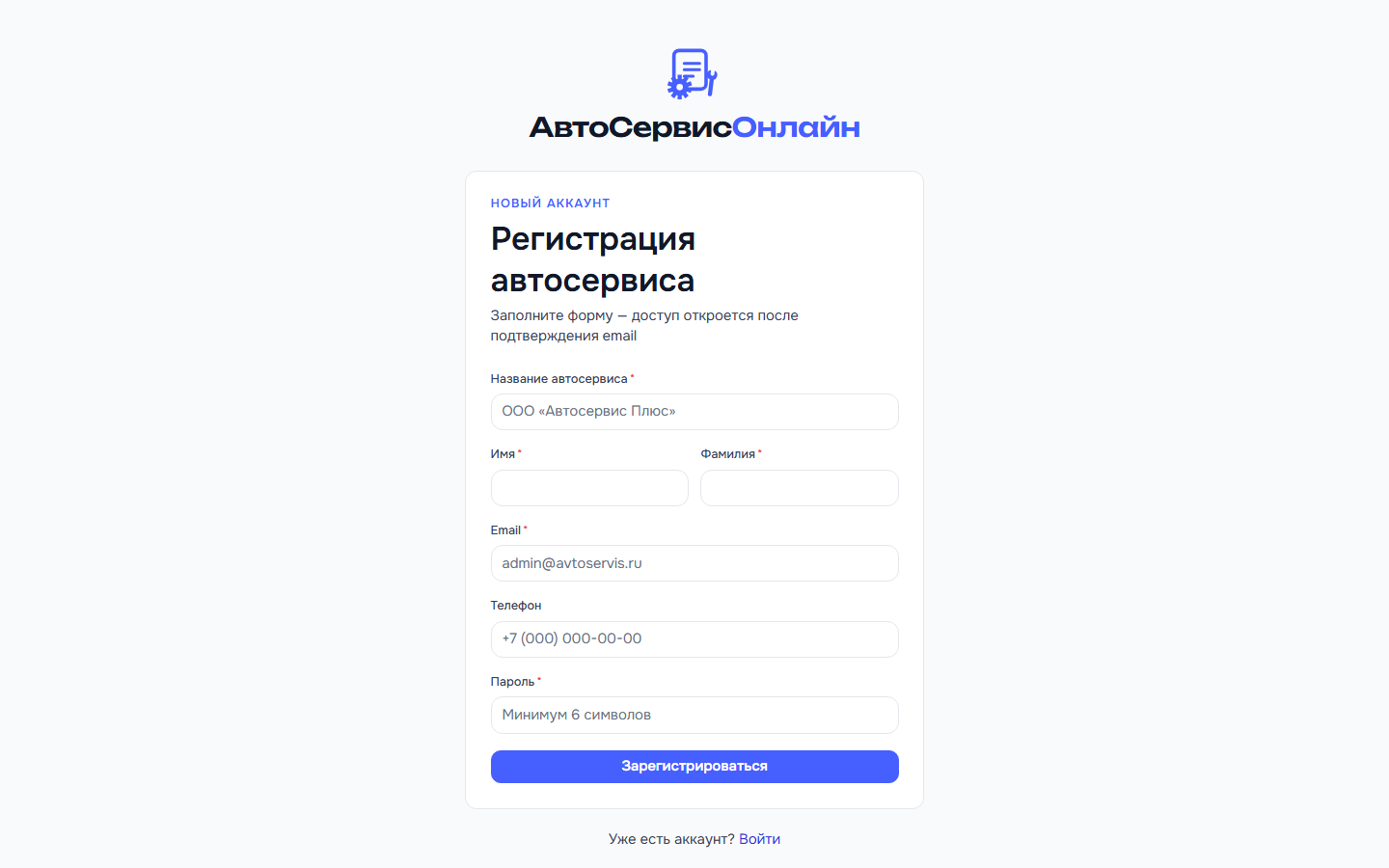
How to do it
The form is a short three-step wizard:
- “Let’s get acquainted” — enter the Auto service name (this is how it will appear in the system and in client records). Click Next.
- “Introduce yourself” — the administrator’s First name and Last name, and optionally Phone. This will be the administrator account, where requests and notifications will arrive.
- “Sign in to the system” — Email (it will become your login) and Password (at least 6 characters). Click Register.
The information entered at each step is not lost: if you close or refresh the page, you will return to the step where you stopped (the system does not save the password).
Registration via Yandex ID, VK ID, or Google
At the “Sign in to the system” step, you can click Via Yandex ID, Via VK ID, or Via Google—then you do not need to create a password: confirm sign-in in your provider account, and registration will be completed immediately. The email address will be taken from the provider account and considered confirmed. The same buttons are available on the sign-in page, allowing you to sign in without a password.
If there is an “I’m not a robot” check before the Register button, the button will become active once the check has loaded.
After registration
You can sign in to your account immediately. You must confirm your email via the link in the email by the end of the registration day—from the next day, sign-in will be blocked without confirmation (a reminder will appear in the account header). The Next and Back buttons allow you to go back and correct the information before the final step.
What you get upon activation
- Trial period — 7 days free. It starts after email confirmation, and no card is required. Only the tariff modules are open (except “Suppliers,” which are enabled by Support), nothing is charged to or deducted from the balance, and you can add as many employees as needed. Until the first payment, the order document is printed for 3 different orders (reprinting the same order is free, and the remaining balance is shown under Print ▾). For details, see Trial period: 7 days free.
- Rate after the trial. The core (work orders, clients and vehicles, mechanics, document printing—₽ 1,499 per employee per month) and the modules you selected in the calculator on the rates page (/pricing/); if you registered without making a selection, you get only the core. The administrator can change the composition until the end of the trial period under Account → Tariff, by checking “Included in the rate after the trial” in the “Rate after the trial” section. For details, see Rate after the trial.
- After 7 days, the core and rate modules work after payment; the remaining modules are closed, but their data is preserved. The first payment must be for at least one month at the rate after the trial (core only for 1 employee starts at ₽ 1,470), and you can pay in advance: payment immediately completes the trial period, and the paid period starts at the time of payment. Without payment, the account switches to view-only mode. For details, see What happens after 7 days.
- Grid rate: the price consists of the core and rate modules per employee: the first is charged at the full price, and each subsequent employee adds 10% to it. Charges begin after the trial period, once a day at around 03:00 Moscow time. For details, see Rate and balance.
- Your user becomes the account administrator—with full access to all sections without permission checks. You add employees and assign Roles yourself.
Common mistakes
- The email did not arrive. Check your Spam folder. You can request another email using the Send again button on the “Check your email” screen or the Send again button on the sign-in page—it appears if you enter your email and password before confirmation. You can request emails no more than once a minute and no more than 5 times per day.
- “The confirmation link is invalid.” You requested another email, but only the link in the latest email works. Open the latest email.
- “The link has expired. Request the email again.” More than 7 days have passed. Request a new email using the Send again button on the sign-in page or the Send email again field on the confirmation page.
- “This email is already in use”—when registering via a provider (Yandex/VK/Google) that uses this email address and an account already exists in the system. Sign in with your password or register the service using a different email address.
- “The provider did not provide an email address”—the provider did not provide the email address. Register with an email address and password or choose another provider.
- “The link has expired—start signing in again”—more than 10 minutes have passed between clicking the button and confirming in your provider account. Click the provider button again.
- An account already exists for this email. No error will appear on the form: the screen will display “Check your email,” and you will receive an email titled “Registration in AutoServiceOnline” with an option to sign in or restore your password. The same email address cannot be used for two auto services—sign in with it or specify a different address. See First sign-in for password recovery.
- “Please try again later.” Auto services cannot be registered too frequently from a single connection address. Wait 30 minutes.