Payment
Here you can see how much the client owes for the order, how much has already been paid, and the payment method. Payment can be accepted in instalments: a prepayment at check-in and the remainder upon handover. An error or client refusal is recorded as a refund.
The "Order Payments" module is included in the core Rate and is enabled for everyone. Employees with the "Accept payments" or "Refunds" permission can see the Payment tab—an Administrator grants these permissions in Roles.
Where to find it
Path: Work order → "Payment" tab. The Accept payment button is also available in the Result column on the right, so you can accept payments without leaving other tabs.
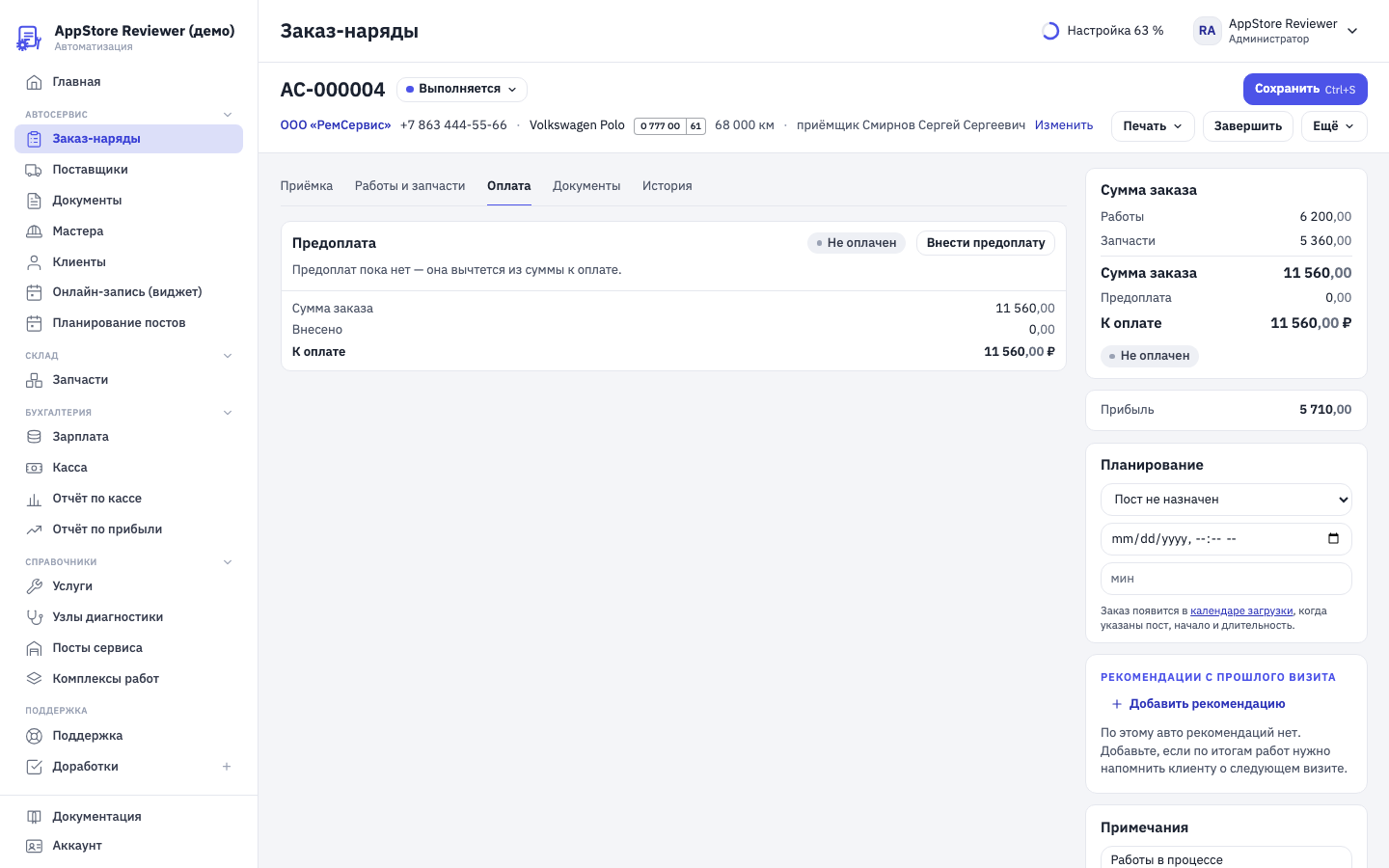
What the tab shows
At the top are three amounts and a status badge:
| Amount | Description |
|---|---|
| Amount due | Order amount after applying the Discount |
| Paid | Accepted payments minus Refunds |
| Debt | How much the client still has to pay. Displayed in red while greater than zero |
Status badge:
- Not paid—no payments have been made for the order;
- Partially paid—less than the order amount has been paid;
- Paid—exactly the required amount has been paid;
- Overpayment—more than the order amount has been paid.
If the order amount is zero and there are no payments, no status is displayed.
Below is a table: Date, What (payment or refund), Method, Amount (refunds are shown with a minus sign), Cash desk, Who accepted it, and a comment. Until a payment is made, the table is replaced by the hint "No payments yet—make a prepayment or pay upon handover". The data arrives with the order, so you do not have to open the tab: the same Results are visible in the right column.
How to accept payment
- Click Accept payment—on the Payment tab or in the Result column.
- The current debt is automatically entered in the Amount, ₽ field. If the client is not paying the full amount, adjust the amount or click the chip: Full debt or Half.
- Select the Method: Cash, Card, or Transfer.
- Optionally, add a Comment ("prepayment for parts", "the client's wife paid").
- Click Accept payment or Ctrl+Enter.
The payment is recorded immediately, so you do not need to click Save in the order header. The Results and status update in place. If more has already been paid for the order than required, the dialog will warn "More than the amount due—… ₽". The payment can still be accepted, and the order will receive the Overpayment status.
There is no separate "prepayment" type: a prepayment is a regular payment accepted before the Work is completed. The same dialog is used to accept the remainder upon Vehicle handover.
The System sets the Date and Time automatically: payments cannot be backdated. Double-clicking the button is harmless—a duplicate payment will not be created.
Only the comment can be edited (the Comment button in the row). The amount and method cannot be changed: delete the payment and enter it again so that the money is always traceable.
Online payment via link
If the Payment via link module is enabled, the client can pay independently using the Pay button on the order page. Such a payment appears in the table automatically: the method is Online (YooKassa), the comment is "Payment via link · YooKassa", and the Who column shows Client via link. It is not recorded in the Cash desk: this is a cashless payment, and the money is deposited into your YooKassa store account.
- You cannot enter an online payment manually: there is no "Online" method in the Accept payment dialog.
- You cannot delete it, and there is no Delete button in the row: the money has already arrived through YooKassa. If the payment is incorrect, record a Refund (below).
Bonuses and Certificate
If the Loyalty module is enabled, the tab contains a "Loyalty" block with the Write off bonuses and Certificate buttons. These add rows to the table with the methods "Bonuses" (comment "Payment with bonuses") and "Certificate". This is a payment, not a Discount: Documents, Profit, and Payroll are calculated based on the full Price. Therefore, these buttons are visible only with the "Accept payments" permission (together with the "Work at the cash desk" permission of the "Loyalty" module). A Coupon and a visit under a Package are not payments: they are available in the Labor and parts tab.
- These methods are not available in the Accept payment dialog: rows can only be created through the "Loyalty" block. A Closed order also accepts them.
- If you delete a "Bonuses" row, the bonuses are returned to the client; if you delete a "Certificate" row, the remaining balance is returned to the Certificate. They cannot be refunded in cash through Refund.
- If you move an order to Declined or delete it, the "Bonuses" and "Certificate" rows are removed automatically, and the bonuses and remaining balance are returned.
- These rows are not included in the Cash desk or accounting records: they are not money at the time of payment.
Refund
The Refund button on the tab is visible if your Role has the "Refunds" permission and some amount has been paid for the order. If you do not have the permission, ask an Administrator to add it to your Role (Settings → Team → Roles).
- Click Refund.
- Enter the Amount and select the Method.
- Enter the Reason—this is required ("part refused", "accepted by mistake").
- Click Create refund.
You can refund no more than was paid using the same method. If the client paid 2 000 ₽ by Card, you cannot refund the money in Cash—the System will respond "Cannot refund more than was paid by Card: 2 000,00 ₽ available". A Refund can be made for part of the amount and repeated several times. It reduces the Paid amount and increases the client's Debt.
Online payment refund. The application does not refund the money itself. First, refund the Payment in your YooKassa personal account, then click Refund here and select the Online (YooKassa) method—it appears if the order has an online payment. This ensures that the Debt and Results in the order match YooKassa.
Payment and Cash desk
The Cash desk connection is only needed if the "Cash desk" module is enabled for the Account.
- Cash during an open shift is recorded in the Cash desk automatically: a payment—as the Receipt "Order payment AS-000123"; a refund—as the Expense "Refund for order AS-000123". The Cash desk column shows "in the cash desk". You do not need to create a separate Receipt in the cash desk.
- The shift is not open. The dialog will show "Cash desk shift is not open" and two options: Open shift or Accept without cash desk. In the second case, the payment will be saved, but the table will show the Not in cash desk label and the To cash desk button. Once you open the shift, click To cash desk—the operation will be recorded in the current shift with the payment date.
- Card, Transfer, and Online payments are not recorded in the Cash desk—the Cash desk only handles Cash. The Cash desk column displays a dash for these methods.
A separate Cash desk permission is not required to record payments in the Cash desk. However, only an employee with access to the Cash desk can open a shift.
If a Cash refund exceeds the amount currently in the Cash desk, the System will warn you but will not prevent it: the decision is yours.
Deleting a payment or refund
The Delete button in a row removes an incorrect entry; the order History retains a note that the payment was deleted. If the operation was recorded in the Cash desk, it disappears from the Cash desk along with the payment. You cannot delete an entry if:
- the operation was included in a closed Cash desk shift. The shift has already been submitted, so nothing can be removed retroactively. Record a Refund—this ensures an accurate Cash desk trail;
- a refund was issued against the payment. First delete the refund, then the payment.
You can delete a payment with the same permission required to accept it, and a refund with the "Refunds" permission.
Which orders accept payment
- An order in any Status except Deleted accepts payment. A Deleted order must first be restored.
- A Closed order accepts payments and Refunds: the lock on editing Work and Parts does not affect money. There is no need to reopen the order to accept a payment.
- If you move an order to Declined or Deleted after money has been paid, a prominent warning will appear: "… ₽ has been paid for the order—create a Refund". The Status will still change; the System only reminds you about the Refund.
Legacy deposits
Deposits made before payment methods became available have been preserved: they are displayed as payments with the Cash method. They are not backdated into the Cash desk and have no To cash desk button.
Payment in documents
- Work order—the "Order payments" block: the Date, Method, and Amount of each operation (Refunds are shown as negative amounts), followed by Paid and Amount due. If there is an overpayment, the line "Overpayment" is printed.
- Invoice for payment—if some amount has already been paid, the lines Previously paid and Amount due are added below the total.
- An act and a payment contract are not printed.
If there are no payments, the block is not included in the Documents.
Payment in the Orders List
The Orders List contains a Payment column: a status badge and the grey text "debt 12 000 ₽". Above the List are the With debt, Not paid, and Paid buttons, allowing you to quickly find debtors.
On mobile
Results and payments are displayed as cards, and the Accept payment and Refund dialogs open directly on the page. A panel is fixed at the bottom of the screen: Amount due, Debt, and the Accept payment button.
Common issues
- "There is no 'Payment' tab." The "Order payments" module is not enabled, or the Role does not have permission for payments. Contact the Account administrator.
- "There is no 'Refund' button." The "Refunds" permission is required. The button is also hidden until some amount has been paid for the order.
- "I accepted cash, but the Cash desk is empty." The shift was not open, and you accepted the payment without the Cash desk. The row has the Not in cash desk label: open the shift and click To cash desk.
- "I need a different payment date." The Date is set automatically. If it is important, enter it in the payment comment.
- "I want to adjust the amount." The amount and method cannot be changed. Delete the payment (if the Cash desk shift is still open) and enter the correct amount. If the shift is closed, create a Refund and accept the payment again.
- "I cannot delete the payment." The operation was included in a closed Cash desk shift, or a refund has already been issued against it—see the "Deletion" section above.
- "The client paid, but the status is 'Partially paid'." Check Amount due: Work may have been added to the order after the payment, or the Discount may have been removed.
- "The order was deleted, and payment cannot be accepted." Restore the order by assigning it a different Status.