Rate and Balance
The Account works on a prepaid basis: the rate is deducted from the Balance once a day. The Price depends on which Modules are Enabled and how many Employees you have — see Rate grid. Top-ups are available online via YooKassa. Only the Account administrator can view the Balance, Rate, and Payment.
A New Account is free for the first 7 Days: only the tariff Modules are Open, and nothing is accrued or deducted — see Trial period: 7 Days free.
Where to find it
Path: Settings → Account and billing. On a Computer, the Balance tile at the bottom of the menu leads to the same page. On a phone: the Sections button → Settings → Account and billing.
At the bottom of the menu (on a Computer), the administrator can see the Balance tile: “N ₽ · Remaining: N days”. At 5 Days or fewer, it turns red. During the Trial period, it displays “Trial period · Remaining: N days” instead.
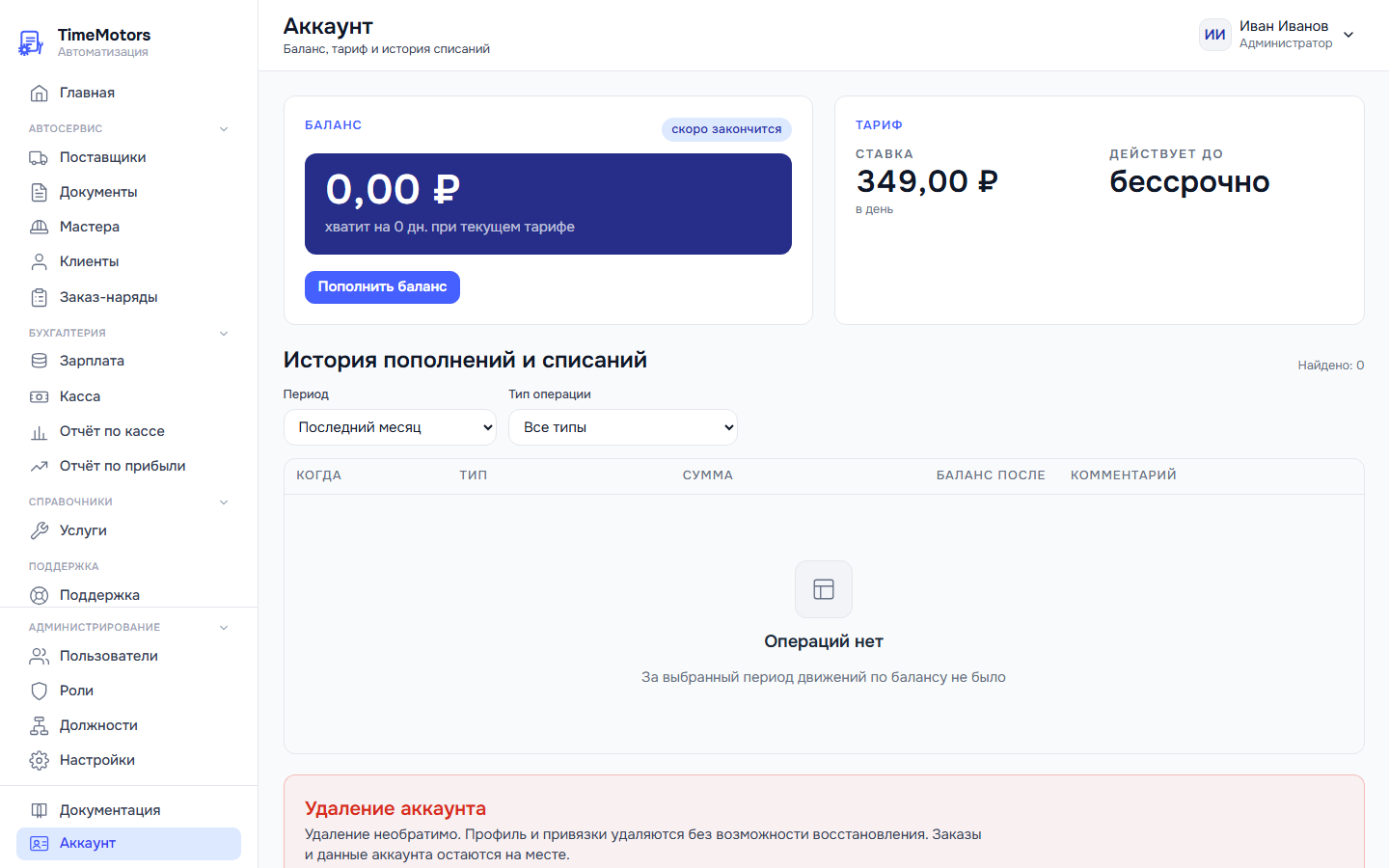
What the Page shows
| Block | What it means |
|---|---|
| Balance | The amount remaining in the Account and the label “enough for N days at the current Rate” (the Balance is divided by the daily Price, rounded down) |
| Top up the Balance | A button below the Balance: opens a Payment Form via YooKassa (Packages with a Bonus and a promo code — see “How to top up” below) |
| Rate | The Price “per month · per day”, components (Core and Enabled Modules), Price per Employee, number of Employees, and the surcharge for additional Employees, the Date “The Rate can be reduced from …” — see Rate grid |
| Rate after the trial period | During the Trial period only: Core and Modules with checkboxes — what will work after 7 Days — and the Price “per month · per day” after the trial period. This Amount is not deducted at the moment — see Rate after the trial period |
| Paid until | The Date until which you can work (previously called “Valid until”); after this Date — view mode. There is also a hint saying “topping up the Balance extends the term”. During the Trial period without a Payment — the last Day of the trial period. If there is no Date — the term is unlimited |
| Top-up and write-off History | All Operations with the “Period” and “Operation type” filters |
In the History, the columns are “When”, “Type”, “Amount”, “Balance after”, and “Comment”. The “Period” filter: “Last Month” (by Default), “3 Months”, “Year”, and “All time”. The “Operation type” filter: “Top-ups”, “Write-offs”, “Starting accruals”, and “Administrator adjustments”. Older Operations are loaded by the Show more button.
Rate grid
The Price is calculated as follows: (Core + selected Modules) per Employee per month: the first Employee pays the full Price, and each subsequent Employee adds only +10% to it. You do not need to select a Rate from ready-made Packages — you pay only for what is Included.
- Core — 1 499 ₽ per Employee per month. Work orders, Clients and Vehicles, Mechanics, and Document printing with your Company details. It is mandatory and cannot be Disabled.
- Modules — per Employee per month: 199 ₽ — inspection report, Photos for an Order, defect report, Recommendations for the next Visit, diagnostic Sheet, Messages to the Client, repair Status for the Client, Visit Valuation, Documents via email, Tasks, and Employee Reminders; 299 ₽ — autofill by VIN, VIN and License plate scanning via camera, work packages, Service due, SMS reminders to Clients; 399 ₽ — Parts Suppliers, Profit report, Income & expenses, and owner KPIs; 499 ₽ — Online booking on the Website, Service bay Planning, Parts Warehouse, Mechanics' Payroll, Cash desk, and shifts.
- Additional Employees — +10% each: monthly Price = (Core + Modules) × (1 + 0.1 × (number of Employees − 1)). Two Employees — 110% of the Price for one; three — 120%; five — 140%; ten — 190%.
- Month · Day. The Price is always shown both “per month” and “per day”: both Amounts are whole roubles, with no kopecks: the monthly Price is rounded down to the nearest rouble, and a Day equals a Month divided by 30, also with kopecks discarded. The daily Amount is deducted from the Balance once a day, so for 30 Days the cost is slightly less than the monthly Price (for example, 30 × 83 = 2 490 ₽ versus 2 494 ₽ per month).
Examples:
| Components | Per month | Per day |
|---|---|---|
| 1 Employee, Core only | 1 499 ₽ | 49 ₽ |
| 1 Employee, Core and Check-in (five Modules at 199 ₽) | 2 494 ₽ | 83 ₽ |
| 3 Employees, Core and Check-in | 2 992 ₽ | 99 ₽ |
| 1 Employee, Core, Inspection, and Online booking | 2 197 ₽ | 73 ₽ |
| Same, 2 / 5 / 10 Employees | 2 416 / 3 075 / 4 174 ₽ | 80 / 102 / 139 ₽ |
| 1 Employee, all Modules | 10 273 ₽ | 342 ₽ |
| 3 Employees, all Modules | 12 327 ₽ | 410 ₽ |
You can calculate your set in advance using the calculator on the Website's Rate page (/pricing/).
What is visible in “Account → Rate”
The components with the Price of each Module, “Per Employee per month”, the number of Employees, the line “Additional Employees: N × +10%” with the surcharge Amount, and the Result “per month · per day”. A Module already scheduled to be Disabled is marked “will be disabled DD.MM”. If the Rate cannot yet be reduced, the Date “The Rate can be reduced from DD.MM” is shown. This page also contains the Module switches and the Price of each Module (Details); Employees are added under Settings → Team → Users (Details). During the Trial period, this page contains the “Rate after the trial period” block with checkboxes next to the Modules — see Rate after the trial period.
How to increase the Rate
An increase means Enabling a Module or adding (enabling) an Employee.
A Module is Enabled in two steps. First, the switch is still a draft, and the Rate does not change. Then, in the “Rate changes” panel below the Module list, click Save: the “Confirm the Rate change” window opens, showing a list of what will be Enabled and Disabled, the Result “was → will be” (per month and per day), and the effective terms — Enabled Modules will start working Immediately, while the new Price will take effect from the next Day. Clicking Save in the window applies the changes; Cancel restores the switches to their previous checkboxes.
When an employee is added, the details are confirmed immediately in a window with three lines: Now, After, and Difference—each showing “per month · per day.” If the balance at the new price is insufficient for 7 days, a warning will be displayed. If the price changes while the window is open, the system will display the window again with the new figures. If the balance is insufficient for one month at the new price, the module will not be enabled immediately and will instead wait for payment. During the trial period, there is no price window: modules and employees cost nothing until the end of the trial period.
How to reduce the rate
A reduction is considered to be disabling a module or deactivating an employee. You can reduce the rate no earlier than one month after the last increase—the date is visible in the confirmation window and next to the module in “Account → Tariff.”
- If the month has already passed, the module will be disabled immediately, and the new price will apply from the next day.
- If it has not, the module will continue to run, and “will be disabled on DD.MM · Undo” will appear next to it in “Account → Tariff.” The module will disable itself on the specified date, and the price will be reduced. The Undo link keeps the module enabled.
- A deactivated employee loses access immediately but remains in the rate (and on the invoice) until the same date. Deleting an employee does not reduce the price before that date.
A module scheduled to be disabled can be enabled at any time: the price will not increase.
If you have the old rate
Accounts registered before 09.10.2026 remain on the previous daily rate until you enable a module or add an employee. In this case, “Account → Tariff” shows “fixed rate,” displays the amount that would be charged under the rate grid, and includes a Switch to the rate grid button. When you enable a module or add an employee, the “Switch to the rate grid?” window opens with the Stay on the old and Switch and continue buttons: the action is performed only together with the switch. You cannot return to the old rate independently.
If the price list changes
When we increase prices, the account administrator receives an email at least 14 days in advance, with the date and the new price “per month · per day.” Price reductions take effect immediately.
How to top up
- Open Settings → Account and billing and click Top up balance.
- Enter the amount in the Amount, ₽ (from 100) field, or click one of the “1 000 ₽,” “3 000 ₽,” or “10 000 ₽” buttons. The first top-up must cover no less than one month of service at your rate: before the first payment, the field is labelled “Amount, ₽ (from N),” N is filled in automatically, and smaller buttons are hidden (see First payment — no less than one month).
- Check Email for the receipt—by default, it contains the account email, but you can enter the accounting department’s email address.
- Tick the checkbox to agree to the public offer and Privacy Policy—without it, the payment button is inactive.
- Click Proceed to payment—the YooKassa page will open. Make the payment there.
- After the payment, you will return to the “Account” page. The funds are credited as soon as YooKassa confirms the payment, usually within one or two minutes. Refresh the page.
Packages and promo codes. If the service owner has enabled packages, the form contains “Packages — prepayment with a bonus” tiles (3, 6, and 12 months): select a tile, and the amount and bonus will be filled in automatically. If you have a promo code, click Have a promo code?, enter the code, and click Apply; packages and promo codes cannot be used together. A summary is displayed below the selection: “Payment,” “Bonus,” “Will be credited,” and “Will last for.” The bonus is credited after payment, is shown in the balance under “including bonuses of N ₽,” and appears in the history as “Bonus.” It is applied only towards the rate and cannot be refunded. For more details, see Account dashboard.
For more details about payments, receipts, and documents for organizations, see Accepting online payments via YooKassa.
How a top-up extends the period
Each top-up extends the “Paid until” date. The new period is the latest of the following three dates:
- the current period (it is never shortened);
- today + 1 month;
- today + the number of days that the balance will cover after the top-up (the balance is divided by the daily price and rounded down).
Example: the balance is almost zero, and the rate is 2 494 ₽ per month (83 ₽ per day). If you top up by 10 000 ₽, the funds will cover 120 days, and the period will be extended by 120 days. If you top up by 1 000 ₽, the funds will cover 12 days, but the period will still be extended by one month from today.
If you pay during the trial period, the payment ends the trial immediately: the account switches to the paid rate, and the paid days start from the moment of payment.
If there is no “Paid until” date, the period is unlimited, and a top-up does not change it—it is already unlimited.
How write-offs are calculated
- There are no write-offs during the trial period—they begin on the day after it ends.
- Once a day, at around 03:00 Moscow time, the daily rate price is written off from the balance (month ÷ 30, with whole rubles and kopecks discarded). A “Daily write-off” entry appears in the history.
- A write-off is charged for each calendar day, including weekends and holidays. There is no pause.
- Exactly one write-off is charged per day.
- The price is recalculated automatically when you change modules or employees (see “Rate grid”). The new price applies from the next write-off, and there is no recalculation for past days. Support changes the old fixed rate.
Trial period: 7 days free
After the email is confirmed, the account starts a trial period — 7 days free. The last day is the confirmation date plus 7 days, inclusive, Moscow time. No card is required.
- All modules are open, except for “Suppliers,” which are enabled by Support (details).
- Nothing is accrued or written off. The balance does not change. The starting 1 500 ₽ is no longer available.
- As many employees as needed. There is no new price window when enabling a module or adding an employee during the trial. The number of employees will be included in the rate price after the trial.
- Printing documents before the first payment — 3 orders of each type (see Printing before the first payment).
The Administrator can see a banner at the top of the screen saying “Trial period: N days remaining” (on the last day, “ends today”); it is highlighted in colour when 3 days or fewer remain. The Select a rate button opens the “Account” page. In the menu, the balance is replaced with “Trial period · Remaining: N days”. Employees cannot see the banner.
Rate after the trial
This is the core and the modules that will work after 7 days. Immediately after registration, it includes the core (1 499 ₽ per employee per month) and the modules selected in the calculator on the rates page (/pricing/); if you registered without making a selection, it includes only the core. You can change the composition on any day of the trial:
- Account → Tariff, the “Rate after the trial” section — checkboxes for the modules and the “per month · per day” total;
- Account → Tariff — the “In the rate after the trial” switch for each module.
The price is calculated according to the rate grid, taking the number of employees into account. During the trial, it is only displayed with the “after the trial” label and is not charged. You can also select a rate after the trial in view-only mode — before payment.
Notifications about the end of the trial
Administrators receive an in-app push notification and an email at the account email address, each one sent once:
- “Trial period: 3 days remaining”;
- “Trial period ends tomorrow”;
- “Trial period ends today”;
- on the day after the trial — “Trial period has ended”.
The notifications list the modules that will be disabled and the amount of the rate after the trial. There are no emails about the balance or the rate validity period during the trial.
Can I pay in advance
Yes. Top up the balance also works during the trial period: paying for the rate immediately ends the trial period, and the paid period starts from the moment of payment. The printing restriction is lifted immediately after payment.
A bonus accrued by the service during the trial is added to the balance, but is not considered a payment and does not extend the trial.
First payment — no less than one month
The first payment must cover one month at the rate after the trial (the core and rate modules): 30 × the daily price. In the form, the field is called “Amount, ₽ (from N)”, the amount N is filled in immediately, and buttons for lower amounts are hidden.
| Rate after the trial, 1 employee | Per month | Per day | First payment — from |
|---|---|---|---|
| Core only | 1 499 ₽ | 49 ₽ | 1 470 ₽ |
| Core and check-in (five modules at 199 ₽) | 2 494 ₽ | 83 ₽ | 2 490 ₽ |
Packages for 3, 6, and 12 months are suitable — they are calculated at the rate after the trial. A promo code does not reduce the amount; the bonus is accrued on top. After the first payment, the minimum top-up amount is 100 ₽.
What happens after 7 days
- Paid, and the balance covers one month at the rate — the core and rate modules work without interruption.
- Less than one month at the rate has been paid (for example, by invoice) — the core works, while the rate modules wait for the balance to be topped up: they have the “Awaiting payment” label, and the Administrator can see how much is missing (“N ₽ short”).
- Modules outside the rate are disabled. Their data is preserved. The Administrator sees these items in the menu with a lock and an Enable button; a module can be enabled again in Account → Tariff.
- Not paid — view-only mode. Sign in is available, all data is visible, and changes can be made after payment. Top up the balance works: work will resume within one minute after payment. For details, see Rate period expired: view-only mode.
Why a module says “Awaiting payment”
The module is included in the rate, but the balance is insufficient to cover one month at the price including the module. This happens:
- after the trial, if less than one month at the rate has been paid;
- when you enable a module on a paid account, but the balance is insufficient to cover one month at the new price. The confirmation window will state this in advance, together with the amount missing. If the balance is sufficient, the module will be enabled immediately.
In Account → Tariff, a bar reading “Awaiting payment: …” appears above the list of modules, with a list of such modules and a Top up by N ₽ button (the amount missing) — it opens the top-up form on the same page. Once you pay this amount, the modules will be enabled automatically as soon as the money is credited. The modules themselves have an “awaiting payment” label in the list.
Printing before the first payment
Until at least one payment has been made, each order document can be printed for 3 different orders: work order, check-in act, payment invoice, completed work act, contract, defect inspection act, diagnostic sheet. PDF, Word, and “Print” versions of the same document are counted as one type.
- Reprinting the same document for the same order is free, regardless of the number of times.
- How many are left: in the order card, open Print ▾ — each item shows “2 of 3 remaining”, while an already printed document shows “free reprint”. On the “Documents” tab, the same label appears below the document title. The Administrator sees the overall list on the “Account” page in the “Before the first payment: documents — remaining” banner.
- When they run out: the item becomes greyed out and displays “after the first payment”. When clicked, the “Trial period” window opens — the Administrator clicks Top up the balance, while the employee must contact the Administrator. Other documents and orders already printed can still be printed as usual.
- The payroll statement, cash desk report, and Excel exports are not restricted. Bonuses are not considered payments, but payment by invoice (for organisations) is: as soon as we credit it, the restrictions will be lifted.
- Emails with documents (“Documents by email”) are counted in the same way as printing (details).
Emails about the balance and validity period
Emails are sent to the account email address — the one used to register the auto service. Each email includes an “Top up the balance” link to the “Account” page.
About the balance:
- “Balance is running out — N days remaining” — when the money will last for 5, 4, 3, 2, or 1 day;
- “Balance is running out — less than a day remaining” — when the remaining balance is less than the daily rate;
- “Balance exhausted — work suspended” — on the day the account switched to view-only mode.
About the rate validity period:
- “Rate period ends — N days remaining” — when 10, 5, 3, or 1 day remain before the period ends;
- “Rate period expired — view only” — on the day the period expires.
After the balance is topped up, the emails restart. During the trial period, these emails are not sent—instead, you receive reminders about the end of the trial.
The balance has run out: read-only mode
When: after another deduction, the balance became 0 or less.
What is visible: a banner at the top of the screen. The administrator sees “The balance is exhausted — work is in read-only mode” with the Top up → label: clicking the banner immediately opens the payment form. The employee sees “The account balance is exhausted — work is in read-only mode. Contact your administrator.”. On the “Account” page, there is a “The balance is exhausted — work is suspended” block.
What works: sign in, viewing all sections and reports, printing and downloading documents, topping up the balance, “Feature requests”, the Support chat (messages, attachments, replies). You cannot enable a module or add an employee, nor make any other changes.
What does not work: creating, changing, and deleting records. Save buttons are disabled; when you try to use them, a message appears: “The balance is exhausted. Contact your administrator to top up the balance.”.
How to remove it: top up the balance so that it becomes greater than zero. While the account is in read-only mode, the price continues to be deducted and the debt increases—you need to cover it. Work will resume within a minute, after which you should refresh the page. No data is lost.
The tariff period has expired: read-only mode
When: the “Paid until” date has passed—for example, the trial period ended without payment, or the paid days ran out.
What is visible: sign-in is available, and the account operates in read-only mode—just as when the balance is exhausted (see above). At the top of the screen, the administrator sees a banner “The access period has expired — work is in read-only mode” with the Top up → label, and after an unpaid trial, “The trial period has ended — work is in read-only mode” with the Select tariff → label. The employee sees the same banner with the note “Contact your administrator.”. If you try to save, a message appears: “The access period has expired—top up the balance in the “Account” section to continue working.”.
How to remove it: the administrator clicks Top up balance on the “Account” page (after the trial, first check the tariff after the trial; the first payment must be for no less than one month under it). Work will resume within a minute, after which you should refresh the page. No data is lost.
To avoid this situation, top up the balance in advance: each top-up extends the period, and an email will arrive 10 days before it ends.
Common issues
- “I paid, but the balance did not update”. YooKassa does not confirm the payment instantly—usually within one or two minutes. Refresh the “Account” page. If nothing has changed after 10 minutes, send Support the payment date and amount via support.
- “I topped up, but I still cannot save”. Make sure that the balance is greater than zero: the rate continued to be deducted while work was suspended. If the balance is already positive, wait a minute and refresh the page.
- “Why do I have the old rate when it is cheaper on the website?” Accounts with a balance as of 09.10.2026 remain on the previous rate until you enable a module or add an employee. In “Account → Tariff”, you can compare the rates with the tariff grid and click Switch to the tariff grid.
- “I disabled the employee, but the money is still being deducted as before”. The tariff is reduced no earlier than one month after the last increase. The employee no longer has access, but remains in the tariff until the “You can reduce the tariff on…” date; after that date, the price will decrease automatically.
- “I disabled the module, but it is still working”. The same rule applies: the module will be disabled on the specified date (“it will be disabled on DD.MM”). Changed your mind? Click Undo in “Account → Tariff”.
- “I cannot see the balance or the payment button”. Only the account administrator can see them. An employee on the “Account” page only sees the “Delete account” block.
- “My payment is not in the history”. Check the “Period” filter—the last month is shown by default. If the payment has just gone through, wait a couple of minutes.
- “Can I link a card so that it is charged automatically?” No, automatic payment is not available. The balance is topped up manually by any amount from 100 ₽ (the first time—no less than one month under the tariff), and you can top it up for several months at once.
- “Trial period: printing ‘…’ is available after the first payment”. Before the first payment, this document has already been printed for three different orders. Top up the balance—the restriction will be lifted immediately. Reprinting already printed orders is already available.
- “The first top-up must be for no less than one month of work: N ₽”. The first payment must cover one month under the tariff after the trial. Enter an amount of no less than N or select a package. If the amount is lower or higher than expected, check the breakdown in the “Tariff after the trial” block.
- “I paid during the trial period—did the trial period disappear?” This is by design: payment of the tariff immediately ends the trial period, the account operates under the paid tariff, and the paid days start from the moment of payment. Modules outside the tariff are disabled, and their data is preserved—they can be restored in Account → Tariff.
- “The module is ‘Awaiting payment’”. The balance is insufficient for one month under the tariff including this module. Click Top up by N ₽ in the tariff block on the “Account” page—the module will be enabled after the funds are credited. See Why is the module “Awaiting payment”.
- “After the trial period, the section disappeared, and the menu shows a padlock ‘Connect’”. The module was not included in the tariff after the trial period and was disabled. The data is still there—enable the module in Account → Tariff and click Save.