Employee Reminders
An order has been waiting for parts for a week, a client forgot to pick up their vehicle, there are five appointments tomorrow, and someone still owes money for a handed-over order. All of this is available in the system, but to notice it, you have to open the relevant screen. The Reminders module works the other way around: you enable the required rules once by selecting the checkboxes, and at the specified time, the relevant person receives one push digest in the mobile app: “Appointments tomorrow: 5 · first at 9:00”. When you tap the notification, a list opens with a Contact button next to each row.
This is not a scenario builder. There are five predefined rules, each configured with two fields: after how many days and at what time. The module itself sends nothing to the client. Client SMS messages are sent by a separate module, Client SMS reminders, whose rules are configured on the same screen.
The module is paid: 199 ₽ per employee per month. It works together with Work orders; see Enabled modules. It is disabled by default: the account administrator enables it under Account → Tariff. Immediately after enabling, “Appointments tomorrow”, “Waiting for parts”, and “Client debt” start working, and administrators receive the digests.
Rules
| Rule | Trigger | Required module | Default |
|---|---|---|---|
| Appointments tomorrow | there are orders with a scheduled date or service bay bookings tomorrow | Service bay planning | enabled, 18:00 |
| Waiting for parts for more than N days | the order has been in the “Waiting for parts” status for N days or longer | Work orders | enabled, 3 days, 09:00 |
| Waiting for the customer for more than N days | the order has been in the “Waiting for the customer” status for N days or longer | Work orders | disabled, 2 days, 09:00 |
| Client debt for more than N days | the order has been handed over, payment is incomplete, and N days have passed | Order payments | enabled, 7 days, 09:00 |
| Request a valuation N days after handover | the order was handed over N days ago and the client has a phone number | Client messages | disabled, 3 days, 11:00 |
If the required module is unavailable, the rule row is greyed out and displays “Module required: “…””. Enable the module, and the rule will become active.
Three rules are configured by the number of days: “Waiting for parts” from 1 to 60, “Waiting for the customer” from 1 to 30, “Debt” from 1 to 90, and “Valuation” from 1 to 14. If you select a number outside the range, the message “Enter a number from N to M days” appears below the field, and the value is not saved.
Time is selected from a list from 07:00 to 21:00 in 30-minute increments and is calculated in Moscow time.
How “new” is determined
The same order will not be included in the push digest every morning. Order-based rules (“Waiting for parts”, “Waiting for the customer”, “Debt”, “Valuation”) send a digest only when the selection contains new orders, meaning orders that have not previously triggered a reminder. The remaining orders stay visible in the list while the condition is met. If an order leaves the “Waiting for parts” status and returns to it, the condition starts over, and the push digest will be sent again. “Appointments tomorrow” are sent every day when anything is scheduled for the next day.
Push notifications contain no names, phone numbers, or license plates because the text is visible on the lock screen. They contain only numbers, amounts, and times: “Debts 7+ days: 3”, “2 new · total 3 for 12 500 ₽”. If a notification concerns a single order, it includes the order number and vehicle make.
Where to configure
Settings → Reminders (account administrator; the item is visible when the module is enabled).
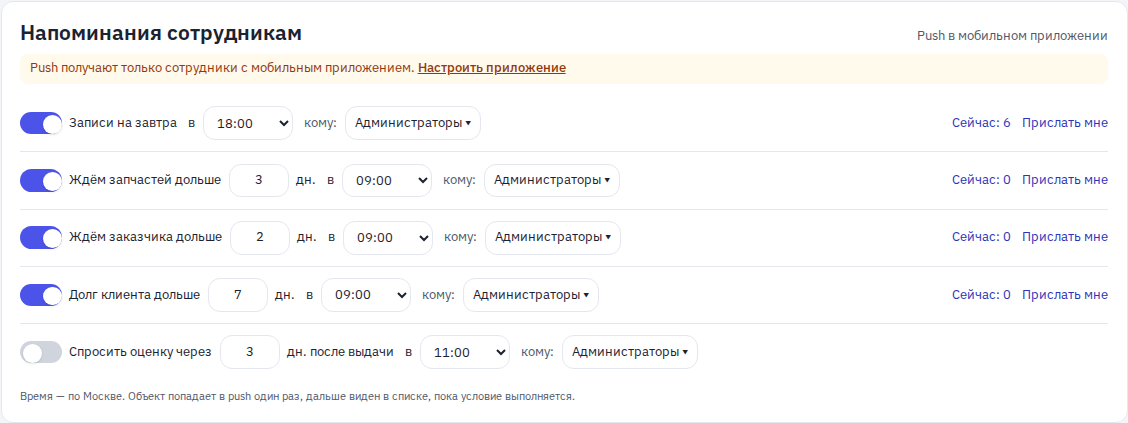
Each rule is phrased as a sentence:
- The Toggle on the left enables and disables the rule.
- Number of days and Time are saved immediately when changed, and “Saved” appears at the top. There is no separate button.
- For opens the list of recipients: Administrators and/or selected employees. An employee can be selected if the Submodule access permission for the Reminders module is enabled in their role (Settings → Roles). Employees without the app are marked “no app”: there is nowhere to send the push notification. You cannot leave a rule without recipients: the system will display “Select the recipients” and restore the previous selection.
- Now: N shows how many orders currently match the rule. Click the number to open the list.
- Send to me sends a test push notification to your phone so you can see what it looks like. The orders are not marked as previously reminded. If you do not have a phone with the app installed, the system will tell you.
If none of the recipients have the mobile app, a yellow tip with a Configure app link appears above the rules.
Who receives push notifications and where
Push notifications are delivered only through the mobile app for Android and iPhone. You can receive them if all of the following are true:
- The Reminders module is enabled and the rule is enabled.
- You are listed as a recipient (“Administrators” or personally).
- You have the app installed and notifications are enabled on your phone.
- In Settings → Notifications, the Push notifications card has both the Receive push notifications master toggle and the Rule-based reminders row enabled. These toggles are personal: each employee decides for themselves.
If the account runs out of funds and switches to view-only mode, digests are not delivered until the balance is topped up.
List and “Contact”
Click a push notification or Now: N: the Reminders screen opens (in the Clients → Reminders menu; visible to employees with the “Submodule access” permission).
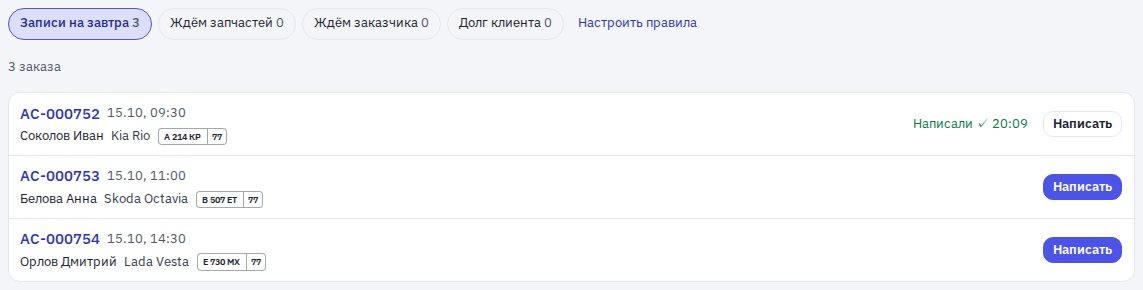
The enabled rules are displayed as chips with counters at the top: switch between them. For administrators, a Configure rules link is displayed to the right of the chips. Each row displays the order number (click it to open the order), date or time, client, vehicle with license plate, “N days” in status, or the outstanding amount.
The Contact button opens the Client messages window with the appropriate template:
| Rule | Template |
|---|---|
| Appointments for tomorrow | “Appointment reminder” |
| Waiting for the customer | “The vehicle is ready” |
| Client debt | “The vehicle is ready”; for a closed order, “Leave a review” |
| Request a valuation | “Leave a review” |
There is no “Contact” button for “Waiting for parts”: there is nothing to tell the client, so open the order. The button is grey if the client has no phone number. The button is missing altogether if the “Messages to client” module is disabled or you do not have permission for it.
After you send a message (or copy the text), a green mark “Contacted ✓ 20:09” appears in the row, and the order history contains the “Contacted the client” entry. Your colleagues can see it and will not contact the client a second time.
The list is calculated when it is opened: if anything has changed during that time, refresh the page. If the current rule has nothing to show, you will see “Everything is fine right now”.
The link from a push notification opens the specific rule and date mentioned in the notification. For “Appointments for tomorrow”, this is tomorrow, even if you open the push notification the following day.
FAQ
- “‘Reminders’ is not in the settings”. The module is disabled (Account → Tariff, enabled by an administrator), or you are not an administrator: only the account administrator can configure rules. The module works only together with “Work orders”.
- “The rule is grey, and the toggle cannot be clicked”. The module required by the rule is not enabled. Its name is shown below the row: “The ‘Service bay planning’ module is required”. Enable it in Account → Tariff.
- “No push notification arrives”. Check the following in order: the rule is enabled; you are listed as a recipient (“to”); the app is installed on your phone and notifications are allowed; “Receive push notifications” and “Rule-based reminders” are enabled in Settings → Notifications; you are not currently in view-only mode due to a zero balance. Click “Send me”: if the test notification arrives but the actual one does not, there is simply nothing to show right now.
- “A push notification with a number arrives, but the list is empty (or vice versa)”. The list is calculated when it is opened, while the push notification was sent earlier: the order may have been closed or rescheduled during that time.
- “The push notification arrived yesterday, there is silence today, but the order is still waiting”. This is intentional: you are reminded about an order once per waiting period. All pending orders remain in the list (Clients → Reminders) and in “Now: N”.
- “There are no names or numbers in the push notification”. This is done intentionally: the notification is visible on the lock screen.
- “I want messages to be sent to clients automatically”. Use the SMS reminders for clients module: the day before an appointment, when the vehicle is ready, and when service is due. No messages are sent to clients here.
- “I want to remind employees about ‘Service due’”. Every Monday, the administrator receives a separate push notification. See Service due.