Receipts from suppliers
Receipt — an incoming supplier document: UPD, delivery note, or certificate. Enter it once — the parts will arrive in the warehouse, the purchase will be recorded in accounting, and it will appear in the reconciliation statement with the supplier. The section is available in the Accounting & taxes module.
Where to find it
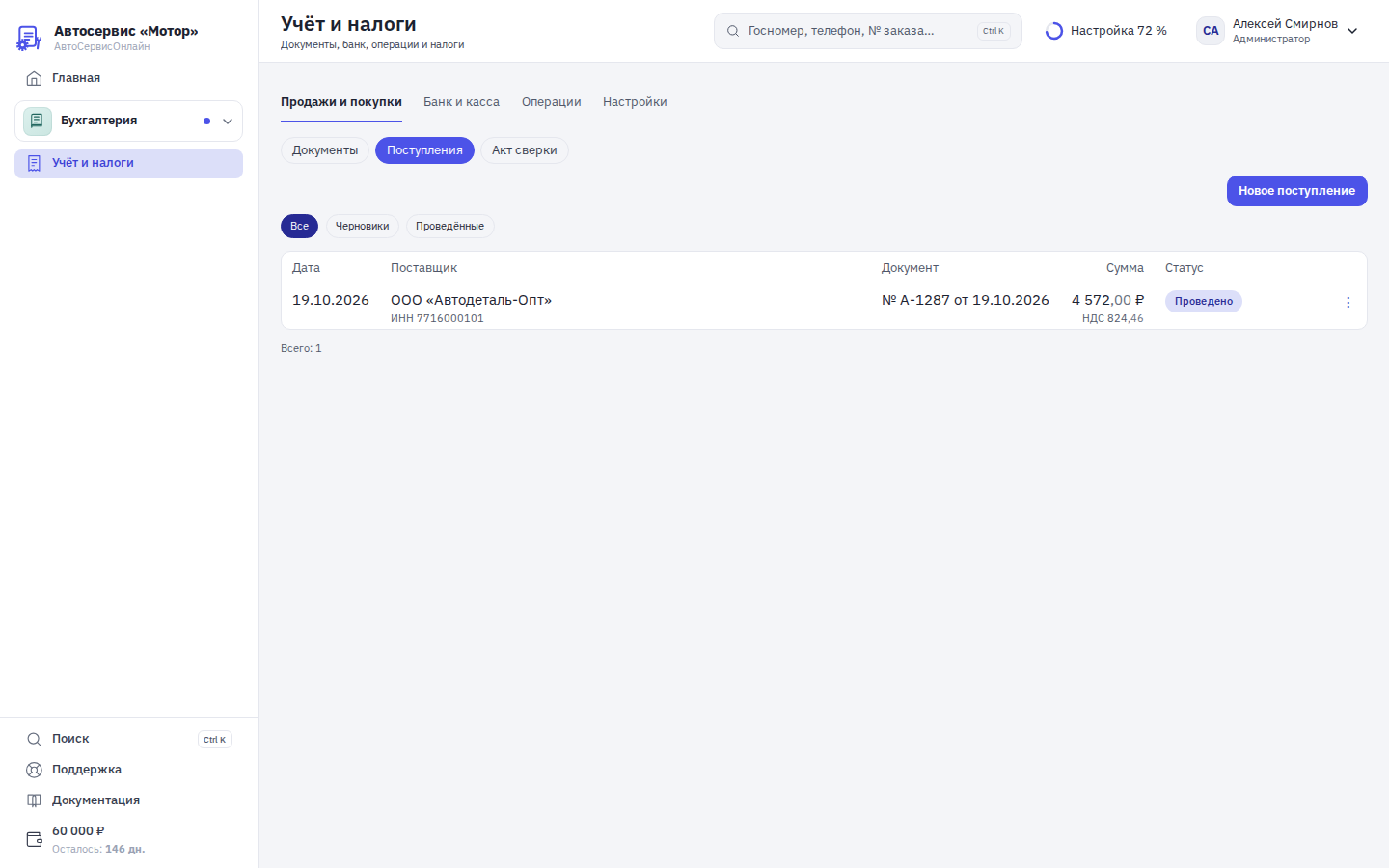
Path: Accounting → Accounting & taxes → “Sales and purchases” tab → “Receipts” section. Any employee with module access can view it; the account administrator and employees with the “Keep records” permission can enter, post, and reverse postings.
The list displays the date, supplier with tax ID, document “No. … dated …”, amount including VAT, and status “Draft” or “Posted”. Tabs: “All”, “Drafts”, “Posted”. Newest entries first, 50 per page.
Who can be a supplier
A supplier is a client — legal entity or individual entrepreneur — from the “Clients” section. An individual cannot be a supplier. In the client item card, there is a checkbox “Supplier — parts and services are received from them”, while the client list has a “Suppliers” filter. You do not need to mark the client in advance: the flag will be set automatically upon the first receipt or payment according to the statement.
First add a new supplier under Clients (type “Legal entity” or “Individual entrepreneur”, with tax ID) — then it can be found in a receipt by name or tax ID.
Enter a receipt
- Click “New receipt”.
- “Supplier” — start entering the name or tax ID.
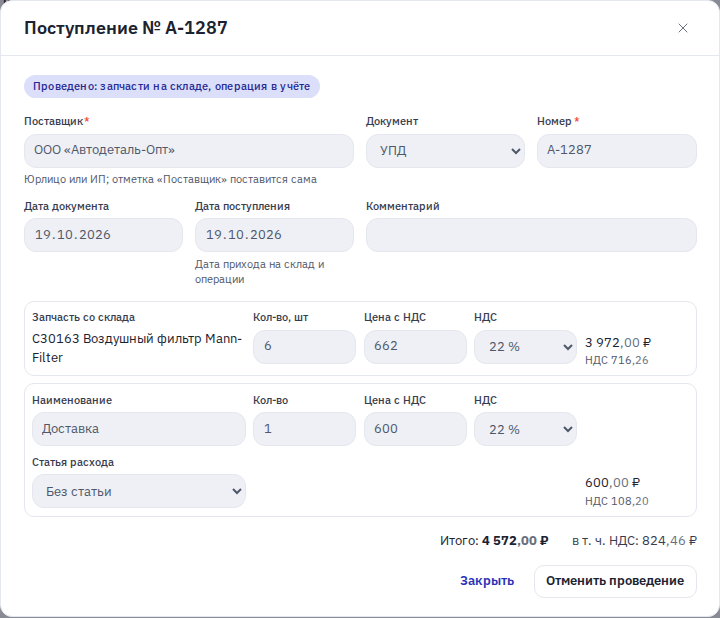
- “Document” — “UPD”, “Delivery note”, “Certificate”, or “Other document”; “Number” (required, up to 50 characters) and “Document date”.
- “Receipt date” — the date the parts arrive at the warehouse and the transaction is recorded in accounting. By default, it matches the document date.
- Lines:
- “+ Part from inventory” — a warehouse item (search by part number or name). Available if the “Parts” (warehouse) module is enabled.
- “+ Line” — “Name” (for example, delivery or service) and, if “Income & expenses” is enabled, “Expense category”.
- Each line has “Quantity”, “Price including VAT” (as in the supplier document, the final price per unit), and “VAT”: no VAT, 0, 5, 7, 10, 20, or 22%. The line amount and VAT are calculated automatically.
- At the bottom — “Total” and “including VAT”. Check them against the supplier document.
- “Save draft” — save and post later, or “Post” — post immediately. You can post only if every line contains either a part from inventory or an expense category — otherwise, it is unclear where the line belongs (“Line N: select a part from inventory or an expense category…”). A draft can be saved without them.
For individual parts, the quantity must be a whole number; for litres and kilograms, it can be fractional. Dates must be no later than tomorrow. A receipt can contain up to 200 lines.
What “Post” does
- Parts from the lines are received into inventory — a receipt entry with a link to the receipt appears in the warehouse log.
- A “Receipt from supplier” transaction appears in accounting — it is visible in the “Operations” tab and included in the reconciliation statement with the supplier.
- The receipt does not change the purchase price of a warehouse item — it is edited in the item card, as before.
A posted receipt cannot be edited: the window displays the message “Posted: parts are in stock, transaction is recorded in accounting”. To make changes, first reverse the posting.
Reverse the posting and delete
“Reverse posting” (in the window or under ⋮ next to a line) — the parts are written off from inventory with the reason “Correction of receipt error”, the transaction is reversed, and the receipt becomes a draft again. Make the corrections and post it again.
If the parts from the receipt have already been used in orders, the posting cannot be reversed: “Not enough parts in stock. Available: …”. The posting will remain — first return the parts to inventory or leave the receipt as is.
“Delete” — only for a draft that has never been posted. A receipt that has been posted cannot be deleted: the inventory movements are already recorded in the log. Reverse the posting and leave it as a draft.
From inventory
In the drawer of a warehouse item, in the “Stock receipt” block, there is a “Supplier and document → create a receipt” link (visible with the “Keep records” permission). It opens a new receipt with this part and the specified quantity — you only need to select the supplier and document number. The regular “Stock receipt” action without a document works as before.
Payment to the supplier
A payment to a supplier from the settlement account is distributed according to the statement: the line with the supplier’s tax ID turns green “Payment to supplier” — see Bank and cash desk. The receipt and payment together create a debt to the supplier in the reconciliation statement.
FAQ
- “Select a supplier — legal entity or individual entrepreneur”. An individual client or no client has been selected. Change the client type or add the supplier as a legal entity/individual entrepreneur.
- “The ‘Warehouse’ module is disabled — select an expense category or specify the name”. Without a warehouse, lines can only contain a name.
- “The receipt has been posted — reverse the posting to make changes”. Click “Reverse posting”, make the corrections, and post it again.
- There is no “New receipt” button. You need the “Keep records” permission for the “Accounting & taxes” module.