Month for the accountant and closing
The “Month” tab lets you check a month before marking it as ready: the program automatically looks for unrecognized bank statement lines, orders without UPD, a negative cash balance, and other omissions. Once everything is in order, the month is closed: KUDiR and the tax for that month can no longer be changed, and editing orders, payments, cash desk entries, and expenses for that month is prohibited. This tab also contains “Accountant Package” and annual archive.
Where to find it
Path: Accounting → Accounting & taxes → “Month” tab. The previous month opens; the ‹ and › arrows next to the sheet name switch between months. Next to them is a “Open”, “Closed”, or “In progress” label (current month).
Any employee with permission to access the module can view it. The account administrator and employees with the “Reporting and closing” permission can close and open months and download the package and archive.
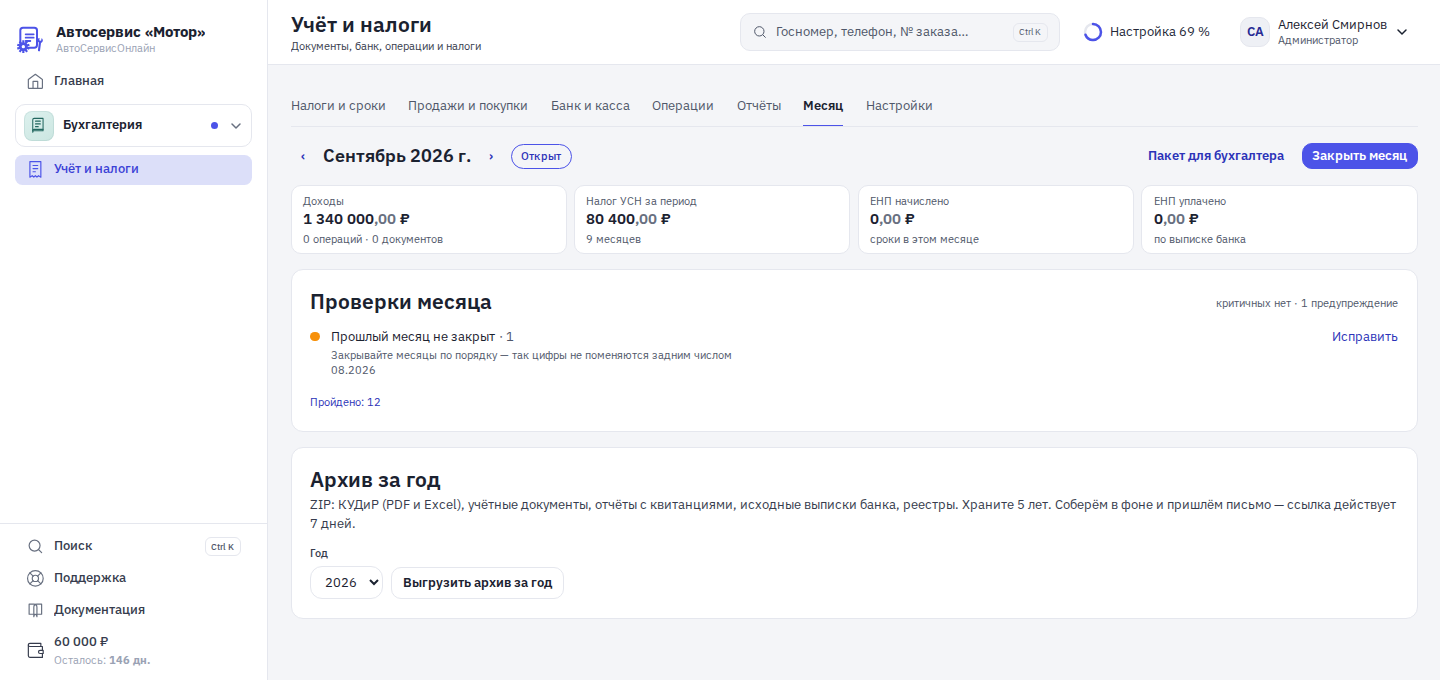
Month summary
Four tiles: “Income” (from KUDiR, with expenses or the number of operations and documents below the amount), “USN tax for the period” (if the month closes a quarter), “ENP accrued” (payment deadlines during this month), and “ENP paid” (from the bank statement).
Month checks
A red dot and a “blocks closing” label indicate a critical check: while it is present, the month cannot be closed. A yellow dot indicates a warning: the month can be closed, but it is better to resolve the issue first. Each check shows how many issues were found, examples, and a “Fix” link that takes you directly to the relevant location. Completed checks are collapsed into a “Passed: N” row.
| Check | Severity | What to do |
|---|---|---|
| Unrecognized bank statement lines | Critical | Allocate or skip the lines on the “Bank and cash desk” tab |
| No tax regime on the date | Critical | Specify the regime in “Settings” |
| Cash desk went negative | Critical | Check the shift’s income and expenses |
| Card payments without crediting for more than 5 days | Warning | Upload the bank statement with the acquiring company’s reimbursement |
| Payments for deleted orders | Warning | Restore the order or issue a refund |
| Completed orders for legal entities without UPD | Warning | Issue the UPD from the order |
| Shipments without an invoice, advance payments without an advance invoice | Warning | VAT payer only: issue the document within 5 days |
| Receipts without a supplier document | Warning | Record the receipt with the document number |
| Bank statement balance does not match | Warning | Download the bank statement again |
| Income limit exceeded | Warning | Check eligibility for the regime under “Taxes and deadlines” |
| Gap in document numbering | Warning | Check the document register |
| Previous month is not closed | Warning | Close the months in order |
| Bank statement lines for a closed month | Warning | The statement was uploaded after closing: to allocate the lines, open the month (see “Open month” below) |
Close the month
- Open the required month: it must have ended — the current month cannot be closed.
- Fix the critical checks. While they are present, the “Close month” button is inactive.
- Click “Close month” and confirm.
The label will change to “Closed”. Below it, you will see who closed the month and when, the summary at the time of closing, and an entry in the “Log”. It is best to close months in order, but the program does not require this — it only displays a warning.
What cannot be changed in a closed month
Orders completed during this month (amounts, customer, removing the “Completed” status, deletion), deletion of payments and cash desk operations, expenses, recording and unrecording receipts, allocation of bank statement lines, issuing and canceling UPDs and invoices dated that day, manual KUDiR lines, employee contributions, the regime from that date and opening balances, and deletion of that month’s payroll payout (or backdated payment into it). For any such attempt, the program will respond:
The month is closed in “Accounting & taxes”. Open the month or make the entry in the current month.
New entries dated today are not affected: only a past month can be closed.
You can upload a bank statement for a closed month — the program will warn you: “Lines for a closed month: … — open the month to allocate them.” You can allocate these lines after clicking “Open month”.
Open the month
If you find an error in a closed month, click “Open month”, enter a “Reason” (3 to 500 characters, for example, “we found an expense that was not recorded in March”), and confirm. If the following months are also closed, the “Open this and subsequent closed months” checkbox will open them as well. The reason remains in the month’s “Log” and will be visible to the accountant. Fix the issue and close the month again.
Accountant Package
The “Accountant Package” button immediately downloads a ZIP package for the month: the document register and operations (Excel), annual KUDiR (Excel and PDF), original bank statements for the month, and reports whose period ends during this month (XML, PDF, and receipts). Send it to the accountant — they do not need to sign in to the program.
“Getting started”
The “Getting started” card on the Home page contains the recommended step “Review and close the first month” (the “Open ‘Month’” button). The account administrator and employees with the “Reporting and closing” permission can see it; it is marked as completed when the first month is closed. See Getting started.
FAQ
- “Close month” is greyed out. The month is still in progress or there are critical checks — hover over the button to see a hint.
- Cannot delete a payment or edit an order. The month is closed — open it with a reason or make the correction in the current month.
- The month precedes the start of accounting. If the month is before “Start accounting”, there is nothing to check or close — this is stated explicitly.