Service Price List Import and Export
Upload a price list from Excel or CSV: service names, prices, and standard hours. Before committing, the program shows what will change (“before → after”), and you can cancel the upload within 7 days. You can export the price list to Excel, update prices in the table, and upload it back.
The “Import and export” module is part of the core: it is included in the core tariff and requires no separate fee. The account administrator and an employee with the “Submodule access” permission in the “Auto service > Import and export” group (by default, no role has this permission; the administrator grants it in Settings → Roles), as well as the “Submodule access” permission in the “Auto service > Work orders” group, can upload and export the price list. If Import price list… is unavailable, one of these two permissions is missing.
Where to Find It
- Reference data → Services → More ▾ — Import price list…, Export price list, Download template, Import history.
- Settings → Import and export, the “Service price list” section — the same buttons and upload log.
- The “Service price list” step in the Getting started card on the Home page: next to the Fill in price list button, there is the Upload file link; see Getting started.
Required File
- Formats: .xlsx and .csv (UTF-8 or Windows-1251; the delimiter—semicolon, comma, or tab—is detected automatically). Open an old .xls file in Excel and save it as “Excel Workbook (.xlsx)”.
- No more than 2 MB, 2,000 rows, and 20 columns. If the price list is larger, upload it in parts.
- One row represents one service. You need a “Name” column and at least one of “Price” and “Std. hrs”. Headers are matched by meaning: “Item name”, “Service”, “Cost”, and “Standard hours” are also supported.
- You can enter numbers as in Excel: “1,500.50”, “1500 ₽”, “RUB”.
Download template provides an Excel file with a header, two grey sample rows, and a “Memo” sheet. Rows with “(sample — delete)” in the name are not uploaded.
Services are searched by name, ignoring letter case, extra spaces, and “ё” (ё = e). If a service is found, it is updated; otherwise, it is created.
How the Price Is Calculated
- Only Price is filled in — the service has a fixed price.
- Only Std. hrs is filled in — the service is priced by standard hours (using the service rate or the service’s custom rate).
- Both are filled in — the price is fixed, and the standard hours remain the norm.
- The cell is empty — the value does not change (an empty cell does not clear anything). Services missing from the file are neither deleted nor modified.
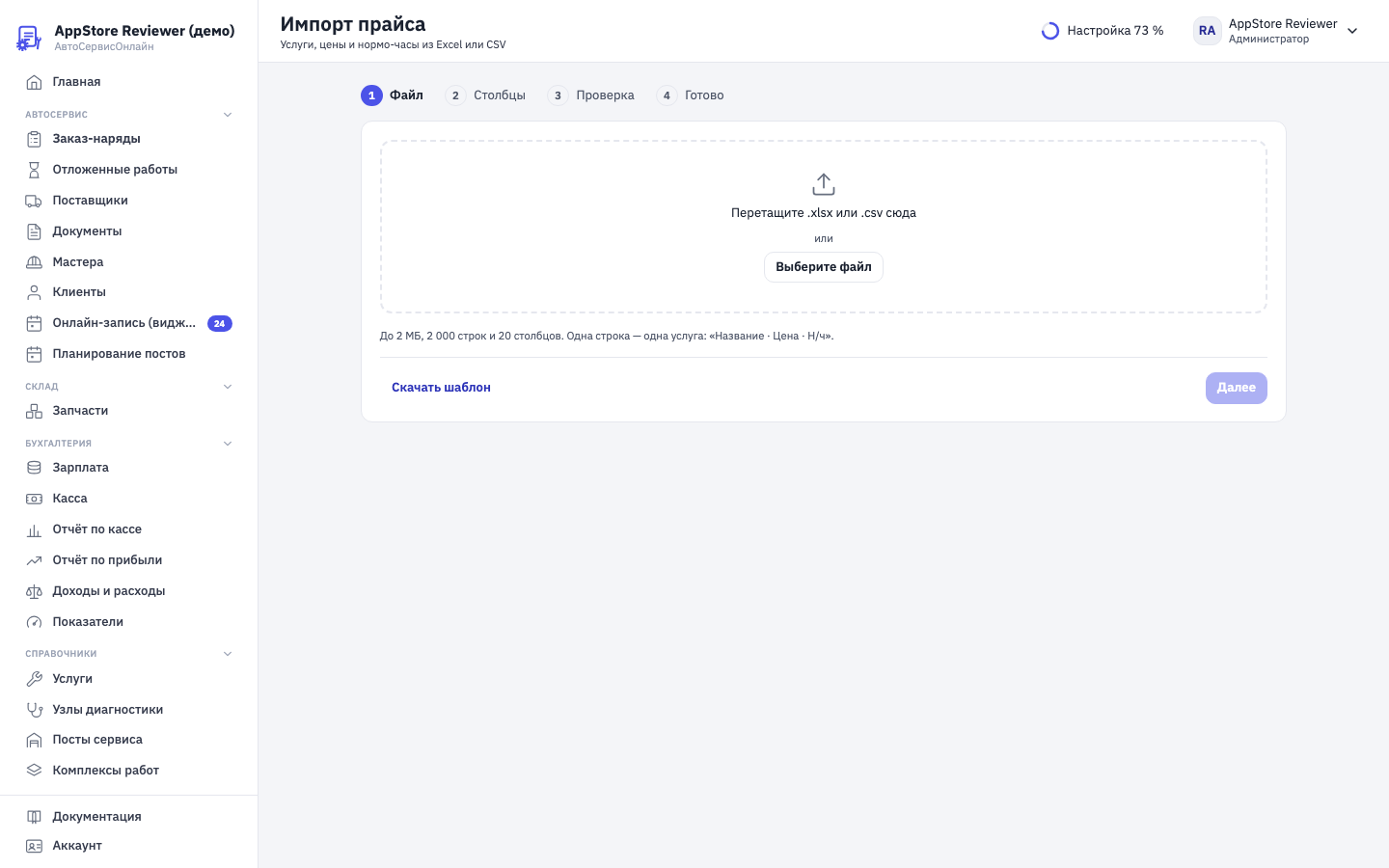
Wizard: File · Columns · Review · Ready
-
File. Drag and drop the file or click Select file; if the file has multiple sheets, select the sheet. For a file without headers, clear “First row — headers”.
-
Columns. Check the “File column · Examples · Field” mapping, and set any extra columns to “Do not upload”.
-
Review. Nothing is written to the database yet. Select a mode:
- “Add new and update existing” (default) — new services are created, and the price and std. hrs are changed for services that are found;
- “Only add new” — existing services are left unchanged (skipped);
- “Only update prices” — new services are not created; only the prices and std. hrs of existing services are changed.
A summary is displayed at the top: Rows in file · To be created · To be updated · Unchanged · Skipped · Errors. Below it is a table showing “Price before → after” and “Std. hrs before → after” for the first 100 changes. Rows whose values match the current values are included under “Unchanged” and are not written. The “Apply: create 8, update 3” button starts the upload; Download report saves the issues and all changes to an Excel file.
-
Ready. Totals: Created · Updated · Unchanged · Skipped · Errors. From here, you can go to To services, Undo import, or Upload another file.
If the same file was uploaded within the last 30 days, a warning appears with the date and an “Upload anyway” checkbox.
Prices in existing orders do not change: the new price is applied to new order lines. Items in work bundles without their own price take it from the price list, so they will use the new prices.
Undo Import
Within 7 days: go to Settings → Import and export, find the import, and select ⋮ → Undo import (or use the button on the “Ready” step). The following happens:
- Created services are deleted if they are not included in any order or bundle and have not been edited manually; otherwise, they remain, and the system will report how many.
- For updated services, the previous method, price, and std. hrs are restored if they have not been changed since the import. If the service was edited after the import, it remains as is and is included in the “Not rolled back” counter.
- The import does not affect orders or documents, either during upload or when it is undone.
The person who uploaded the file and the account administrator can undo the import.
Export and Upload Back
Services → More ▾ → Export price list (or the button in Settings → Import and export) provides an Excel file named services-ГГГГ-ММ-ДД.xlsx with names, prices, and standard hours. Update prices in Excel and upload the file back: unchanged services will be marked “Unchanged”, while edited services will show “before → after”. No more than 10 exports are available per hour.
FAQ
- “The prices were not updated”. Check the mode: with “Only add new”, existing services are skipped. An empty price cell does not change the value. A new price is not applied to existing orders.
- “The service was not found, and a duplicate was created”. Names are compared in full: “Oil change” and “Engine oil change” are different services. Correct the name in the file.
- “There are several services with this name in the reference data”. The row is skipped with an error: merge or rename the duplicates in the reference data.
- “Duplicate row N”. The service appears twice in the file, and the first row is applied.
- “The value was rounded”. Prices are rounded to kopecks, and standard hours to hundredths. Prices range from 0 to 9,999,999.99, and standard hours from 0.01 to 999.99.
- “There is no Import price list… item”. You do not have the “Import and export” permission or permission for “Work orders” (see above); if the balance is zero, the item is greyed out, but export and the log are available.