First sign-in
The sign-in screen is the only entry point to the System for everyone except users of the public part of the Website. It also provides password recovery and resending of the confirmation email.
Where to find it
Path: /login. The “Sign in” link is available in the header of the public Website and on any public page.
How to do it
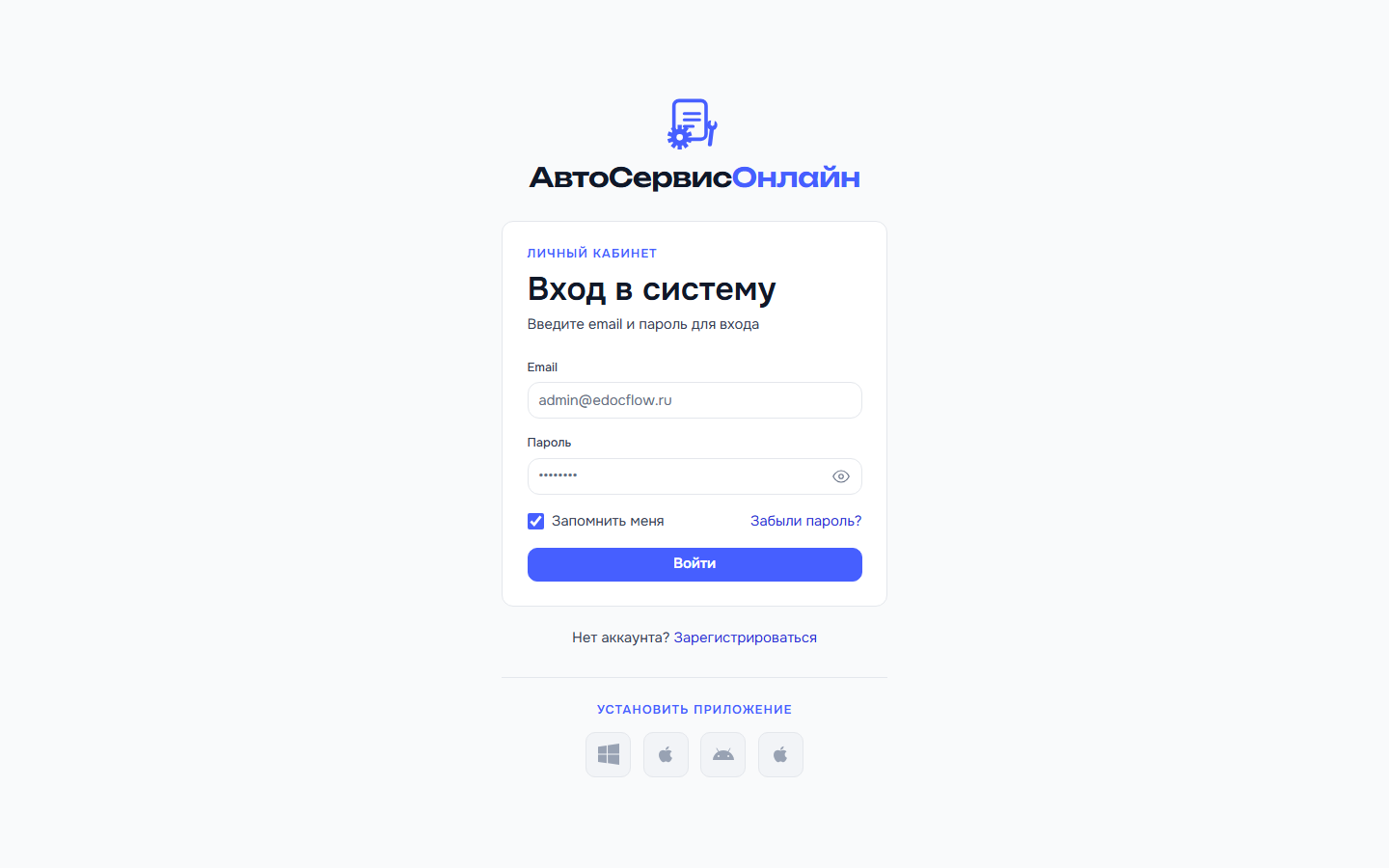
- Enter your Email and Password. You can enter the email in any case, but the password is case-sensitive.
- The Remember me checkbox is enabled by default—you will stay signed in for 30 days, and this period is extended while you continue working. Without the checkbox, the session will end when the browser is closed.
- Click Sign in. After a successful sign-in, the Home page will open.
Links below the form:
- Forgot your password? — Password recovery.
- No account? Register — go to registration. In the iPhone app, this link is hidden.
The sign-in form may also display Via Yandex ID / VK ID / Google buttons—use them to sign in without a password through your provider account. A button appears when the provider is enabled. An account created through a provider during registration can also be accessed using these buttons.
Employees added by an administrator do not need to confirm their email: the administrator provides them with a login and password, and no email is sent.
Password recovery
- Click Forgot your password? → enter your email → Send link. The screen will display “Check your email”.
- Open the “Password recovery” email and follow the link—it is valid for 24 hours and can be used only once. If you requested the email several times, only the link from the latest email will work.
- Enter a New password (at least 6 characters) and Repeat password → Set password.
- The System signs you out of all active sessions on all devices in case the password was changed due to an unauthorized sign-in.
- Sign in with the new password.
If the link from the email opens the Home page, you are already signed in in this browser: click Sign out (the square with your initials in the upper-right corner) and open the link again.
An administrator cannot set or reset an employee’s password. The employee must recover it themselves using Forgot your password?, so each employee must have a valid email address.
Email not confirmed
If you try to sign in before confirming your email, the message “Email not confirmed” will appear instead of the usual error, along with a Send again button (you can send it again after 60 seconds).
Click Send again, open the new email, and click the link—after that, you will be able to sign in. The link from the email is valid for 7 days, and only the link from the most recent email will work.
Rate has expired
If the “Paid until” period has expired or the trial period has ended without payment, sign-in remains available, but the System runs in view-only mode—you can see everything but cannot save anything; balance top-ups and the “Support” chat are available. The administrator can top up the Balance on the “Account” page, and work will resume within one minute. The employee must contact the administrator.
To avoid this situation, top up the Balance in advance: a top-up extends the “Paid until” period. The account administrator receives an email 10, 5, 3, and 1 day before expiration and on the expiration date itself; during the trial period, reminders are sent 3 days before expiration, on the preceding day, and on the final day. For more information, see Rate and Balance.
The same view-only mode is enabled when the Balance is zero.
Protection against password brute-force attempts
- After five incorrect passwords in a row for the same email, a “I’m not a robot” check may appear—complete it and sign in again.
- After many failed attempts, sign-in for this email is blocked until the end of the 15-minute window (counted from the first error). Password recovery does not remove this pause: the new password will also work only after it. A successful sign-in resets the counter.
- The account administrator can see which devices are signed in under Settings → Password and sessions and can terminate any session. This section is not available to employees; to sign out on all devices, they only need to change their password using Forgot your password?
Common issues
- “Incorrect email or password”. Check the keyboard layout and Caps Lock: the password is case-sensitive. If you have not used it for a long time, recover your password.
- “Account deactivated”. Your account was disabled by your auto service administrator—ask them to enable it again in the user list.
- “Auto service account disabled. Contact support”. The auto service is disabled entirely—email support@AutoServiceOnline.ru.
- The “Sign in” button does not work. Your browser is most likely blocking cookies or JS—try another browser or disable blocking extensions. Without cookies, you will not stay signed in.
- You are immediately signed out after signing in. The session was terminated on another device, the password was changed, the account was deactivated, or the Rate expired—read the message on the sign-in screen and sign in again.
- “Too many requests”. There have been many sign-in or password recovery attempts from your network—wait a few minutes.