Cash desk report
Summary of cash operations for a period: income, expenses, total, cash collection and a list of all operations. The report can be downloaded in PDF or Excel.
Where to find it
Path: Cash desk and money → Cash desk report.
The section appears if the account has the “Cash desk” module enabled and the role has the “Submodule access” permission in the “Accounting > Cash desk report” group (Path: Settings → Team → Roles, “Access permissions” block). This is the same permission as for the Cash desk section: a report cannot be generated without a cash desk.
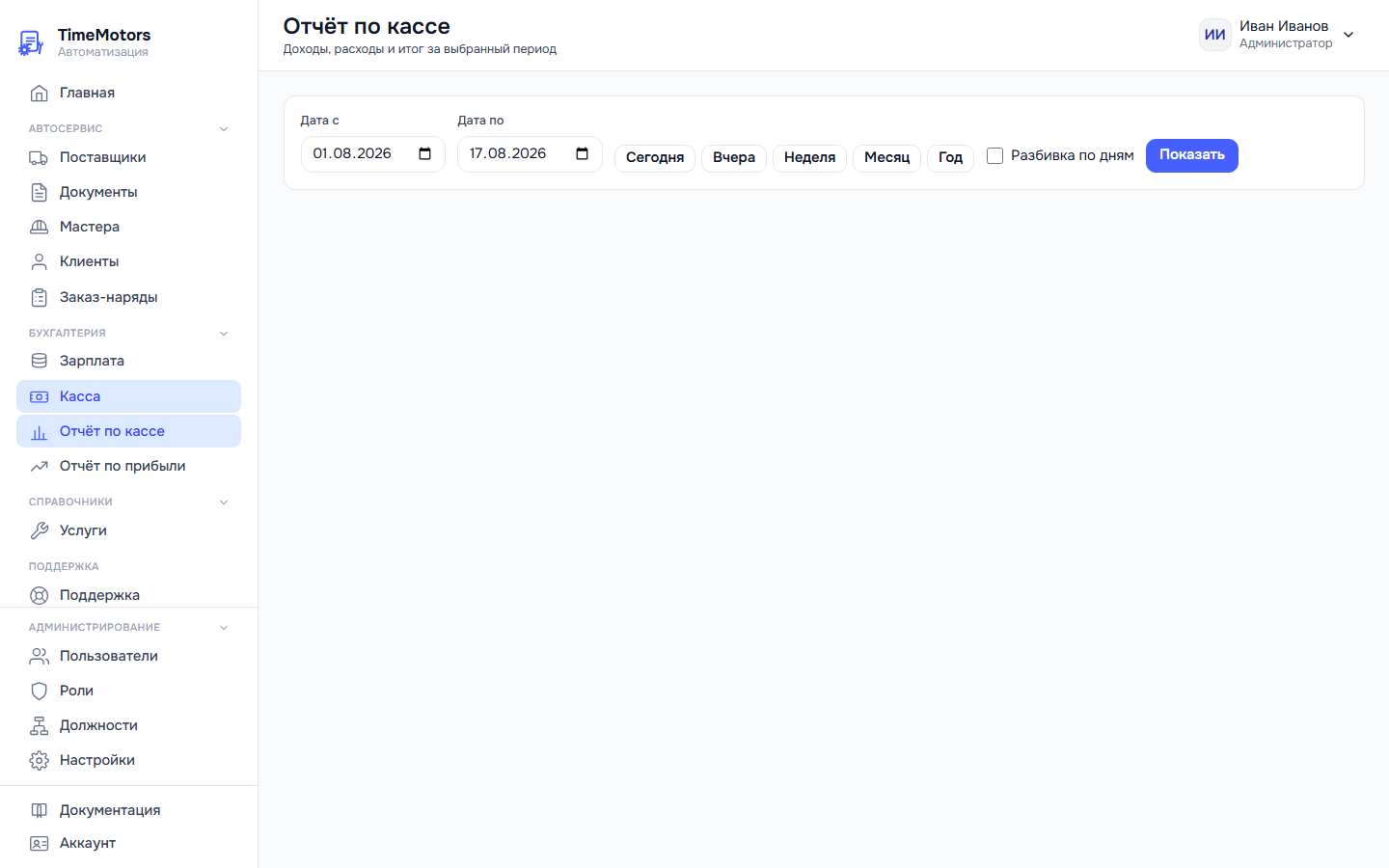
Filters
- Date from and Date to — period. By default, from the 1st of the current month to today.
- Quick buttons:
- Today, Yesterday;
- Week — the last 7 days, including today;
- Month — from the 1st of the current month to today;
- Year — the last 12 months up to today.
- The Daily breakdown checkbox adds a daily table.
- The Show button generates the report. Without it, the report will not appear, so press it again after changing the dates.
There is no employee filter: all account operations are included in the report, and the employee who performed each operation is shown in the “Cashier” column.
What it shows
The report calculates operations by their date, not by shifts.
Period totals:
| Block | Contents |
|---|---|
| Income | Total amount of receipts and number of operations |
| Expenses | Total amount of expenses and number of operations |
| Total (income − expenses) | Income minus expenses |
| Cash collection | Total amount of cash collections marked as “not included in total” |
With the Daily breakdown checkbox enabled, the “By day” block appears: “Date”, “Income”, “Expense”, “Cash collection”, “Total”.
Below is “All operations · N”, with new operations at the top:
| Column | Contents |
|---|---|
| Date / time | When the operation was entered |
| Type | Income, Expense or Cash collection |
| Description | What was entered when recording the operation |
| Cashier | Who entered the operation |
| Category | Only when the “Income & expenses” module is enabled: operation category; for order payments — “Order payment AS-…”; if no category — “—” |
| Amount | With a sign: “+” for income, “−” for expenses and cash collections |
Opening and closing shift balances and discrepancies are not included in the report — they are available on the Cash desk page, under “Shift history”.
How days are calculated
Days in the report are based on Moscow time: an operation entered between 00:00 and 03:00 Moscow time belongs to the current day, not the previous one. Period quick buttons (“Today”, “Yesterday”, “Week”…) use the date according to your computer or phone clock.
Export
After pressing Show, the Export PDF and Export Excel buttons appear on the right — use them to download the report for the selected period. Operation times in the files are Moscow time, and the “Generated” line in the PDF is also based on Moscow time.
Downloading files does not work in the Android and iOS apps — open the report in a browser.
Common issues
- “The operation is not in the report.” Check the period and press Show again — the report does not update automatically when the dates change.
- “I cannot see other employees’ operations.” There are no restrictions: the report shows all account operations.
- “Where is the shift discrepancy?” It is not included in the report. Open Cash desk and money → Cash desk, find the “Shift history” block, and expand the relevant shift.
- “Why did the cash collection not reduce the total?” This is by design: cash collection is the withdrawal of money from the cash desk, not an expense. It is shown separately.