Tags: custom labels for clients, vehicles, and orders
A tag is a short coloured label that you come up with yourself: “VIP”, “Taxi fleet”, “Warranty”, “Waiting for a part”. With tags, you can narrow down a client or order list in seconds: “show me all taxi drivers”, “orders under warranty”. Notes are not suitable for this purpose: you cannot search or filter by them, and a tag is visible right in the list.
Where to find it and who can see it
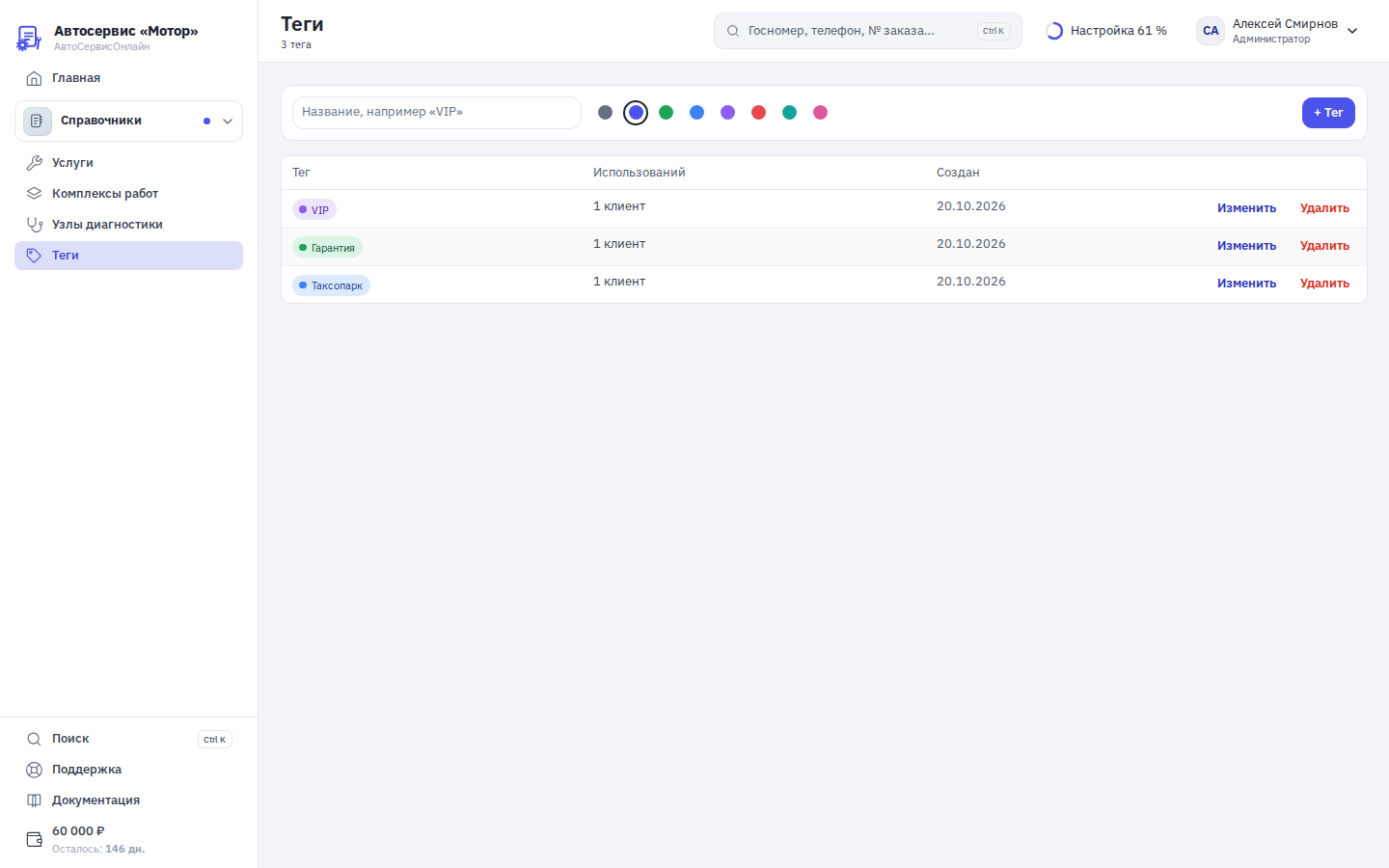
Tag reference data: Reference data → Tags. Tags themselves are added in item cards and lists, as described below.
This is a free add-on to the “Clients” module: it is enabled for all accounts and works only when “Clients” is enabled. An Administrator can disable it in Account → Tariff; created tags will not be deleted and will return when the module is enabled. The Account administrator can work with tags without a separate permission. An Administrator grants an Employee the “Submodule access” permission in the “Tags” group under Settings → Roles: by default, no role has it. Without this permission, an Employee cannot see the menu item, the tags row, or the filter.
Tag reference data
At the top, there is a creation row: enter a name (up to 30 characters), select a colour using the colour wheel (grey, theme colour, green, blue, purple, red, turquoise, pink), and click + Tag. Next to it, you can see how the tag will look. Below are all tags with their usage counts (clients, vehicles, orders) and creation date; on a mobile phone, they are displayed as cards.
- Change — the name and colour can be changed directly in the row (Save or Enter, Cancel — Esc). The new name and colour are immediately visible on all clients and orders.
- Delete — the “Delete tag “…”?” window shows where it is used: “23 clients, 4 vehicles, 31 orders”. The tag will be removed from all records; the clients, vehicles, and orders themselves will not be affected. A deleted tag cannot be restored, so create it again.
Restrictions: up to 50 tags in an account in total, and up to 10 per record. Names must be unique regardless of letter case and “е/ё”: “VIP” and “vip” are the same tag (“This tag already exists”). There is no predefined set of tags: the reference data is initially empty, and each auto service creates its own.
How to add a tag
- Client — the Tags row above the item card tabs. Click + Tag, find the tag using search, select its checkbox, and then click Done. The tag is saved immediately, so there is no need to click the Save button. Clicking the cross on a tag removes it.
- Vehicle — the same row at the bottom of the vehicle window (for an already saved vehicle); the vehicle’s tags are visible in its row on the Vehicles tab in the client’s card.
- Work order — the Tags row below the order header. Tags can also be changed in a closed order: they are just a label and are not included in printed documents. An order copy does not inherit tags.
If the required tag is missing, enter its name in the selection window and click Create “…”: the tag will appear in the reference data and will immediately be added to the record. The colour for such a tag is selected automatically and can be changed on the Tags page. You can use the arrow keys, Enter, Space, and Esc in this window; on a mobile phone, it slides up from the bottom.
In lists, tags appear below the client’s name and below the order number: the first three are visible, while the rest are hidden behind “+N” (hover over or click it to see all of them).
For multiple clients at once
In the Clients list, select rows using the checkboxes (the checkbox in the table header selects everyone on the page). A Selected N · Tags ▾ · Clear selection panel will appear above the list. In the Selected tags window, you can see whether each tag is assigned to all selected records, some of them, or none of them; select the required tags and click Apply. A “Tag added to N records” message with an Undo button will appear; it will restore everything as it was. You can process up to 200 clients at a time. The order list does not support row selection or bulk actions: order tags must be added one at a time.
Filtering by tags
In the Clients and Work orders lists, there is a Tags ▾ button next to the search field. Select one or more tags, and only records that have all the selected tags will remain. The selected tags are displayed next to the field as chips; clicking the cross removes a tag from the filter, and Reset clears all list filters. The filter works together with search, client type, order status, and order payment, and is retained while the browser tab is open: open a card, return, and the list is the same. You cannot filter by vehicle tags.
Merging duplicates
When two duplicate clients are merged, the duplicate’s tags are transferred to the primary client without duplication; the same applies to the tags of merged vehicles.
FAQ
- “There is no ‘Tags’ item in the menu or tags row in the card”. The module is disabled (Account → Tariff, “Clients” must also be enabled), or the Employee’s role does not have the “Tags” permission (Settings → Roles). After granting the permission, refresh the page.
- “The 11th tag cannot be added”. A record cannot have more than 10 tags: remove an unnecessary one using the cross. If a new tag cannot be created at all, the account already has 50 tags, so delete the unnecessary ones on the Tags page (it shows which tags are not used anywhere).
- “The tag was deleted — what about the clients and orders?”. They are still there; the tag has simply been removed from them. Who changed the tags and when is not recorded anywhere.
- “Filtering by tag returns no results”. Check that multiple tags have not been selected at once (all of them are required), and that no unnecessary order status, search term, or client type is set. Click Reset. Vehicle tags cannot be searched for in the client and order lists.
- “The tags were not saved and an error occurred”. There was no connection: the tag remained unchanged, so try again. With a zero balance (view mode), tags are visible but cannot be changed.
- “Will tags appear in a printed document or report?”. No: a tag is an internal label.