Client messages
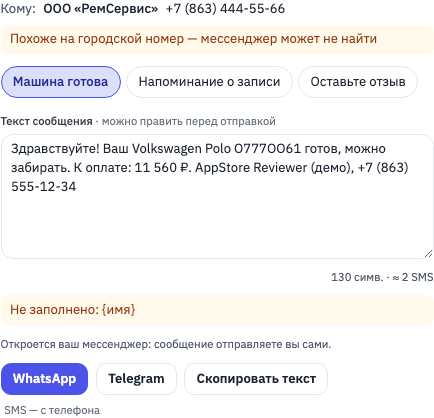
When the vehicle is ready, when the booking is tomorrow, or when it is time to request a review, the service advisor can send all of this to the client with a single Contact client button. The program compiles ready-made text containing the name, vehicle, and amount, and opens WhatsApp, Telegram, or SMS on your phone or computer. You send the message yourself from the service’s number, and the client replies to the same number. There are no mass mailings; you do not need an SMS gateway or to top up the account, and you do not pay per message. If you want SMS messages to be sent automatically from the server, enable the separate Client SMS reminders module: an additional “SMS via gateway” button will then appear in this window.
The Client messages module (Auto Service). It is issued and enabled by the account administrator: Account → Tariff. During the trial period, it is available along with all other modules; after the trial period, it works if it is included in the tariff after the trial period, or you can enable it later. It remains enabled for accounts where it has already been enabled. The price is 199 ₽ per month per employee; see Modules and price.
Where to find the button
- In an order: the Contact client button in the header next to Save. On a phone, it is located in the ⋯ menu.
- In online booking requests: the Contact client button in the request line; see Incoming requests.
The button is greyed out if the client has no phone number specified: open the client’s item card and enter the number. The button is not displayed at all if the module is disabled or your role does not have permission to access it.
How to send a message
- Open an order or request and click Contact client.
- Check who will receive the message: the name and number are displayed at the top of the window. If an additional phone number is specified, use the Primary number / Additional number switch to select the required one.
- Select a template. For a completed order, the program will suggest Your vehicle is ready; for a booking, Booking reminder; for a closed order, Leave a review.
- If necessary, edit the text. The edit applies only to this message; the template does not change. Below the text, you will see a character counter and the number of SMS messages.
- Click WhatsApp, Telegram, or SMS. Your messenger will open; click “Send” in it.
What each button does:
| Button | What happens |
|---|---|
| A chat with the client opens, and the text has already been inserted. All you need to do is click “Send” | |
| Telegram | A chat opens using the client’s number, and the text is copied: paste it into the chat (Ctrl+V or long press) |
| SMS | Phone only: the messaging app opens with the ready-made text. On a computer, instead of the button, a hint is displayed: “SMS from your phone” |
| SMS via gateway | Available only with the Client SMS reminders module and a verified gateway. The server sends the SMS through your contract with the provider, including from a computer. Result: “SMS sent” |
| Copy text | Copies the message: paste it wherever you want |
If the text is too long for a WhatsApp link, the program copies it, and you paste it into the chat yourself.
Text substitutions
In a template, the program replaces words in curly braces with the order’s details. If a value is unavailable (for example, no booking date has been assigned), the field remains empty and the window displays the line Not filled in: …: fill in the blank manually.
| Substitution | What is inserted |
|---|---|
{имя} | Client’s name (or organization name for a company) |
{авто} | Vehicle make and model |
{госномер} | License plate |
{сумма} | Amount due for the order |
{дата} | Booking or scheduling date and time |
{номер} | Order number |
{сервис} | Name of your auto service |
{телефон_сервиса} | Service phone number from the company details |
{ссылка_отзыва} | Review link from the settings |
{ссылка_статуса} | Link to the client’s “Repair status” page: it is created when sending the message or the active link is used (the “Repair status for client” module, details) |
{ссылка_оценки} | Link to the visit rating, opening the same page directly at the “How was your visit?” block (the “Visit rating” module, details) |
{ссылка_оплаты} | Payment link, opening the same page directly at the Pay button (the “Payment via link” module, details) |
{работа} | The nearest work from the “Service due” list, for example, “Oil change” (the “Service due” module); empty in other templates |
Templates and settings
Settings → Client messages (visible only to the account administrator).
- Four system templates: Vehicle ready, Booking reminder, Leave a review, and OSAGO and inspection deadline (the latter is offered by the Contact button in the OSAGO and inspection list). If the Service due module is enabled, Service due and Haven’t been for a long time are added to them—the Contact button offers these in the Service due and Haven’t been for a long time lists; the former includes the
{работа}placeholder. With the Repair status for client module, the Vehicle received template is added with a link to the repair status (details), and with the Visit rating module, the Leave a review template includes a link to the rating (details). With the Payment via link module, the Payment via link template is added with a payment link: it is opened by Contact client in the Payment link panel, where{сумма}is the link amount (details). You can change their text; the Restore original button restores the previous text. - Up to three custom templates: + Custom template, a name of up to 60 characters, and text of up to 700 characters. Below the text are substitution chips (clicking inserts text at the cursor position) and an Example with test data.
- Feedback link—the address of your item card in Yandex Maps or 2GIS, always with
https://. Without it, the Leave a review template cannot be sent. Do not promise a discount or gift for a review: map services remove such reviews. - Default channel—the button highlighted in the send window. SMS works only on a phone.
- Save (Ctrl+S). “Saved ✓” will appear next to it.
What is visible in the history
After clicking WhatsApp, Telegram, SMS, or Copy text, a “Contacted client” entry with the template name and channel appears in the order’s History, for example, “Vehicle ready”, WhatsApp. Next time, the window will show “Last: …” so service advisors do not contact the client twice. The message text and phone number are not included in the history.
FAQ
- “The button is greyed out”. The client has no phone number. Enter it in the client’s item card.
- “Number not recognised”. The number contains letters or is too short or too long. Correct it in the client’s item card.
- “WhatsApp or Telegram does not open”. The application must be installed on your computer (or you must open the web messenger that the link opens in the browser). If the browser asks for permission to open the application, allow it. Alternative: Copy text and paste it into the chat.
- “There is no SMS button”. It is available only on phones and tablets where the messaging app works. Use messengers from a computer.
- “There is no ‘Client messages’ section in the settings”. Only an administrator can see it, and only when the module is enabled: Account → Tariff.
- “I want automatic mailings”. Mass mailings are not available. You send messages from this window yourself. To send clients SMS reminders the day before their booking, when the vehicle is ready, and when service is due, enable client SMS reminders. The Reminders module reminds employees about orders that are due to be processed: the Contact button in its list opens the same window.
About data
The client’s text and phone number are compiled in your browser and go directly to the messenger. They are not transferred to the AutoServiceOnline servers, and we do not send anything to the support Telegram chat. There is one exception: the “SMS via gateway” button (client SMS reminders module) sends the text through the server to your SMS provider. In the SMS log, the number is visible only as a masked number, and the full number and text are deleted after 30 days.