Diagnostic sheet
A checklist of vehicle component conditions — each component has one of three statuses: Normal / Attention / Malfunction plus a comment. It is printed and given to the client together with the work order.
The Diagnostic sheet module. It is included in the standard set of modules for new accounts; if the Diagnostics section is missing on the Check-in tab, the module is disabled for the account (Support can enable it — write in the chat «Support»), or the employee’s role does not have the «Submodule access» permission for «Diagnostic sheet».
Where to find it
Order card → Check-in tab, Diagnostics section (the last one on the tab).
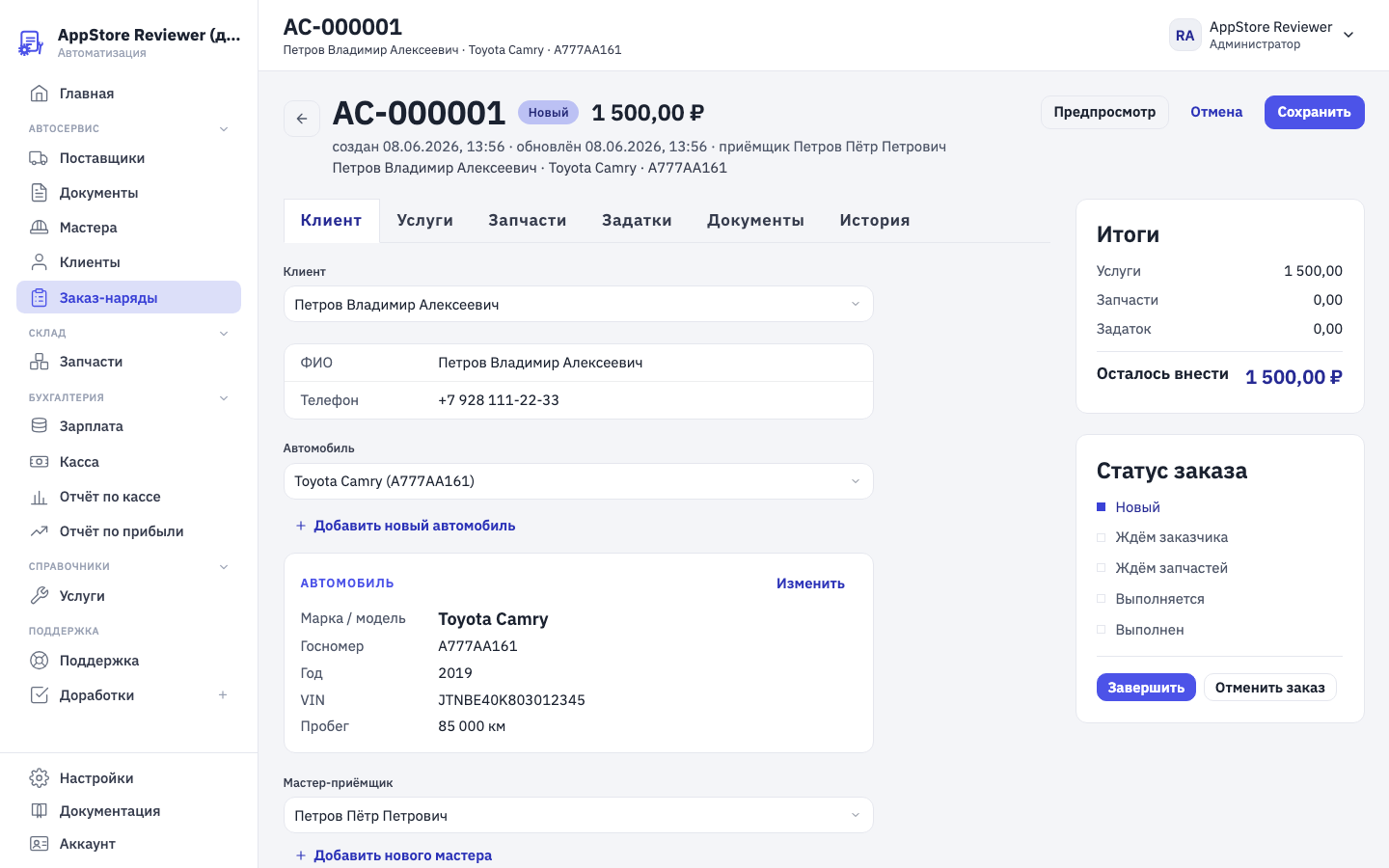
How to do it
- Open the order card → Check-in tab → Diagnostics section. In a new order, all components are set to «Normal».
- For each component, select the required status — Normal, Attention, or Malfunction (green, yellow, red).
- Enter a comment in the «Comment (optional)» field, if needed («oil seal is leaking», «drive shaft play»).
- Click Save in the order header (or Ctrl+S) — the entire card is saved, and you remain in the order.
Component reference
The component list is shared for the account and is configured by the account administrator. The Configure component reference button in the Diagnostics section opens it (employees cannot open the reference page).
Path: Reference data → Diagnostic components.
Скриншот появится позже — Component reference
You can:
- Rename a component («Engine» → «Engine and motor compartment»).
- Delete an unnecessary component.
- Drag and drop to change the order (this is also the order in the checklist).
- Add your own by clicking Add component — for example, «Tuning» or «Gearbox (automatic)».
After making changes, click Save at the bottom of the reference page. Empty and duplicate names are not saved.
Each account is automatically provided with a set of 25 components (engine, brakes, suspension, electrical system, body, etc.). You can leave them as they are or adjust them to your specialization. Components added to the reference later will also appear in previously created orders with the «Normal» status.
The Download diagnostic sheet (PDF) button — at the bottom of the Diagnostics section. It also works in a closed order. It contains a «№ / Component / Condition / Comment» table with a colour mark and signature lines for the diagnostic mechanic and the customer. The sheet is only available in PDF.
The sheet is generated from current data: if any marks have not been saved, the System saves them first. If a component is later renamed or deleted in the reference, its previous name remains in older orders.
Downloading documents does not work in the Android and iPhone apps — open the order in a browser.
Common errors
- «All components are normal in the PDF». The marks were not made or were not saved. Mark the components, click Save, and download the sheet again; an already downloaded file will not update automatically.
- «The download button is greyed out». The component reference is empty — add at least one component in Reference data → Diagnostic components.