Payroll Report
For each mechanic, for the period — opening debt, accrued amounts, payments, and closing balance, and at the top — how much you currently owe the mechanics. Accruals are based on service lines in Completed and Closed orders and the order service advisor’s percentage; payments are taken from the mechanic’s payment history.
Where to find it
Path: Payroll.
The item is visible if the account has the “Payroll” module enabled and the role includes the “Submodule access” permission for “Accounting > Payroll” (see Roles and permissions).
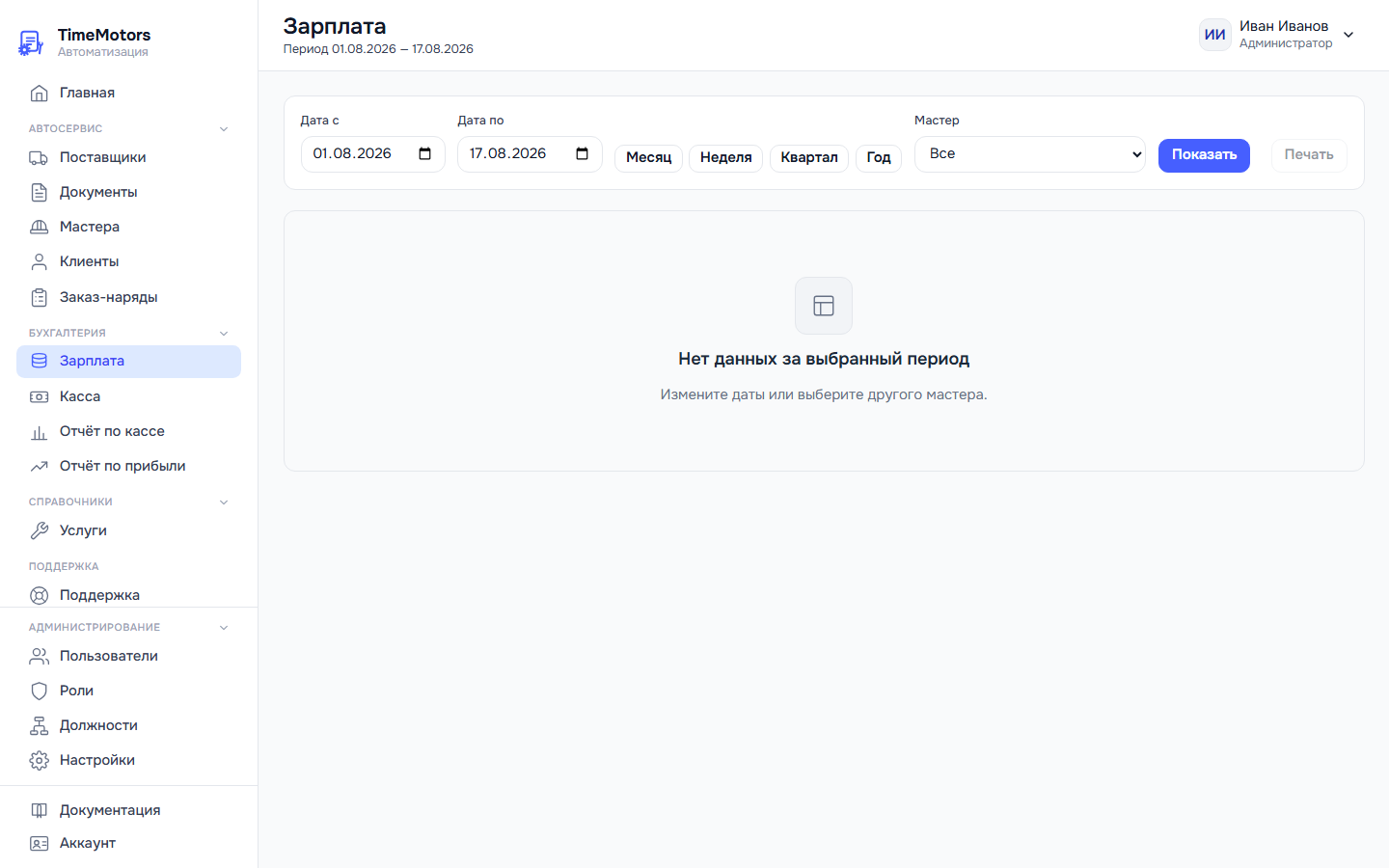
Filters
- “Date from” and “Date to” — period boundaries.
- Period buttons: “Month” (from the 1st day of the current month to today), “Week” (the last 7 days), “Quarter” (from the 1st day of the month two months ago to today), “Year” (the last 12 months). “Today” for the buttons is the date on your computer or phone. There is no “previous month” button — dates are entered manually.
- “Mechanic” — “All” or one mechanic.
- Below the filter — the “Debt is calculated from 01.10.2026 · Change” line (or “from the start of work”), see below.
- “Generate” — build the report. When the page is opened, the current month is generated immediately, and after changing the dates or mechanic, you must click “Generate” — the report does not update automatically. The selected period preset is highlighted; if the dates are custom, “Custom period” is displayed next to the presets, and the subtitle shows the period itself (“Period 01.11.2026 — 11.11.2026”).
- “Print” — a PDF “Mechanics Payroll Report” broken down by orders. The “Generated” time in it is Moscow time. Excel export is not available. Printing does not work in the Android and iOS apps — open the report in a browser.
What it shows
At the top there are four tiles: “Owed to mechanics now” and “Advance to mechanics” are for today and do not depend on the selected dates; “Accrued for the period” and “Paid for the period”.
For each mechanic — one line:
| Column | Contents |
|---|---|
| Mechanic | Full name |
| Opening debt | How much was still owed to the mechanic before “Date from”: amounts accrued earlier minus earlier payments — from the debt accounting date. If “Date from” is empty or earlier than the debt accounting date — 0 |
| Accrued | Amount for the mechanic for the period; below in smaller text “incl. check-in” if the mechanic received the service advisor’s percentage |
| Paid | Amount of payments for the same period |
| Closing balance | Opening debt + Accrued − Paid. A positive amount (amber) means the amount is owed to the mechanic; a negative amount is displayed without a minus sign with the label “Advance” — an overpayment, which will be offset in the next period |
| (buttons) | “Payouts” (if there were payments in the period) and “Pay” |
At the bottom there is a “Total” line for all columns. The report also includes a mechanic who had no activity in the period but still has debt from previous months. On screens 1280 px wide and above, mechanic cards are displayed instead of the table: “Closing balance” in large text, with “Opening debt / Accrued / Paid” below.
Mechanic details
Clicking a mechanic’s line expands the detailed breakdown. Above it is “Orders: N · Services: M · Today: …” (the mechanic’s balance as of today). There are two types of lines: work (service name) and “Order check-in” — the service advisor’s percentage:
| Column | Contents |
|---|---|
| Order | Order number |
| Date | Order completion date |
| Service | Service name or “Order check-in” |
| Vehicle | Order vehicle |
| Rate | Mechanic’s rate with figures; for check-in — “labor 10 % of 25 000 ₽ + parts 5 % of 8 000 ₽” |
| Amount | Amount accrued to the mechanic for the line |
The account administrator can see a cross mark “Exclude from calculation” at the end of the line (see below).
How accruals are calculated
- The account’s orders with the “Completed” or “Closed” status are selected.
- Of these, orders whose completion date falls within the period are selected. The completion date is the moment when the order was first moved to “Completed” (using the “Complete” button or a status step), or immediately to “Closed”. Clicking “Save”, “Close order”, or “Expand order” again does not change this date. If you return the order to “In progress” or another status, the accrual is removed, and after it is completed again, the date becomes the new one. The order creation date and document dates do not matter.
- Days are based on Moscow time: an order completed between 00:00 and 03:00 Moscow time belongs to that day.
- These orders include service lines where a mechanic is assigned, except for lines excluded from the calculation, and the service advisor’s percentage. The amount is shown as “Accrued”.
Service advisor’s percentage is an additional payment to the mechanic who accepted the vehicle. It is configured in the mechanic’s item card. See the Service advisor: order percentage section below for configuration and calculation details.
Accruals are calculated on the fly: changing the rate in a Completed order immediately changes the figures, including for previous months. To lock the order, close it (“Close order”).
Payments are included in “Paid” by “Payment date” — see Mechanic payouts for details.
Special case: if a mechanic has only payments in the period and no accruals, they are still displayed in the report with an accrual of 0.
Debt and advance: a monthly example
The balance is not reset at the end of the month — it carries over into the next period’s “Opening debt”. Let us take one mechanic:
| Period | Opening debt | Accrued | Paid | Closing balance |
|---|---|---|---|---|
| August | 0 | 50 000 ₽ | 30 000 ₽ | 20 000 ₽ |
| September | 20 000 ₽ | 40 000 ₽ | 10 000 ₽ | 50 000 ₽ |
| October | 50 000 ₽ | 30 000 ₽ | 90 000 ₽ | 10 000 ₽, “Advance” |
| November | 10 000 ₽, “Advance” | 40 000 ₽ | 20 000 ₽ | 10 000 ₽ |
- In September, you owe the mechanic 50 000 ₽: the 20 000 ₽ from August and 40 000 ₽ from September minus the 10 000 ₽ already paid.
- In October, you paid 90 000 ₽ with a balance of 80 000 ₽ (50 000 + 30 000). The extra 10 000 ₽ is an advance: the balance is displayed without a minus sign with the label “Advance”.
- In November, the advance is offset automatically: 40 000 ₽ was accrued, 10 000 ₽ of which covers the advance, and 10 000 ₽ remains payable to the mechanic after the 20 000 ₽ already paid.
To find the debt for any day without calculating periods, see the “Owed to mechanics now” tile — it includes all accruals and all payments up to today and does not depend on the filter dates. Advances for all mechanics are shown in the “Advance to mechanics” tile: one mechanic’s advance does not reduce another mechanic’s debt.
If you leave “Date from” empty, the report starts “from the very beginning”: “Opening debt” will be 0, and “Closing balance” will show the same debt as of today if “Date to” is today.
Debt is calculated from the date
If previously you paid mechanics outside the system and did not record all payments, the debt for previous months will be incorrect. Therefore, debt is calculated from the date in the line below the filter: “Debt is calculated from 01.10.2026”. Accruals and payments before this date are not included in “Opening debt”, “Closing balance”, the “Owed to mechanics now” and “Advance to mechanics” tiles, the mechanic’s balance, or the amount in the “Pay” window. For accounts operating before 14.10.2026, the date is set to 01.10.2026; for new accounts, it is “from the start of work”.
To change it, click “Change”: in the “Count debt from date” window, select “Date” or check “From the start of work” (calculate using all data), and click “Save” — the report will be recalculated. The date must be from 01.01.2000 and no later than one year from today. It can be changed by anyone with access to “Payroll”; the change is recorded in the change log.
If the period starts before this date, “Accrued” and “Paid” show the entire period, while “Closing balance” includes only amounts from the date onward. The following explanation is then displayed below the table: “Debt is calculated from … — accruals and payments before this date are not included in the balance”.
Service advisor: order percentage
Service advisors are often paid a percentage of the order, not just for completed labor. In the report, this is a separate “Order check-in” line. Configure it step by step:
- Open Auto service → Mechanics → mechanic’s item card, the “Core” tab, the “Order check-ins” section (Mechanic’s item card). The section is visible only to those with the “Submodule access” permission for “Accounting > Payroll”.
- Enter “% from order labor” and/or “% from order parts” — from 0 to 100, decimals are allowed (for example, 7.5). An empty field means 0. Click “Save”.
- In the order, in the “Client and vehicle” panel (the “Change” button), select this mechanic in the “Service advisor” field.
- Move the order to “Completed”. A “Order check-in” line with the amount will appear in the mechanic’s payroll.
How it is calculated. Check-in = order labor amount × labor percentage + order parts amount × parts percentage. The amounts are taken from the order after discounts, not from the lines before the discount. Kopecks are rounded separately for labor and parts.
Example: labor 25 000 ₽, parts 8 000 ₽, and the service advisor receives 10 % from labor and 5 % from parts: 2 500 ₽ + 400 ₽ = 2 900 ₽. In the details, the “Rate” column will show “labor 10 % of 25 000 ₽ + parts 5 % of 8 000 ₽”, and under “Accrued” in the mechanic’s line, smaller text will show “incl. check-in 2 900 ₽”.
Mechanic, service advisor, and performer. If the same person also performed work on the order, they have two lines: “Work” at their rate and “Order check-in” at the percentage rate. They do not replace each other.
When percentages are saved. When an order is first moved to “Completed”, the service advisor and their percentages as of that day are saved in the order. Therefore:
- If you later change the percentages in the mechanic’s item card, Completed orders will not be recalculated — the new percentages will apply to orders completed after the change.
- If you selected the wrong service advisor in a Completed (not Closed) order and choose a different one, the accrual will be transferred to the new service advisor at their percentages. If the service advisor is removed — the check-in will be removed.
- In a Closed order, the service advisor and check-in cannot be changed.
- If both service advisor percentages are zero, no check-in is accrued.
Check-in is also included in the Profit report — under “Mechanic costs”, so profit for service centers with a service advisor percentage will be slightly lower.
What will happen to older orders
Orders completed before the feature was introduced do not receive the service advisor’s percentage: they have no saved percentages, and nothing is accrued retroactively. The debt for such months remains unchanged, and paid periods do not “jump”. If you need to pay the service advisor extra for a past period, make a regular payment with a comment.
Quick payout
The “Pay” button in a mechanic’s line opens the “Payment: Full name” window:
- “Amount” — the entire “Closing balance” is prefilled if it is greater than zero; below the field is a breakdown of “Debt from previous periods · For the period · Paid”. If you enter an amount greater than the balance, the window will warn “More than the balance: … will be recorded as an advance” — you can still save it.
- “Payment date” — today.
- “Period from” and “Period to” — from the report filters.
Review the details and click “Save” — the payment is recorded and the report will update.
The “Payouts” button opens the “Payouts: Full name” window with a list of payouts to this mechanic for the period. You can “Delete” an incorrect payment there if you have the “Delete payouts” permission for “Accounting > Payroll” (the account administrator always has it). Without the permission, the window displays: “You do not have permission to delete payouts. Contact the account administrator.”
Exclude from calculation
If an order should not be included in payroll (for example, if the work was redone free of charge), the account administrator clicks the cross mark “Exclude from calculation” in the details and confirms.
- All lines for this mechanic in this order are excluded — both labor and check-in, not just one service.
- The work order does not change — the lines are no longer included in the report for any period, including “Opening debt” and “Today”.
- This does not affect the profit report.
Excluded lines are collected at the bottom of the page in the “Excluded from calculation · N” section (N is the number of lines). For each line, it shows the order number, mechanic (or “All mechanics” if the entire order was excluded), exclusion date and time, who excluded it, and the reason (if specified). The “Restore to calculation” button restores the line, and the report is recalculated immediately. While there are no exclusions, the section is not displayed.
Only the account administrator can view this section and exclude or restore lines. Employees cannot see the cross mark “Exclude from calculation” or the section.
Common mistakes
- “Accrued 0, but they worked”. Check the following in order: the order has the “Completed” or “Closed” status; the mechanic in the “Mechanic” column of the work line is exactly this mechanic (the service advisor only receives the check-in percentage if it is configured in the mechanic’s item card); the mechanic’s rate is filled in; “Save” was clicked after assignment; the order completion date falls within the period; “Generate” was clicked after changing the dates.
- “The payment exists, but it is not in the report”. A payment is accounted for by “Payment date”, not by the “Period from/to” fields. A payment for September made in October will be included in October.
- “The order disappeared from payroll”. It was returned from “Completed” to another status, or the administrator excluded it from the calculation — check the “Excluded from calculation” section.
- “The mechanic resigned, but they are still in the report”. If they were assigned to Completed orders, they will remain in the report: payment is due for their work.
FAQ
- “What does “Advance” in the balance mean?” The mechanic was paid more than was accrued. The balance is displayed without a minus sign and will be offset against future accruals. The “Advance to mechanics” tile shows the total advances for all mechanics.
- “Why is “Owed to mechanics now” not equal to “Closing balance”?” The tile is calculated for today using the entire history, while the closing balance is calculated for the last day of the selected period. They will match if “Date to” is today.
- “No amount was accrued for the service advisor”. Check the following in order: at least one percentage is configured for the mechanic in the “Order check-ins” section; the mechanic is selected in the order’s “Service advisor” field; the order was completed after the feature was introduced; the mechanic and order were not excluded from the calculation.
- “I changed the service advisor’s percentage, but the report still shows the old figures”. This is intentional: the percentage is saved when the order is completed. The new percentage applies to orders completed after the change.
- “I cannot see the “Order check-ins” section in the mechanic’s item card”. It is visible only with the “Submodule access” permission for “Accounting > Payroll”. Without this permission, percentages cannot be viewed or changed.
- “The mechanic is in the report even though they had no activity in the period”. They still have debt or an advance from previous months — this is visible in “Opening debt”.
- “Huge opening debt” or “a resigned mechanic has a permanent advance”. Previously, not all payments were recorded. Click “Change” below the filter and set the date from which all payments are available in the system — see Debt is calculated from the date.