Repair status via link
The client asks: “How is the car coming along?” Instead of making a call, you send them a single link. They open it on their phone, without signing in or registering, and see for themselves what is happening with the car: received, in progress, waiting for parts, ready, handed over. The same page shows labor and parts with amounts, how much has been paid and how much is Amount due, a work order, an account, and a certificate of completed work in PDF, as well as the service address and phone number. The client does not need to install an app.
The Repair Status for Client module (Auto service), 199 ₽ per month per employee, is open during the trial period, as are the tariff modules; see Modules and price. The account administrator issues and enables it: Account → Tariff. An employee needs the “Submodule access” permission for “Repair Status for Client” in their role (Settings → Roles); the administrator always sees everything. If the “Visit rating” module is also enabled, the client can leave a rating on the same page after the car is handed over.
How to send the link to the client
Using a template (the fastest option). In the order, click Contact client and select the Vehicle received template: the status link will be inserted into the text automatically, and you only need to click “Send” in WhatsApp, Telegram, or SMS. You can also add the {ссылка_статуса} placeholder to your own template or to Vehicle ready; see Client messages.
Manually.
- Open the order. On a computer, click More ▾ → Link for client. The same option is available in the “Client and vehicle” block and in the ⋯ menu on a phone.
- In the drawer, click Create link.
- Click Copy (on a phone, the button is called Share and opens the send menu) and send the link to the client in whichever way is convenient. The Open button will display the page as the client sees it.
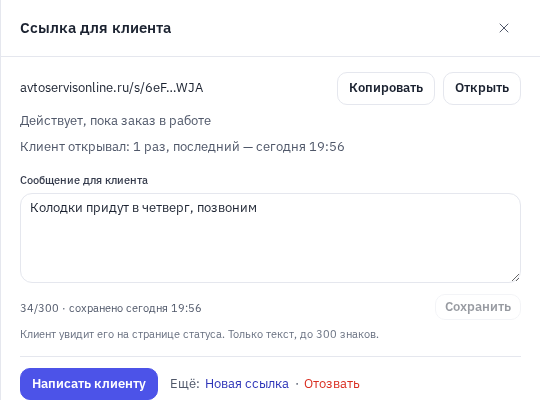
An order has one active link: clicking Create again or using a template will return the same link. The drawer shows the validity period and how many times the client opened the page (“Client opened: 1 time, last opened today at 19:55”): this indicates whether the message was delivered. The program does not remember exactly what the client opened or which device they used.
Message for the client
Below the link, there is a Message for the client field (up to 300 characters): “The pads will arrive on Thursday; we will call you.” Click Save, and the client will see the text on the page with the date, in the “Service message” block. This is plain text, without links or formatting. Clearing the field and clicking Save removes the message.
What the client sees
The page opens at an address such as AutoServiceOnline.ru/s/… and is designed for mobile devices.
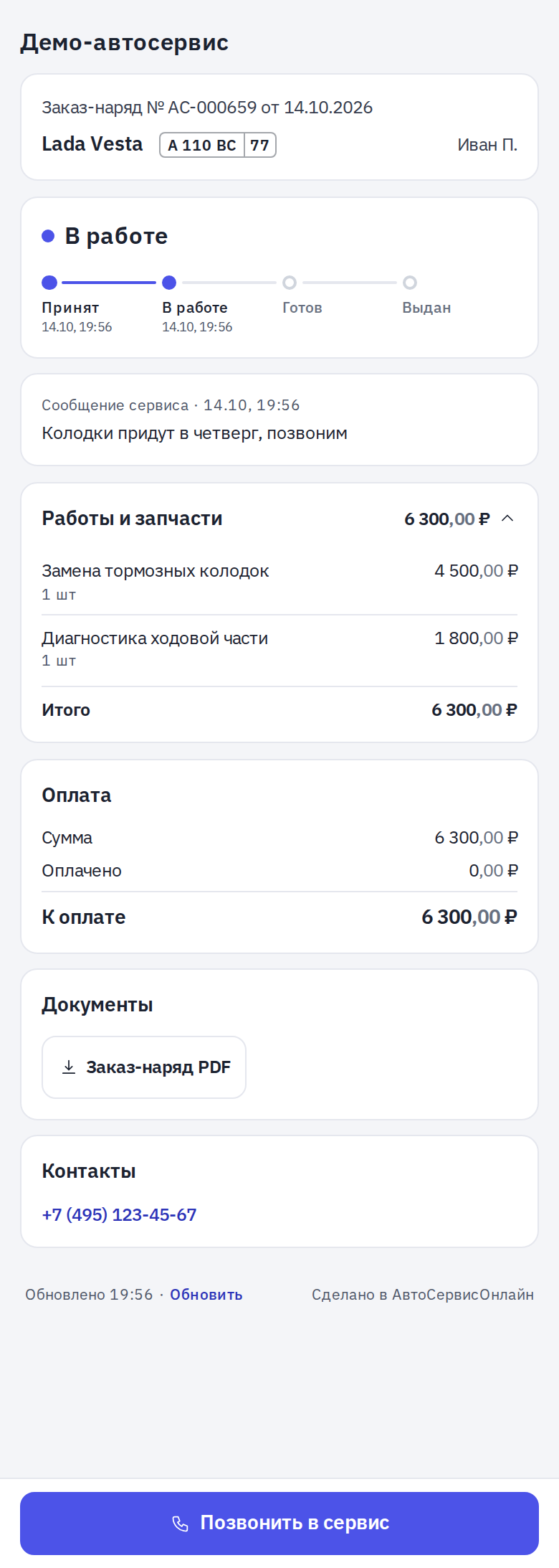
- Header: the service name and logo, work order number and date, make, model, license plate, the client's first name with the first letter of their last name (“Ivan P.”; for a company, its short name).
- Repair stages with dates: “Received”, “In progress”, “Ready”, “Handed over”. If the order is scheduled, the deadline “Estimated ready date” is displayed.
- Service message, if you wrote one.
- Labor and parts with prices and “Total”. If you disabled prices in the settings, only the total is displayed.
- Payment: amount, discount, amount paid, and Amount due (or “Paid in full”). With the “Payment via link” module and a connected YooKassa store, the Pay N ₽ button is also displayed here — the client can pay by card or via SBP; see Payment via link.
- Documents in PDF: work order, account, and certificate of completed work, if they have been enabled.
- Contacts: the service phone number and address with a “on the map” link. On a phone, the Call the service button is pinned to the bottom.
The page refreshes automatically once a minute; the Refresh button at the bottom does so immediately.
Here is how the order status appears to the client:
| Status in the program | What the client sees |
|---|---|
| New | “Received” |
| In progress | “In progress” |
| Waiting for parts | “In progress” and the line “Waiting for parts from …” |
| Waiting for the customer | “In progress” and the line “Waiting for your decision from …” |
| Completed | “Ready for pickup”; the certificate is available |
| Closed | “Handed over” |
| Declined | “Order cancelled” |
What the client never sees
The client's phone number, email, passport, and address; VIN and mileage; mechanics; purchase prices and markup; internal comments; photos; and order history. The check-in certificate and contract are not available via the link.
The PDFs via the link are protected separately. The client's full name is abbreviated in them in the same way as on the page (“Ivan P.”; for a company, its short name), and only the last digits of the phone number and VIN are visible. Documents you print in the program are not changed: everything remains as before.
Page settings
Settings → Link for client (administrator only). An example of how the client will see the page is shown on the right, and it changes as you edit it.
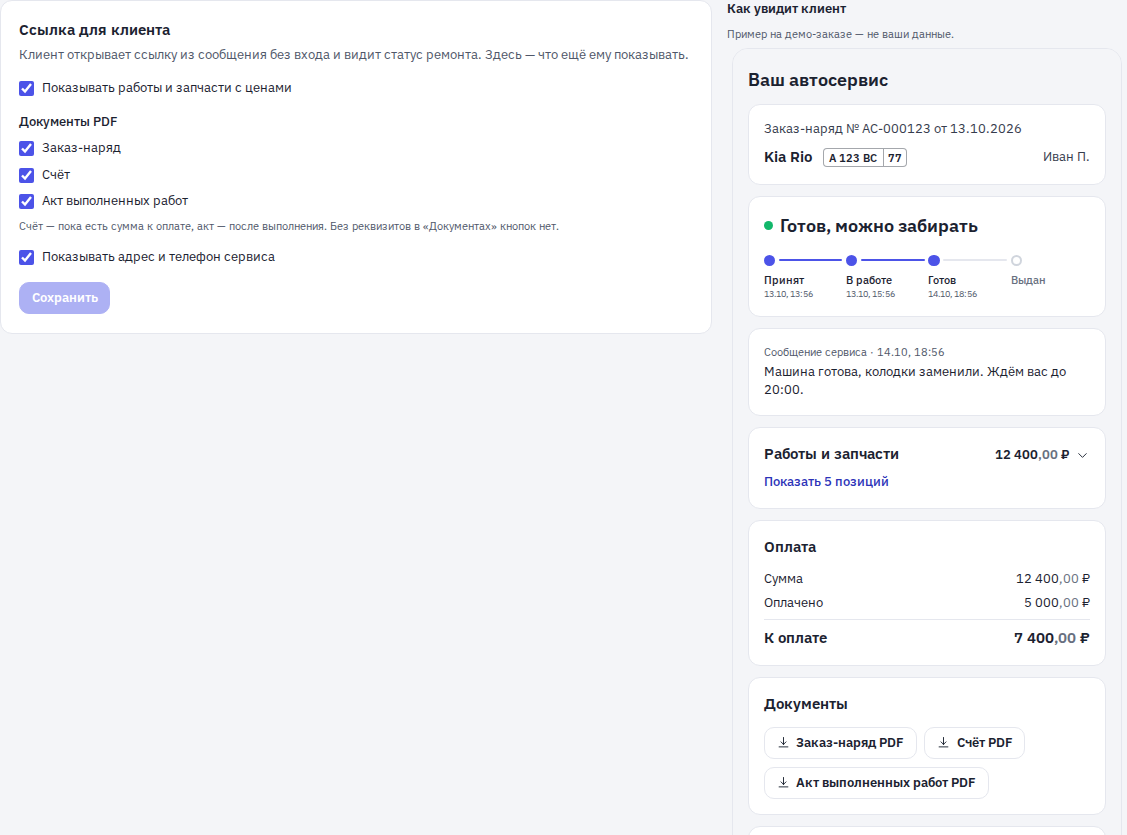
- Show labor and parts with prices. Disable this if you do not want to display individual items: only the total will remain.
- PDF documents: work order, account, and certificate of completed work. The account is available while there is an amount due, and the certificate is available when the order is completed. Without company details in Settings → Company details, no buttons are displayed.
- Show the service address and phone number.
Click Save. The settings apply immediately to all links in the account.
Link validity and revocation
- The link remains active while the order is in progress and for 30 days after the order becomes “Completed,” “Closed,” or “Declined,” but no longer than 180 days from when it was handed over. Then the client will see “The link has expired” and the service phone number. If you return the order to work, the link is active again with no time limit. If the link was issued for an order that was already completed, it has the same 30-day period.
- Revoke in the side panel — the link immediately stops opening, and the client will see “The link is invalid.”
- New link — the old link stops working and a different one is issued (the client message remains unchanged). This is useful if the link was sent to the wrong person.
- A link is revoked automatically if the client is changed in the order or the order is deleted.
- If the account balance is exhausted, the client’s page continues to work, but new links, messages, and edits in the side panel are unavailable; you can still copy an already issued link.
Client pages are blocked from search engines and do not appear in search results. The address contains a long random code, so someone cannot guess another user’s link; however, do not publish it openly.
The order History retains the entry “Client link: created / revoked / new” (without the address itself). In “Getting started”, the Main page has the recommended step “Send the client a link to the repair status” (the Open latest order button): it is marked as completed when you issue the first link.
FAQ
- “Does the client need to install anything?” No, the link opens in any browser on a phone or computer.
- “There is no ‘Client link’ item.” The module is disabled (Account → Tariff, enabled by an administrator), or your Role does not have the “Submodule access” permission for “Client repair status.” A link is not issued for a deleted order.
- “The client says, ‘The link is invalid.’” The link was revoked or a new one was issued, the client was changed in the order, the order was deleted, or the module is disabled. Create a new link and send it.
- “The client says, ‘The link has expired.’” It has been 30 days since the link was issued. Click New link in the side panel if the client still needs the page.
- “The client cannot see prices.” In Settings → Client link, Show labor and parts with prices is disabled. Enable it.
- “There is no invoice or completion certificate button.” The invoice is visible while there is an Amount due; the completion certificate is visible when the order is “Completed” or “Closed”; additionally, the Document must be allowed in the page settings.
- “The page cannot be found by search.” This is intentional: client pages are blocked from search engines.
- “The open count is zero, but the client says they saw it.” The counter increases no more than once every 5 minutes; refresh the side panel.