Search in the Header
One search bar on any account screen: license plate, phone, order number, VIN, last name, organisation, or part number—and you immediately see clients, vehicles, orders, requests, and parts. When a client calls, you do not need to guess which section to search: type, press Enter, and you are in the right item card. You do not need to enable or configure search separately.
Where to Find It
- Computer. The search field in the header, to the right of the screen title; it displays the
Ctrl Khint (on Mac,⌘K). It is visible on screens 1280 px wide or wider. If the window is narrower, a magnifying glass with the same action appears instead of the header field. - Phone. A magnifying glass in the header next to your initials opens search in full-screen mode.
- Keyboard.
Ctrl K(on Mac,⌘K) opens search on any screen, even when the cursor is in an input field; pressing it again closes search. The/key opens search if the cursor is not in an input field.

The field name indicates what you can search for on the current screen: in the warehouse—“Part number or part name…”, in work orders—“License plate, phone, order number…”, for clients—“License plate, phone, full name…”. Outside sections (for example, on the home page or at the cash desk)—“Search the entire system…”.
In sections where the list searches on its own (work orders, clients, warehouse, mechanics, requests), only the magnifying glass remains in the header: two search fields next to each other would raise the question, “Where do I type?” To search everywhere, press Ctrl K (on Mac, ⌘K) from anywhere.
If you do not have permissions for any of the searchable sections (see below), the header bar is not displayed at all. While another window or drawer is open (for example, the client form), keyboard shortcuts do not work—close it.
What Can Be Searched
You can enter a single query in any way—the system will determine what you mean.
| What to Enter | How | Example |
|---|---|---|
| License plate | In any spelling and keyboard layout; region letters can be omitted | а123вс161, A 123 BC, f123dc |
| Phone | In any format; you can enter only the last digits (4 or more) | 8 961 333 44 55, +7 (961) 333-44-55, 4455 |
| Order number | Without a prefix: digits, AC-74, or №74 will find exactly order AC-000074 | 74 |
| VIN | The last characters (4 or more) or the entire VIN; Cyrillic lookalike letters are replaced with Latin ones | the last 6 characters from the vehicle registration certificate |
| Client | Last name, first name, and patronymic in any order; part of a word; organisation; TIN | кузн ив, Иван Кузнецов, автопарк |
| Part | Part number without spaces or hyphens, or name | oc-90 will find OC90 |
If you type Russian text using an English keyboard layout (bdfyjd instead of «Ivanovs»), the last name will still be found. Search starts after 2 characters, or after 1 character if the query contains only digits (this is how order №4 is found). The query can be up to 64 characters.
Services and parts within orders are not searched (use the search in the Work orders list), nor are tasks, comments, or history. Search does not correct typos. A deleted order is displayed only upon an exact number match.
How to Use It
- Open search and start typing—results appear automatically, without
Enter, a quarter of a second after you pause. While the query is empty, search suggests what you can find and offers New order and New client. - Search runs across the entire system—from any page, you can find an order by number and a client by phone. If you need to narrow the results down to the current section (for example, in Warehouse—parts only), click Search in section “…” below the query field; the Search everywhere button restores the global search.
- Results are grouped by category: Clients, Vehicles, Orders, Requests, Parts. If something is found by an exact match—an order number, full license plate, phone, 17-character VIN, or part number—that group moves to the top, and the matching row is already selected.
- Select a row:
↑↓—move through the rows across all groups,Tab—go to the next group,Enteror a click—open.Ctrl+Enter(on Mac,⌘+Enter) opens it in a new tab. - A group displays up to five rows. If there are more matches, a All results in section “…” → link appears at the bottom; it opens the section list with the search already applied. For vehicles, this is the client list (it searches by both license plate and VIN).
Escclears the query, and the secondEsccloses search. You can also close it by clicking outside the window. When you open search again, the previous query remains in the field and is selected: start typing and it will be replaced. The query is remembered only until the page is refreshed and is not saved anywhere.
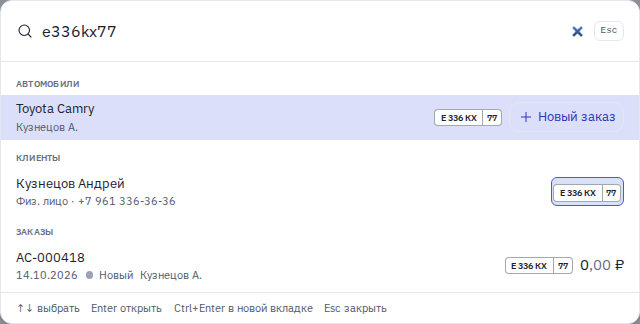
What Is Displayed in the Rows
| Group | What Is Displayed | Where It Leads |
|---|---|---|
| Clients | Name or company name, type (individual, legal entity, sole proprietor), phone, up to two license plates; the matching vehicle is highlighted | Client card |
| Vehicles | Make and model, license plate, owner; when searching by VIN—its last characters | Client card: the relevant vehicle is expanded |
| Orders | Number, date, status, client, license plate, amount | Order card |
| Requests | Name, phone, service, preferred date, status | Online booking request list filtered by phone |
| Parts | Part number, brand, name, stock quantity with unit of measurement | Warehouse filtered by part number |
For a vehicle, the New order button appears on the right (keyboard shortcut: Shift+Enter): it immediately opens a new work order for that vehicle. The button is available if you have access to work orders.
When nothing is found, search displays “Nothing found for “…”” and offers New client. If the search fails, “Search could not be completed” and a Retry button appear.
Search on Mobile and “Scan”
On mobile, search opens in full-screen mode: an input field and Cancel button at the top, with groups below in large rows. You can close search with the Cancel button or the system “Back” button—you will return to the screen you were on.
Next to the input field is the Scan button: point the camera at a license plate, and the recognised number will be entered automatically, starting the search. The button is available if the account has the Scan VIN/license plate module enabled and you have access to it—see Autofill and VIN scanning for more details.
Who Sees What
A group appears only if the module is enabled for the account and you have permission for that section. The account administrator sees all groups from enabled modules.
| Group | Module | Permission |
|---|---|---|
| Clients, Vehicles | Clients | “Submodule access” |
| Orders | Work orders | “Access to orders and the client’s order history” |
| Requests | Online booking (widget) | “Submodule access” |
| Parts | Parts | “Submodule access” |
Therefore, a warehouse worker with access only to the warehouse searches for parts only, while a service advisor without warehouse access cannot see part numbers. The server does not even search inaccessible groups, so other people’s data does not appear in the results. Permissions are granted by the administrator—see Roles and permissions. The query text is not recorded anywhere.
FAQ
- There is no search bar in the header. Either the window is narrower than 1280 px, in which case a magnifying glass is displayed instead of the field, or you are in a section where the list searches on its own (work orders, clients, warehouse, mechanics, requests)—there is also a magnifying glass in the header, and global search opens with
Ctrl K—or you do not have access to clients, orders, requests, or parts. Contact your administrator. - The section returned something other than what I was looking for. Search runs across the entire system. If you only need items related to the current section, click Search in section “…” below the query field.
- The required group is missing (for example, “Orders” or “Parts”). You do not have permission for the section, or the module is disabled—see the table above. A group with no matches is not displayed either.
Ctrl Kopens browser search. Press the shortcut while the application tab is active: it is intercepted within the application. If another window or drawer is open, close it.- The
/key does nothing. It works only when the cursor is not in an input field and no windows are open.Ctrl Kworks from anywhere. - Order number
74was not found. A numeric search finds exactly the order with that number (AC-000074), not “everything containing 74”. Check the numbering—Order and document numbers. A deleted order is displayed only upon an exact number match. - A service or part from an order is not found. The header search does not search for these. Open Work orders and enter the name in the list search field.
- Nothing is found by phone. Enter at least the last four digits. The phone number is searched for among clients and online booking requests.
- A vehicle was found, but I need the client. Press
Enter—the owner’s card will open with the vehicle expanded. - Search opened the client list instead of the orders. The “All results” link for vehicles leads to the Clients section, where search works by license plate and VIN.
- How to disable search. There is no separate switch: search runs alongside your sections and does not impose any load until you open it.