List of Orders
A general register of auto service work orders. This screen is where a service advisor, mechanic, and accountant begin their work.
Where to Find It
Path: Auto service → Work orders.
The list is one of two types of sections. The “List | Board” switcher above the table opens the orders board: the same orders arranged in columns by status, with drag-and-drop and an “N days” counter in each status. An administrator can disable the board in Settings → Work orders, in which case the switcher is not displayed.
The section is displayed if the account has the “Work orders” module enabled and the employee’s role has “Submodule access” selected in the “Access permissions” block in the “Auto service > work orders” group (Settings → Team → Roles). The account administrator always sees the section.
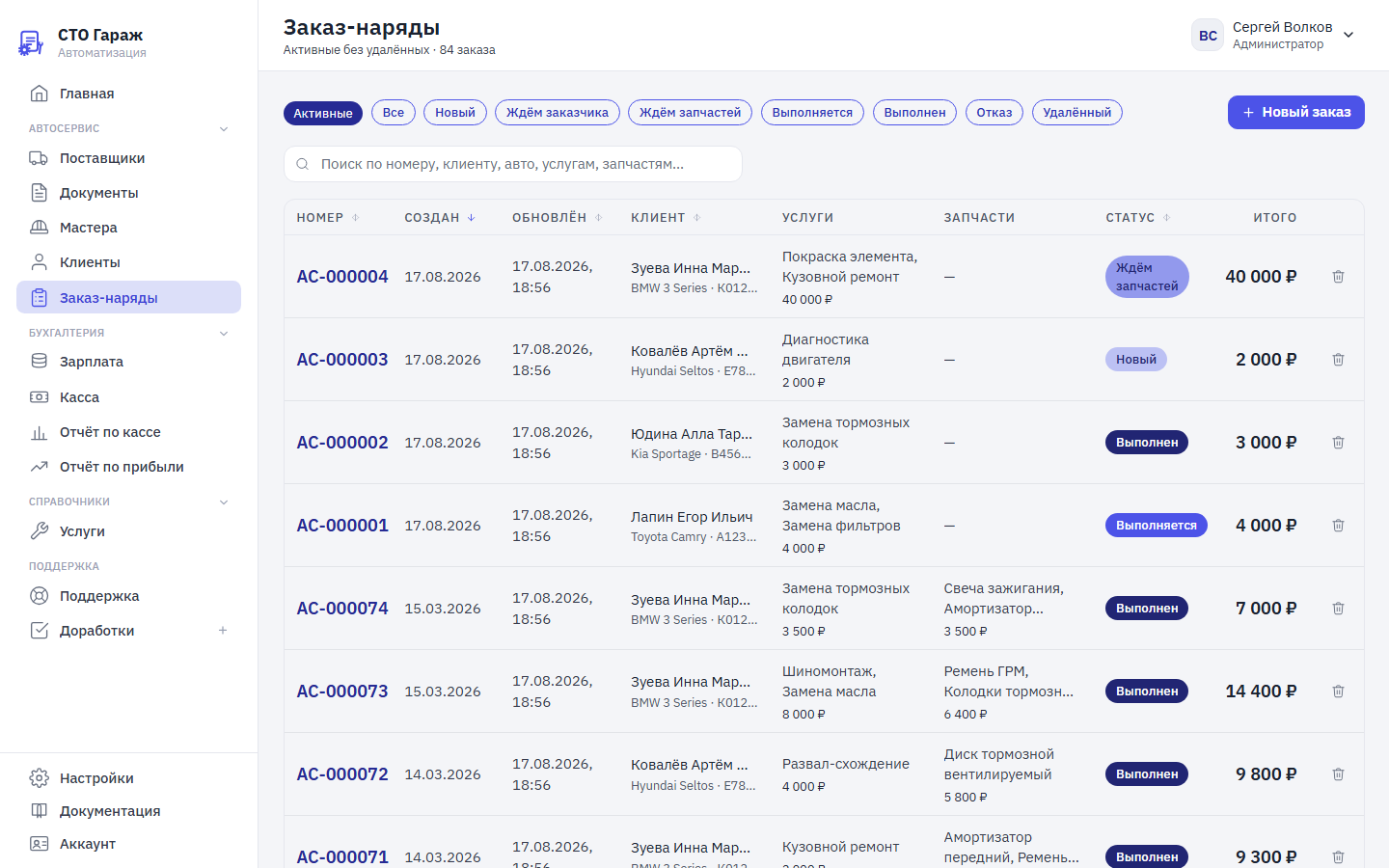
What the Table Shows
Open an order by clicking anywhere in the row, not just the number. Ctrl/Cmd-click (or the middle mouse button) opens the order in a new tab. Keyboard navigation: Tab moves to the row, and Enter opens it.
| Column | Contents |
|---|---|
| Order | AS-000123 — a sequential number within the account, with the creation date below it |
| Client | Full name or company name, with the vehicle’s make, model, and license plate on the line below |
| Status | A colored dot and the status name. Click the status to change it directly from the list — see Order Statuses |
| Payment | A Paid, Partially paid, Unpaid, or Overpaid label and a gray “debt 12 000 ₽”. The column is displayed if the “Order payments” module is enabled. For details, see Payment |
| Amount | Labor and parts at their selling prices, with “Labor 2 · Parts 3” below — the number of lines in the order. Payments are not deducted here |
| Updated | When the order was last changed: “today 14:05,” “yesterday 09:30,” or a date |
| ⋮ | Row actions menu: Copy (create a new order from this one; see Copying an Order) and Delete — the latter is visible only to users with the “Delete orders” permission |
To sort, click the “Order”, “Client”, “Status”, “Amount”, or “Updated” column heading; clicking again reverses the sort direction. By default, the newest orders are displayed first.
The list loads as you scroll: the first 50 orders are loaded initially, and more are loaded automatically when you reach the end. There are no numbered pages. At the bottom, “Shown: 50 of 84” is displayed, and once everything has loaded, “Total: 84” is shown.
On phones and tablets (screen width below 1280 px), cards are displayed instead of a table: order number, client and vehicle, status, and amount. Clicking a card opens the order, and the ⋮ menu is in its corner. On phones, you can sort using the “Sort” menu above the list.
The List Remembers Where You Left Off
The search, selected filter, and sorting are preserved while the browser tab is open: if you open an order and then return, the list looks the same. If you have scrolled down, the list will open at the same position when you return (within one hour). If the search, filter, or sorting differs from the original settings, the “Reset” button appears next to the filters and restores the initial view.
Filters and Search
- Filter buttons above the list with counters on the right: Active (selected by default — all orders except deleted ones), All (including deleted ones), and one for each status: New, Waiting for the client, Waiting for parts, In progress, Completed, Declined, Deleted, Closed. The number shows how many orders have this status; it updates immediately when you change the status from the list.
- Payment filters (when the “Order payments” module is enabled) are displayed in a separate row after the statuses: With debt — completed and closed orders that the client still owes payment for; Unpaid — orders without any payment (excluding declined and deleted orders); Paid — orders paid in full. Clicking the selected filter again clears it.
- Search (“Search by number, client, vehicle, services, parts…”) searches by order number, the client’s full name or company name, make and model, license plate, VIN, and service and part names. You can enter a license plate in any keyboard layout, with or without spaces (“а123вс”, “A 123 BC”), and search by any part of a VIN starting from four characters. The search starts automatically a fraction of a second after you enter your query; the cross in the field clears it. You cannot search by Tax ID or phone number.
- Search from any section. The search in the header (
Ctrl K, or⌘Kon a Mac) finds orders by number, license plate, or client’s phone number: enter74to open order AS-000074. For details, see Header Search. - Tags ▾ (when the “Tags” module is enabled and you have permission to use it) is a button next to the search. Select one or more tags: only orders with all the selected tags will remain. Selected tags are displayed next to the search, and the cross on a tag removes it from the filter. The filter works together with the status and search; the order’s tags are also visible in the row below the number. For details, see Tags.
- If the search and filter return no results, the list will display “Nothing found” and offer the “Reset” button.
There is no filter by date, mechanic, or amount, no option to export the list to Excel, and no bulk status change.
Creating and Deleting
- New order is the main button on the right in the search row and opens the new order form. For details, see Creating an Order. If the account balance is exhausted, the button is disabled.
- Delete order is available under ⋮ → Delete in the row, only for users with the “Delete orders” permission. The System will ask for confirmation: “Delete order AS-000123?” — “The order will move to the ‘Deleted’ status, and you can restore it by changing the status.” After confirmation, “Order deleted” appears at the bottom for a few seconds, along with the “Undo” button: click it to return the order to its previous status. The order is not erased: it moves to the Deleted status, and its number remains reserved. You can restore it later by selecting a different status (find the order using the All or Deleted filter). Deletion is irreversible only if you do not restore the order.
Common Issues
- “There are no orders, but there definitely were some.” Check the buttons above the list — most likely, a status or payment filter is selected. Click Reset to restore the Active filter; All will also show deleted orders. The list remembers your previous selection while the tab is open, so the filter may remain unchanged after you return.
- “It cannot find an order by phone number.” Orders cannot be searched for by phone number. Find the client by phone number in the Clients section (the format does not matter) and open the Orders tab in their item card; you can also find the order by license plate, VIN, or the client’s full name.
- “There is no ‘New order’ button or the section itself is missing.” The account does not have the “Work orders” module enabled, or the role does not have the “Submodule access” permission in the “Auto service > work orders” group. Contact the account administrator.
- “There is no ‘Delete’ option in the ⋮ menu.” The “Delete orders” permission is separate. An administrator can add it to the role in Settings → Team → Roles.