Incoming Requests
All requests from the widget appear here. Status, filters, and a single button turn a request into a work order.
Module Online booking (widget).
Where to Find It
Path: Auto service → Online booking (widget). The page is called “Online booking”, with new requests at the top.
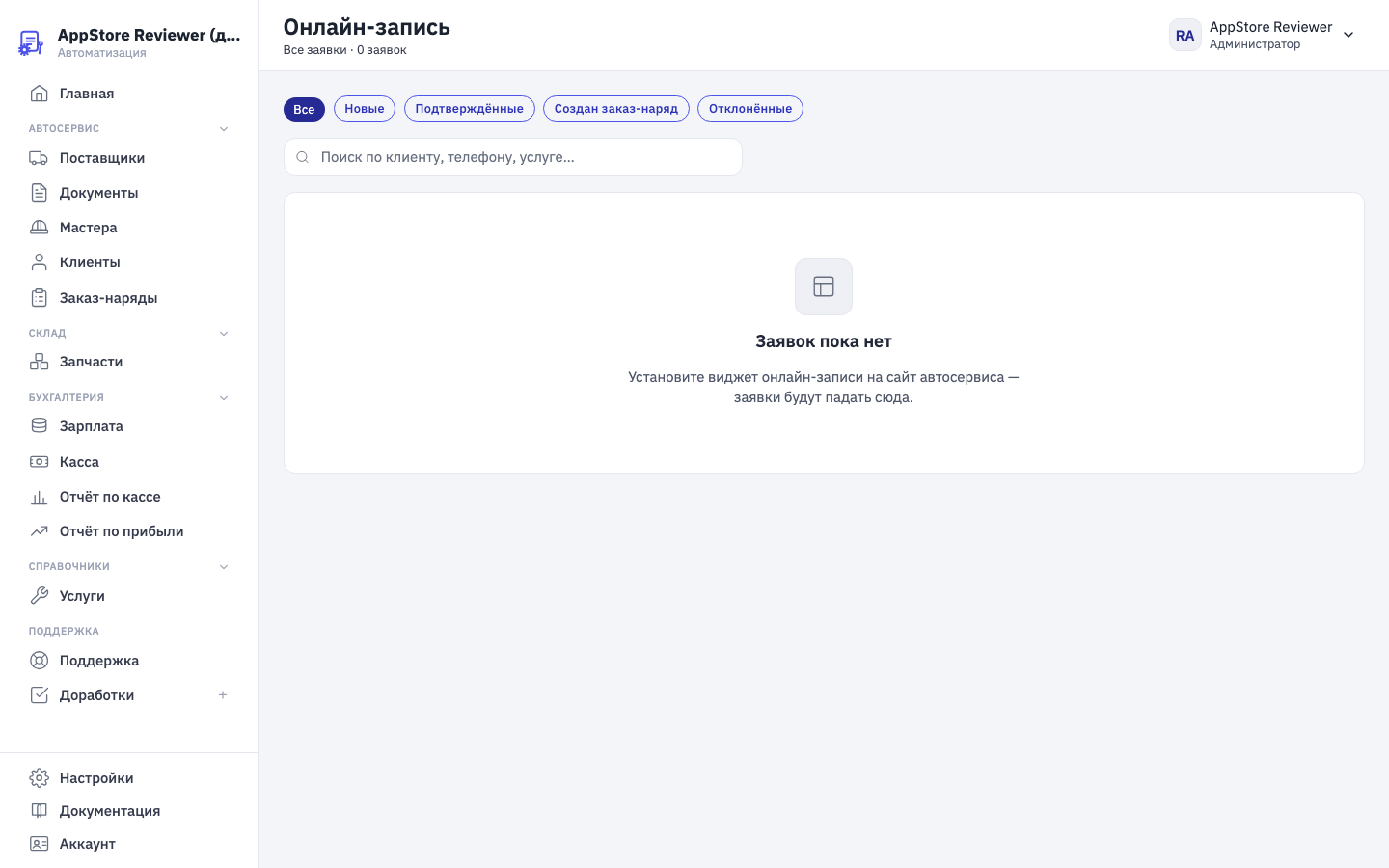
What Is Displayed
| Column | Description |
|---|---|
| Received | When the client submitted the request |
| Preferred date | What time the client wants to book |
| Client | Name with the phone number below it (tap to call from your phone) |
| Vehicle | Make and model (“Toyota Camry”) and license plate, if provided by the client; for requests received before the widget update, the vehicle is displayed as the client entered it |
| Service | What the client wants |
| Source | Where the client came from: “yandex / cpc” (based on UTM tags), “Referral from …” (the site they came from), or “Direct visit” |
| Status | New / Confirmed / Order created / Declined |
| Actions | The primary “Create order” button (or “Go to order” when an order has already been created) and the ⋮ menu |
Requests are loaded as you scroll: the first 50 are displayed, then the rest are loaded automatically; at the bottom, you will see “Showing: 50 of 120” or “Total: 120”. To sort, click the “Received”, “Preferred date”, or “Status” headings. At 1280 px, the table is replaced by cards with the same actions.
Click a request row (in a card, click Expand) to open the Request source section: Source, Campaign, Keyword, Ad, Referral from, and Page — the address of the page on your website where the client clicked the booking button (with Copy next to it). This section displays only the fields that the client actually submitted. Tags are added to advertising links; for details, see Website widget.
Capabilities
- Filter by status — buttons above the list with counters: All, New, Confirmed, Order created, and Declined. The number indicates how many requests have this status; it is updated immediately when you change the status.
- Search — the “Search by client, phone, service, license plate…” field searches by vehicle and advertising campaign name. It starts searching automatically, a fraction of a second after you enter a query; the cross in the field clears it.
- Reset — a button next to the filters, available when a filter other than “All” is selected or a search has been performed. The list remembers the search and filter while the browser tab remains open, so when you return to the page, they may be the same as when you left them.
- ⋮ menu in a row — Confirm, Decline, and, for a confirmed or declined request, Restore to new. After confirming or declining, a message with the “Undo” button appears at the bottom for several seconds. After an order is created, the status is locked: it remains Order created and cannot be changed.
- Widget code — the “More” menu item next to the search field: it opens the code for embedding the widget on your website and also displays the Yandex.Metrica counter ID and a link to the data processing policy; for details, see Website widget.
- Contact client — a button in the request row (in both the table and cards): it opens a ready-made message, such as “Booking reminder”, in WhatsApp, Telegram, or SMS on your device. The button is greyed out if the request has no phone number; it is hidden if the Client messages module is disabled. For details, see Client messages.
- To service bay — a button next to the primary button (for new and confirmed requests; the Bay planning module and access to it are required). It opens a booking window with the preferred time and the first available service bay: the Work order tab creates an order for the service bay immediately, while the Reservation tab only reserves the time (the request becomes “Confirmed”). Chips appear below the preferred date: At service bay: Bay 2 · 12.10 14:00 (click to open that day in the calendar) and Outside working hours; the button is then called Reschedule. After booking, you will be offered Confirm client at the bottom. For details, see Shop loading calendar.
- Create order — the primary button in a row. After confirmation, it creates an order and immediately opens it:
- the client is searched for among your clients using the Phone field (the additional phone number is not taken into account). Numbers are compared using the last 10 digits, so “8 999…” and “+7 999…” are treated as the same client. If the client is not found, a new Individual is created: the first word of the name from the request is used as the last name, the second word as the first name, and the remaining words as the patronymic (if there is only one word, it is used only as the first name, and the last name is “—”);
- the order is created with the New status and without a vehicle; if the request was already assigned to a reserved service bay, the order receives its service bay and time, otherwise no planning is applied; the service, preferred date, and vehicle from the request are added to the order's Notes (“Vehicle: Toyota Camry, A123BC161”); the source is not added to the order — it remains in the request;
- the request moves to the Order created status, and “Go to order”, with the order number, appears in the row instead of the button — click it to open the order. A second order cannot be created from the same request.
The vehicle from the request is added to the order only as text in the note; it is not created in the client's reference data. Therefore, in the order, click Change in the header and select a vehicle in the Client and vehicle panel, or click New next to the Vehicle field. To have the request appear in the loading calendar, assign the request To service bay (or specify a service bay and start time in the Planning section of the right column).
Notifications
Each new request:
- is sent as a “New online booking” push notification in the mobile app to account administrators and employees with access to online booking — it includes the service, preferred time, and, if tags are available, “Source: yandex / cpc”, but not the client's name or phone number. Tap the notification to open “Online booking”. To enable it, see What is available on mobile; for installation, see Installing apps;
- is sent to AutoServiceOnline service notifications with only the account name and preferred time — without the client's name, phone number, or service.
The preferred booking time in the notification, as well as in the notes of orders and clients created from a request, is Moscow time.
There are no emails or new request counter in the menu. Push notifications are not received in a browser — you need the app on your phone. Nothing is sent to the client immediately after submitting a request: confirming the booking by phone or message is the responsibility of the administrator or service advisor, and it is convenient to send a message using the Contact client button. If Client SMS reminders are enabled, the client will automatically receive a reminder on the day before the visit for a confirmed request, and the “SMS via gateway” button will appear in the “Contact client” window.
The section is visible to the account administrator and employees whose role has the “Submodule access” permission in the “Auto service > Online booking (widget)” group — see All access permissions. When the balance is exhausted, the list remains visible, but the buttons are inactive.
How to Work with the Flow
- Morning / arrival at work — open the requests page.
- New — contact the client, clarify the details, and set the status to Confirmed if necessary.
- Once agreed — Create order → complete the order as a full document.
- If you failed to agree, or the request is spam: ⋮ → Decline. A request cannot be deleted.
Common Mistakes
- “A new client was created, although we already have them”. The phone number in the database differs by the digits themselves (a different number, or an extra or missing digit), while the system considers the “8” and “+7” at the beginning to be identical. Open the order, click Change in the header, select the required client in the Client and vehicle panel, and save the order; an extra client with no orders can be deleted in the Clients section.
- “The last name and first name are swapped”. The first word from the request is recorded as the last name. Swap them in the client card and save.