Logo in the document header
The logo is placed in the upper-left corner of PDF and Word documents. One logo applies to the entire account — it is the same in all documents.
The logo is also displayed in the left menu — instead of the standard icon, next to the company name. All account employees can see it. If there is no logo, the app icon remains in the menu.
The logo is printed on work orders, payment invoices, contracts, completed work reports, and defect inspection reports. It is not included in check-in reports or diagnostic sheets.
Where to find it
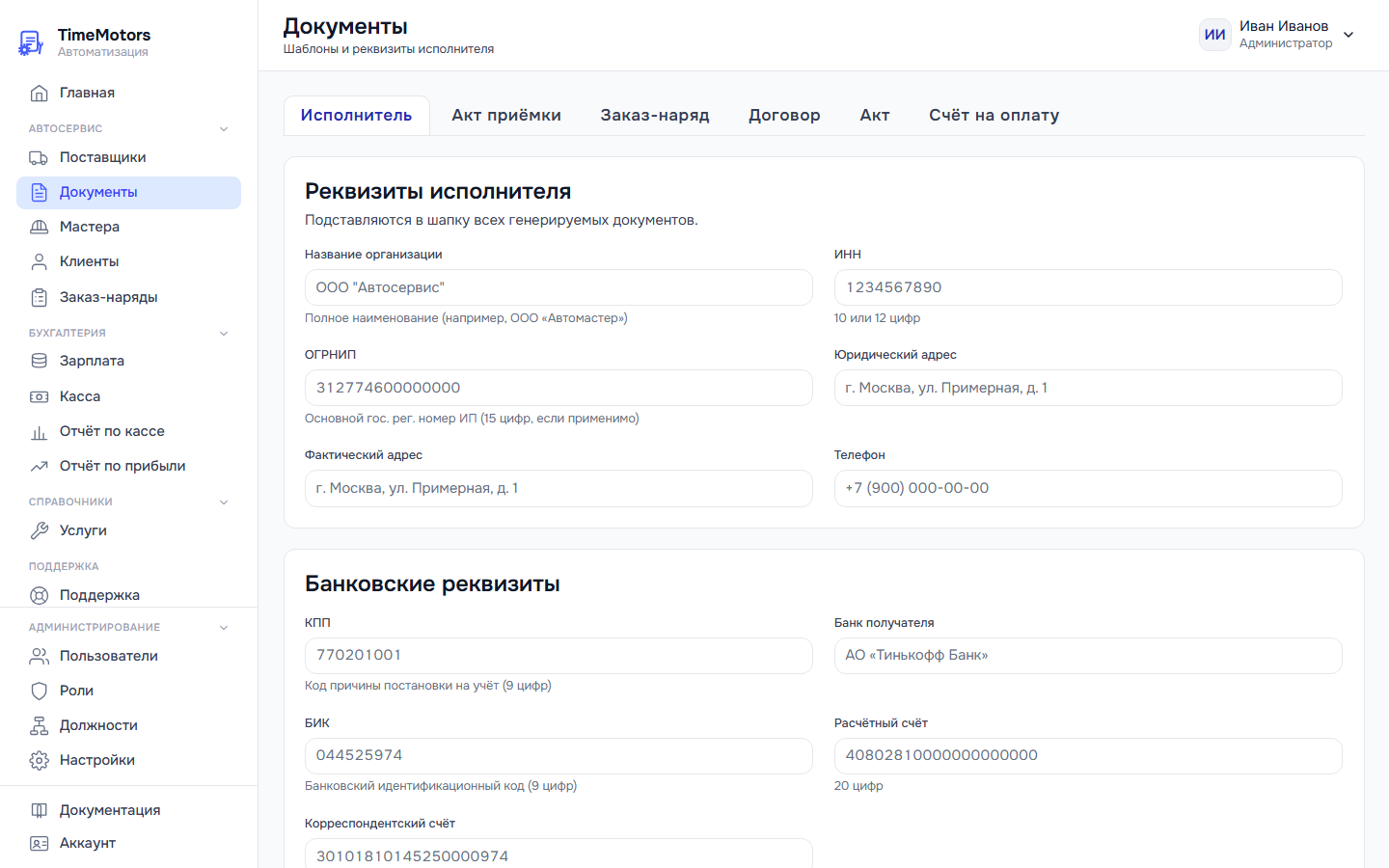
Path: Settings → Company details → “Logo” block (at the bottom of the screen).
Upload
- Click Upload.
- Select a file — PNG, JPEG, WebP formats, up to 2 MB.
- The file is uploaded immediately; no Save button is needed for the logo. A preview will appear, and the logo will be used in all new documents.
Replacement
Click Replace and select another file. The old file will be replaced with the new one.
Deletion
Delete — the system will ask “Delete the logo?”. New documents will have no image in the header, only the company details text. Until a logo is uploaded, the preview will display “No logo”.
How the logo looks in a document
- PDF: height 50 pt (approximately 1.8 cm), width proportional to the image.
- Word: the logo fits within a 4 × 1.5 cm frame while preserving its proportions — it is neither stretched nor squashed. WebP files are also displayed in Word.
Recommendations
- Format: PNG with a transparent background is the best option, as it will fit any header.
- Proportions: a horizontal logo (wider than it is tall), approximately 8:3 — for example, 800 × 300 px. This will make it equally prominent in both PDF and Word.
- File size: files larger than 2 MB cannot be uploaded; a header width of 600–800 px is sufficient.
- Unsupported formats: SVG, GIF, HEIC photos from iPhone, and PDF — the system will respond with “PNG, JPEG, WebP are supported”. The format is checked based on the file contents, so renaming the file to .png will not help — resave it in a graphics editor.
Common issues
- “I uploaded the logo, but it is not in the document.” Check whether the document was generated after the upload: previously downloaded PDF and Word files do not update automatically. Also check which document it is — check-in reports and diagnostic sheets do not include a logo.
- “The logo in the document is too small.” The image is probably almost square or has large empty margins. Crop the margins and make the logo horizontal.
- “The file is larger than 2 MB” or “PNG, JPEG, WebP are supported”. Reduce the image size or resave it as PNG/JPEG and upload it again.
Next steps
- Document templates — where to place the logo in your custom Word template
- Company details and logo
- Work order