Support Chat
Live 1:1 chat between you and the AutoServiceOnline technical support team. It is separate from Feature requests: here you get quick help with your current issue, while there you submit requests to improve the system and track their statuses.
Where to find it
The button with the cloud — in the bottom right corner of the screen, on every page of the application. It is visible to both the Administrator and the Employees. On a phone, it sits just above the bottom row of icons.
- Click the button — the chat opens right in the corner (on a computer). Right there, in the top right, the “Expand to full screen” button — the chat takes over the whole page — and a cross to close it.
- On a phone, the button opens the chat full screen.
- If a new message comes from Support, a red counter appears on the button — how many messages are waiting for a reply. While the chat is closed, the button “breathes” slightly, so that it is easy to notice.
- The “Support” item has been removed from the menu: now you enter the chat through the button in the corner, from any Section.
How it works
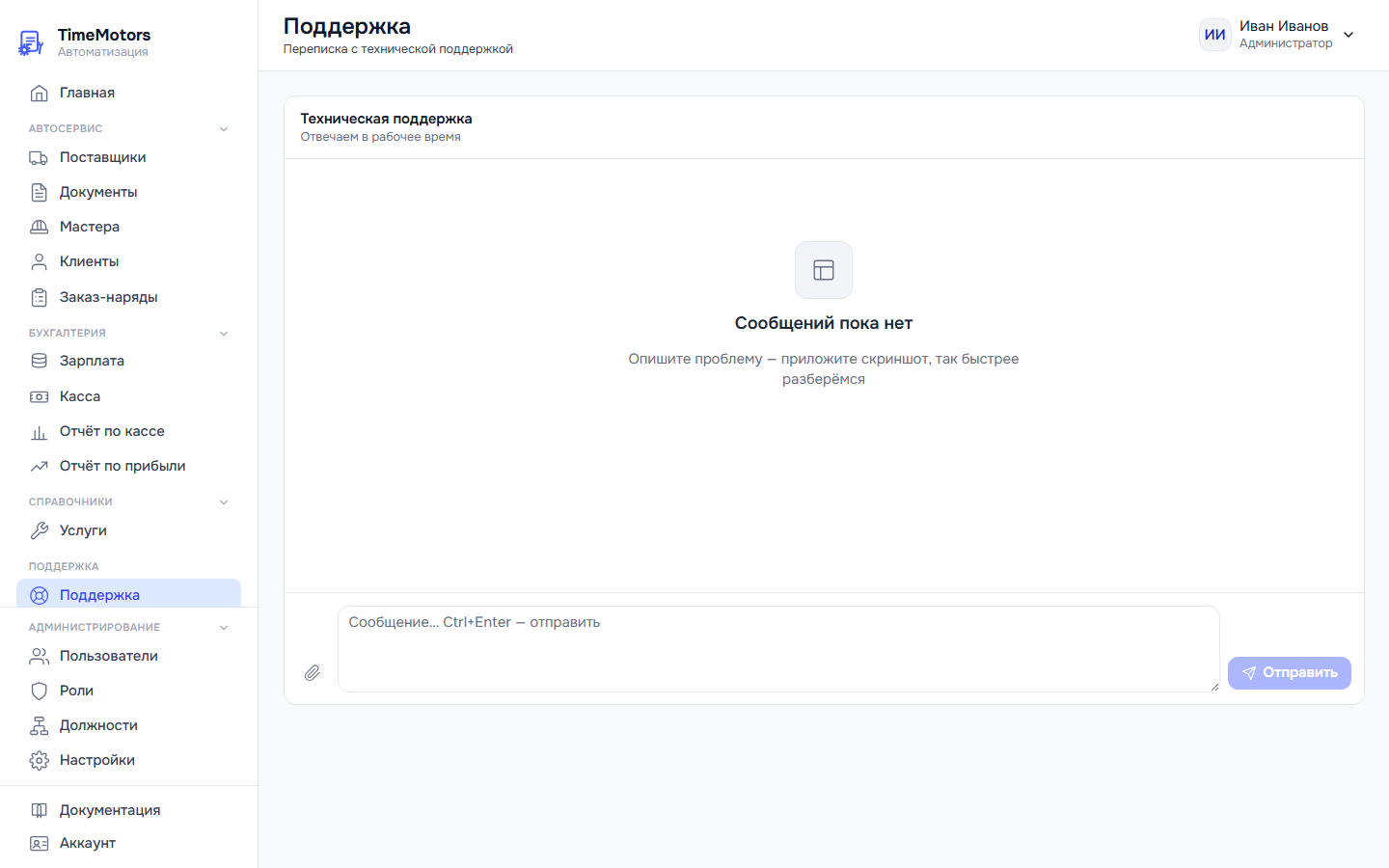
- One chat per user — it is created automatically when you first open it. The header displays “Technical Support” and “We respond during business hours”.
- Messages — regular Text in the “Message…” Field. To send, click the round button with the icon to the right of the field (on a computer and on a phone) or press Ctrl+Enter (on Mac, Cmd+Enter); pressing Enter only adds a new line. Links in the Text are clickable.
- Attachments — the “Attach File” paperclip or drag a file into the conversation area. Before sending, the files are displayed as chips; remove an unnecessary one by clicking the cross.
- Screenshot from the clipboard — paste it into the message Field using Ctrl+V (on Mac, Cmd+V) if you have just taken a screenshot.
- Images open in the viewer: Esc closes it, while the left and right arrows browse through all images in the conversation.
- Check marks next to your messages: one means “Delivered”, two mean “Read”. Support replies are marked with the “support” label.
- Unread indicator — a red counter on the chat button in the bottom right corner.
- Immediate reply. A support message appears in the open chat without reloading the page and is immediately marked as read if the chat is visible on your screen; the counter on the button is updated at the same time.
- History — the latest 50 messages are displayed on the screen.
- You cannot edit or delete a message you have sent — add any clarification in your next message.
- In “Sign in as” mode — the chat opens in view-only mode: there is no input field, messages cannot be sent or edited, and dragging files in and pasting from the clipboard are disabled.
On a phone and in the mobile App
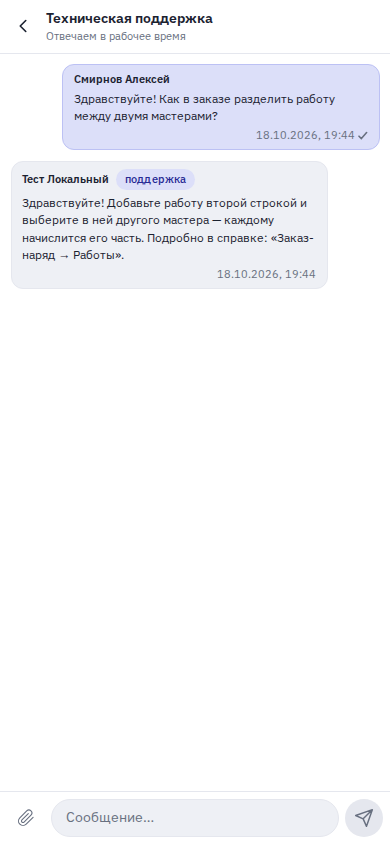
- Full-screen chat. The menu on the left is hidden in the chat so that it does not interfere with the conversation. At the top, there is the “Back” arrow, “Technical Support” and “We respond during business hours”.
- Exit the chat — use the “Back” arrow, swipe from left to right, or press the phone’s “back” button: you will return to the screen from which you opened the chat, and the menu will be visible again. On a computer — the cross in the top right or a click outside the window.
- Sending — a round button with an airplane icon to the right of the Field. It is grey while the Field is empty. Pressing Enter on the phone keyboard adds a new line instead of sending the message.
- Photos and files — the paperclip on the left of the Field allows you to select a screenshot from the gallery or take a photo.
- The input Field grows as you type and remains above the keyboard; the feed automatically scrolls to the latest message.
When the Balance has run out or the Rate has expired
- Balance of 0 or less (view-only Mode) — the chat works as usual: you can write messages, attach files, and receive replies.
- The Rate has expired — Sign in to the System is closed, so the chat is unavailable. Contact us at support@AutoServiceOnline.ru.
Who responds
- Support — an Employee of the AutoServiceOnline administration team. In the chat, they appear as “Support”.
- You only see your own chat. Even if your Account has several Employees, each of them has a separate conversation.
- Support signed in via “Sign in as” — can they write in my chat? No. Support can see your conversation, but in view-only mode: the “Read” mark is not cleared for you, and no request is created on your behalf.
File limitations
- 20 MB per file — larger files cannot be attached: “File ‘…’ is larger than 20 MB”.
- Up to 10 files and 50 MB per message — in total for all attached files.
- Message Text — up to 8000 characters.
- Formats: images (PNG, JPEG, GIF, WebP, HEIC), PDF, Word, Excel, PowerPoint, and OpenDocument documents, ZIP, RAR, and 7z archives, MP4, MOV, and WebM videos, and TXT, LOG, CSV, and JSON text files. The type is checked based on the file contents: a renamed file in another Format will not pass validation.
Notifications
- You have received a reply — an email is sent to the email address associated with your Account. It is enabled by Default for everyone. If you do not need it, open Settings → Notifications, clear the “Support messages” Item card check box for “Notify about support messages”, and click “Save”. This Setting is personal, so each user has their own; for an Employee, only this Section is available under “Settings”. The reply itself is still visible in the chat and through the counter on the button in the corner.
- You wrote in the chat — Support receives a push notification about the new message, containing only the Account Name, without the name or Text. Support reads the actual Text in the chat.
- Push to your phone. In the mobile App, a Support reply is also delivered as a push notification — the “Support” view under Settings → Notifications → Push notifications (see What is available on a phone).
Difference from “Feature requests”
| Support | Feature requests | |
|---|---|---|
| Format | Dialogue | Request with a Status |
| Who responds | Support | Support |
| When to use | “I have a problem right now” | “I want the System to be able to do X” |
| Has statuses | No | Yes: New / In progress / Declined / Completed |
| Linked to an Account | Yes | Yes |
Common issues
- “I wrote to Support, but there is no reply”. We respond during business hours. Make sure that the message was sent (it has a “Delivered” check mark): if the attachments exceed the limits (20 MB per file, 10 files, 50 MB per message), the message will not be sent.
- “The file will not attach”. The Format is not listed above, or the file is larger than 20 MB. Compress a large file into an archive or divide it into several messages.
- “I attached a screenshot, but it is not visible”. The file may be corrupted, or it may be in a Format that the browser cannot display as an image (for example, HEIC in Chrome). Resave it as PNG or JPEG and attach it again.
- “I cannot Sign in to write in the chat”. If the login page displays “The Rate validity period has expired”, contact us at support@AutoServiceOnline.ru.
- “I want to see my employees’ conversations”. Each user has a separate thread — the Account administrator cannot see their employees’ conversations with Support. This is intentional: an Employee may need to write about a conflict situation.