Vehicle Acceptance Certificate
A document confirming the vehicle’s check-in to the service and its return to the client. It is signed during check-in, before work begins, and at hand-over. It records the vehicle’s condition, completeness, and fuel level.
Where to find it
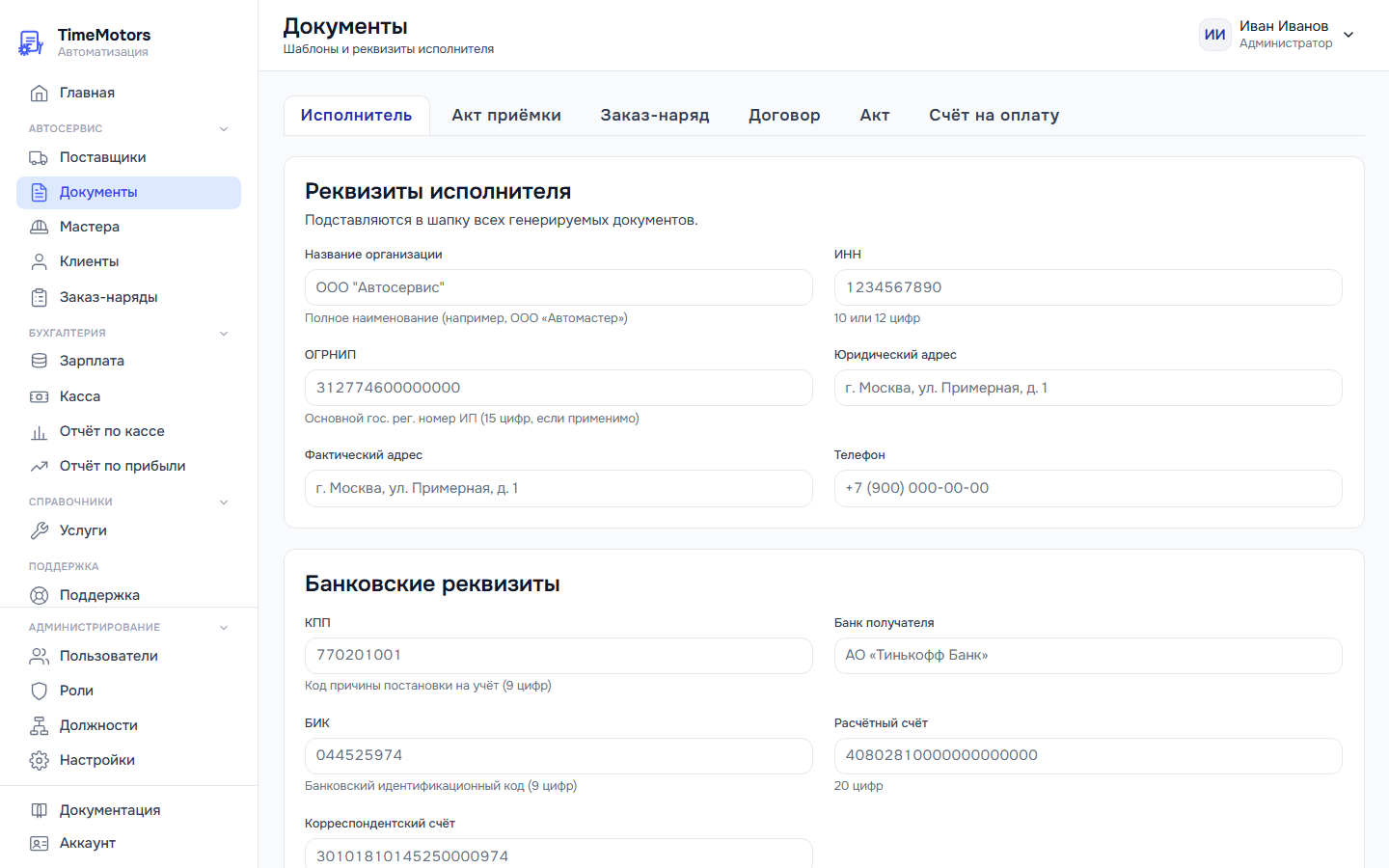
Template: Settings → Document templates → “Acceptance Certificate” tab. Print: in the order header, Print ▾ → Acceptance Certificate; or Work order → “Documents” tab → “Acceptance Certificate” row → PDF / Word / Print.
What the document contains
- Header — date and time, “Work order №…” (number from the “Acceptance Certificate” item card), auto service company details: name, Tax Identification Number, Primary State Registration Number (OGRN) (sole proprietor) with registration date (if completed), legal and actual address, phone. The Acceptance Certificate has no logo.
- “Vehicle inspection and acceptance and handover certificate for the work order for vehicle repair №… dated …” — title.
- “Customer, payer” and “Phone”.
- Vehicle — make and model, license plate number, year of manufacture, VIN, mileage from the vehicle item card.
- “Order accepted by”, “Opening date”, “Order closed by”, “Completion date” — as in the work order.
- Body diagram — for marking damage with a pen, with the following legend: “Chip” V, “Scratch” H, “Dent” O, “Other” X.
- “Vehicle completeness” — printed list with empty cells for pen marks: “Radio and antenna”, “Alarm system”, “Cigarette lighter and ashtray”, “Wheel covers”, “Spare wheel”, “Security nuts and key”, “Standard tool kit”, and three blank lines.
- “Fuel level” — fuel gauge image for marking with a pen.
- “Comments on vehicle condition” — blank box (printed only if the “Inspection” section has not been completed).
- “Customer’s parts and materials” — if the order contains “Customer’s part” lines: name, quantity, and price according to the estimate, as required by repair rules (Resolution No. 780, paragraph 12).
- Note — text from the template settings, in a small font.
- Two signature blocks — “The service provider accepted the vehicle, and the Customer handed over the vehicle” and “The service provider handed over the vehicle, and the Customer accepted the vehicle”: each includes “Date: ____”, “Service provider” and “Customer” signature lines, and “M. P.”.
The Acceptance Certificate contains no prices, labor, or photos.
Inspection details in the certificate
If the order has the “Inspection” section completed (Check-in tab), the certificate is supplemented with blocks containing the completed details in both PDF and Word:
- “Mileage and fuel” — mileage and fuel level from the “Inspection” section (if specified);
- “Completeness” — checkboxes: “Spare wheel”, “First aid kit”, “Jack”, “Fire extinguisher”, “Emergency stop sign”, “Audio system / radio”;
- “External damage” and “Internal comments” — if completed;
- “Client signature” — if the client signed in the “Inspection” section.
Inspection photos are not included in the certificate; they are stored in the order.
What can be customized
- Note — in your custom Word template (“Acceptance Certificate” tab of the Document templates screen: Download sample already contains your text). The standard text states that the vehicle is accepted without checking for hidden defects and that the Service provider is not responsible for items not listed in the certificate. Until a custom template is selected, the previously saved text or the standard text is printed.
- Document number and date — in the order, “Acceptance Certificate” row on the “Documents” tab.
In the default template, the body diagram, fuel gauge, completeness list, and signature blocks are embedded in the document. Use your custom Word template to change the order and formatting.
When to print it
- At check-in — before the vehicle is driven into the workshop. Both parties sign the left block, and the client keeps a copy.
- At hand-over — the right block, “The service provider handed over the vehicle, and the Customer accepted the vehicle”.
- In a disputed situation — it can be printed again for comparison.
Difference from a work order
- Acceptance Certificate — concerns the vehicle and its condition. It does not show labor or prices.
- Work order — concerns the work: what will be done and for how much.
Usually, both are printed at the same time and signed together.
Common mistakes
- “The mileage in the certificate is outdated”. In the vehicle table, the mileage is taken from the vehicle item card. Update it in the order (Change in the header → Client and vehicle panel → Change vehicle) or in the client’s item card. You can specify the mileage at the time of check-in on the Check-in tab in the Inspection section; it is printed in the “Mileage and fuel” block.
- “I want to mark damage on the body diagram”. The diagram is blank; mark the damage with a pen on the printed copy. You can describe it in text on the Check-in tab in the Inspection section, in the External damage field.
- “The fuel gauge is blank”. This is an image for marking with a pen. You can select the fuel level on the Check-in tab in the Inspection section; it will be printed in the “Mileage and fuel” block.
- “The inspection details are not in the certificate”. Complete the Inspection section on the Check-in tab, click Save, and generate the certificate again (unsaved data is saved automatically when printing).