Approval of work via a link
The mechanic found additional work: brake pads, bushings, and a transmission oil change. Instead of making calls and exchanging messages, you collect the proposals, send the client one link, and they can view the photos and prices on their phone without signing in or registering, tap Approve or Defer, and confirm with a signature. Approved work is added to the order, while deferred work remains in Deferred Work with the Client deferred label, so it will not be forgotten. The client does not need to install the app.
The Approval via Link module (Auto Service) costs 199 ₽ per month per employee and is available during the trial period, as are the tariff modules; see Modules and pricing. It is disabled by default: the account administrator enables it under Account → Tariff. An employee needs the “Submodule access” permission for “Approval via Link” in their role (Settings → Roles) and access to work orders; the administrator can always see everything. The client responds on the same page as “Repair status via link”: there is no need to enable “Repair status” separately.
How to send for approval
- Open the order (with the “New”, “Waiting for customer”, “Waiting for parts”, or “In progress” status and a selected vehicle).
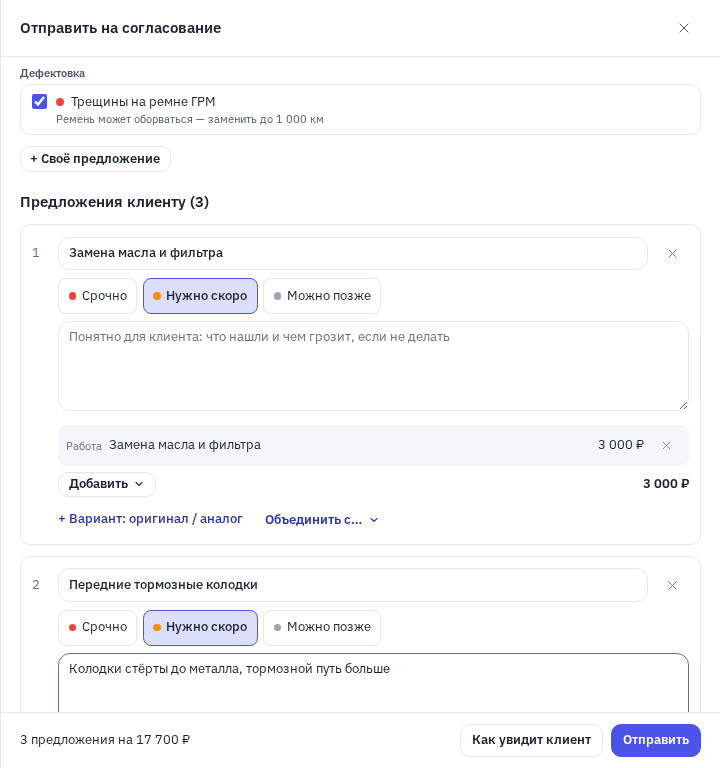
- Click More ▾ → Send for approval (on mobile, use the ⋯ menu).
- In the drawer, select what to offer the client: Order labor and parts (lines added after check-in are selected immediately), Inspection and Diagnostics items that have not yet become labor, or add Your own proposal.
- For each proposal, fill in the following: name for the client, urgency (“Urgent — unsafe to drive”, “Needed soon”, “Can wait”), a plain-language description of what was found and what will happen if it is not done, and photos from the order (up to 6). Multiple items can be combined into one proposal using the Combine with… button.
- If there is a choice, add Option: original / aftermarket (up to three options, for example, “Original” and “Aftermarket” with different prices). The client will select one.
- Preview how the client will see it: click the How the client will see it button. At the bottom of the drawer, you can see the total: “N proposals for the amount”.
- Click Send. Then send the client the link: Copy (on mobile, Share), Open, or Contact client using the ready-made Approval required template. If the SMS module is enabled, the SMS is sent from the same window.
A link to “Repair status” is created automatically if it does not already exist. The program does not send anything to the client: you send the link. A new approval replaces the previous one.
What the client sees
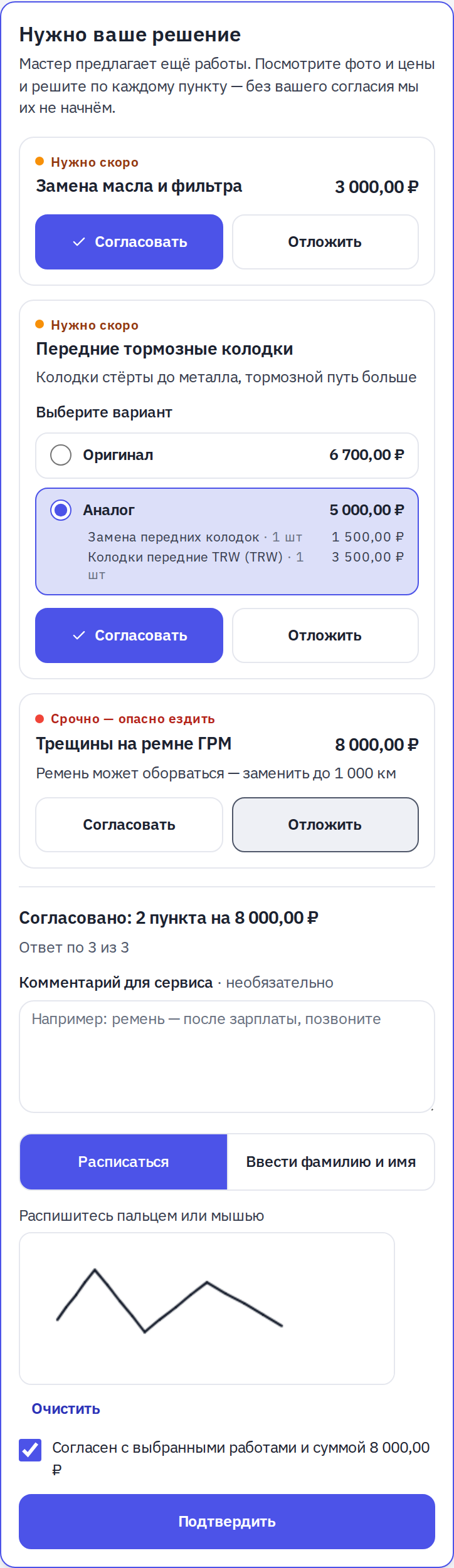
At the top of the order page, the “Your decision is required” section appears:
- proposal cards with a colour-coded urgency label, photos (tap to view full-screen), a description, and a price;
- Approve and Defer buttons for each proposal; if there are several options, the client first selects an option;
- a total of “Approved: N items for the amount …” and a field for a comment to the service (on mobile, the total and button are fixed at the bottom);
- if anything has been approved, a signature: Sign with a finger or Enter last name and first name, a consent checkbox, and the Confirm button. If everything has been deferred, no signature is required.
After confirmation, the client sees “Thank you! The mechanic will proceed with the approved work.” and their decision for each item. Until you click Work started, they can change their mind: the Change decision button is available.
What happens in the order
- The “Approval” section above the work shows the current state: “Waiting for the client’s decision”, “The client approved 3 of 4 for 12 400 ₽”, or “The client deferred everything”. While the client can still respond, the section refreshes automatically every 30 seconds.
- Approved labor and parts appear in the order, and the lines have the “Approved by client” label with the date and time. If the client selects an aftermarket part, the original line is removed.
- Deferred work is moved to Auto Service → Deferred Work with the Client deferred label and the price at the time of the client’s refusal. At the next visit, the work is returned to the order using the Add to order button; see Deferred Work.
- You receive an app push notification: “The client approved 3 of 4 · AS-000123” (without the client’s name or amounts), and the same message appears in the order correspondence. If the client defers everything, a “Call the client back” task is created (when the “Tasks” module is enabled).
- The sending of the request and the client’s response are recorded in the order History.
The Details button in the section opens the “Approval” drawer: what the client selected, the comment, the signature, the time, and previous decisions. The following options are also available here:
- Approval sheet (PDF) with the client’s decision and signature;
- Work started: after this is clicked, the client can no longer change their decision (they will see “Decision accepted. You can change it by calling the service.” on the page; if the client deferred everything, they will see “You deferred all work — if you change your mind, call the service.”);
- Cancel request: the client will see that the approval is complete;
- New approval: send another proposal.
FAQ
- “The client cannot see the ‘Your decision is required’ block.” Make sure that the request has been sent and has not been cancelled, the module is enabled (Account → Tariff), the client opens a fresh link (after a New link, the old one stops working), and the link has not expired. Ask them to refresh the page.
- “How to change the client’s decision”. The client can change it themselves using the Change decision button until you click Work started. If a part from the approved request has already been written off from the warehouse, it cannot be changed: the client will see “call the service”. It is easier for you to send a New approval.
- “Where deferred work is located”. Auto service → Deferred work, the Client deferred note; also the recommendations block in a new order for this vehicle.
- “There is no ‘Send for approval’ option”. The module is disabled or the role does not have the permission. The option is also unavailable for an order with the statuses “Completed”, “Closed”, or “Declined”, when the administrator signs in using “Sign in as” (view mode), and when the balance is exhausted. If the window says “No vehicle selected in the order”, select the vehicle: work deferred by the client is recorded for it.
- “The line is unavailable for selection”. The part has already been written off from the warehouse or the client brought it themselves: such lines do not need to be approved. Lines already approved by the client are not offered a second time.
- “The client did not respond”. Send a reminder message: Contact client → Approval required. There are no automatic reminders yet.
Client pages are closed to search engines, and the URL contains a long random code. The client sees only their own order and nothing extra: no phone numbers, purchase prices, or mechanics.