Account dashboard
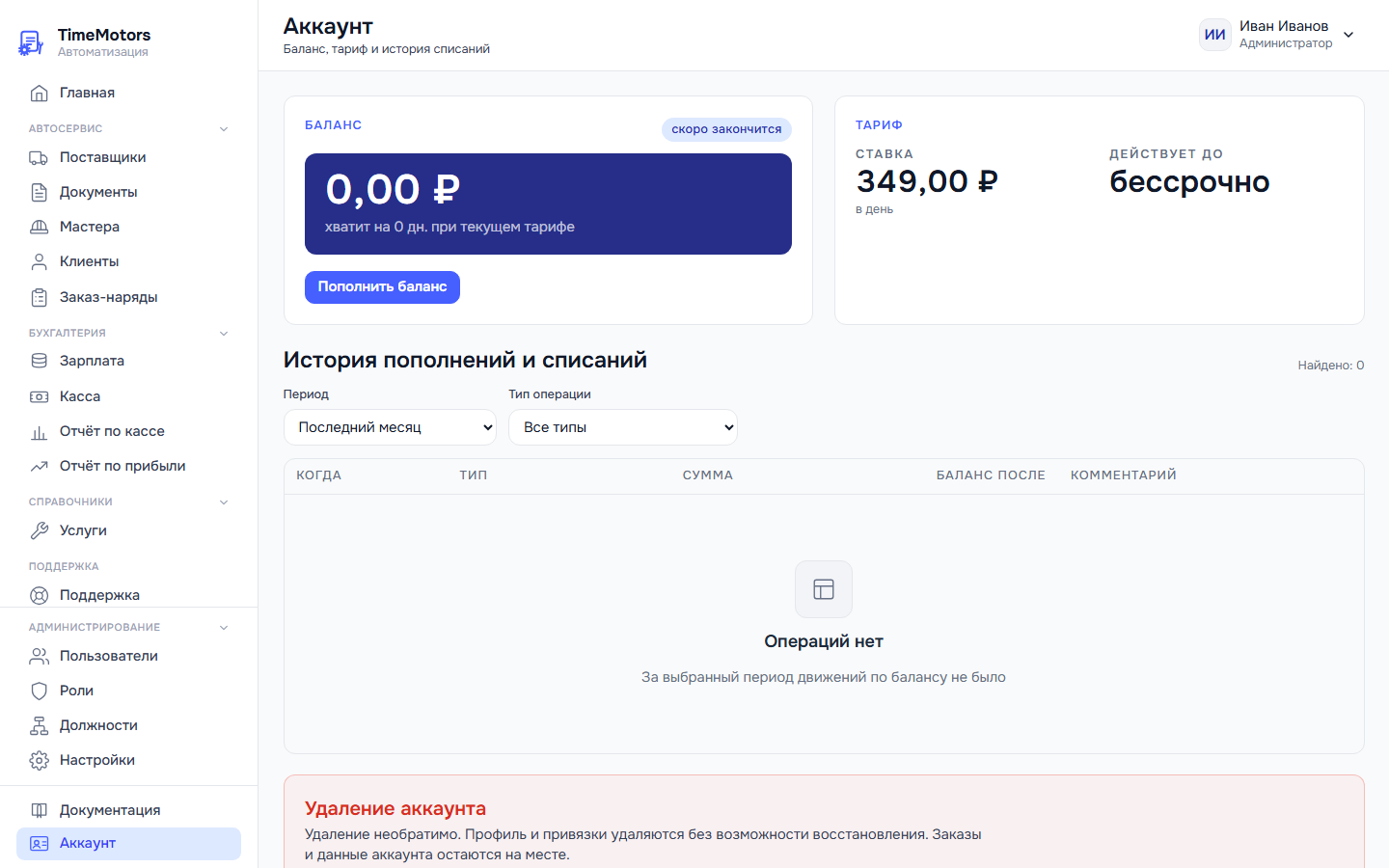
The “Account” page (subtitle “Balance, rate and write-off history”). The account administrator can see the balance, rate, top-up and transaction history here. All users can delete their own account here.
Where to find it
Path: Settings → Account and billing (for an employee, the item is called Account). Open the “Settings” section using the toggle at the top of the menu — the item in the list on the left. For an administrator, the balance tile at the bottom of the menu leads to the same place. On a mobile device: the Sections button on the bottom panel → Settings → the item on the panel (or in More).
The item is available to all account users — both the administrator and the employee. For details about the menu, see Menu and sections.
What it shows
There is no profile block (full name, role, creation date) on the page. It only contains money and account deletion.
Balance and rate (account administrator only)
- Balance — the remaining balance in the account and the caption “enough for N days at the current rate”. If the balance includes a bonus, the line “including N ₽ in bonuses” is added. The “running out soon” label appears when 5 days or fewer remain.
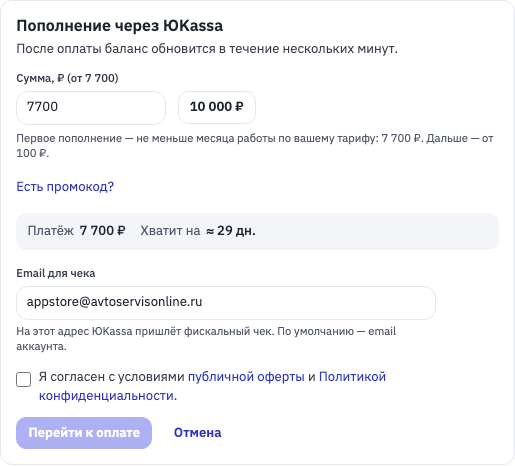
- The Top up balance button opens the payment form: amount, the “Packages — prepayment with a bonus” block (if the service owner has enabled them), the Do you have a promo code? link, “Email for the receipt”, acceptance of the offer, and the Proceed to payment button (YooKassa will open). For information on how packages and promo codes work, see Packages, promo code and bonuses.
- Rate — a card with the price “per month · per day”: the components (core and enabled modules with prices), “Per employee per month”, the number of employees, the line “Next employees: N × +10 %” with the surcharge amount, and the “How the price changes” block. A module scheduled for disabling is marked “will be disabled on DD.MM”; if the rate cannot yet be reduced, “The rate can be reduced from DD.MM” is shown. Below the card is “Paid until DD.MM.YYYY — topping up the balance extends the period” (the field used to be called “Active until”); without a date, the period is unlimited. For a new account, before the first payment, this is the last day of the trial period. For accounts with an old rate, the components are replaced with “The account has an old rate…”, “It would be under the rate grid” is displayed, and the Switch to the grid button is available; a “Switch to the rate grid?” window opens with the lines “Now” and “Under the grid” and a warning that you cannot return to the old rate on your own. For information on how the price is calculated, see Rate grid.
- Rate after the trial — a block available only during the trial period (the first 7 days, only the tariff modules are enabled, and nothing is charged). Select the modules that should work after the trial using the checkboxes; the core is always included in the rate. The total is shown “per month · per day” with the caption “after the trial” — it is not charged now. The first payment must be for at least one month at this rate. For details, see Trial period: 7 days free.
- Top-up and write-off history — with the “Period” and “Transaction type” filters. A bonus is displayed as a separate line with the type “Bonus” and a comment (“Bonus: 12-month package”, “Bonus: promo code …”, “Bonus: feedback №…”); for a daily write-off, it specifies “including N ₽ in bonuses”. All bonuses can be displayed using the “Bonuses” filter.
If the balance is exhausted, the “Balance exhausted — work suspended” block appears at the top of the page.
During the trial period, the administrator sees the “Trial period: N days remaining” tile at the top of the screen with the Select rate button — it leads here. In the menu, where the balance is normally displayed, it shows “Trial period · Remaining: N days”. On the page itself, instead of the remaining balance, “Trial period until DD.MM.YYYY” is displayed, the button is called Pay for rate, and above the balance is the “Before the first payment: documents — remaining” block (how many times each document can still be printed).
Packages, promo code and bonuses
A bonus is additional rubles credited to the balance on top of your payment. It counts towards the rate: the daily charge uses the bonus first, then the money. A bonus cannot be withdrawn or refunded in money, and no receipt is issued for it: the receipt is issued for the amount of your payment. For promotion terms, see the offer.
- Packages — prepayment with a bonus. The top-up form contains tiles for 3, 6 or 12 months: the package price, “+N % · bonus N ₽” and “enough for ≈ N days”. Click a tile and the amount will be filled in automatically; click it again to select your own amount. The tiles are not displayed until the service owner enables packages.
- Do you have a promo code? Click the link, enter the code (Latin letters, digits and a hyphen), and click Apply. The code can be used once per account. A package and a promo code cannot be used together — choose one. If the code does not match, you will see “Promo code not found or does not match”. Our promotional link may open the form with the code already filled in.
- Summary. The selection is followed by “Payment”, “Bonus”, “Will be credited” and “Enough for”. The bonus is credited after the payment, usually within one or two minutes.
- Help us improve the service. A block on the “Account” page (visible to both the administrator and the employee). Click Contact: select a topic, describe the situation (from 100 to 3,000 characters), optionally attach a screenshot, and send the message. We may credit a bonus to the balance for a meaningful message. The bonus does not depend on whether you praise or criticize us, and is not related to reviews on third-party websites. It may be awarded after the first payment and no more than once every 30 days per account; the service team makes the decision. The message status is visible in the “Account messages” list (“Under review”, “Bonus of N ₽ credited”, “Thank you, noted”). The checkbox about quoting your message on the website is optional and does not affect the bonus. If you find an error that prevents you from working, use Report an error (the “Feature requests” section).
- Share your opinion. A block with links to the service’s cards on Yandex Maps and 2GIS (displayed in the browser if the service owner has set the links). This is a separate request with no reward.
For details, see Rate and balance.
Employees cannot see the rate card; the administrator enables and adds modules and employees.
Account deletion
A block at the very bottom of the page. The Delete my account button deletes only your account. The auto service, its orders, clients, and all other data remain intact.
Two confirmations are required in browser windows: first, “Are you sure…”, and then entering the word DELETE. The deletion cannot be cancelled.
For details, see Deleting your own account.
Who sees what
| Who | What is on the page |
|---|---|
| Account administrator | Balance, tariff (composition and price), top-up, transaction history, and the “Account deletion” block |
| Employee | Only the “Account deletion” block |
Common issues
- “I can’t see the balance or payment button”. You are an employee, not the account administrator. Only the administrator can see the balance and make payments.
- “Where do I select a tariff after the trial?” Right here, in the “Tariff after the trial” block — using the “In the tariff after the trial” checkboxes for each module. Modules outside the tariff after the trial will be closed, but their data will be preserved.
- “Why do I still have the old rate?” Accounts registered before 09.10.2026 remain on the previous daily rate until you enable a module or add an employee. You can compare the rates and switch here using the Switch to the grid button.
- “The promo code doesn’t work”. The code may have expired, run out, be intended for a different account, or have already been used by you. Check the spelling and contact Support. After ten incorrect attempts per hour, the “Too many attempts. Try again later” message will appear.
- “Can’t the bonus be refunded as money?” No. The bonus can only be used for the tariff. When the remaining balance is refunded under the offer, the paid portion is refunded without the bonus.
- “I topped up the balance, but it isn’t showing”. The money is credited once YooKassa confirms the payment, which usually takes one or two minutes. Refresh the page. If nothing changes after 10 minutes, contact Support.
- “If I delete myself, what will happen to the auto service?” Nothing: only your account will be deleted. If you are the only administrator, first assign another user as administrator; otherwise, there will be no one left to manage the account.